
ERPNext supports discounts on an individual item or on the transaction total. Use a manual discount for a one-off commercial decision. Use a Pricing Rule , Promotional Scheme , or Coupon Code when eligibility should be evaluated automatically.
Before you begin
Confirm:
- The Item has an applicable Item Price .
- The transaction uses the intended Price List .
- The user may edit discount fields.
- Your tax and discount-accounting policy is configured.
Apply a discount to one item
- Create a Quotation , Sales Order , Delivery Note , or Sales Invoice .
- Add the Item.
- Select the highlighted pencil icon to open the full row editor.
- Expand Discount and Margin .
- Enter either Discount (%) or Discount Amount .
- Review the resulting Rate, Net Rate, and Amount.
- Save.
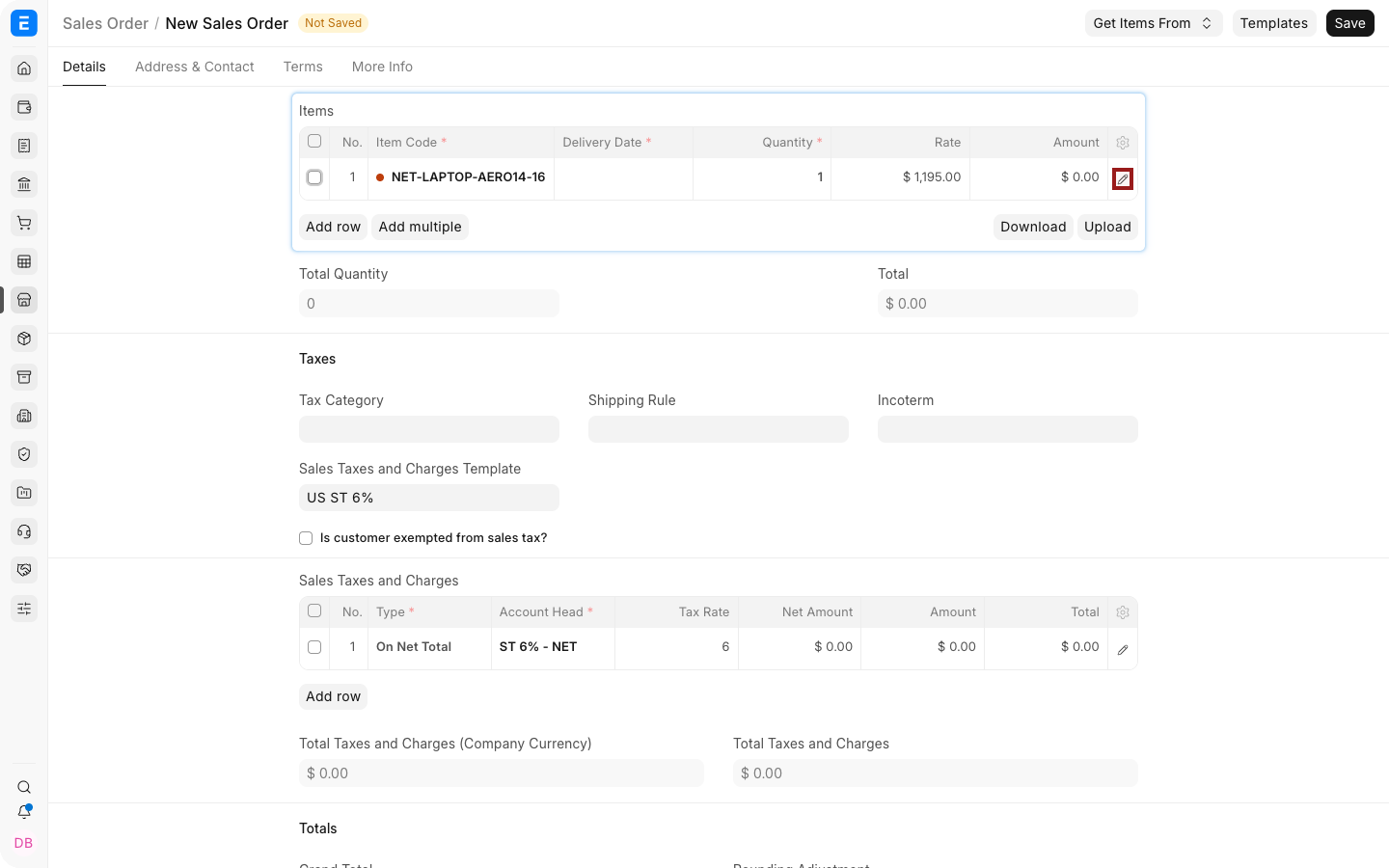
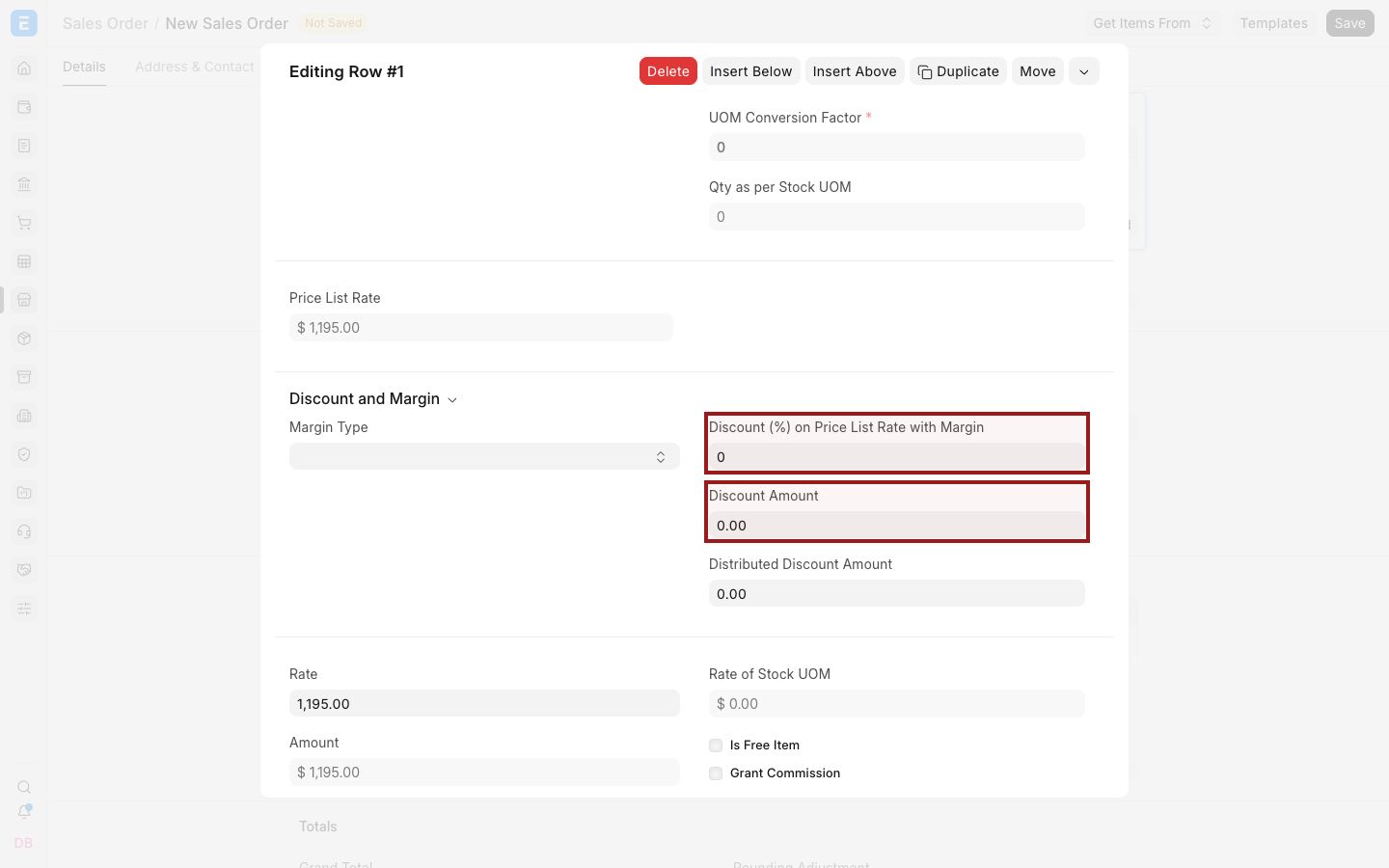
Item-level discounts are calculated against the Price List Rate. Use them when different lines require different discounts.
Apply an additional discount to the transaction
- Open the Additional Discount section.
- Set Apply Additional Discount On to Net Total or Grand Total.
- Enter an Additional Discount Percentage or Additional Discount Amount .
- Review taxes, Net Total, Grand Total, and rounding before submission.
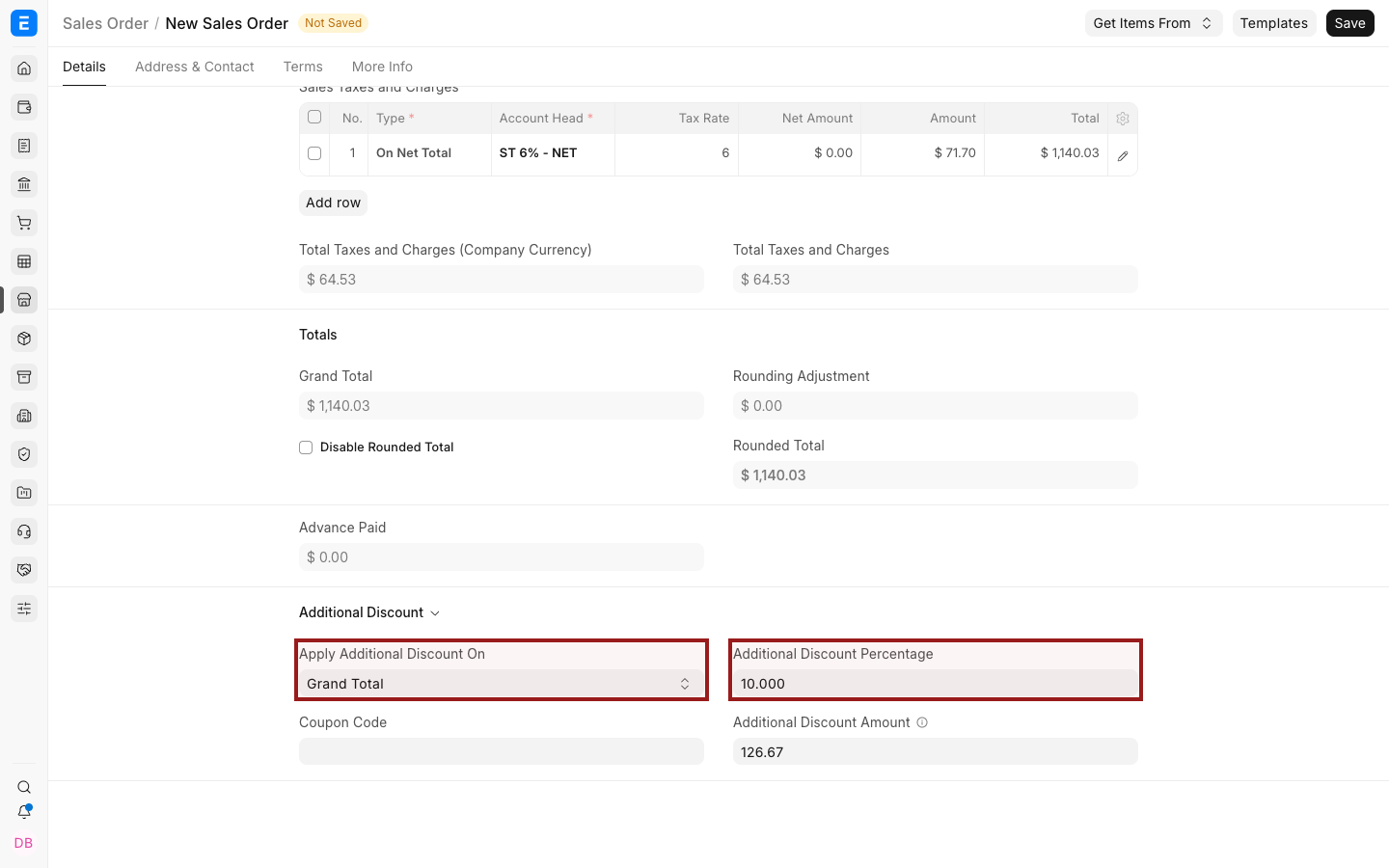
Discount on Net Total
ERPNext distributes the discount across eligible item net values before calculating totals. This changes item Net Rate and Net Amount, which can also change taxes calculated on those values.
Discount on Grand Total
ERPNext applies the discount with reference to the total after taxes and charges. The system recalculates the relevant item and tax amounts so the document remains internally consistent.
Test the result with your actual tax templates. Inclusive taxes, charge types, rounding, and accounting configuration can affect the displayed breakdown.
Choose the right discount method
| Requirement | Recommended method |
|---|---|
| One item needs a one-time reduction | Item Discount (%) or Discount Amount |
| The complete transaction needs a one-time reduction | Additional Discount |
| A condition should apply automatically | Pricing Rule |
| Several quantity or amount slabs are required | Promotional Scheme |
| A website shopper enters a code | Coupon Code |
| A free item is offered | Product Discount Pricing Rule |
| A sales price needs a markup | Adding Margin |
Discount accounting
By default, a discount changes the net revenue represented by item lines. If your accounting policy requires discounts to be posted separately, review Enable Discount Accounting for Selling in Selling Settings and configure the required accounts.
Confirm the resulting General Ledger entries in a test transaction before adopting the setting. Do not assume that a visual discount field always posts to a separate discount account.
Troubleshooting
| Problem | What to check |
|---|---|
| Discount fields are unavailable | Open the child-row editor and confirm user permissions |
| A manual value is replaced | Review Pricing Rules and re-fetch behavior |
| The final total is unexpected | Check whether the discount applies on Net Total or Grand Total, then review taxes and rounding |
| The document is discounted twice | Look for an automatic Pricing Rule plus a manual item or additional discount |
| Ledger entries do not use a discount account | Review discount-accounting settings and account configuration |
Frequently asked questions
Can I apply both an item discount and an additional discount?
Yes. ERPNext applies both, so review the effective discount and approval policy carefully.
Can I enter a fixed discount instead of a percentage?
Yes. Item rows and the Additional Discount section support amount-based discounts where available.
Does a discount change the Price List Rate?
No. Price List Rate remains the reference rate. The transaction's Rate and Net Rate reflect the discount.
Can ERPNext apply discounts automatically?
Yes. Use Pricing Rules or Promotional Schemes for repeatable conditions.
