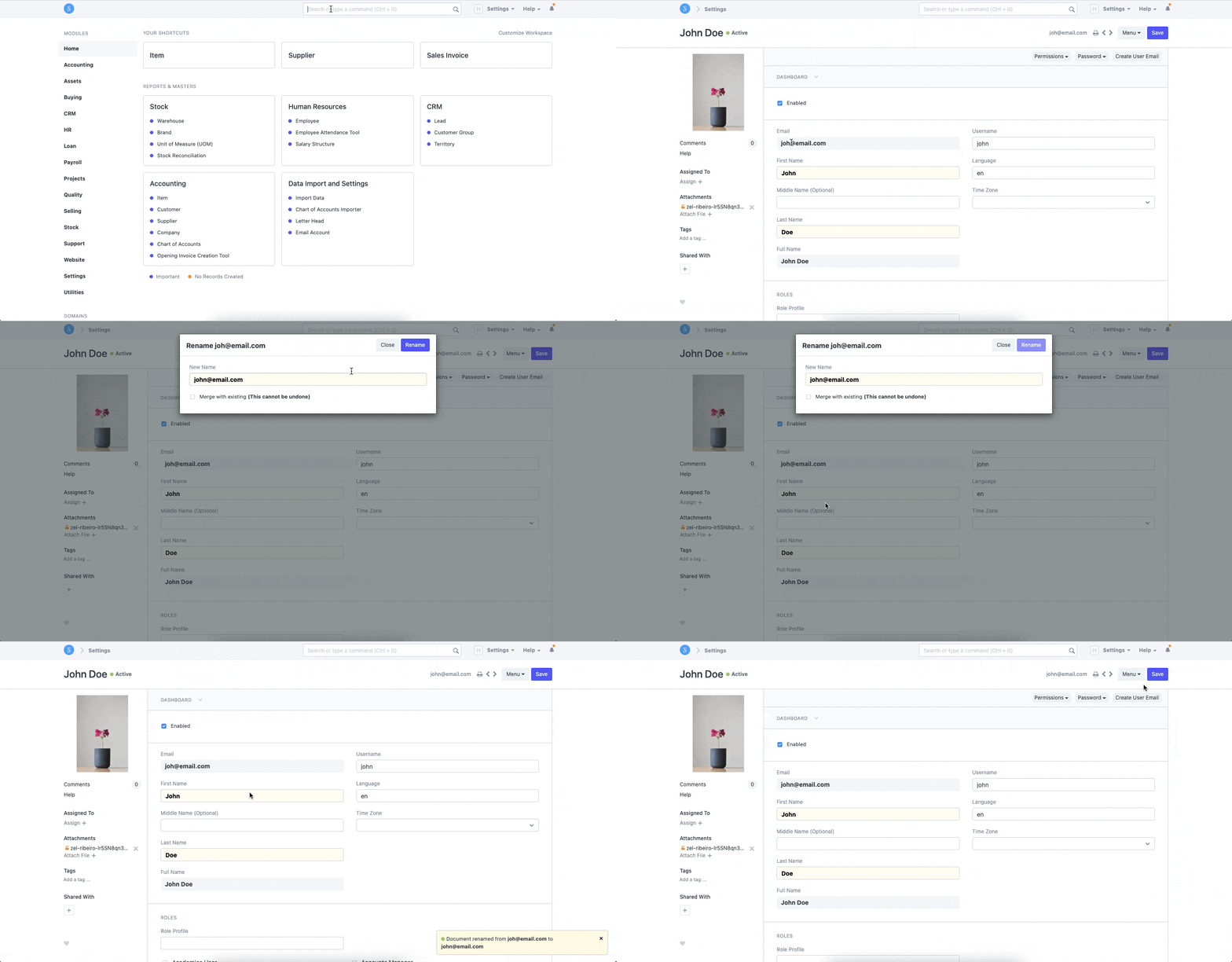
The User ID is created based on the email address. When a user is renamed, its value is updated in all existing records, including change logs. As a result, this is a resource-intensive action. If you encounter time-out issues while renaming a user, consider creating a new User ID using the updated email address and disabling the old user.
If you need to change a user's email address or username, use ERPNext's built-in Rename tool. This updates the user's unique ID across all linked records while preserving assignments, permissions, and historical data.
To change a User's Email Id, follow the steps:
User List -> Open the User > Click on Menu -> Rename > Enter the New Email Id . Save
Prerequisites
You must have Administrator privileges to rename a user.
Steps
- Go to Settings > Users and Permissions > User .
- Open the user you want to rename.
- Click Menu (⋮) in the top-right corner of the form.
- Select Rename .
- Enter the new email address or username.
- Click Save .
What Happens After Renaming?
ERPNext automatically updates all references to the user across the system. This ensures that:
- Existing document links remain intact.
- Assignments continue to work.
- User permissions are preserved.
- Historical records continue to reference the renamed user correctly.