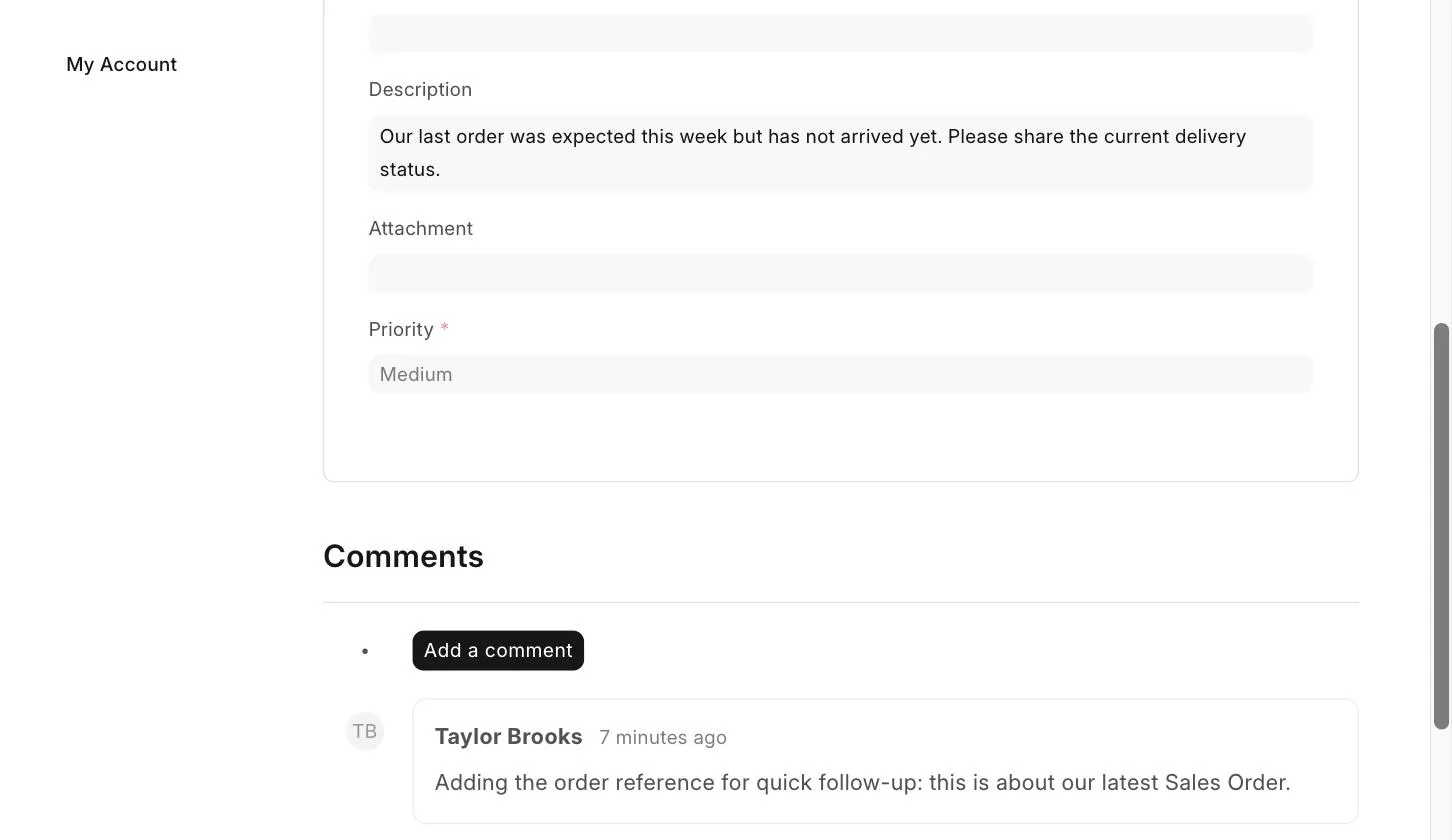
The Customer Portal gives your Customers easy access to their information in ERPNext.
Customers can log in to the portal to check the status of their Orders, Invoices and Shipments, and raise Issues and follow the conversation on them.
1. Giving Customers Access to the Portal
A Customer can access the portal using a Website User that is added to the Customer's Portal Users table.
1.1 Adding a Portal User to a Customer
- Create a Contact for the Customer, linked to the Customer, and set a Website User with the Customer role as the Contact's User Id .
- Open the Customer and go to the Portal Users tab.
- Add the user in the Customer Portal Users table and Save .
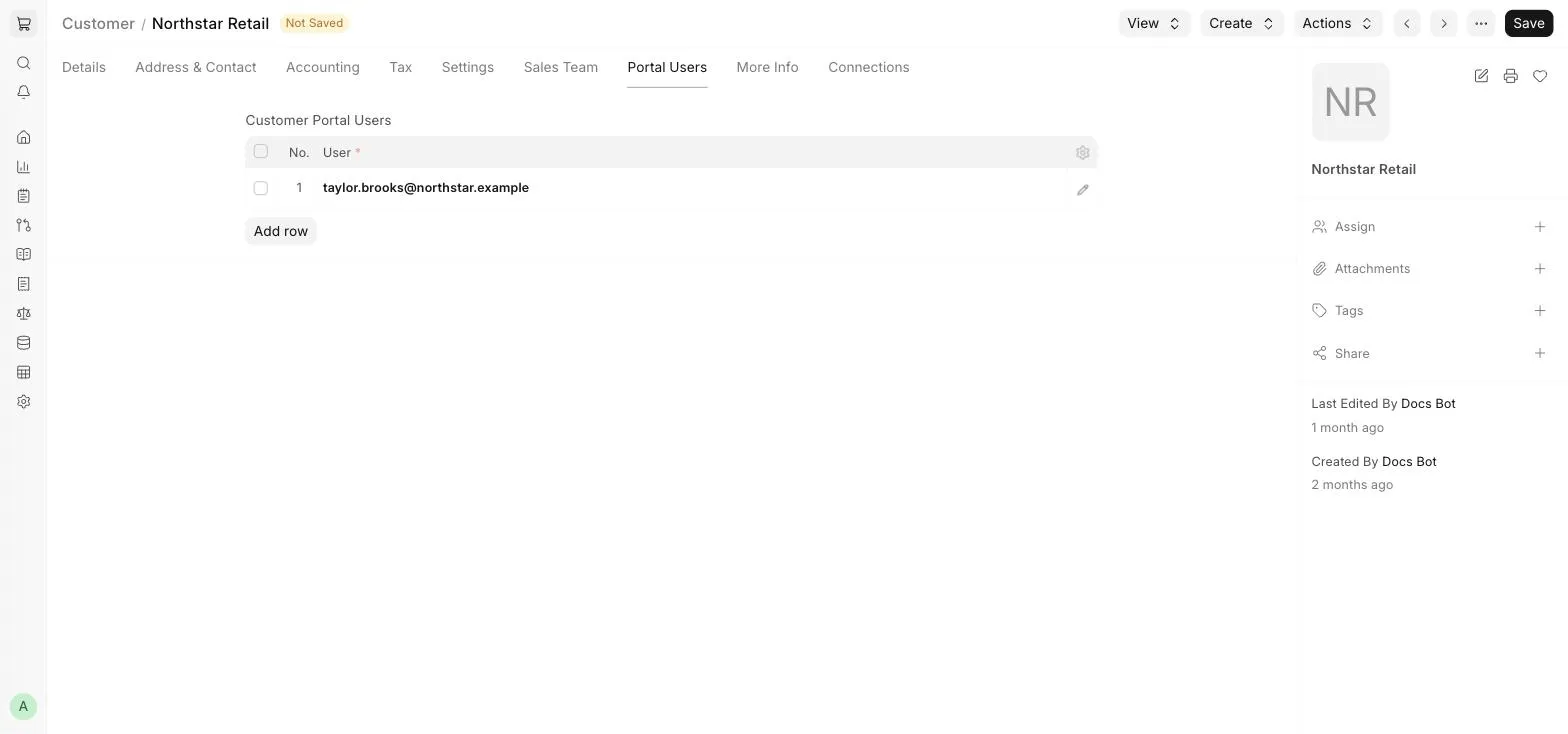
:::note The portal shows a Customer's Orders, Invoices and Shipments only to the users listed in the Customer's Portal Users table. :::
1.2 Signup
If signup is enabled in Website Settings (the Disable Signup checkbox is unticked), Customers can create their own account using the Sign up option on the Login page.
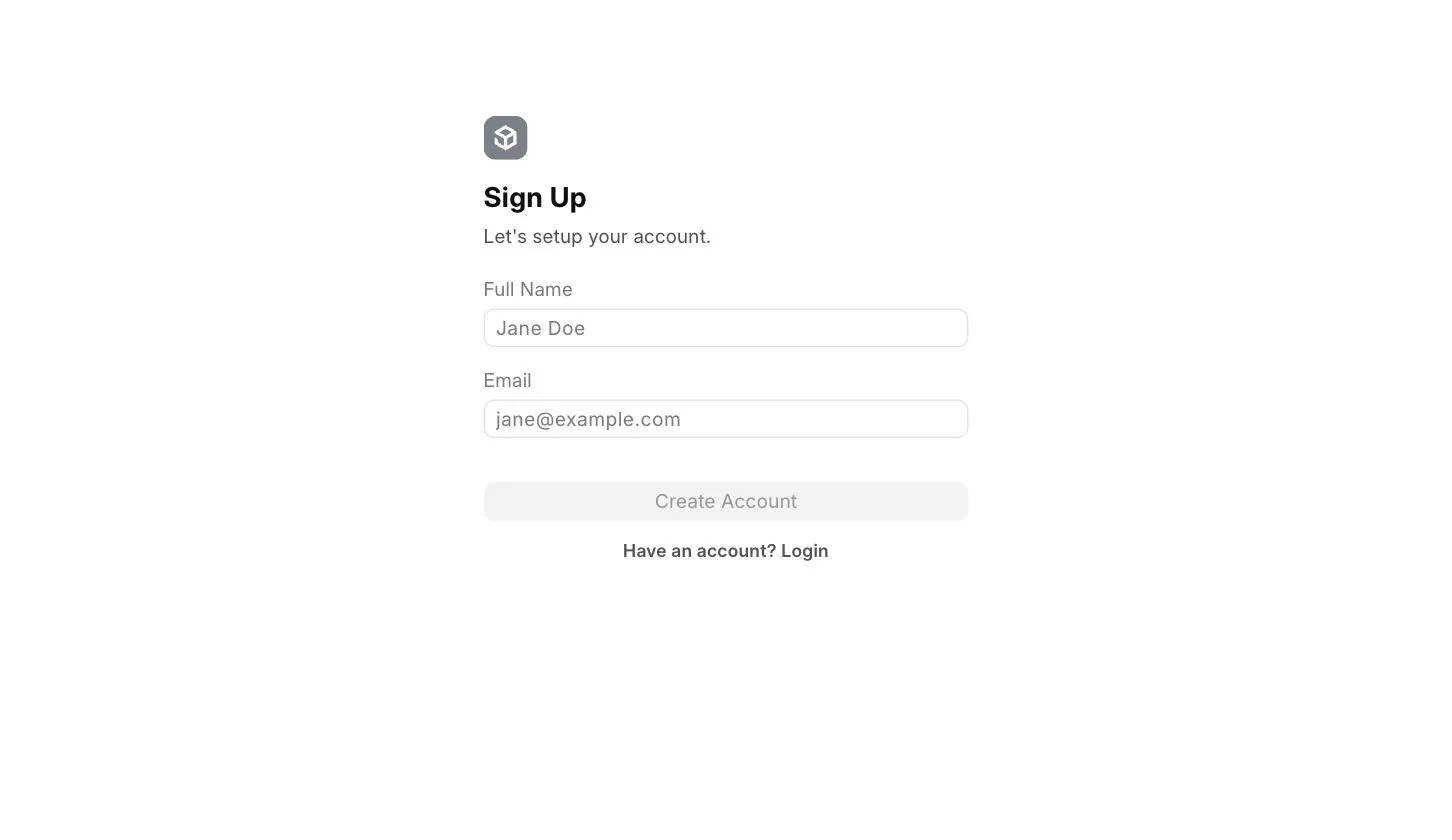
After signing up, an email is sent to the Customer's email address with a link to set their password. You can then add the new user to the Customer's Portal Users table.
2. Portal Login
To log in to the portal, the Customer uses their email address and password on the Login page. They can also use Login with Email Link to receive a login link on their email address.
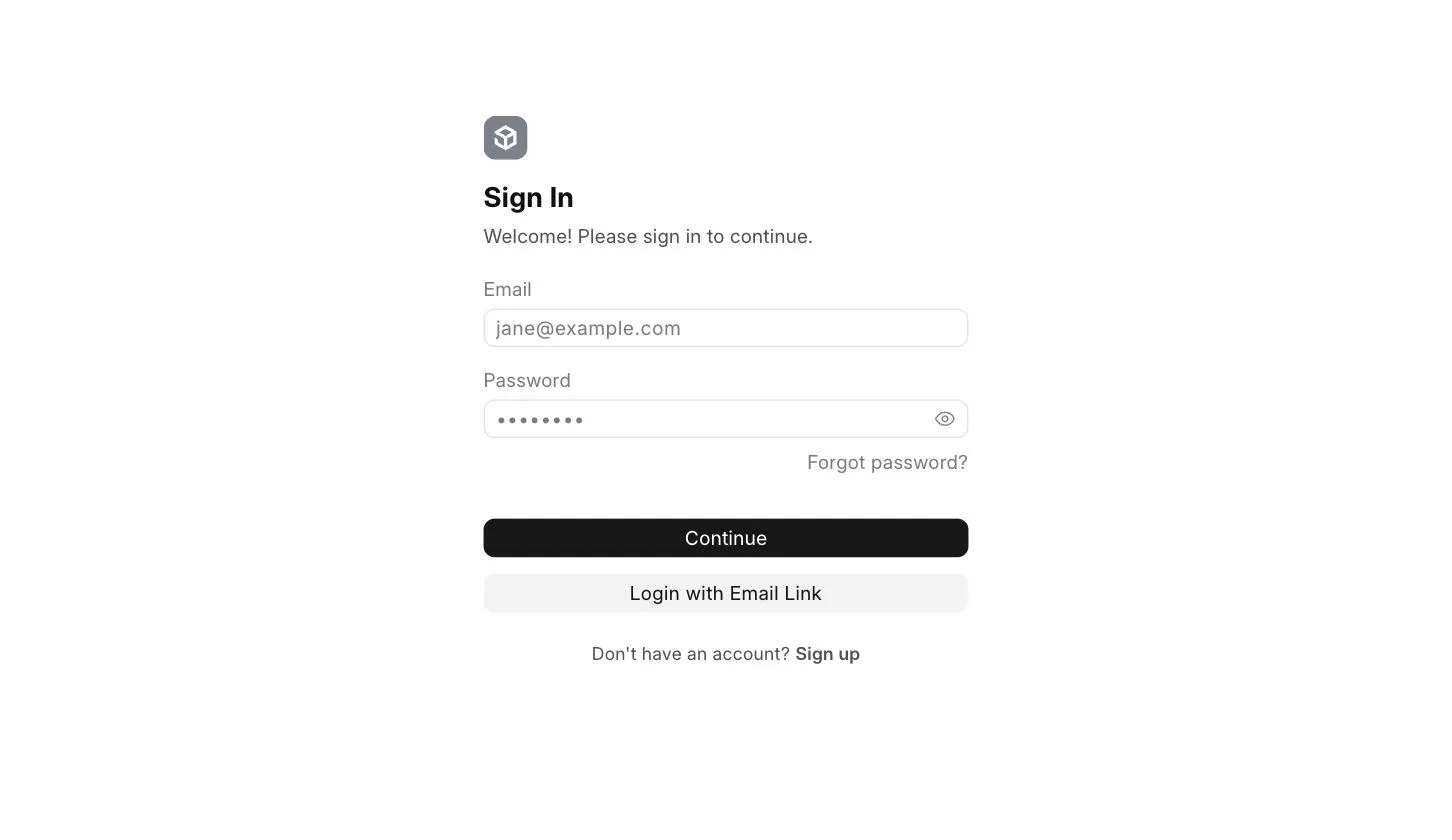
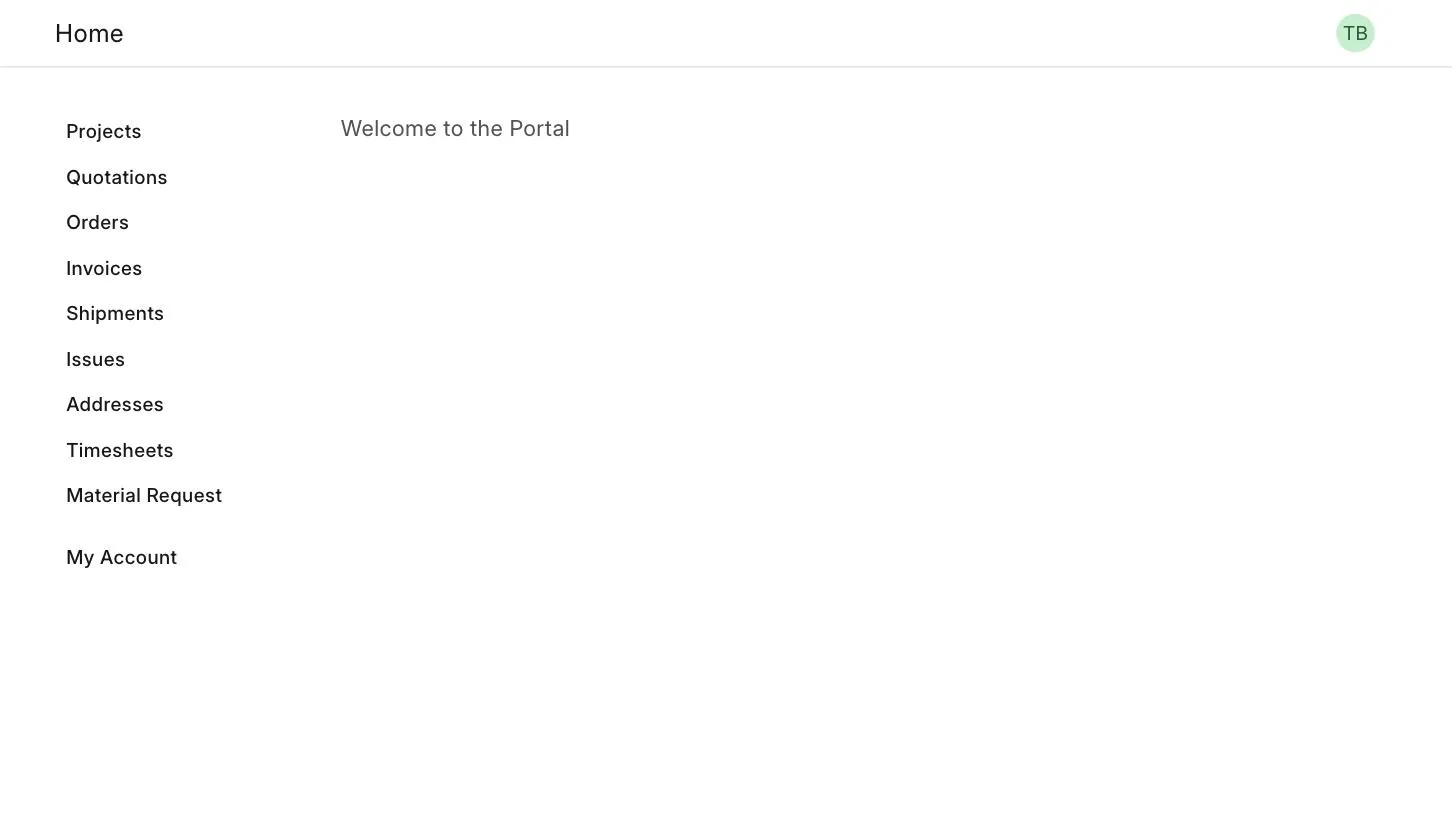
After logging in, the Customer lands on the portal home page. The menu on the left links to their Quotations, Orders, Invoices, Shipments, Issues, Addresses and more.
3. Orders, Invoices and Shipping Status
Once an order is created, either from the Shopping Cart or within ERPNext, the Customer can view the order on the portal and keep an eye on its billing and delivery status. When invoices and payments against these orders are submitted, the Customer can see the updated status on the portal at a glance.
3.1 Orders
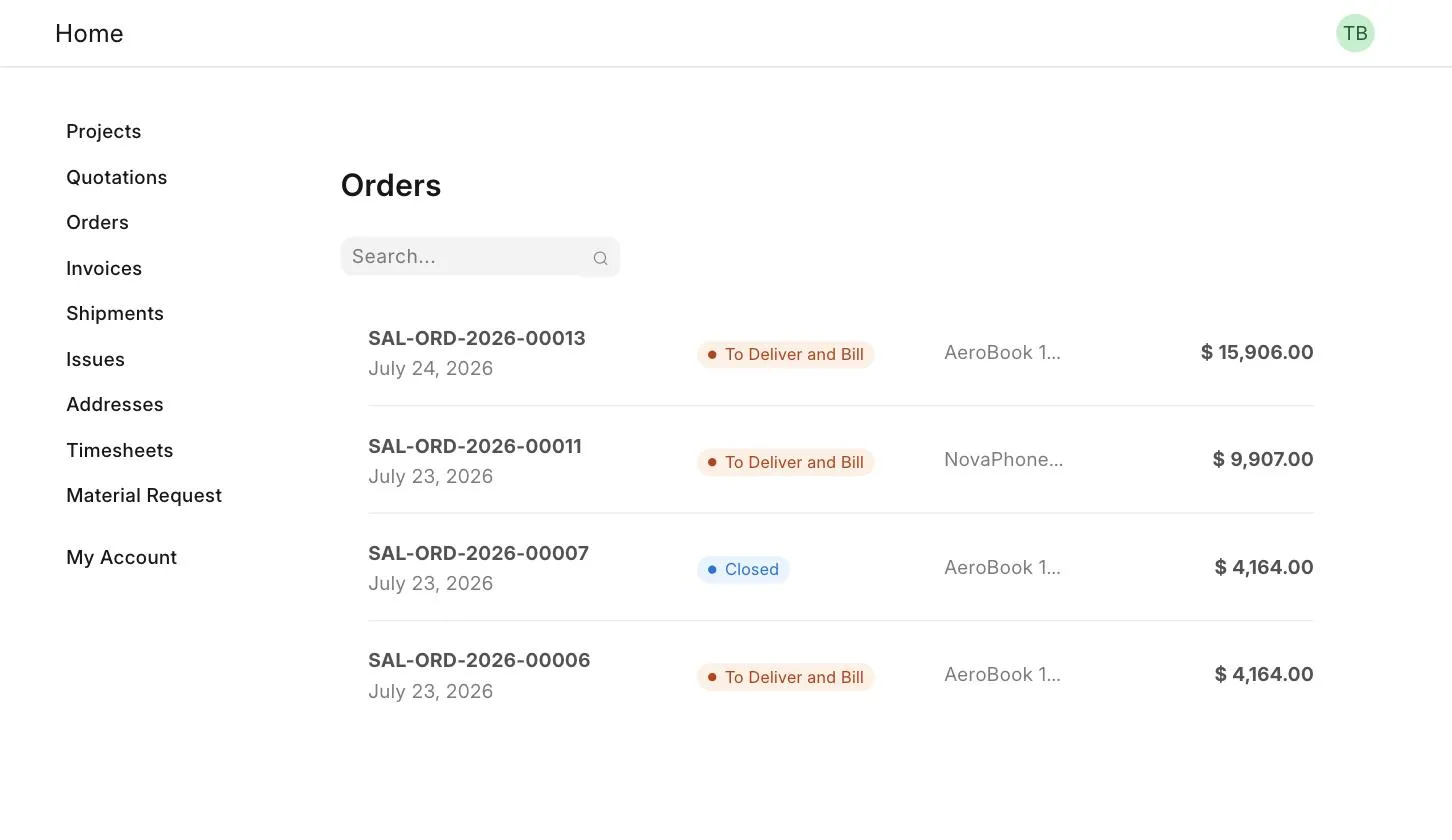
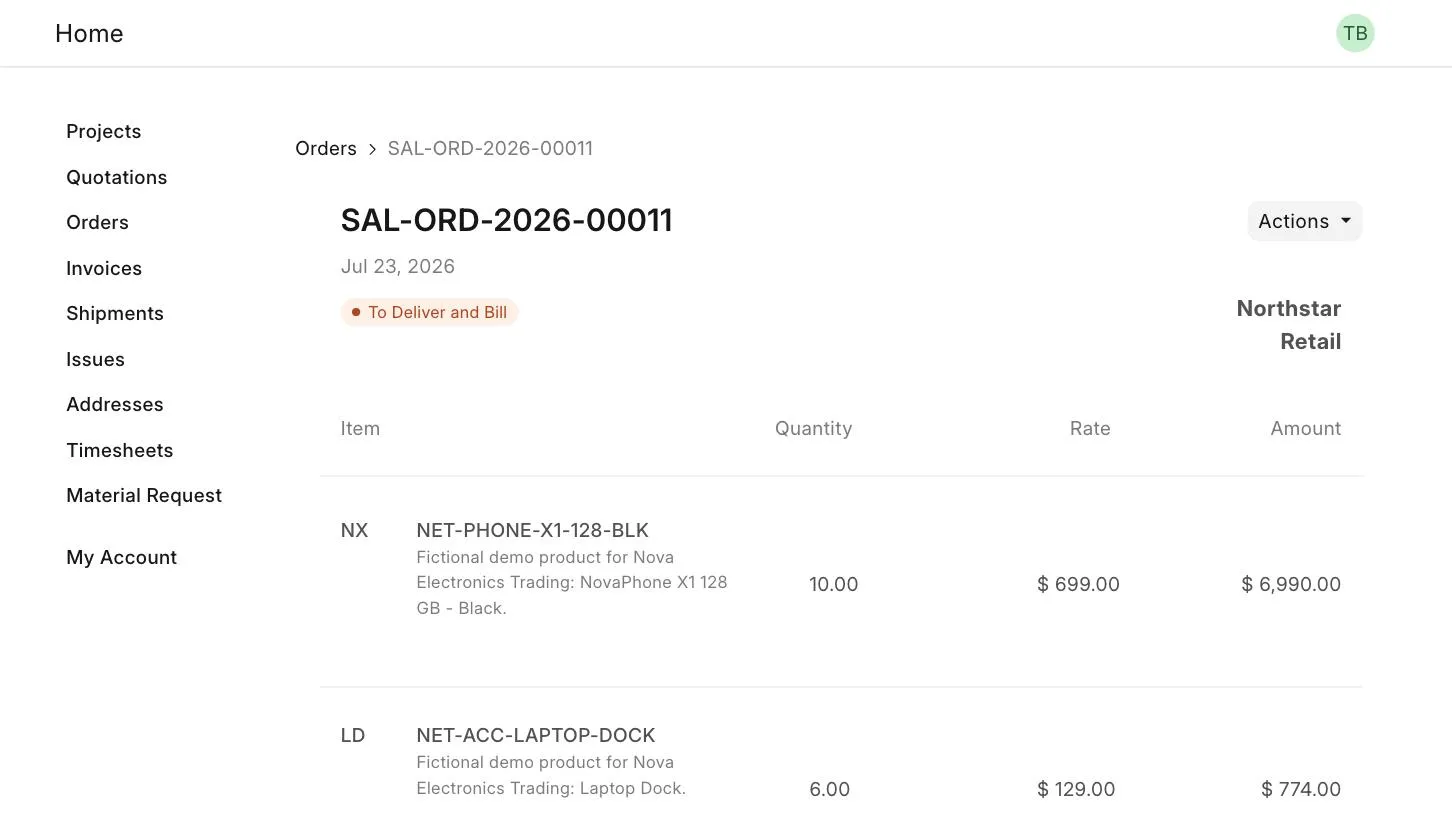
Click on an order to view its details.
3.2 Invoices
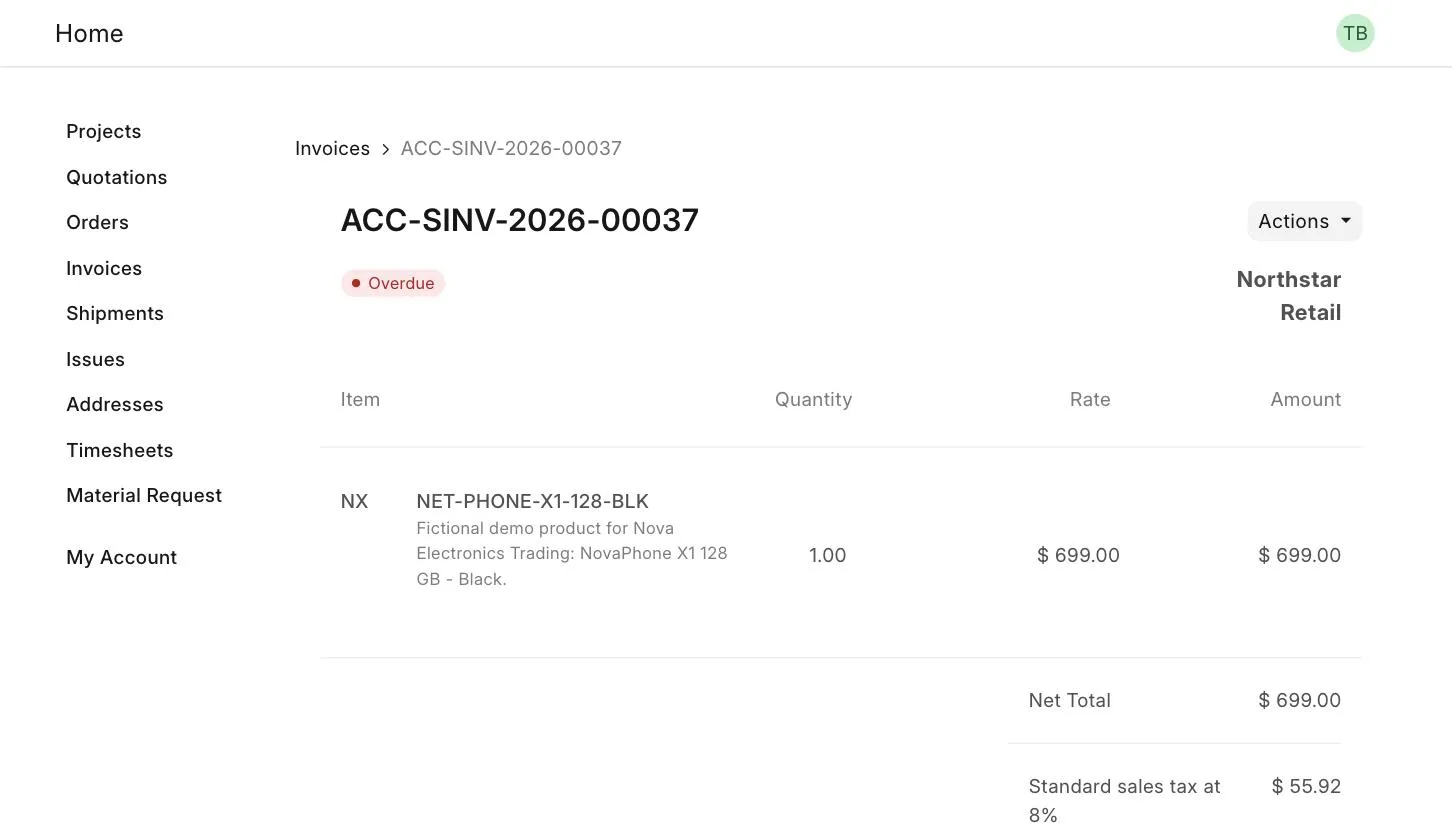
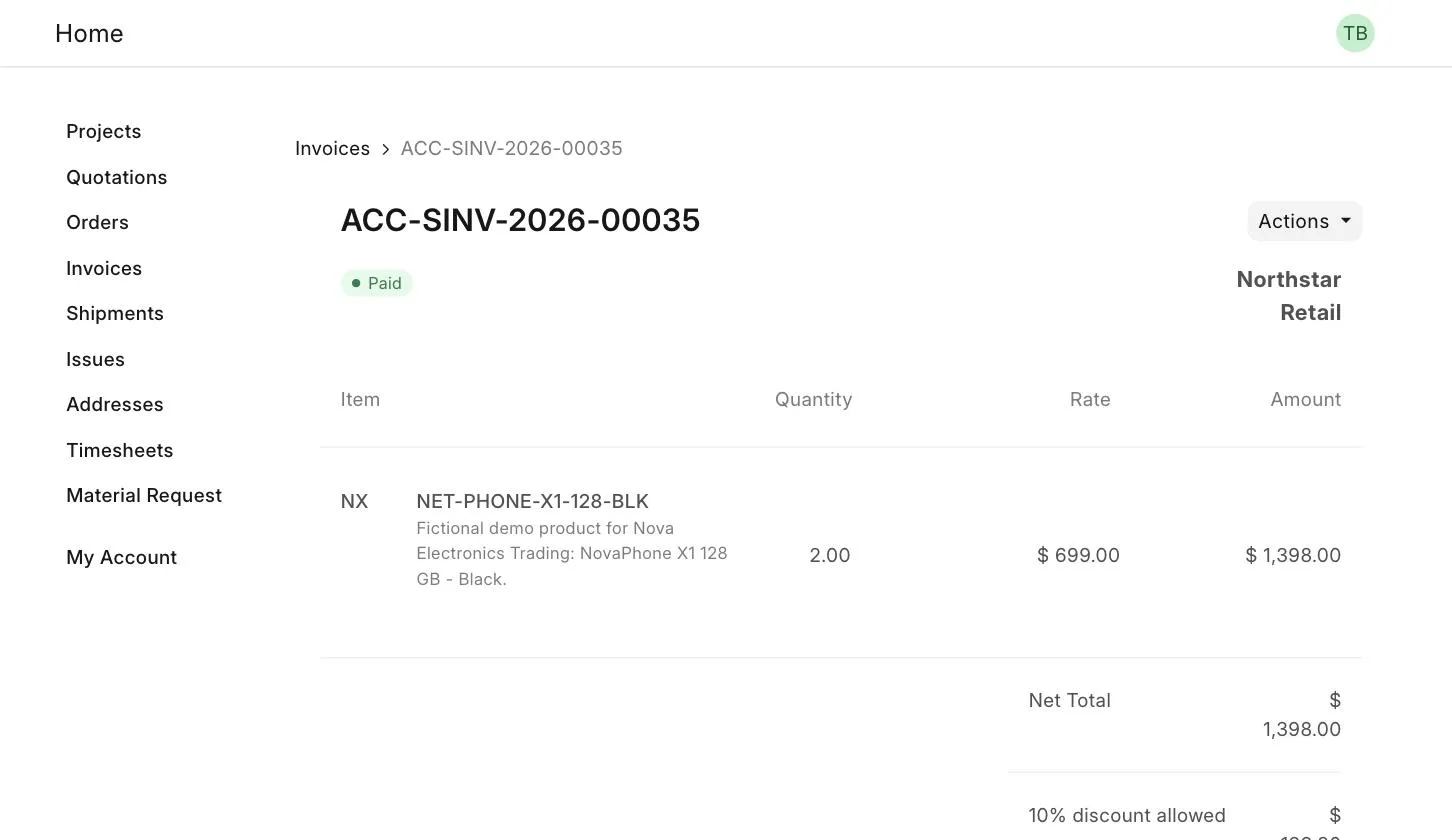
The Invoices list shows the status of each Sales Invoice, such as Overdue or Paid.
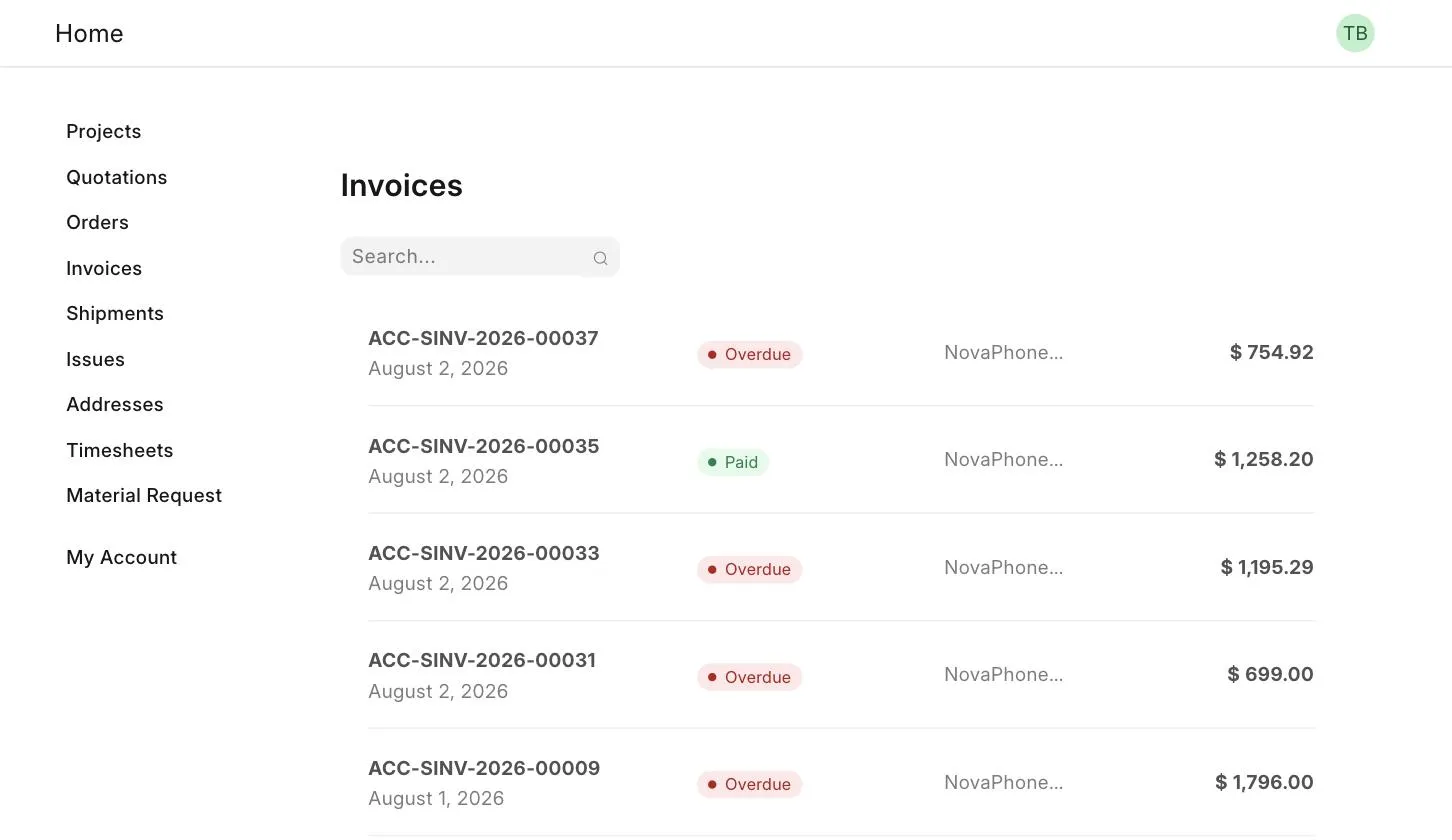
Outstanding Sales Invoice
Paid Sales Invoice
4. Issues
The Customer Portal makes it easy for a Customer to raise concerns. A simple interface lets them report their concerns as Issues and view the complete conversation on them.
- Go to Issues in the portal menu and click on New .
- Enter the Subject and Description of the issue, and click on Submit .
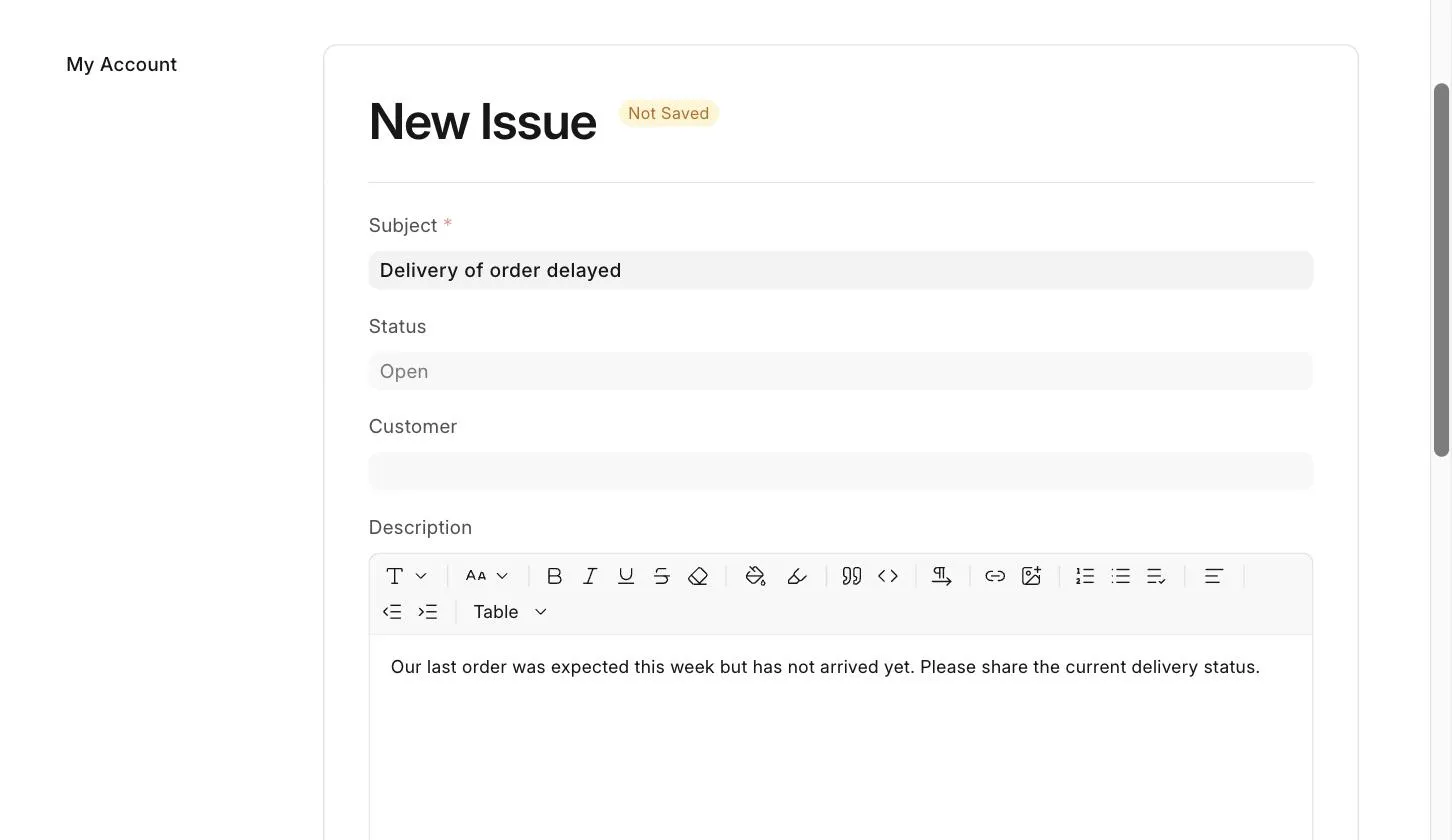
- The Issue is created in ERPNext and is listed in the Customer's Issue list.
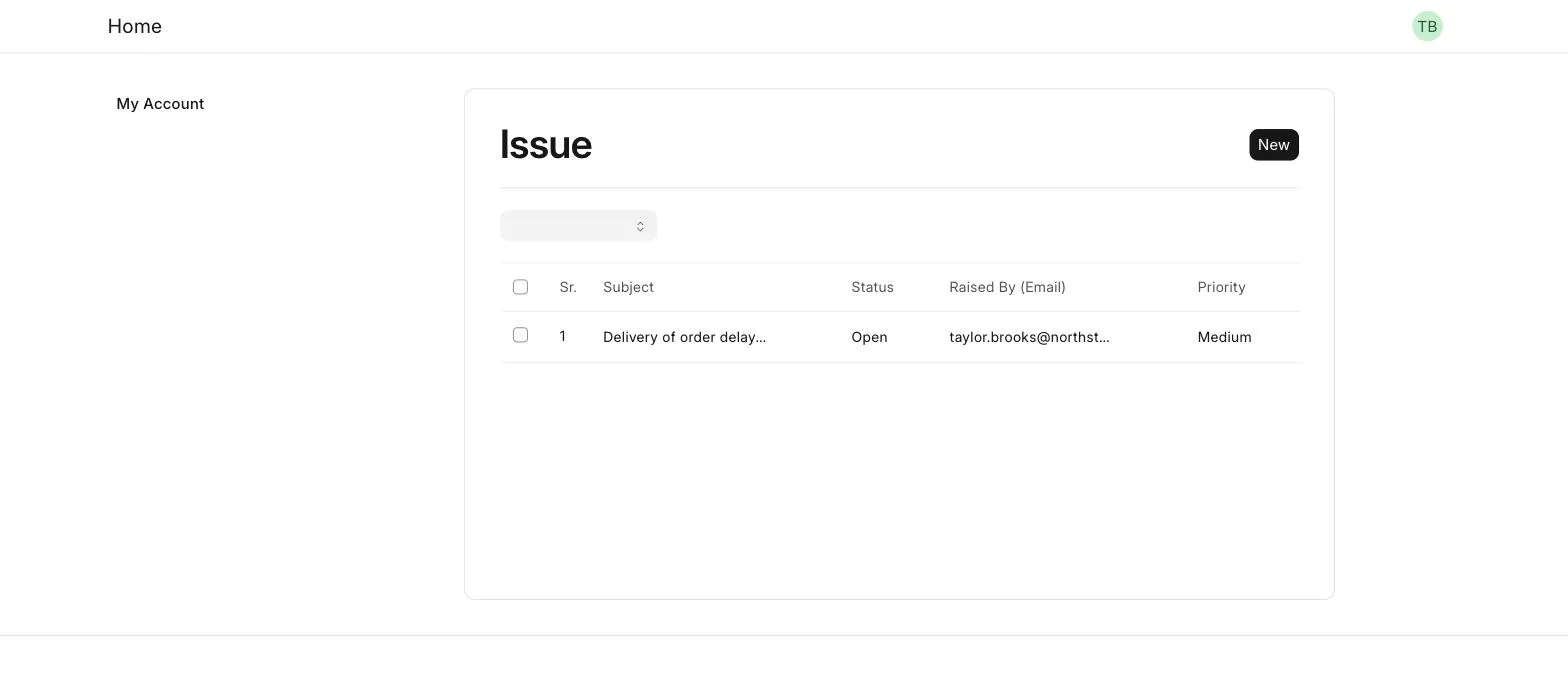
- Click on the Issue to view its details.
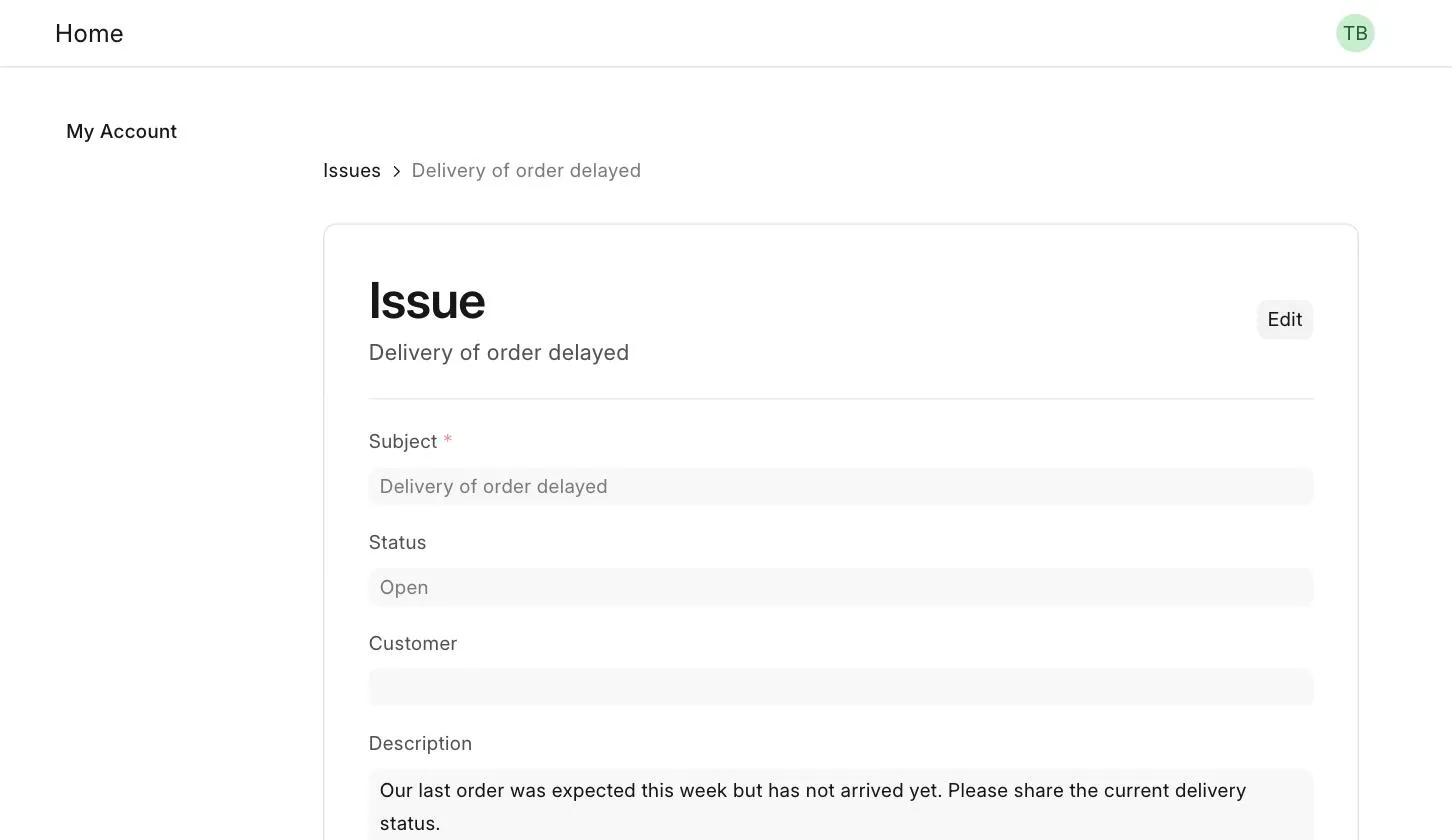
- The Customer can add a comment on the Issue from the Comments section, and see the complete conversation.