
ROOM64 / KNOWLEDGE / ERPNEXT

Deleting Custom Reports

ERPNext has several types of reports which can be customized as per the users' requirement.

อ่านต้นฉบับที่ ERPNext Official Docs ↗
เอกสารอ้างอิงภาษาอังกฤษเนื้อหาจากเอกสาร ERPNext คงรายละเอียดและโค้ดตามต้นฉบับ · ต้นฉบับอัปเดต 2026-03-04 ชื่อเมนูและ DocType ที่ใช้ได้ขึ้นอยู่กับเวอร์ชันและรุ่นที่ทีมใช้งาน

Projects · โครงการและงานบริการ · Deleting Custom Reports

สารบัญในหน้านี้

ERPNext has several types of reports which can be customized as per the users' requirement.

If there is a custom report which needs to be deleted, it can be achieved by following steps. Please note that its applicable only for the Custom Reports, and not for the standard reports.

Step 1: Go to Report List

In the Awesome Bar, type and select "Report List" for an option.
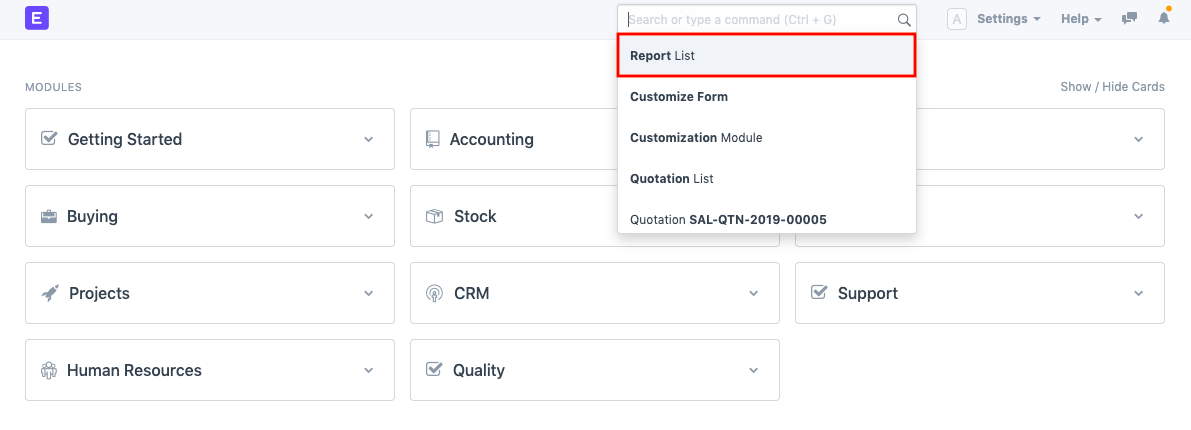
Report Search

Step 2: Delete the Report from the List

The Report List will have all the standard and custom reports of your account. You can select Custom Report to be deleted from the list itself, and click on Delete icon in the Actions Menu.
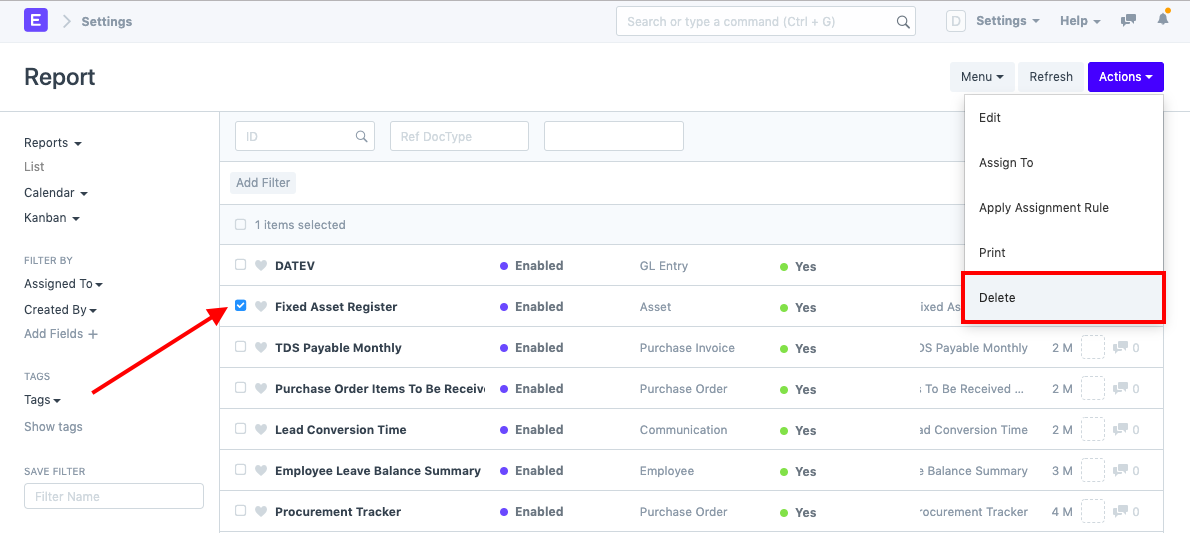
Report List

Or you can open that report, and delete it from File menu.
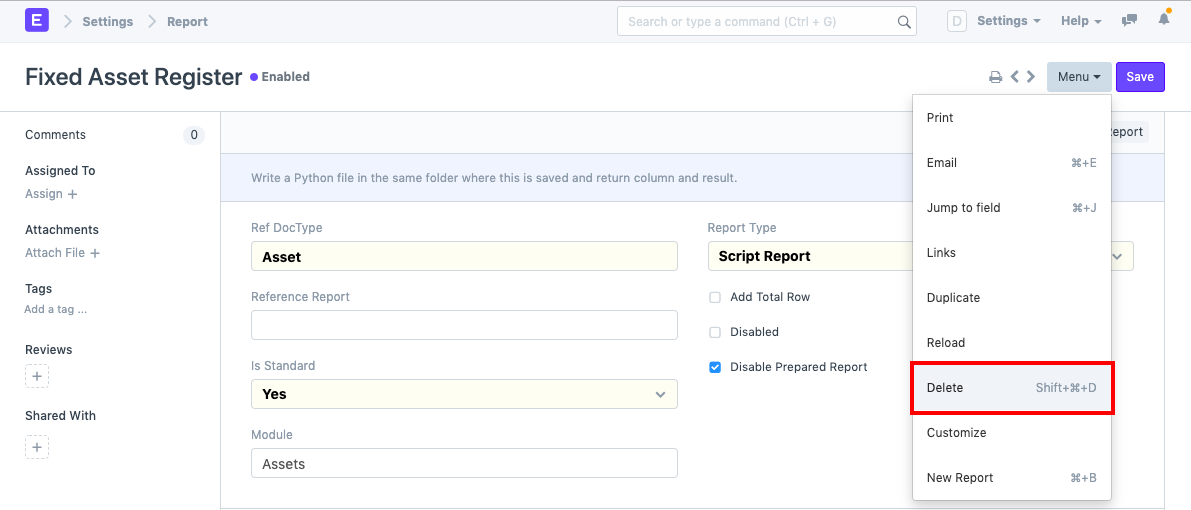
Report Delete

เนื้อหาเอกสารอ้างอิงและภาพประกอบมาจาก ERPNext / Frappe Official Docs · บทความแนะนำภาษาไทยเรียบเรียงโดย Room64 · เว็บไซต์นี้เป็นคู่มือประกอบการใช้งานโดย Room64 · เอกสารทางการ ↗

มีงานที่อยากให้ Software, AI หรือ Automation ช่วยอยู่ไหม?

เล่า workflow หรือปัญหาที่ทีมกำลังเจอ เราช่วยดูได้ว่าควรใช้ระบบสำเร็จรูป เชื่อมเครื่องมือเดิม หรือพัฒนาเพิ่มเฉพาะส่วนไหน

คุยกับเราทาง LINEhello@room64.net
