
To edit a submitted document, you need to cancel it first. Following are steps to edit submitted document. These steps assume you have the appropriate permissions for cancelling and editing a document.
Step 1: Cancel Submitted Document
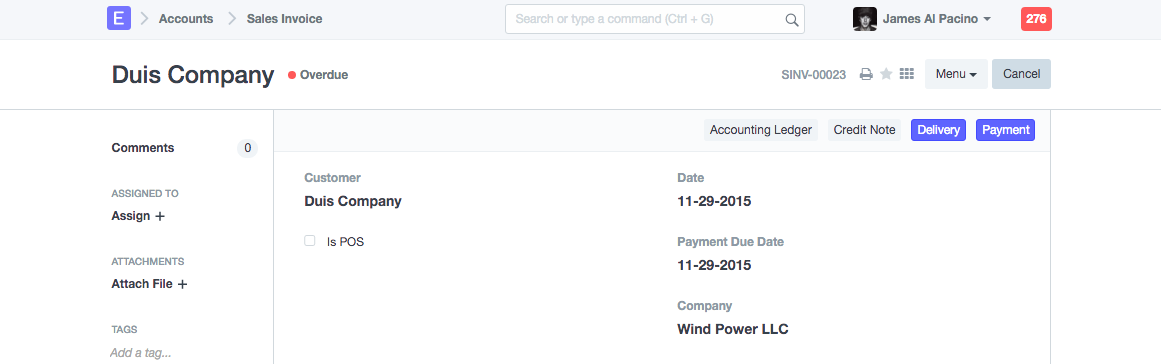
You will find Cancel button on upper right corner of submitted document.
Step 2: Amend the document
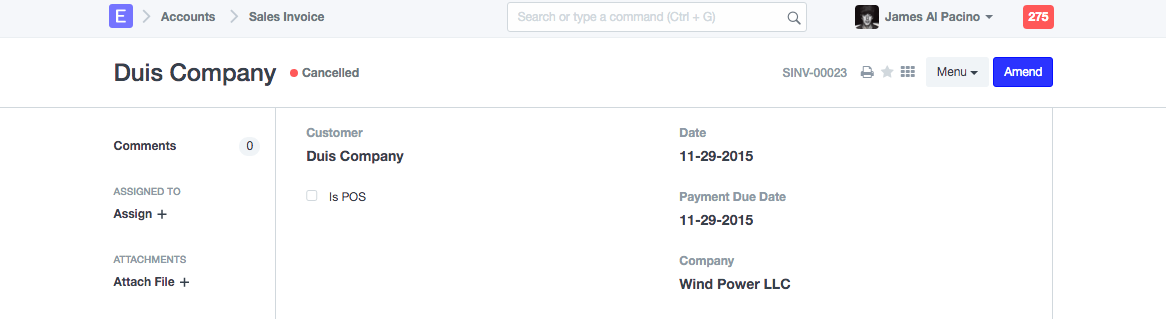
On cancellation of submitted document, Amend button will be became visible.
Step 3: Save and Submit the document
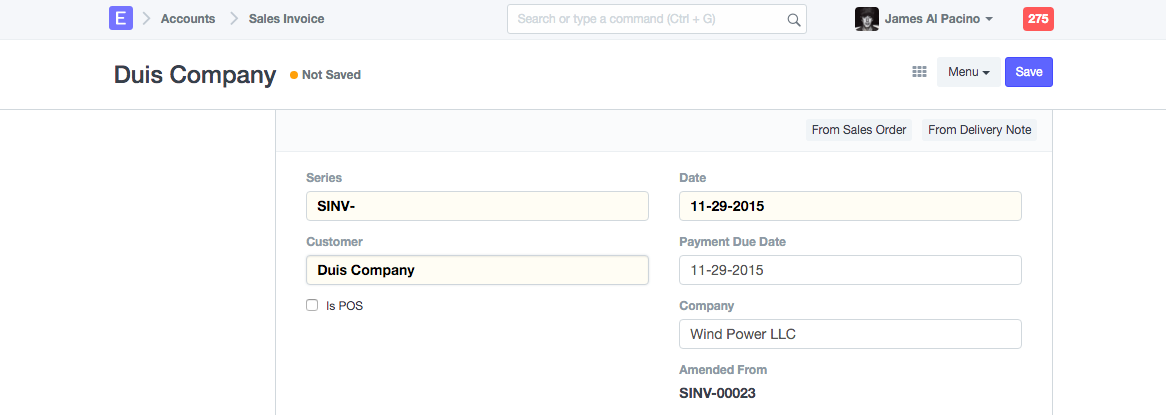
On clicking Amend button, same document will become editable again. After Making required changes, save and submit the document.
 Note: If your document is linked with other documents, then you will need to cancel the dependant document before cancelling the parrent document.
Example: If you have created Delivery Note and Sales Invoice against Sales Order, which you need to amend, then you should first Cancel Delivery Note and Sales Invoice made for that Sales Order. Then amend Sales Order, re-save and re-submit it.
