ROOM64 / KNOWLEDGE / ERPNEXT

Edit a Field after Submission

In ERPNext, once a document is submitted, you can only edit it through Cancel > Amend. However, you can still make certain fields (custom fields) editable after submission using th

อ่านต้นฉบับที่ ERPNext Official Docs ↗
เอกสารอ้างอิงภาษาอังกฤษเนื้อหาจากเอกสาร ERPNext คงรายละเอียดและโค้ดตามต้นฉบับ · ต้นฉบับอัปเดต 2026-03-04 ชื่อเมนูและ DocType ที่ใช้ได้ขึ้นอยู่กับเวอร์ชันและรุ่นที่ทีมใช้งาน

Projects · โครงการและงานบริการ · Edit a Field after Submission

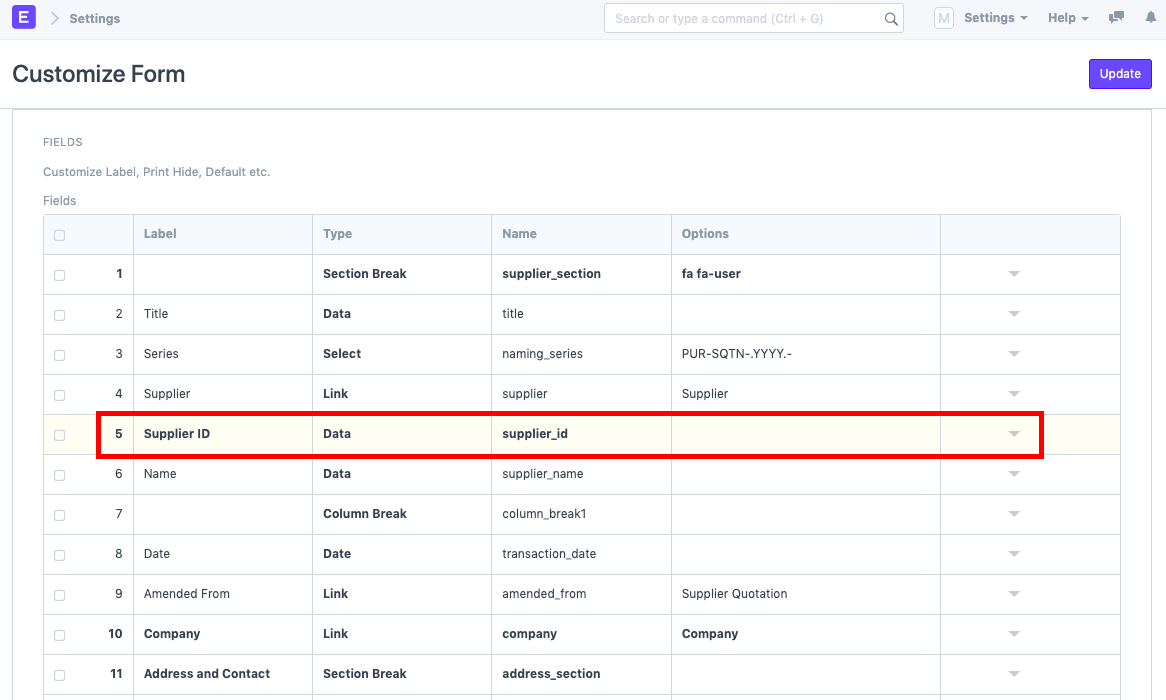
In ERPNext, once a document is submitted, you can only edit it through Cancel > Amend. However, you can still make certain fields (custom fields) editable after submission using the Allow on Submit feature. For example, we have created a custom field called "Supplier ID" in Supplier Quotation. To allow editing of this field after submission, follow the following steps:

  1. Go to Settings > Customize Form and select the Form Type (Supplier Quotation in this case).

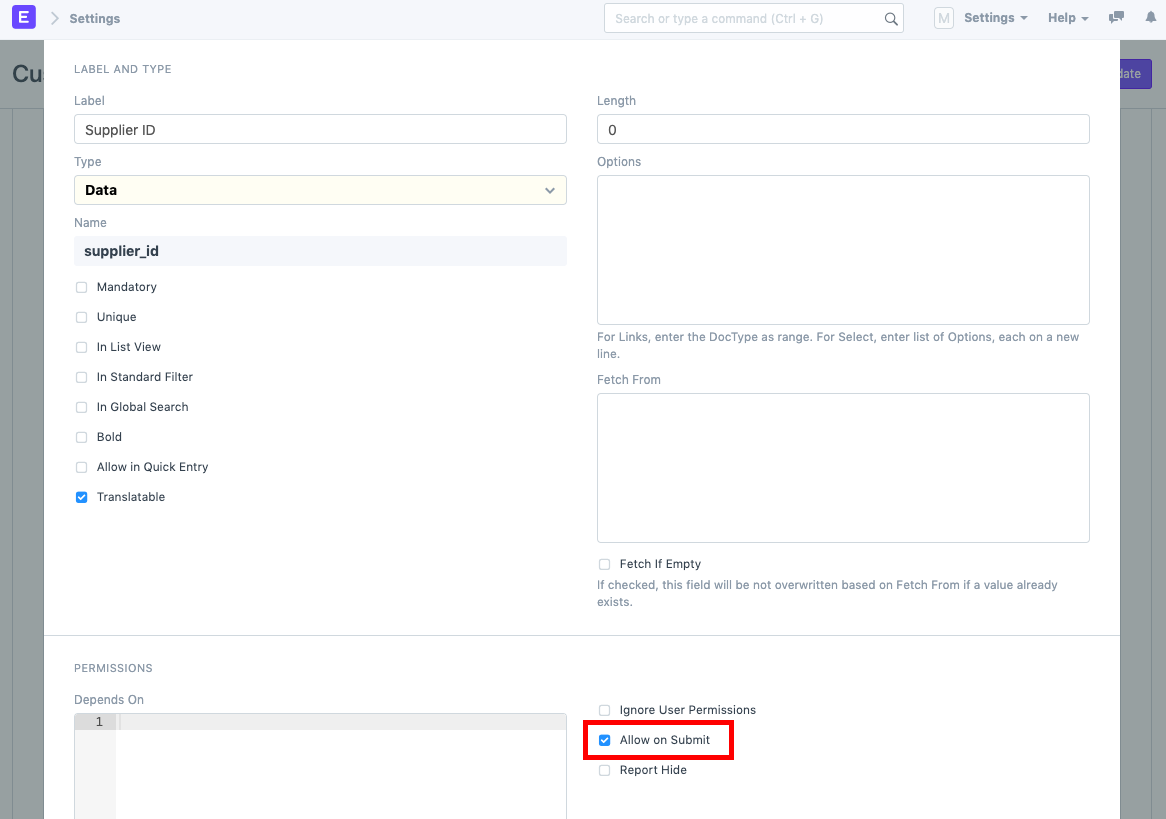
  2. Expand the field row and check the "Allow on Submit" checkbox.
    ภาพประกอบ Edit a Field after Submission จาก ERPNext
    ภาพประกอบ Edit a Field after Submission จาก ERPNext

  3. Click on Update.
    This setting will allow you to edit this field even after submitting the document without amending it.
    Note: The Allow on Submit feature works only for non-standard fields (custom fields).

เนื้อหาเอกสารอ้างอิงและภาพประกอบมาจาก ERPNext / Frappe Official Docs · บทความแนะนำภาษาไทยเรียบเรียงโดย Room64 · เว็บไซต์นี้เป็นคู่มือประกอบการใช้งานโดย Room64 · เอกสารทางการ ↗

มีงานที่อยากให้ Software, AI หรือ Automation ช่วยอยู่ไหม?

เล่า workflow หรือปัญหาที่ทีมกำลังเจอ เราช่วยดูได้ว่าควรใช้ระบบสำเร็จรูป เชื่อมเครื่องมือเดิม หรือพัฒนาเพิ่มเฉพาะส่วนไหน

คุยกับเราทาง LINEhello@room64.net