
This integration allows you to integrate Exotel into your ERPNext account. Leads and their phone numbers captured via Exotel can be saved directly to your ERPNext.
1. Features
- Track incoming calls in your ERPNext account.
- Shows existing lead/customer information pop-up to employees when an incoming call is received.
2. How to setup
2.1 Setup your Exotel account
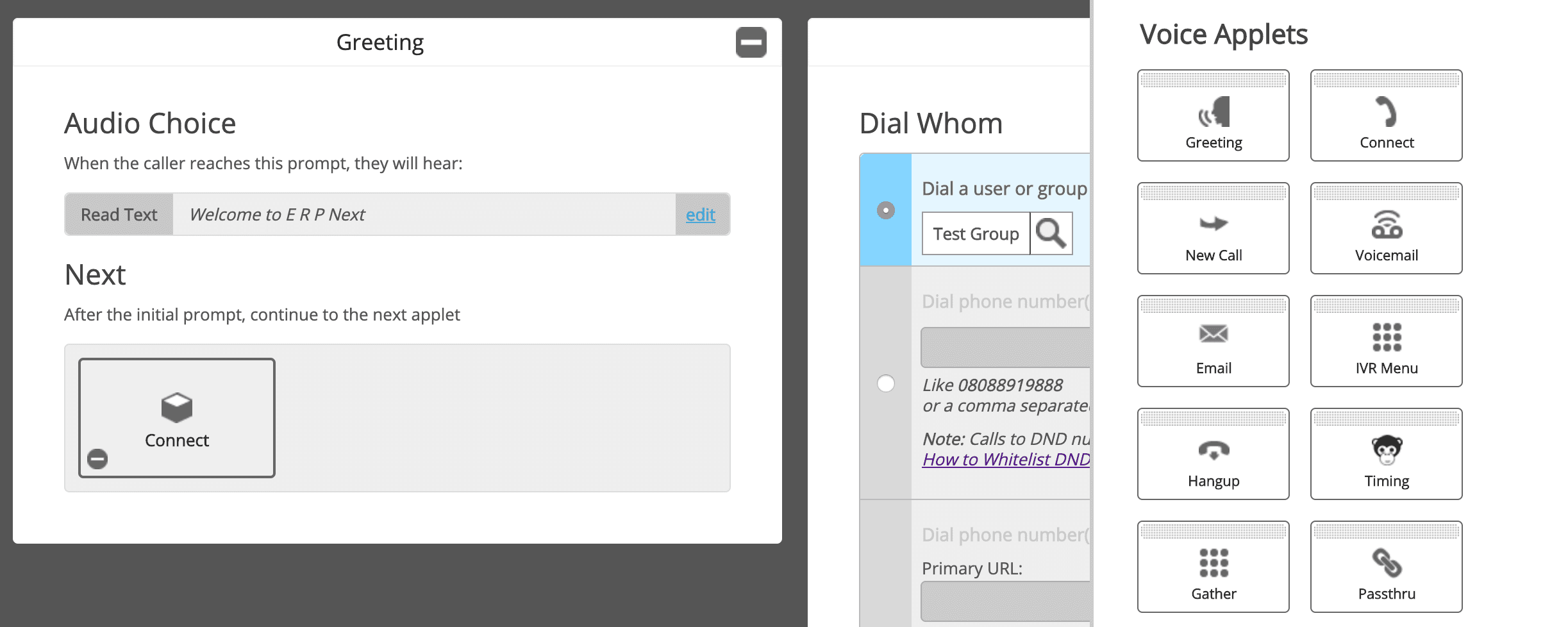
- Login to your Exotel account and go to App Bazar.
- Create a new App for a new flow.
- Setup the flow as you wish it to be.
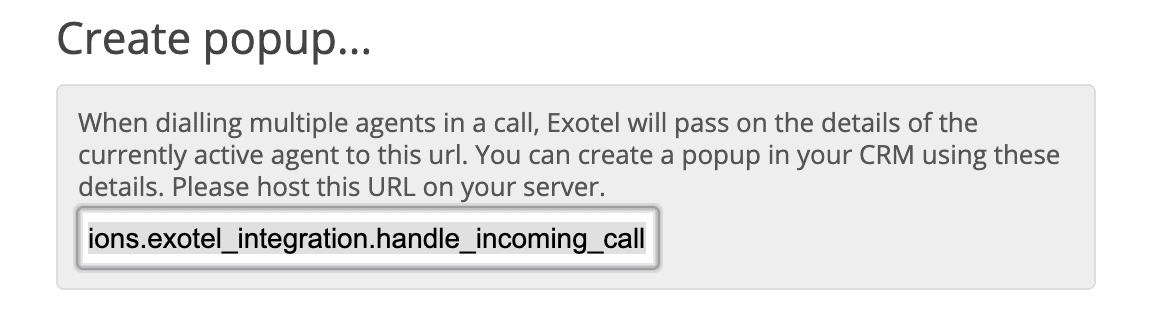
- In your connect API under "Create popup..." and paste following URL:
https://<your-site>/api/method/erpnext.erpnext_integrations.exotel_integration.handle_incoming_call
Note: Replace
<your-site>in URL with your site name. For example, if the site name is frappe.erpnext.com then the URL will be:https://frappe.erpnext.com/api/method/erpnext.erpnext_integrations.exotel_integration.handle_incoming_call
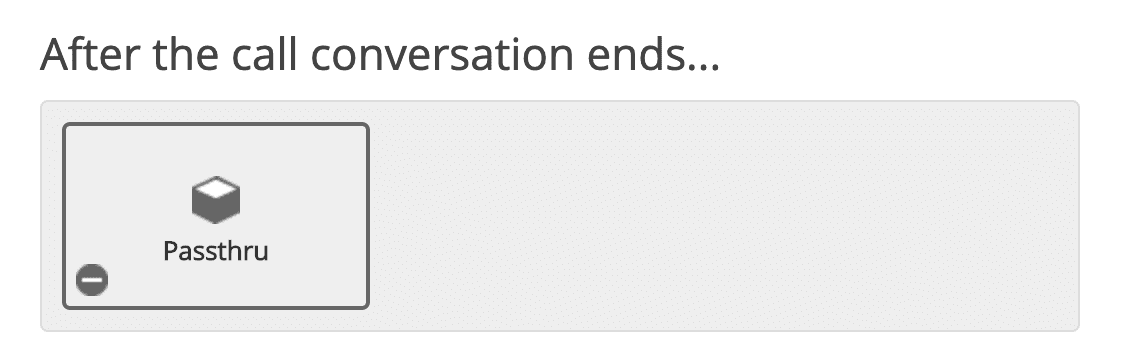
- After that add a Passthru applet under "After Call Conversation ends" and paste following URL:
https://<your-site>/api/method/erpnext.erpnext_integrations.exotel_integration.handle_end_call
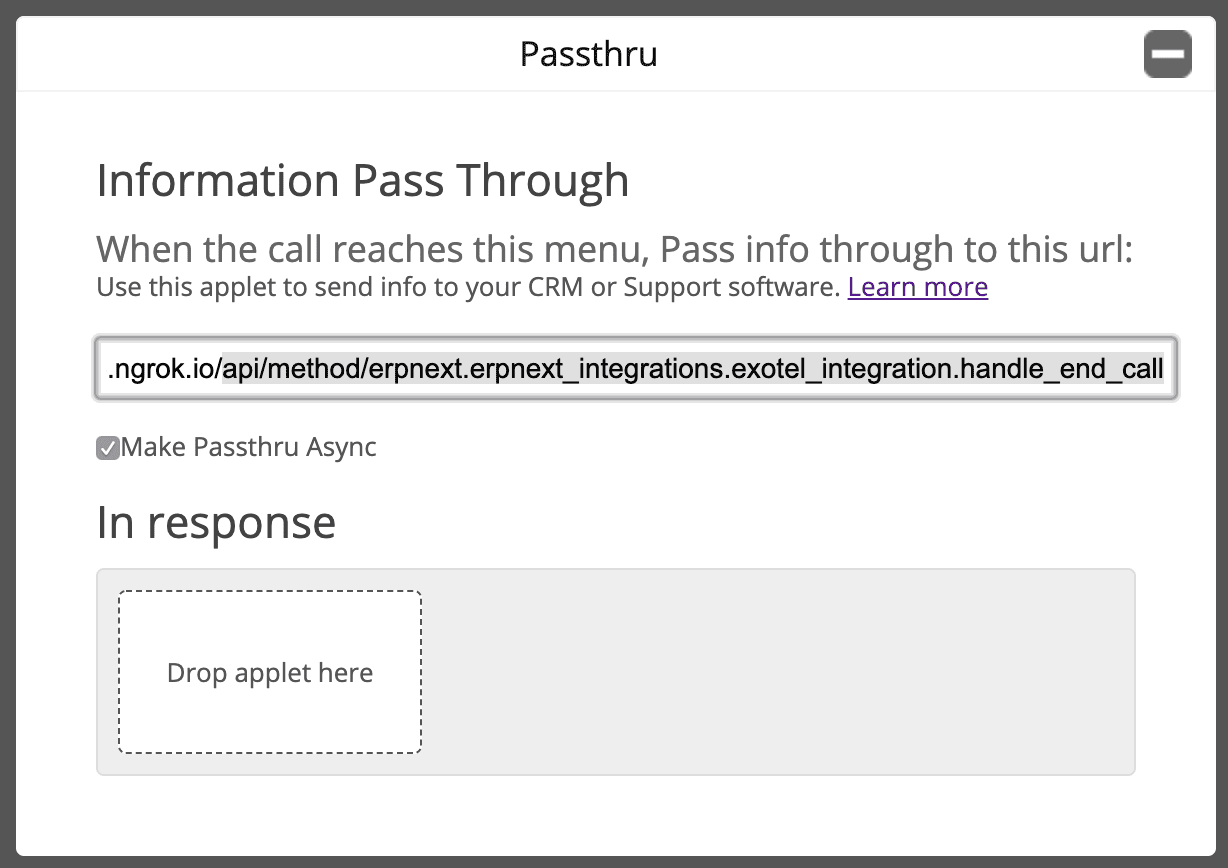
Note: Make sure to check "Make Passthru Async".
- Similary, add a Passthru applet under "If nobody answers..." section and paste following URL:
https://<your-site>/api/method/erpnext.erpnext_integrations.exotel_integration.handle_missed_call
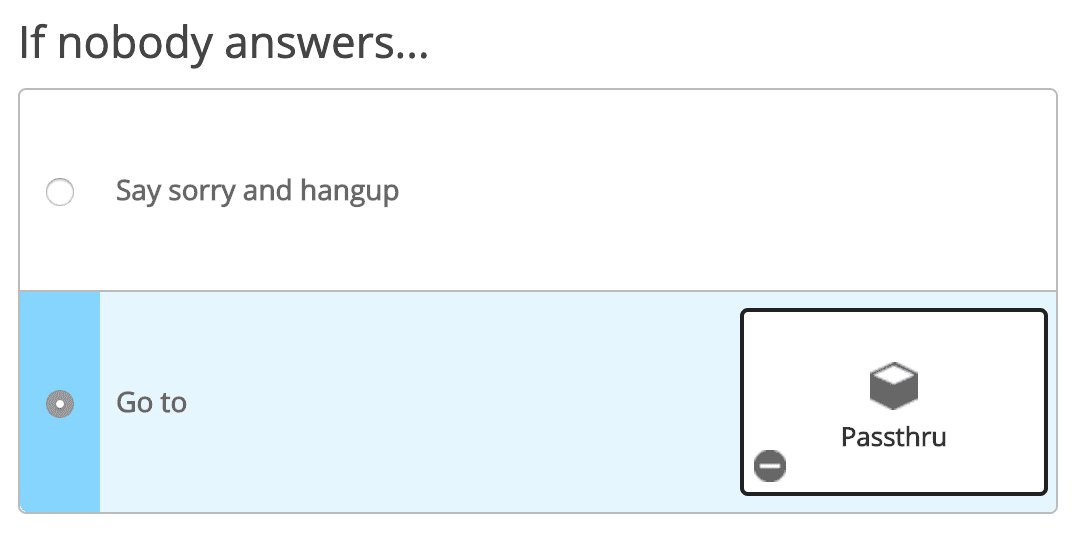
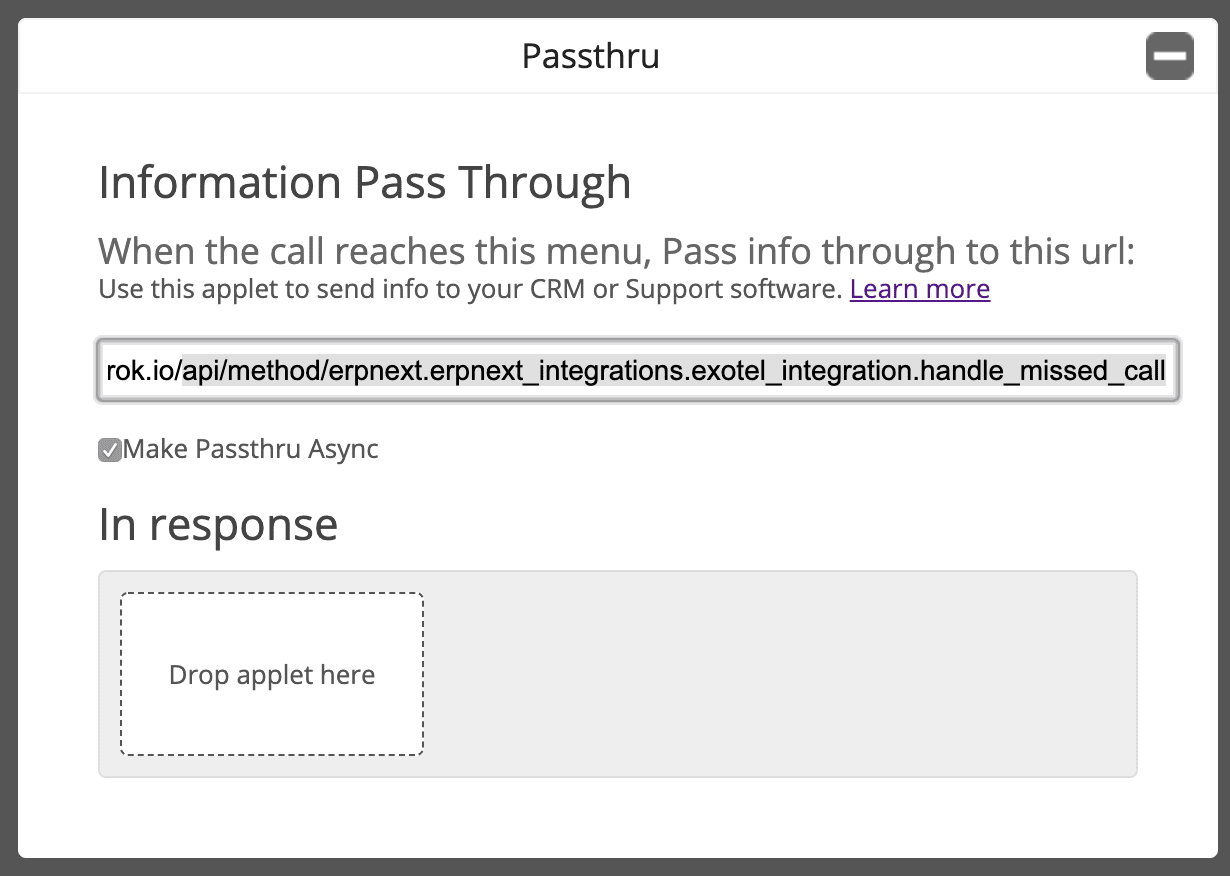
Note: Make sure to check "Make Passthru Async".
- Save the flow.
- Now assign this newly created app to your ExoPhone from which you receive your business calls.
2.2 Setup in ERPNext
- From Awesome Bar, go to 'Exotel Settings'.
- Set your "Exotel SID" and "Exotel Token". You can find your Exotel API key and token on your Exotel Dashboard .
- Go to Communication Medium.
- Add your ExoPhone and schedule that number. Based on this schedule employees will receive the popup.
