In the ERPNext version 11, we have a feature which allowed collecting a Feedback from a Customer and users. In ERPNext, this feature is now manageable using built-in customisation tools like:
- Custom DocType
- Web Form
- Notification
Following are the steps on how you should configure a feature and start collecting feedback.
Feedback as a DocType
Create a Custom DocType for Rating on these lines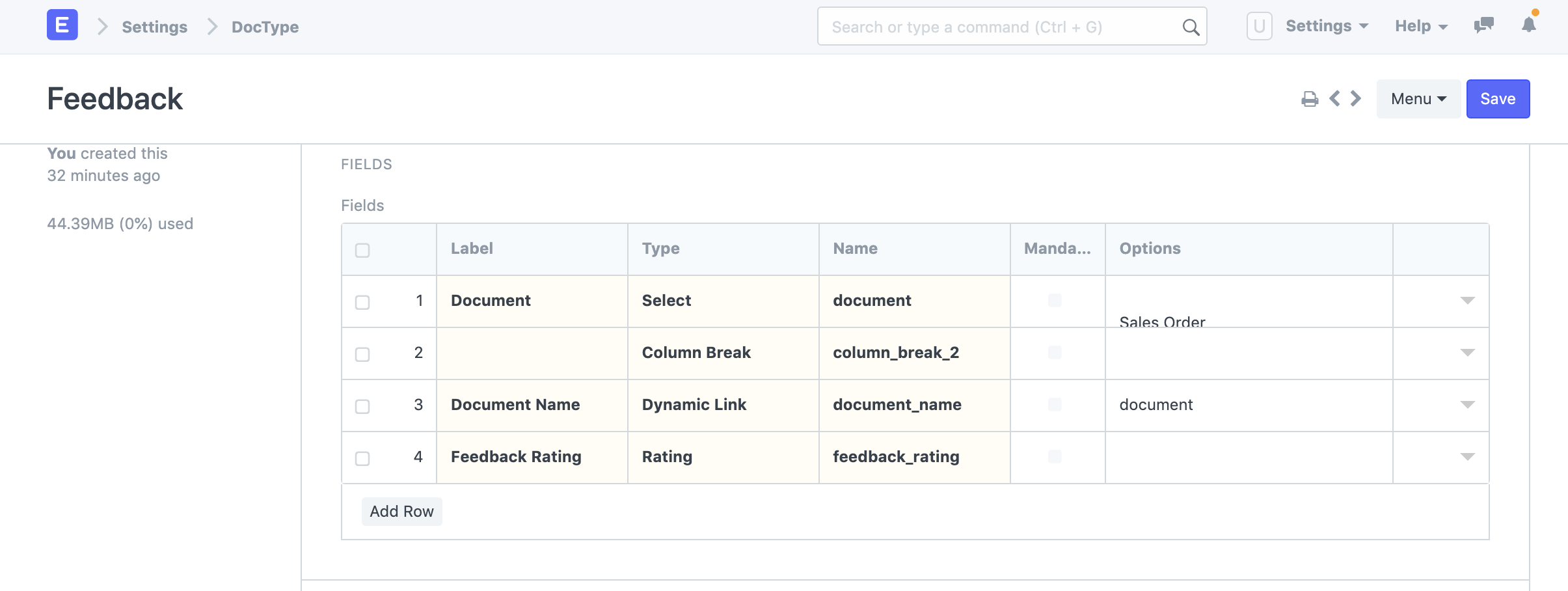
- In the first fields, list a DocTypes for which you want to collect a rating
- In the Document Name field, just enter the name of first field "document", so that it becomes a Dynamic Link field.
- Enter a Rating field. You can also choose other data or select field, if you wish to take rating on those lines.
Web Form for Feedback Form
Once a DocType is created, simply create a Web Form by fetching all the standard fields from Feedback doctype.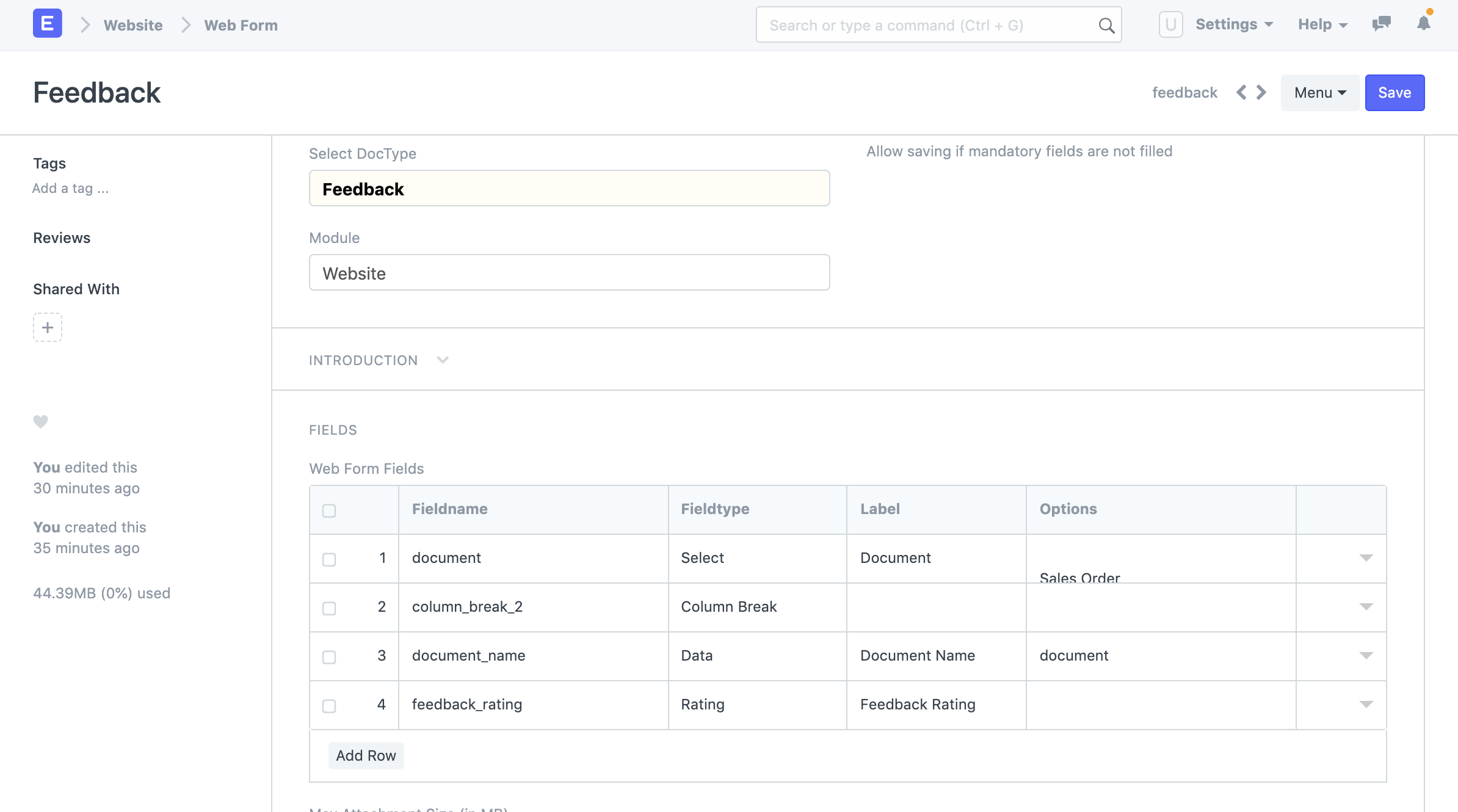
Create a Notification
A Notification should be created to send a link to a user following which they will submit a rating. You can define the conditions for triggering an email based on standard features of Notification . Following is the help on how to define a message and link which would take user to a Web Form and allow submitting a rating.
https://example.erpnext.com/feedback?new=1&document=Sales%20Order&document_name={{doc.name}}
Where:
- example.erpnext.com will be URL of your ERPNext account
- feedback will be the name of custom doctype added for collecting a feedback
- document=Sales%20Order& will be a name of DocType for which you want to sent a notification
- document_name={{doc.name}} will pick-up specific document name and update in the Document Name field of Feedback form.

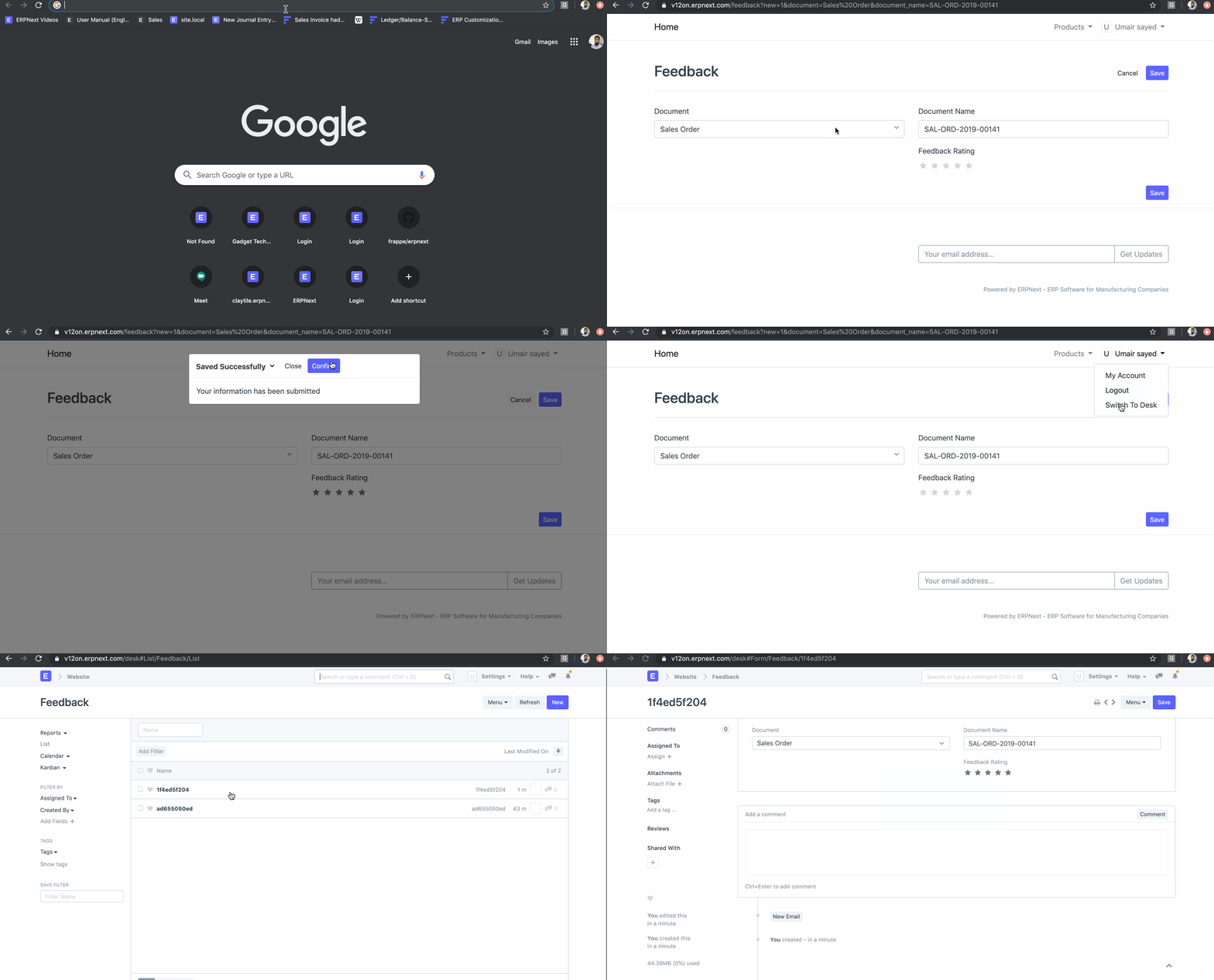
Quick Demo:
Here is the demo of how link would be generated, Web Form would be filled and capture in ERPNext.