1. Set Up Supplier
Navigate to Suppliers:
- Go to Buying > Supplier .
Create New Supplier (if not already created):
- Click on New .
- Enter the supplier's details (name, contact information, address).
- Save the supplier record.
2. Create a Service Item
Navigate to Item Master:
- Go to Stock > Item .
Create New Item:
- Click on New .
- Enter the item code and name.
- Under the Item Group field, select or create a group for services.
- Set the Item Type to Service .
- Fill in other relevant details, such as unit of measure and description.
- Save the item record.
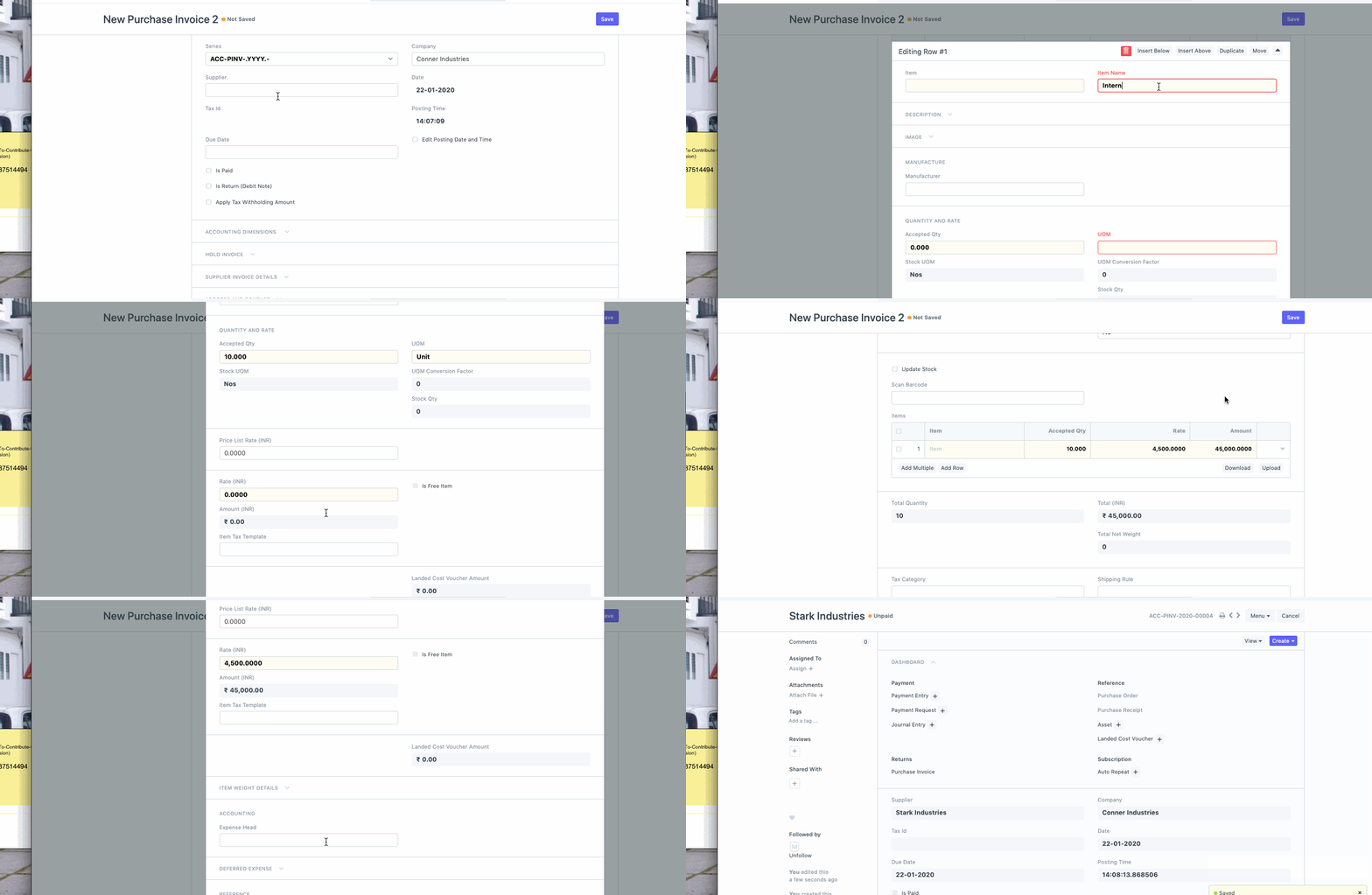
3. Create a Purchase Invoice
Navigate to Purchase Invoice:
- Go to Buying > Purchase Invoice .
Start a New Invoice:
- Click on New .
Enter Basic Information:
- Supplier: Select the supplier from whom the service was received.
- Invoice Date: Enter the date of the invoice.
- Reference Number: Input any reference number provided by the supplier.
Add Service Details:
- Items Section: Click on Add Item .
- Select Service Item: Choose the service item you created earlier.
- Description: Provide a detailed description of the service.
- Rate and Quantity: Enter the rate and quantity for the service.
- Taxes and Charges: If applicable, add any taxes or additional charges.
Account Details:
- Expense Account: Ensure the service expense is recorded in the appropriate expense account. This can be configured under the Accounts section of the invoice.
Review and Save:
- Verify all details for accuracy.
- Click Save to save the draft of the invoice.
4. Submit
Submit Invoice:
- Once the details are confirmed, click Submit to finalize the invoice.