
ROOM64 / KNOWLEDGE / ERPNEXT

Customizing Field Visibility in Print Format

Each transaction has a Standard Print Format. In the Standard format, only certain fields are displayed by default. If a user wants to display a particular field in the Standard fo

อ่านต้นฉบับที่ ERPNext Official Docs ↗
เอกสารอ้างอิงภาษาอังกฤษเนื้อหาจากเอกสาร ERPNext คงรายละเอียดและโค้ดตามต้นฉบับ · ต้นฉบับอัปเดต 2026-03-02 ชื่อเมนูและ DocType ที่ใช้ได้ขึ้นอยู่กับเวอร์ชันและรุ่นที่ทีมใช้งาน

Projects · โครงการและงานบริการ · Customizing Field Visibility in Print Format

สารบัญในหน้านี้

Each transaction has a Standard Print Format. In the Standard format, only certain fields are displayed by default. If a user wants to display a particular field in the Standard format, it can be customized by using Customize Form tool.

Let's assume in the Sales order, we need to make Shipping Address field visible in the standard print format.

Step 1: Go to Customize Form

Home > Customization > Form Customization > Customize Form

Step 2: Document Type

As per our scenario, Sales Order will be selected as Document Type.
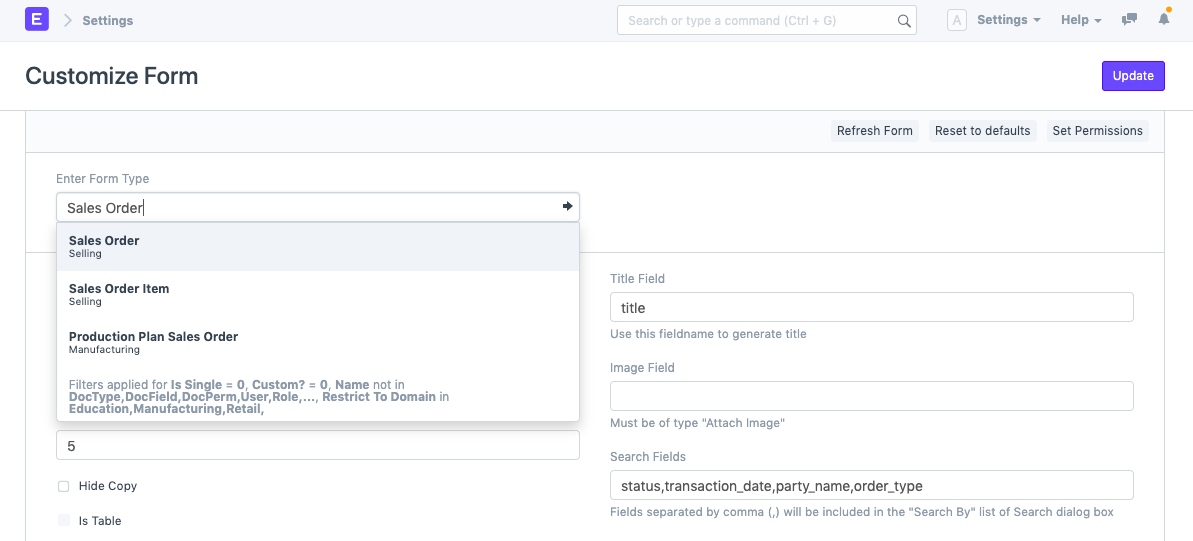
Document Type

Step 3: Disable Print Hide

Click to open field to be made visible in the Standard Print Format. Disable Print Hide field.

![Uncheck Print Hide ](/files/customize-visible in print.gif)

Step 4: Update

Update Customize Form to save changed. Reload your ERPNext account, and then check Print Format for confirmation.

เนื้อหาเอกสารอ้างอิงและภาพประกอบมาจาก ERPNext / Frappe Official Docs · บทความแนะนำภาษาไทยเรียบเรียงโดย Room64 · เว็บไซต์นี้เป็นคู่มือประกอบการใช้งานโดย Room64 · เอกสารทางการ ↗

มีงานที่อยากให้ Software, AI หรือ Automation ช่วยอยู่ไหม?

เล่า workflow หรือปัญหาที่ทีมกำลังเจอ เราช่วยดูได้ว่าควรใช้ระบบสำเร็จรูป เชื่อมเครื่องมือเดิม หรือพัฒนาเพิ่มเฉพาะส่วนไหน

คุยกับเราทาง LINEhello@room64.net