
ROOM64 / KNOWLEDGE / ERPNEXT

Project from Customer Portal

If you are working on a Project for a Customer, then they need to be updated on its progress from time-to-time. You can achieve this in ERPNext via the Customer Portal.

อ่านต้นฉบับที่ ERPNext Official Docs ↗
เอกสารอ้างอิงภาษาอังกฤษเนื้อหาจากเอกสาร ERPNext คงรายละเอียดและโค้ดตามต้นฉบับ · ต้นฉบับอัปเดต 2026-02-26 ชื่อเมนูและ DocType ที่ใช้ได้ขึ้นอยู่กับเวอร์ชันและรุ่นที่ทีมใช้งาน

Projects · โครงการและงานบริการ · Project from Customer Portal

สารบัญในหน้านี้

If you are working on a Project for a Customer, then they need to be updated on its progress from time-to-time. You can achieve this in ERPNext via the Customer Portal.

Add User as a Website User

To access a project from the portal, a customer must be added as a Website User. A Customer can also sign up from the Login Page of your ERPNext account, using the same Email ID as mentioned in the Contact. You can also send an invite to the contact using the Invite User button in Contact.

![](/files/Screenshot 2026-01-09 at 12.27.52 PM.png)

Add Customer and User in Project

In the Project, check Customer Details section. Select a Customer and Sales Order associated with this Project.

![](/files/Screenshot 2026-01-09 at 12.24.13 PM.png)

Under the User table, select the contacts who can access this project.

Portal View of Project

When a Customer logins from the Portal, they will be able to view all the tasks for that project along with the associated timesheets. Also, the customer will be able to update the status of the tasks or comment when needed.
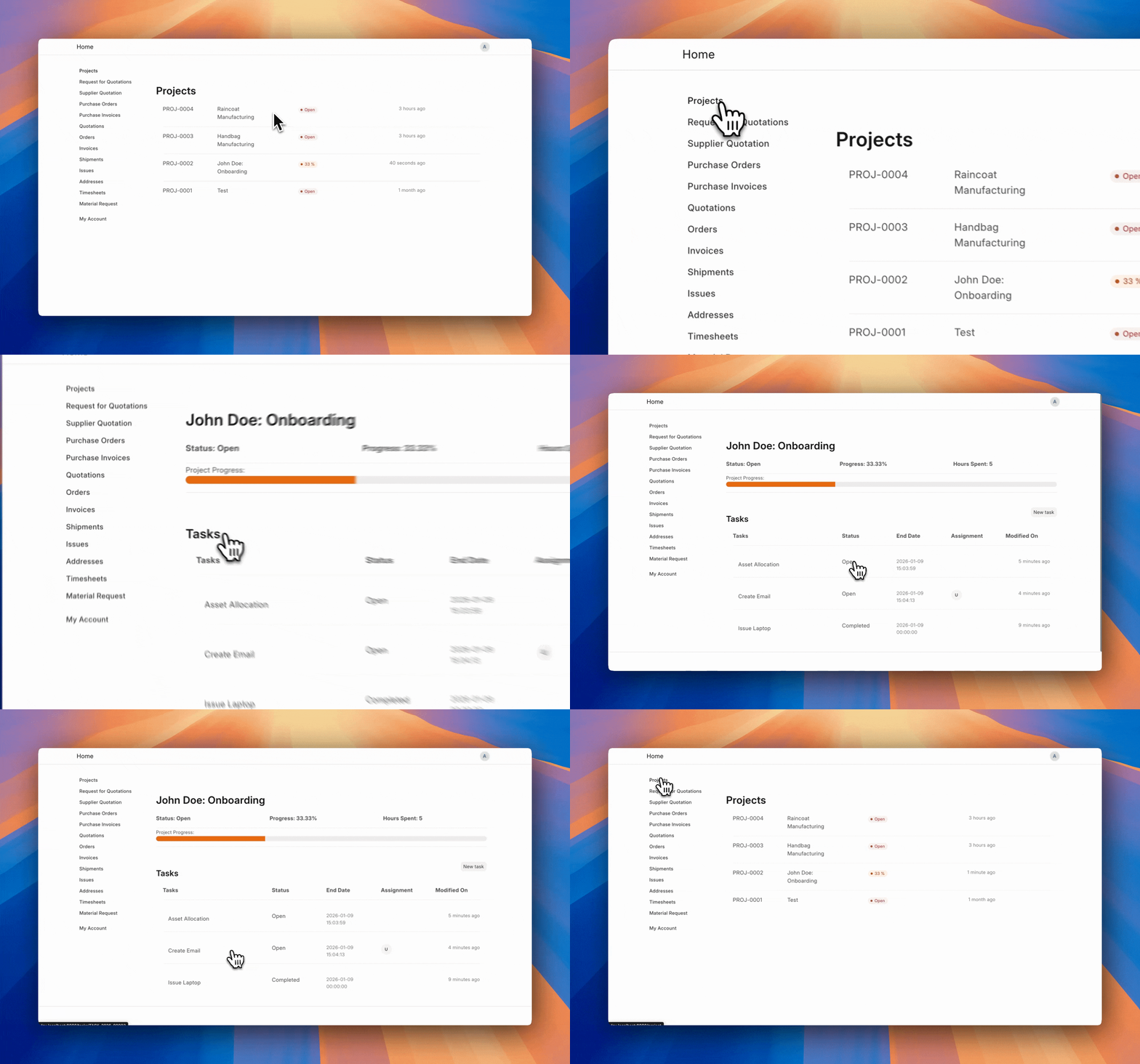

ภาพประกอบ Project from Customer Portal จาก ERPNext

เนื้อหาเอกสารอ้างอิงและภาพประกอบมาจาก ERPNext / Frappe Official Docs · บทความแนะนำภาษาไทยเรียบเรียงโดย Room64 · เว็บไซต์นี้เป็นคู่มือประกอบการใช้งานโดย Room64 · เอกสารทางการ ↗

มีงานที่อยากให้ Software, AI หรือ Automation ช่วยอยู่ไหม?

เล่า workflow หรือปัญหาที่ทีมกำลังเจอ เราช่วยดูได้ว่าควรใช้ระบบสำเร็จรูป เชื่อมเครื่องมือเดิม หรือพัฒนาเพิ่มเฉพาะส่วนไหน

คุยกับเราทาง LINEhello@room64.net