
A customer can be billed based on the total number of hours an employee has worked for that customer. The actual number of hours of billable work can be tracked via a Timesheet.
A sales invoice can be generated from each Timesheet submitted by an employee which can be used to bill the customer.
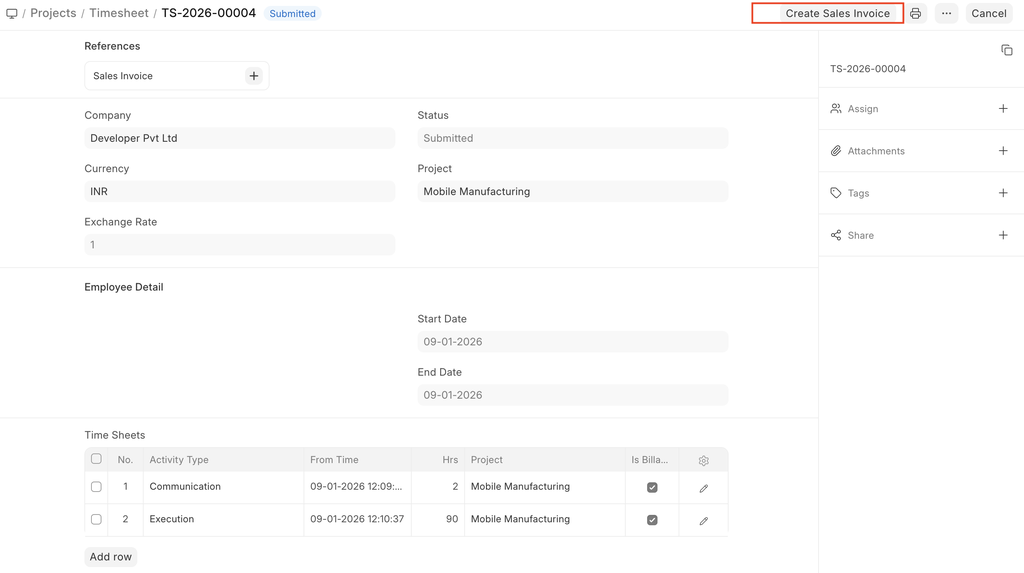
How to Create A Sales Invoice from A Timesheet
- Once the Timesheet is submitted, click on 'Create Sales Invoice'.
- Enter the Item Code and name of the Customer who has to be billed against this Timesheet. The Item could be a Product as well as a Service. Click on 'Create Sales Invoice'.
- All the details of the Timesheet will get auto-populated in the Sales Invoice.
- The posting date and time will be set to current, you can edit after you tick the checkbox below Posting Time.
- Optionally, you can include payments for POS or make this a credit note.
- Save and Submit.
To fetch the details automatically in a Sales Invoice, click on the Get items from button. The details can be fetched from a Sales Order, Delivery Note, or a Quotation. The details like Customer PO, Address and Contact Number, Currency and Price List, Items will get auto-populated.
 Sales invoice from timesheet
Features
Additional Details while creating a Sales Invoice from a Timesheet:
- Accounting Dimensions : Accounting Dimensions lets you tag transactions to a specific Territory, Branch, Project, etc. This helps in viewing accounting statements separately based on the criteria selected. To know more, visit the Accounting Dimensions page.
- Time Sheet List : Since the Project is created from a Time Sheet, the details of the Time Sheet will get auto-fetched. You can click on 'Add Row' to add more Time Sheets to this Invoice.
All the other details can be added as you would add them in any Sales Invoice.
After submitting
Once you have submitted the Sales Invoice, The details like 'Total Billed Hours', 'Total Billed Amount' and '% Amount Billed' will get updated in the Timesheet. Further, a Salary Slip can also be generated from the Timesheet.
