
Semi-automatic reconciliation helps match unallocated payments with outstanding invoices using party, amount, and date information. Treat suggestions as candidates and review them before posting allocations.
Before you begin
Confirm the correct Company, currency, receivable or payable account, and bank or cash ledger. Use submitted source documents and keep the bank reference or remittance advice available.
Use Semi-Auto Payment Reconciliation
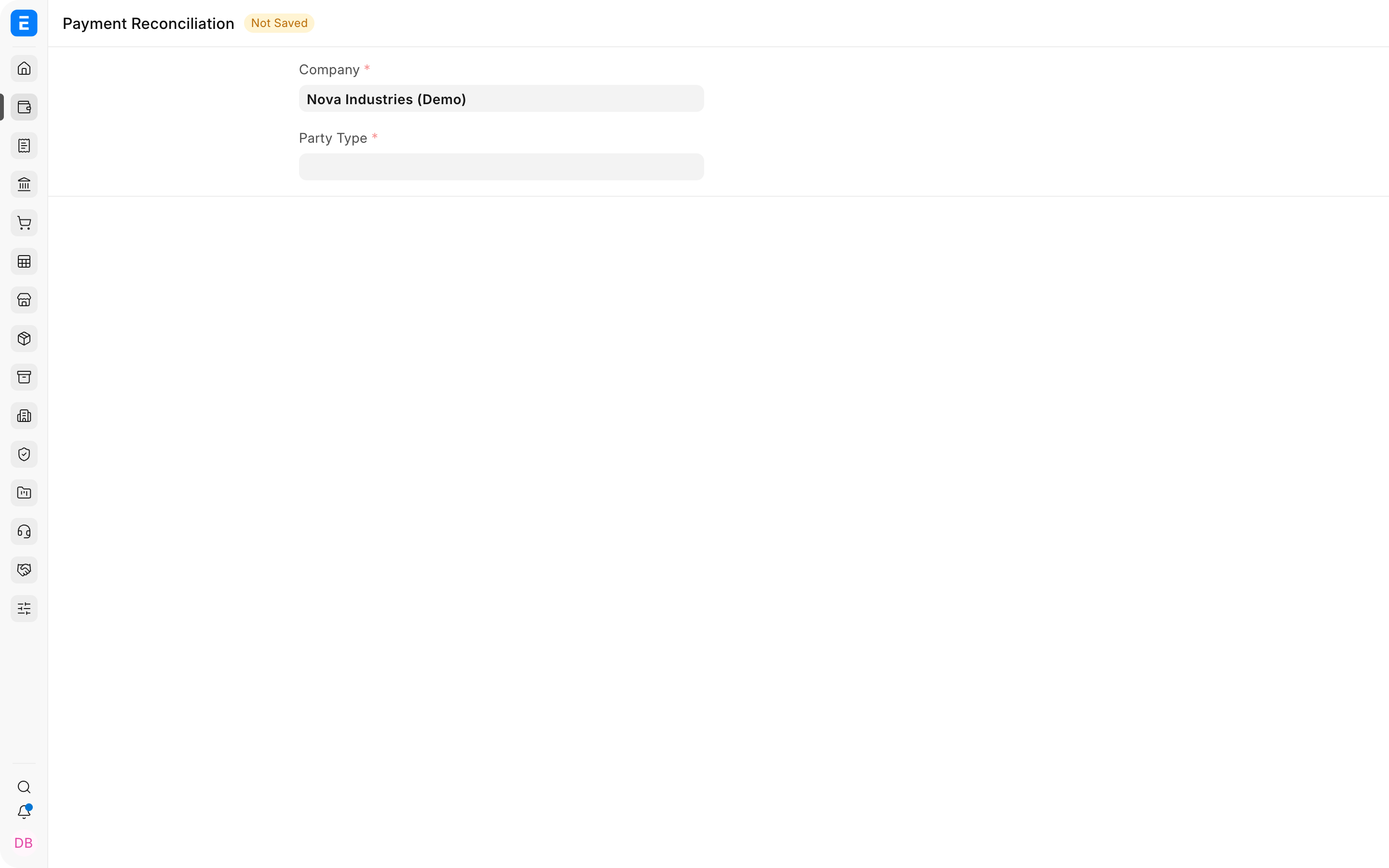
- Open the reconciliation tool and select Company, party type, and party.
- Load outstanding invoices and unallocated payments.
- Review suggested matches and compare remittance references.
- Adjust allocations when the suggestion is incomplete or incorrect.
- Reconcile and verify the updated outstanding balances.
Important fields and what they mean
| Field | What it controls |
|---|---|
| Invoice Amount | Original invoice value. |
| Outstanding Amount | Balance still open. |
| Payment Amount | Unallocated amount available. |
| Allocated Amount | Amount the tool will link. |
| Reference and Date | Evidence used to confirm the match. |
What happens after you submit or process
ERPNext updates the relevant accounting records and, where applicable, the outstanding or unallocated amounts. Review the General Ledger, party ledger, and source document status before treating the workflow as complete. A saved draft does not affect the ledger.
Troubleshooting
Suggested matches are missing
Confirm the party, account, currency, date range, and outstanding or unallocated balances. Improve reference numbers and imported bank descriptions to make matching more reliable.
The suggested invoice is incorrect
Reject the suggestion and choose the correct reference. Similar amounts and dates are not sufficient when the payer, invoice number, or remittance advice conflicts.
A payment matches several possible invoices
Review the customer's remittance advice and allocate manually. Do not accept an ambiguous match solely to clear the queue.
Frequently asked questions
What does semi-automatic mean?
ERPNext proposes or filters likely matches, but a user reviews and confirms the allocation before it is processed.
Is it safe to match only by amount?
Amount is one signal. Also compare party, currency, dates, references, and outstanding balances.
Can one suggested payment be split across invoices?
Use the available allocation controls to divide an eligible payment when the remittance covers several invoices.
Does accepting a suggestion change the bank statement?
It does not alter the external bank statement. It records the relationship between existing ERPNext payment and invoice entries.
