
In certain situations, there are statutory requirements where taxes are to be applied on each transfer of Material. It is easier to manage it in a transaction like a Sales Invoice, than in the Stock Entry. Please follow the following steps to transfer material from one branch to another using Sales and Purchase Invoice
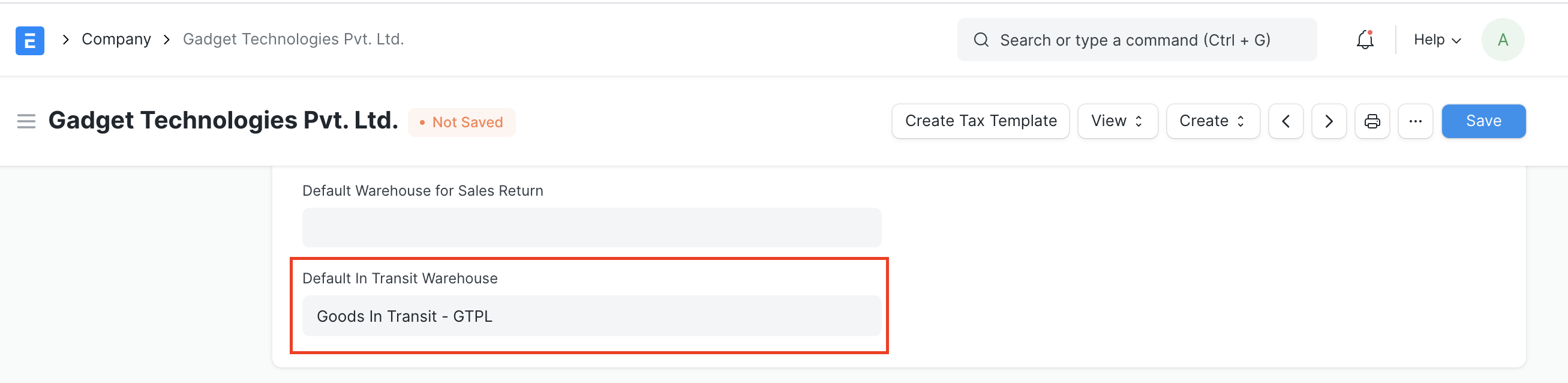
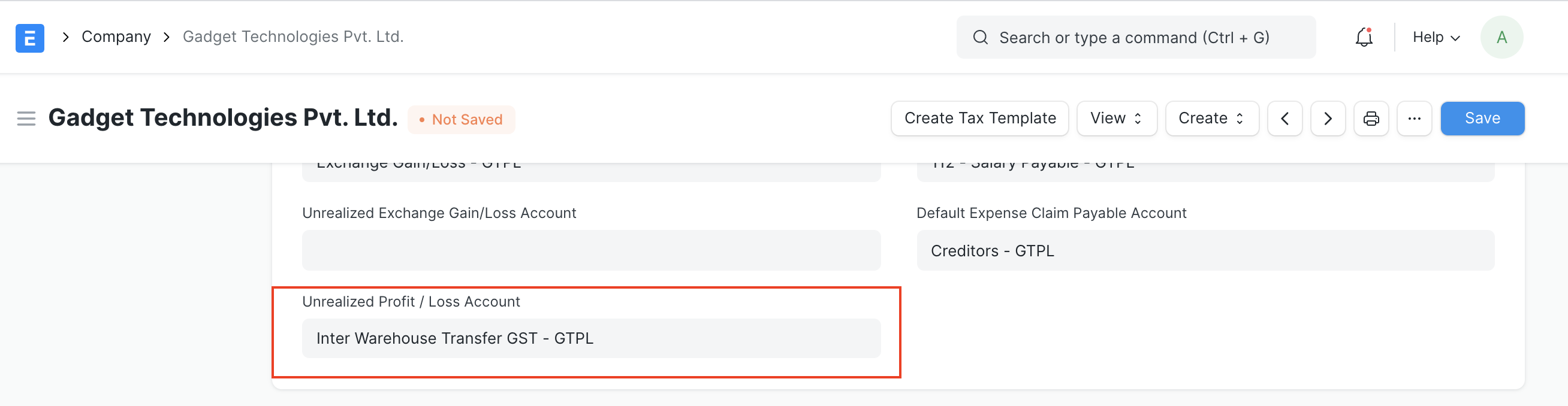
Step 1 - Add default Unrealized Profit and loss account and default In-Transit warehouse in the company master
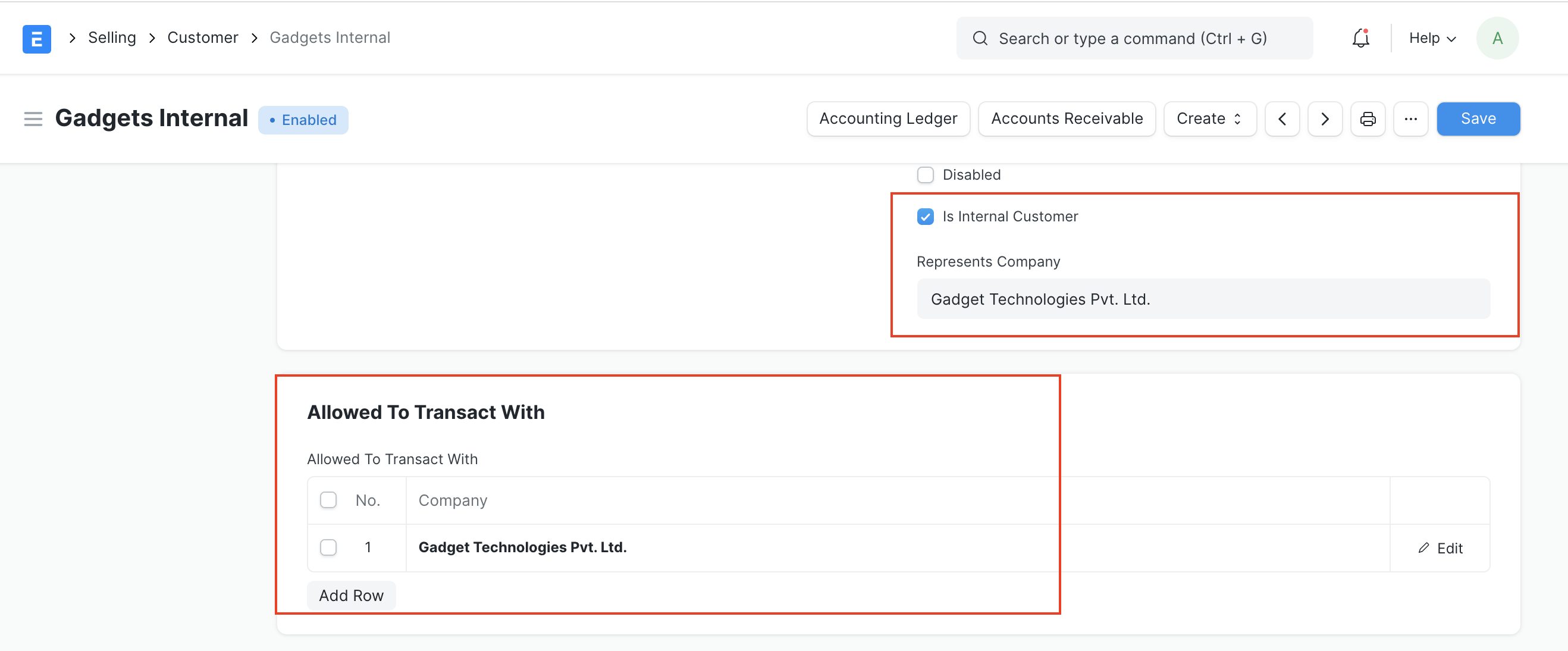
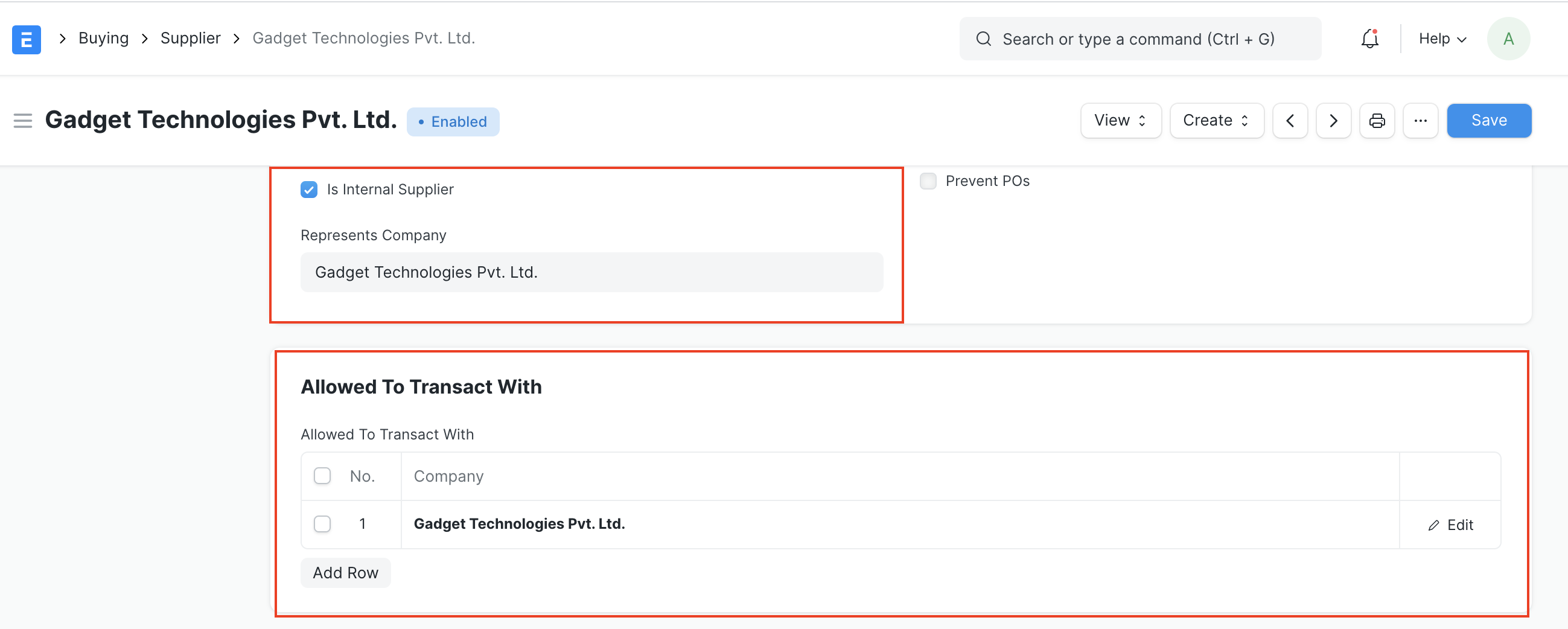
Step 2 - Create Internal Customer and Supplier and allow them to transact with the same company. Also, link appropriate address and GST details with the respective parties
Step 3 - Create Sales Invoice (Delivering the items from source)
3.1 Select the internal customer you created in your previous step
3.2 Check update stock
3.3 Add items to be transferred along with the Source Warehouse and Target Warehouse as the In-Transit warehouse
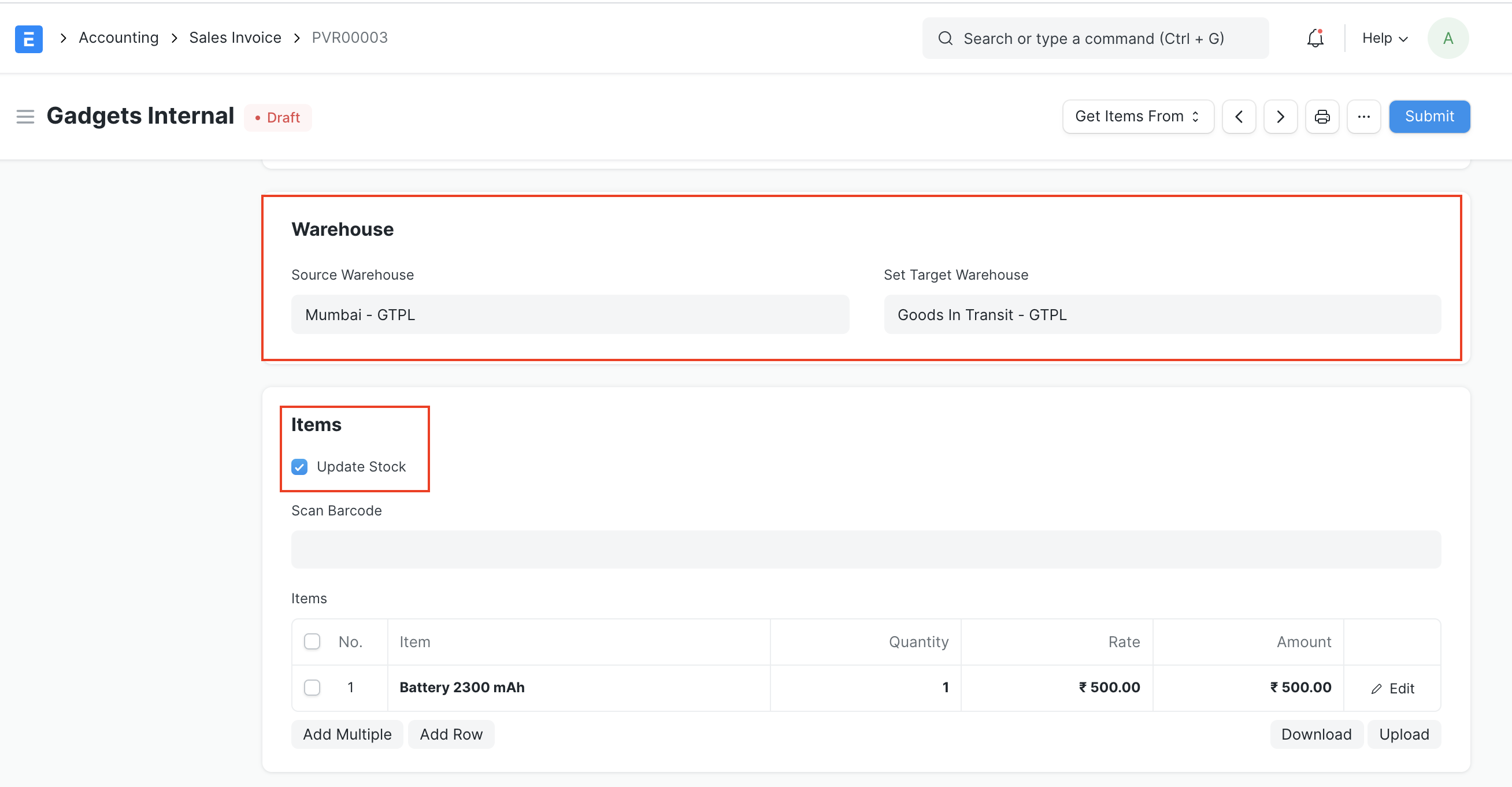
3.4 Save and Submit
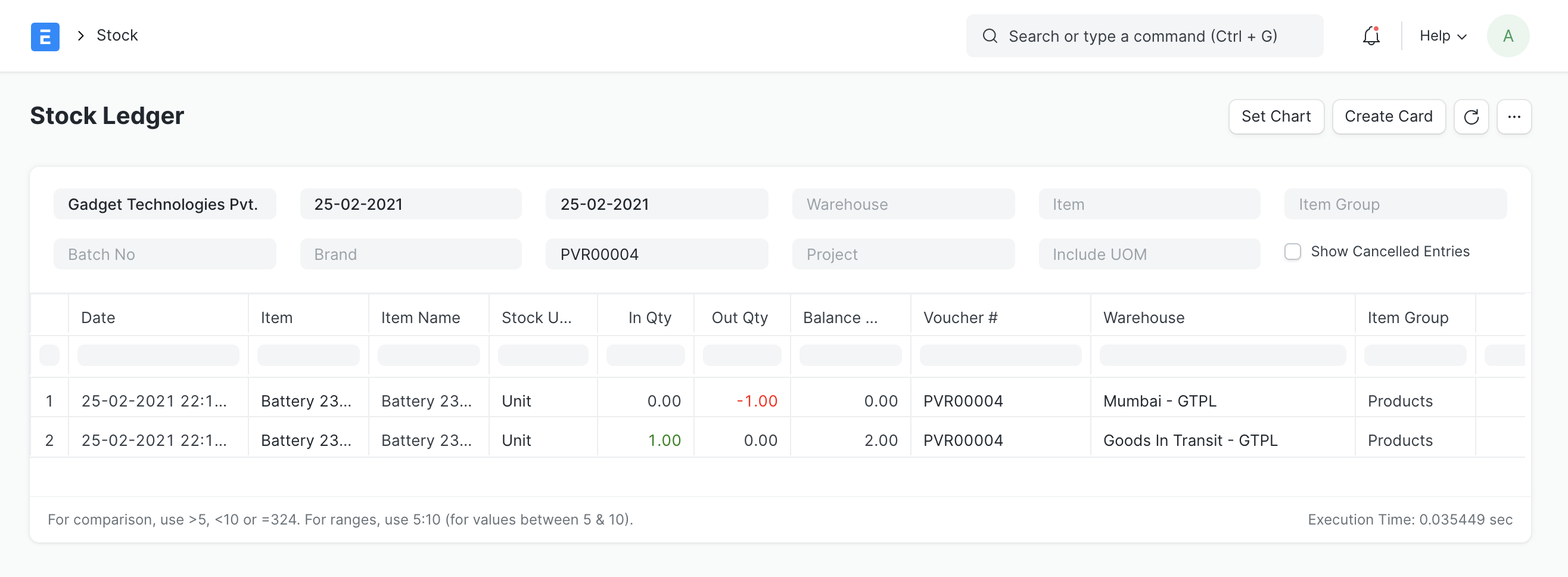
Stock Ledger
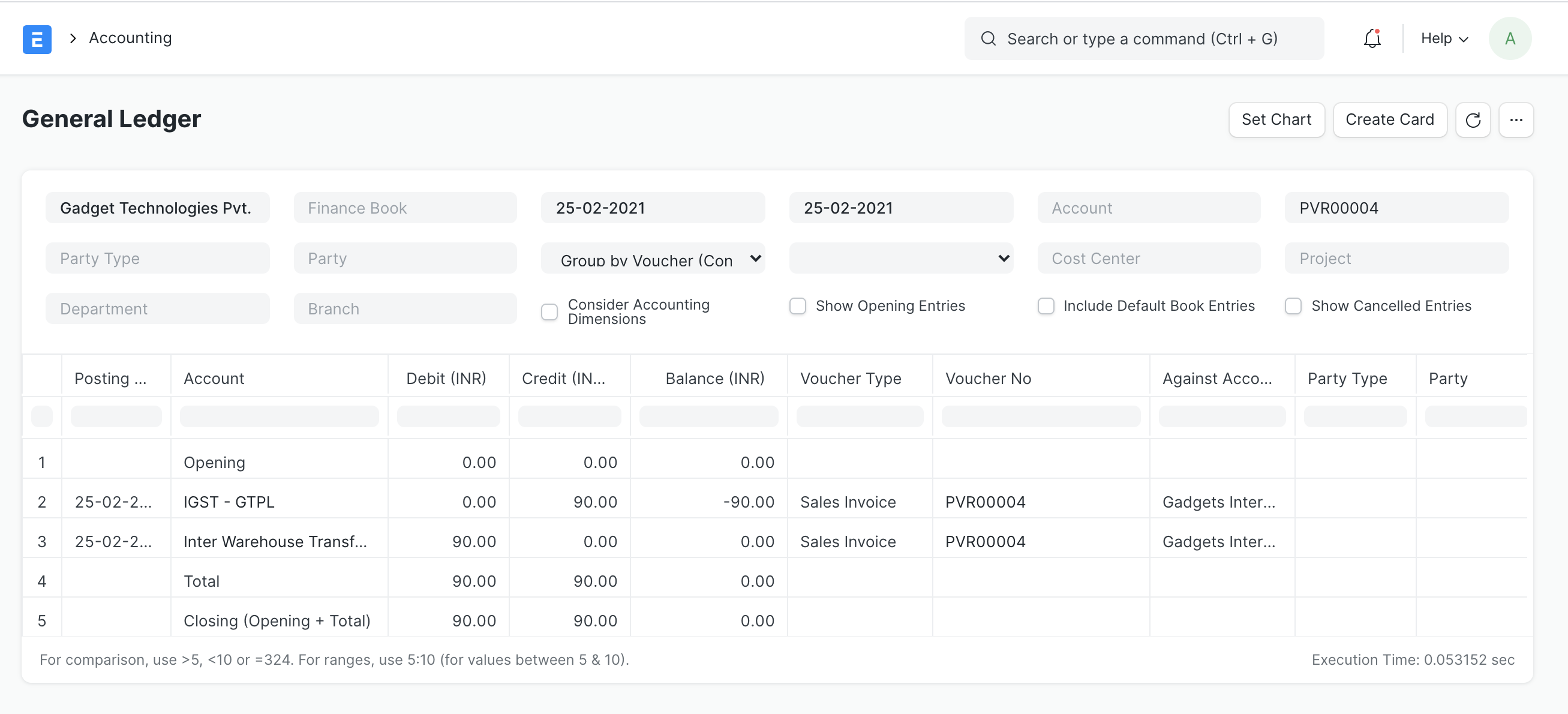
Accounting Ledger
Step 4 - Create Purchase Invoice (Receiving Items at destination)
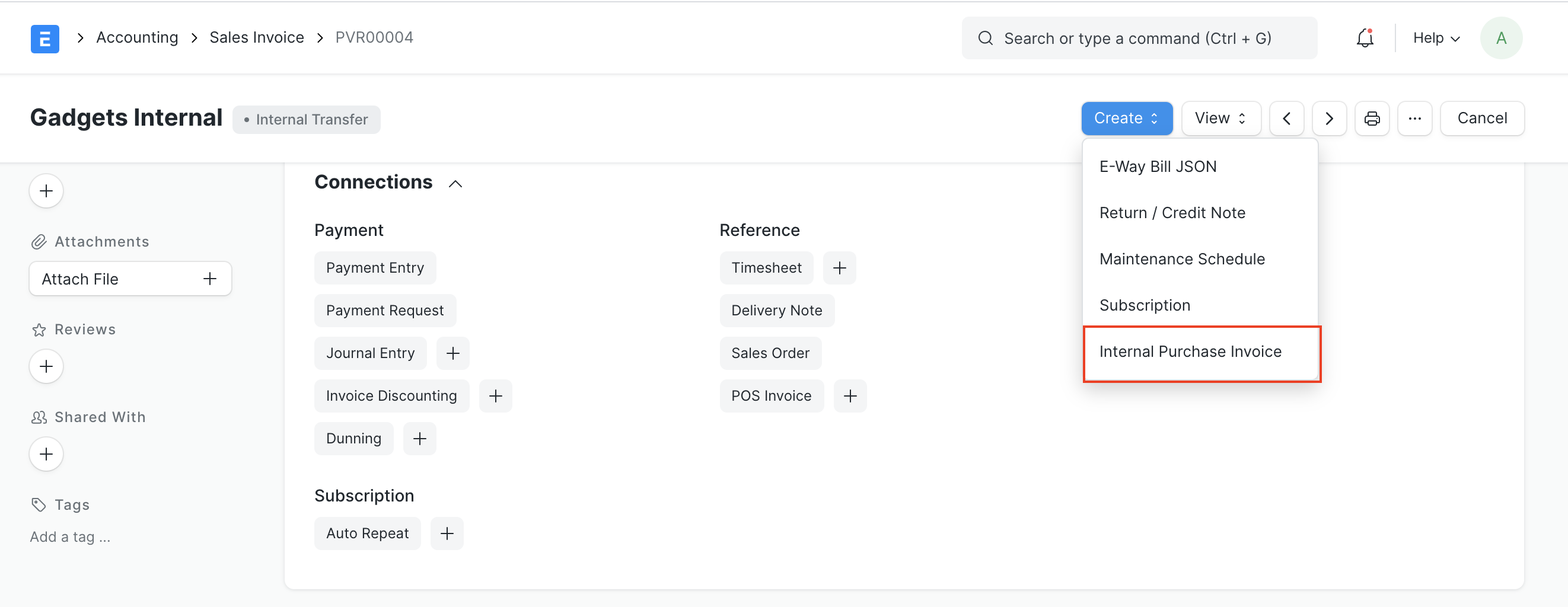
Use the "Create Internal Purchase Invoice" button from the sales invoice to create Purchase Invoice
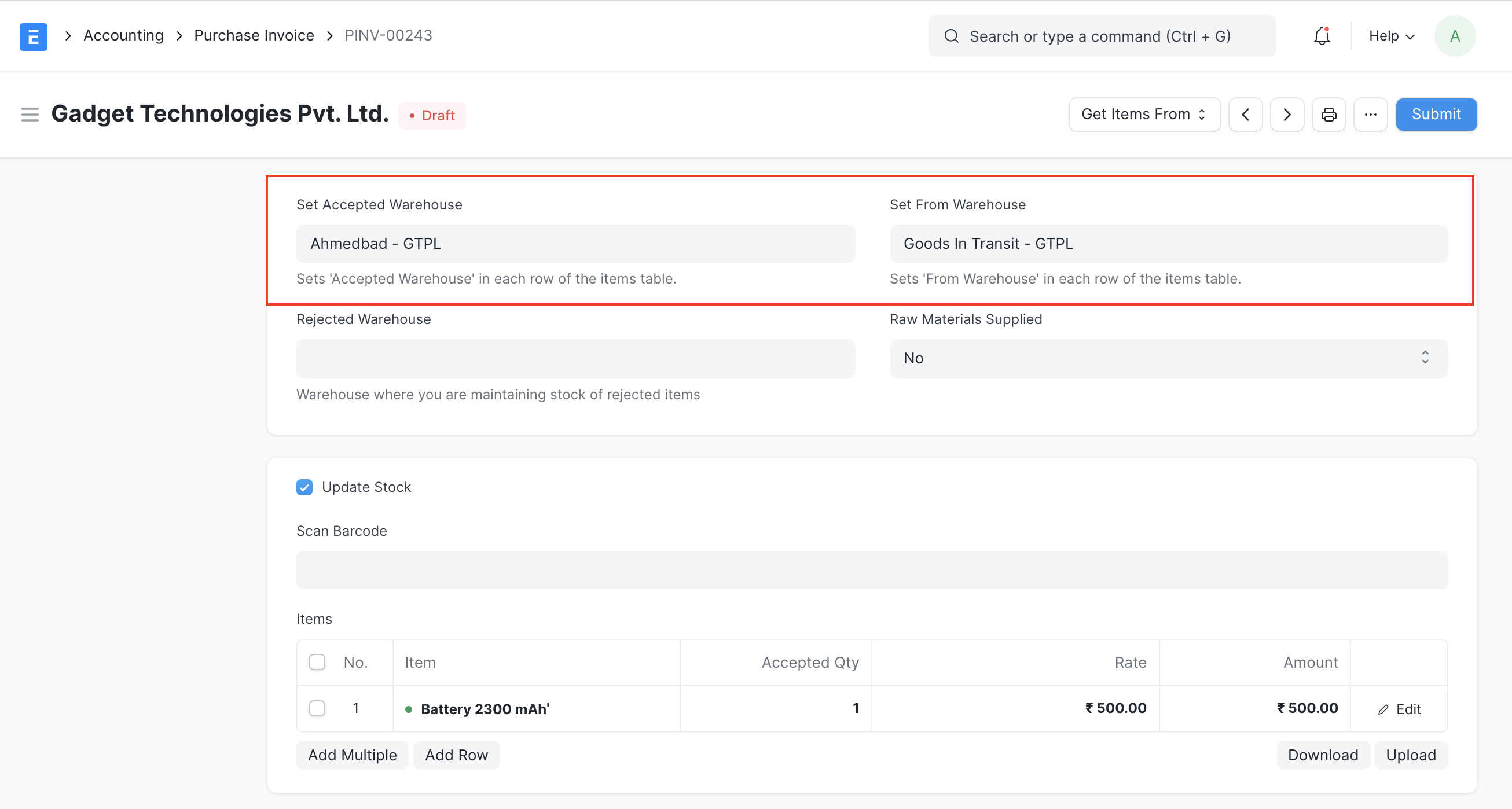
Select the Accepted Warehouse (warehouse at which stock has been received) and save and submit
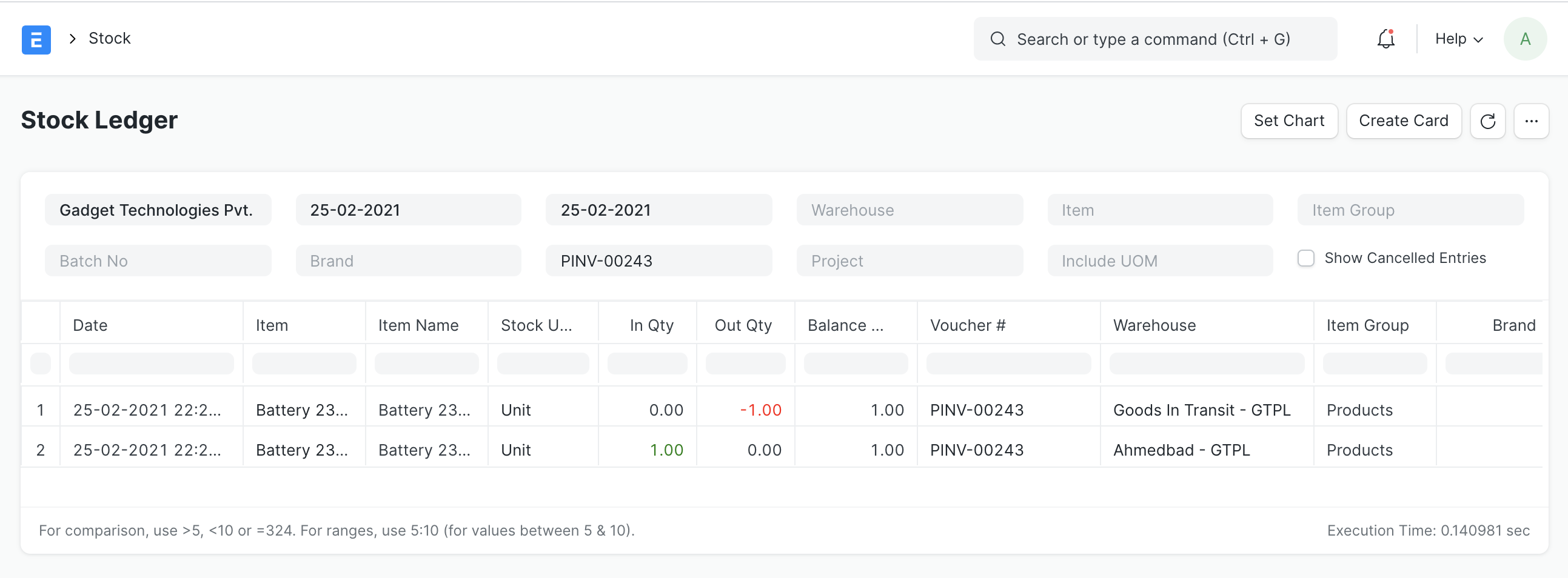
Stock Ledger
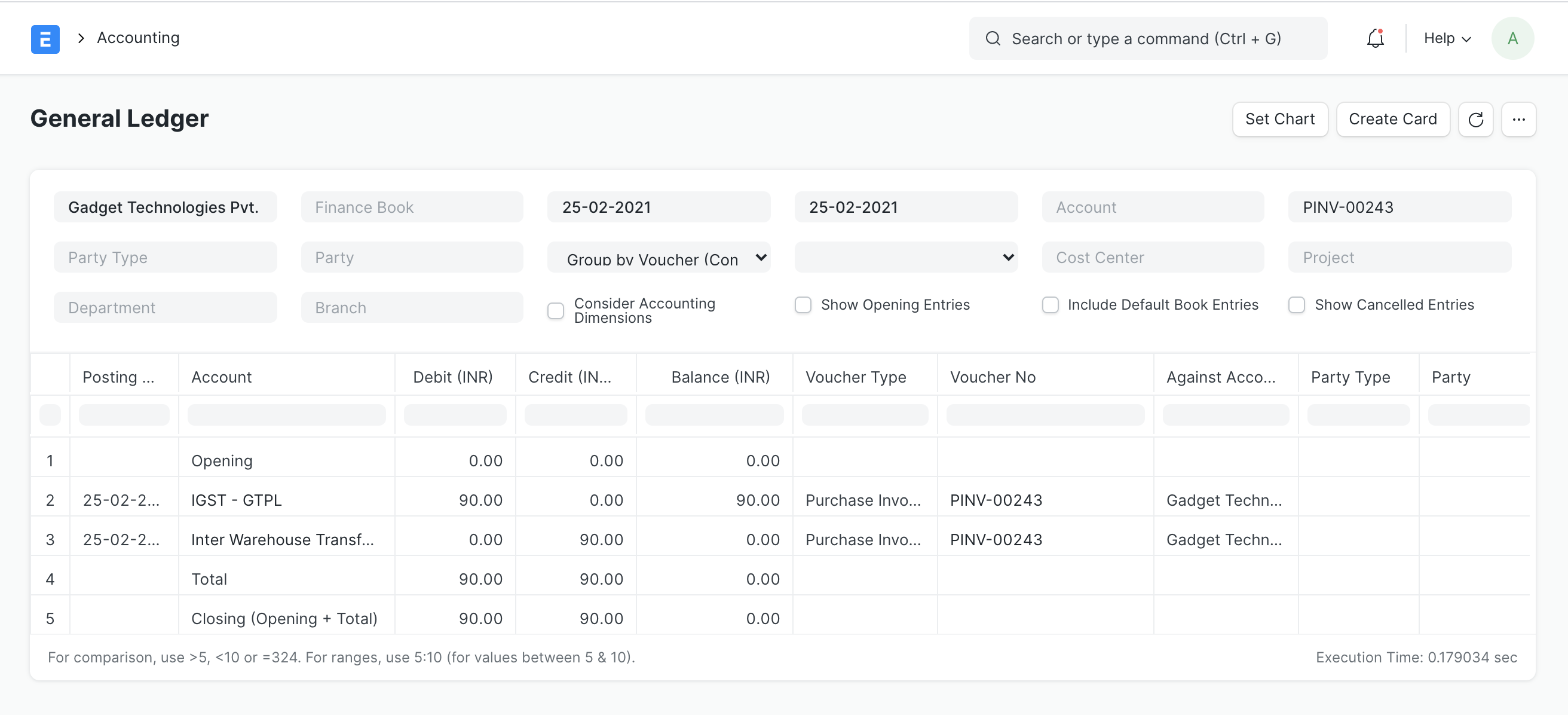
Accounting Ledger
Note: Application of GST automatically on invoices is subjective to your GST configuration. Make sure you have proper tax templates configurated and appropriate addresses and GST details linked to the internal parties
