
Follow below steps to generate JSON file using ERPNext.
**Setup GST Parameters:**Go to Accounts > Goods and Services Tax (GST India) > GST Settings and update GST parameters. 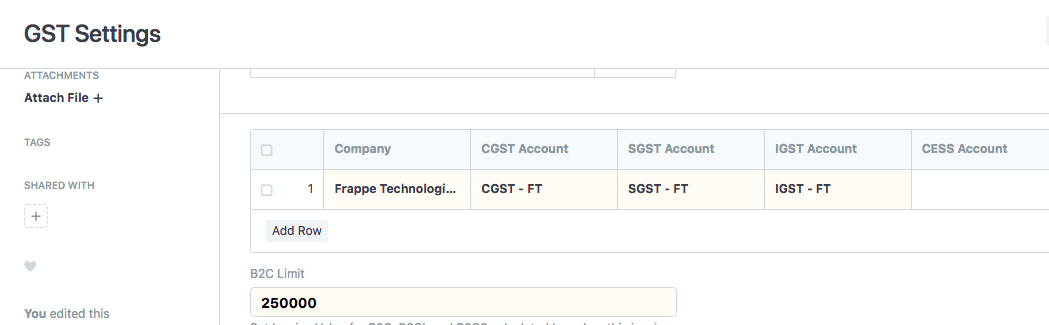
**Report GSTR-1:**Go to Accounts > Goods and Services Tax (GST India) > GSTR-1. Also, you can search in awesome bar.
**Select Return period and Type of Business:**Update filters as per return period and type of Business ( invoice Type) to get the required data.
**Download GSTR-1 Data:**Go to Menu and export and download GSTR-1 Data.
**GST Return Offline Tool: Open GST Offline Tool. (Download Offline Tool from GST Portal )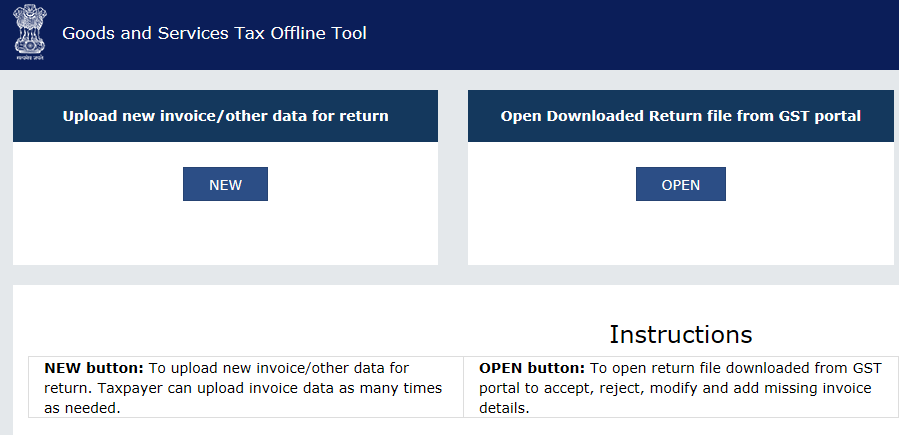 **Press New button and update GST return type, GSTIN Fiscal Year and Tax Period in Offline Tool .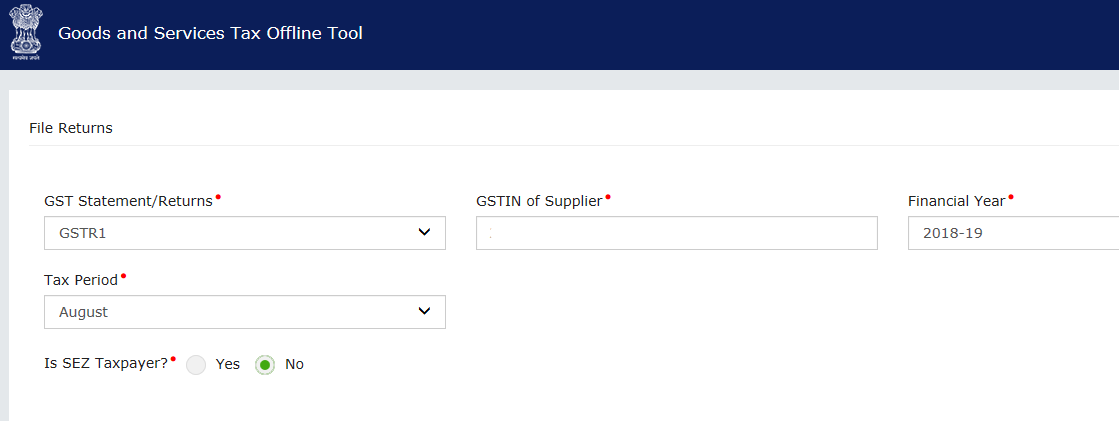
Select Section and Import GSTR-1 CSV in Offline Tool. 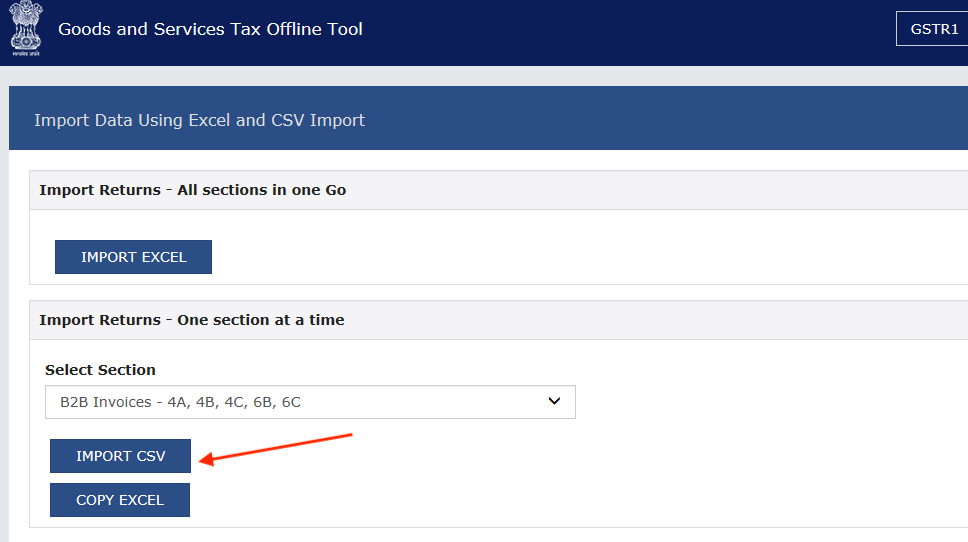
Generate and Download JSON file. 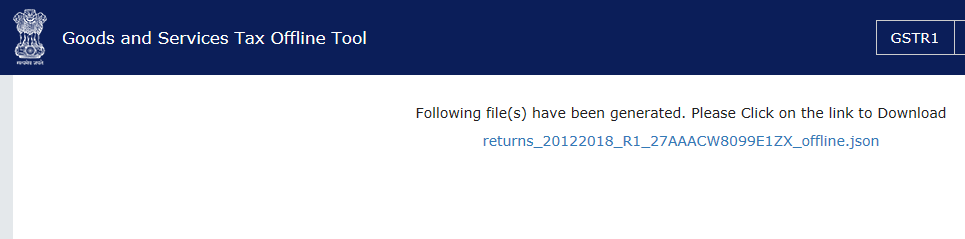
Upload JSON file on GST Portal. 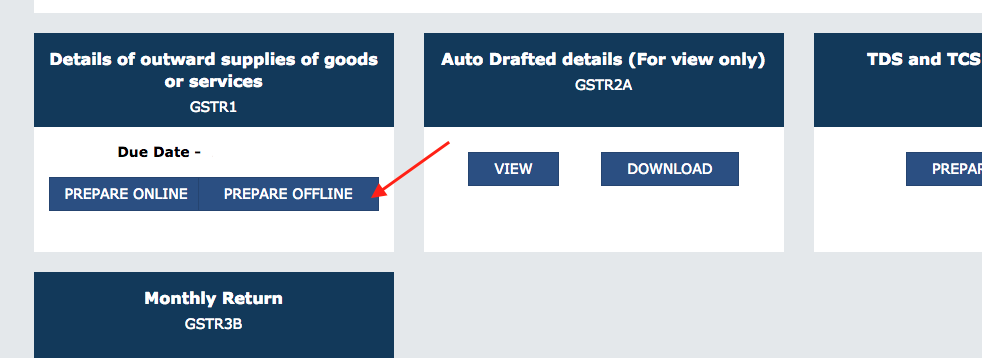
ROOM64 / KNOWLEDGE / ERPNEXT
Generate GSTR-1 JSON File
Follow below steps to generate JSON file using ERPNext.**Setup GST Parameters:**Go to Accounts > Goods and Services Tax (GST India) > GST Settings and update GST parameters. **Repo
อ่านต้นฉบับที่ ERPNext Official Docs ↗เอกสารอ้างอิงภาษาอังกฤษเนื้อหาจากเอกสาร ERPNext คงรายละเอียดและโค้ดตามต้นฉบับ · ต้นฉบับอัปเดต 2026-07-31 ชื่อเมนูและ DocType ที่ใช้ได้ขึ้นอยู่กับเวอร์ชันและรุ่นที่ทีมใช้งาน
Introduction · เริ่มต้นและตั้งค่า · Generate GSTR-1 JSON File
