
An Address Template controls how ERPNext formats an Address when it appears on transactions, print formats, previews, and communications. Country-specific templates let each region use the expected order, labels, and optional fields.
ERPNext selects a template from the Address's Country. If no country-specific template exists, it uses the template marked as default.
Before you begin
You need:
- System Manager or equivalent permission;
- the Country for which the format applies;
- a sample Address containing all relevant fields;
- basic HTML and Jinja template knowledge; and
- a test transaction or print format on which to verify the result.
Copy the existing template text before making a substantial change. A syntax error can affect every document that renders an Address for that country.
Create an Address Template
- Open CRM > Address Template .
- Select Add Address Template .
- Choose the Country .
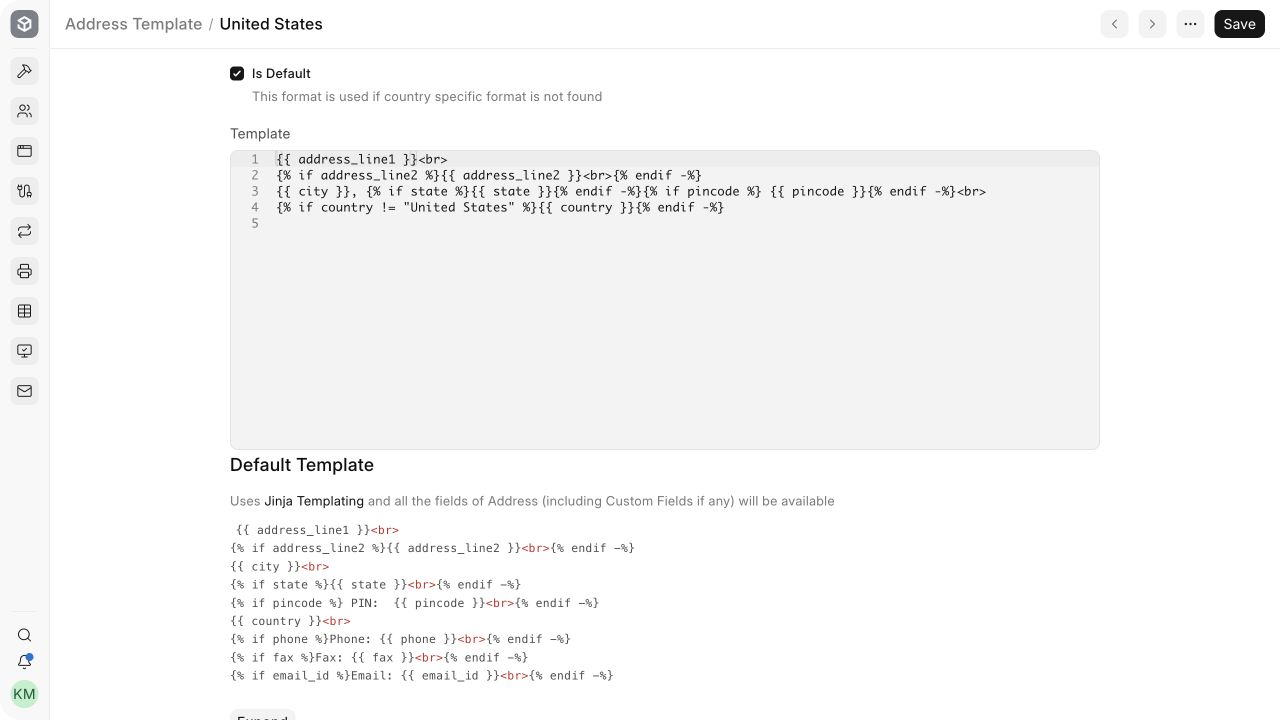
- Enter the Jinja and HTML template.
- Enable Is Default only when this should be the fallback for countries without a specific template.
- Save the Address Template.
Normally, create one template per Country. Keep only one appropriate default fallback.
Edit an existing template
- Open the template for the required Country.
- Copy the current template for rollback.
- Make the smallest required change.
- Save.
- Open a representative Customer or Supplier Address and verify the rendered result.
- Test at least one Quotation , Sales Invoice , or relevant print preview.
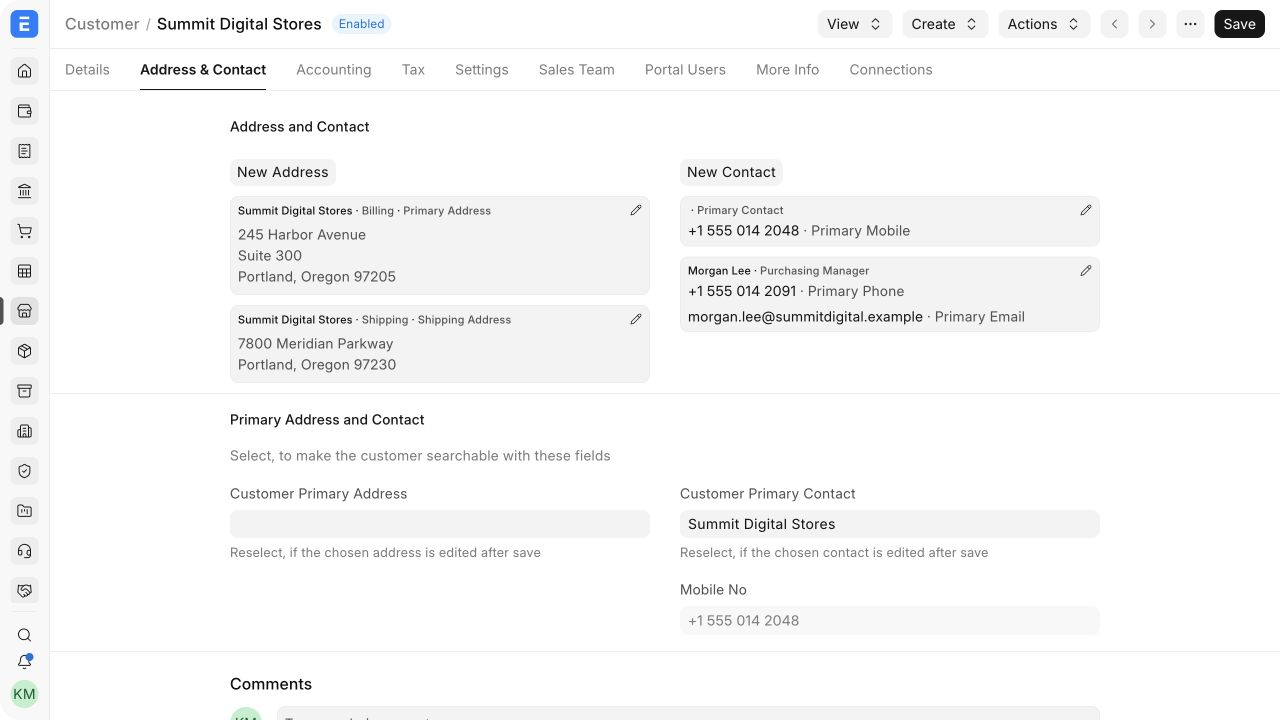
Do not treat a successful save as proof that the output is correct. Verify line breaks, missing values, labels, punctuation, and narrow print layouts.
Important fields and concepts
| Field or concept | What it controls |
|---|---|
| Country | Determines which Addresses use this template |
| Is Default | Makes the template the fallback when no country-specific template exists |
| Template | Jinja and HTML used to render the formatted Address |
address_line1 | First street or building line |
address_line2 | Optional second address line |
city | City or town |
county | County or equivalent regional division |
state | State, province, or region |
pincode | Postal, ZIP, or PIN code |
country | Country name |
| Contact fields | Optional phone, fax, and email values available to the template |
| Custom Fields | Additional Address fields available by their fieldnames |
Fieldnames are case-sensitive. Use the fieldname shown in Customize Form or DocType metadata, not the field label visible to users.
Write safe Jinja
Wrap optional values in conditions so empty fields do not produce blank labels or punctuation:
{{ address_line1 }}<br>
{% if address_line2 %}{{ address_line2 }}<br>{% endif %}
{{ city }}{% if state %}, {{ state }}{% endif %} {{ pincode }}<br>
{{ country }}
Use <br> for deliberate address line breaks. Keep complex business logic out of the template; store normalized data in the Address instead.
The template engine exposes standard and Custom Fields from Address. See Customize Form before referencing a custom field.
Country-specific and default behaviour
For a United States Address, a template may render City, State, and ZIP on one line and include County only when required. Another Country may place the postal code before the city.
ERPNext determines the template at render time using the Country on the Address. Therefore:
- correct the Country when the wrong template appears;
- create a country-specific template for a real regional difference;
- use the default template as a safe general fallback; and
- avoid marking several conflicting templates as default.
Address Templates affect Customers , Suppliers , Companies , Warehouses, Contacts, and transactions such as Delivery Notes wherever formatted Addresses are rendered.
Save and next steps
Address Template is saved rather than submitted. After saving:
- check several complete and incomplete Addresses;
- verify billing and shipping results;
- preview a Sales Order and a Purchase Invoice ;
- test any relevant custom print format; and
- document custom field dependencies for future administrators.
Troubleshooting
| Problem | What to check |
|---|---|
| The wrong format appears | Verify the Address Country and country-specific template |
| No country-specific template exists | ERPNext should use the template marked default |
| Blank labels or punctuation appear | Wrap the entire optional line or label in a Jinja condition |
| A field never appears | Confirm its exact fieldname and that the Address contains a value |
| Save succeeds but print output breaks | Check HTML structure, Jinja blocks, and the print format's available width |
| A custom field causes an error | Confirm the field exists in every target environment or guard it appropriately |
Frequently asked questions
Can I use Custom Fields?
Yes. Address Custom Fields are available to the template by fieldname.
Should every Country have a template?
No. Create country-specific templates only where formatting differs; the default handles the rest.
Can the template change field labels such as PIN to ZIP?
Yes. Write the desired label directly in the country-specific template.
Do template changes update submitted documents?
They can change newly rendered address output, depending on how a document or print format stores or fetches the address. Test the exact document type before relying on historical behaviour.
Can CSS be used?
Keep styling restrained and compatible with the target print format. Prefer semantic HTML and simple line breaks for addresses.
