
Buying Settings lets you configure the defaults and rules that streamline and automate your purchasing workflow, from supplier naming and pricing to transaction validations and subcontracting.
To access Buying Settings, go to: Home > Buying > Setup > Buying Settings
The settings are grouped into the following tabs: Defaults , Pricing , Transaction Settings , Subcontracting Settings , Request for Quotation and Document Naming .
1. Defaults
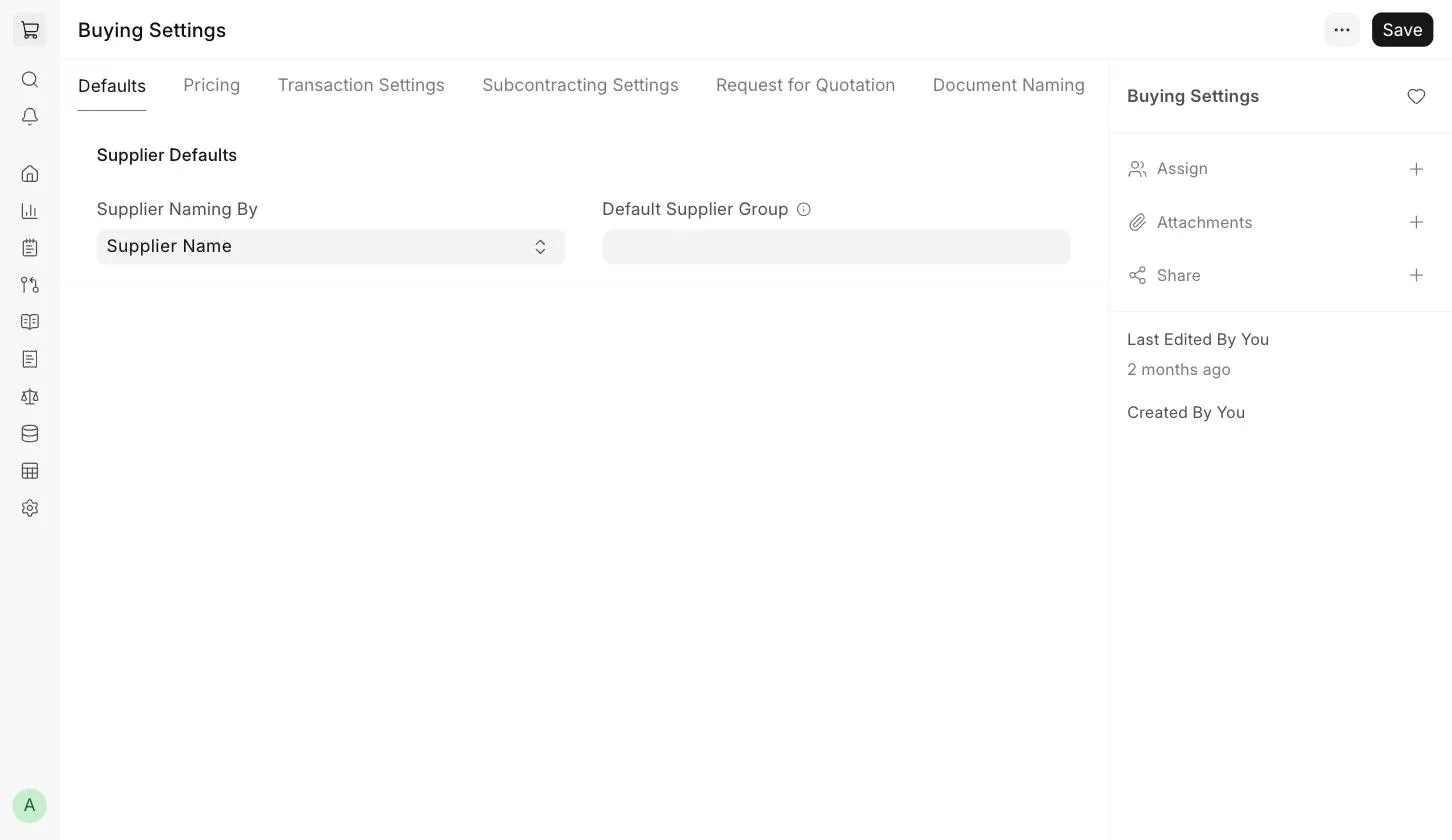
1.1 Supplier Naming By
When a Supplier is saved, the system generates a unique name for it, which is used to refer to the Supplier in all buying transactions. The available options are:
- Supplier Name : The Supplier's name is used as the unique name. This is the default.
- Naming Series : Suppliers are named using a patterned series like SUPP-00001, SUPP-00002, etc.
- Auto Name : The system generates a unique name automatically.
1.2 Default Supplier Group
The Supplier Group that will be set by default when creating a new Supplier. For example, if most of your suppliers supply hardware, you can set the default as "Hardware".
2. Pricing
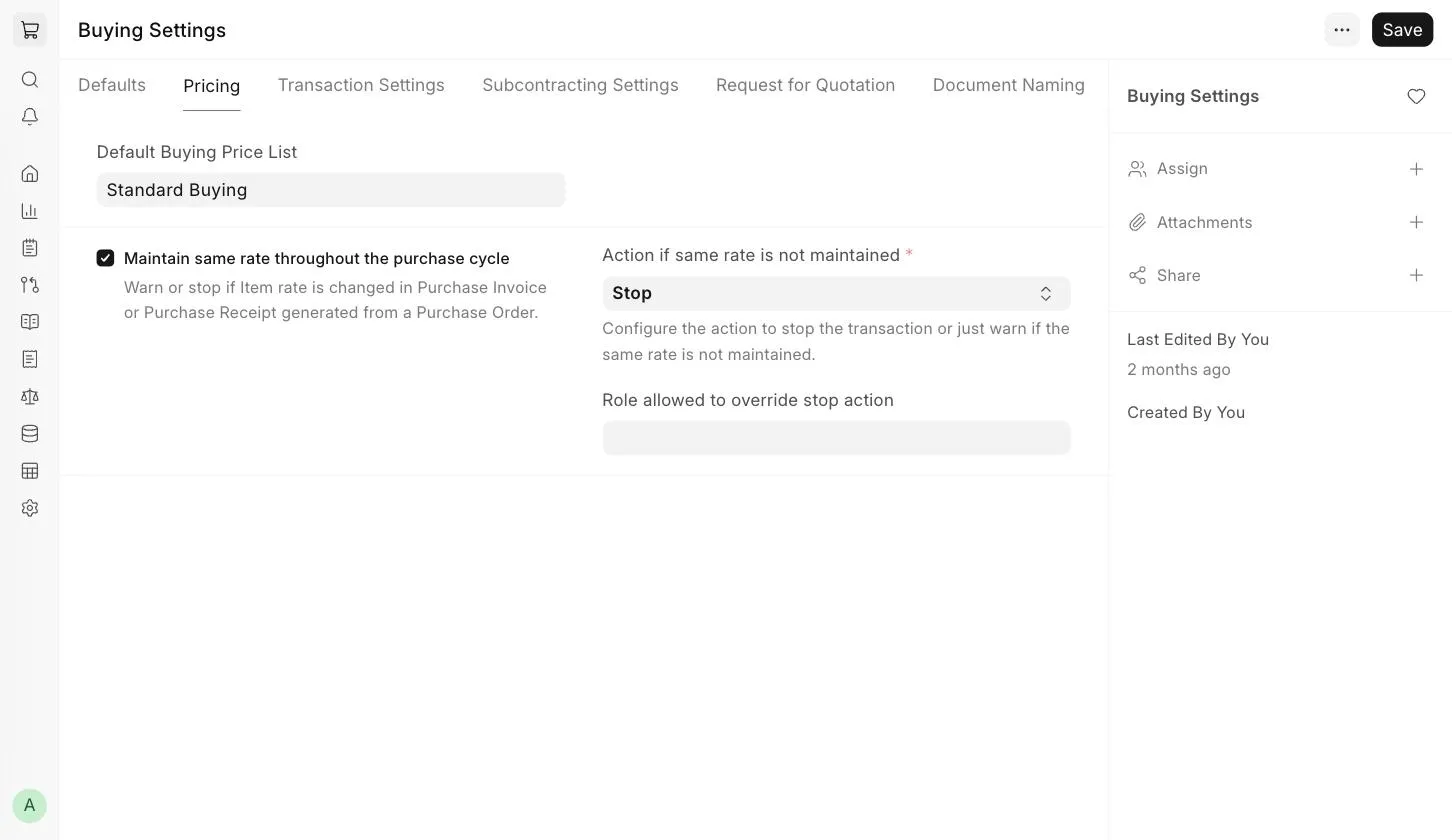
2.1 Default Buying Price List
The Price List that will be set by default in new buying transactions. The default is "Standard Buying". Item rates will be fetched from the Item Prices of this Price List.
2.2 Maintain Same Rate Throughout the Purchase Cycle
If enabled, ERPNext will validate whether an Item's rate is changed in a Purchase Receipt or Purchase Invoice created from a Purchase Order, i.e. it helps you maintain the same rate throughout the purchase cycle.
When this option is enabled, the following fields are shown:
- Action if same rate is not maintained : Configure the action the system should take if the rate is changed.
- Role allowed to override stop action : Users with this role can save the transaction even if the action is set to "Stop" and the rate is changed.
The available actions are:
- Stop : ERPNext will stop you from changing the rate by showing a validation error.
- Warn : ERPNext will let you save the transaction but will show a warning message that the rate has changed.
2.3 Set Landed Cost Based on Purchase Invoice Rate
:::note This field is visible only when Maintain Same Rate Throughout the Purchase Cycle is disabled. :::
Enable this option if you want to adjust the valuation of the received items (set using the Purchase Receipt) based on the Purchase Invoice rate.
How it works
- A Purchase Receipt is created for Item A at a rate of 100. The system books Stock In Hand at a rate of 100.
- Later, a Purchase Invoice is created against this Purchase Receipt. Due to a change in the exchange rate, the rate in the invoice is 150.
- The Purchase Receipt now has a rate of 100, whereas the Purchase Invoice has a rate of 150.
- If "Set Landed Cost Based on Purchase Invoice Rate" is enabled, Stock In Hand will be adjusted to the Purchase Invoice rate (150).
:::note On submission of the Purchase Invoice, the system creates a Repost Item Valuation entry to update the cost of the Purchase Receipt. The impact of the invoice rate on Stock In Hand will be visible once the Repost Item Valuation is completed. :::
3. Transaction Settings
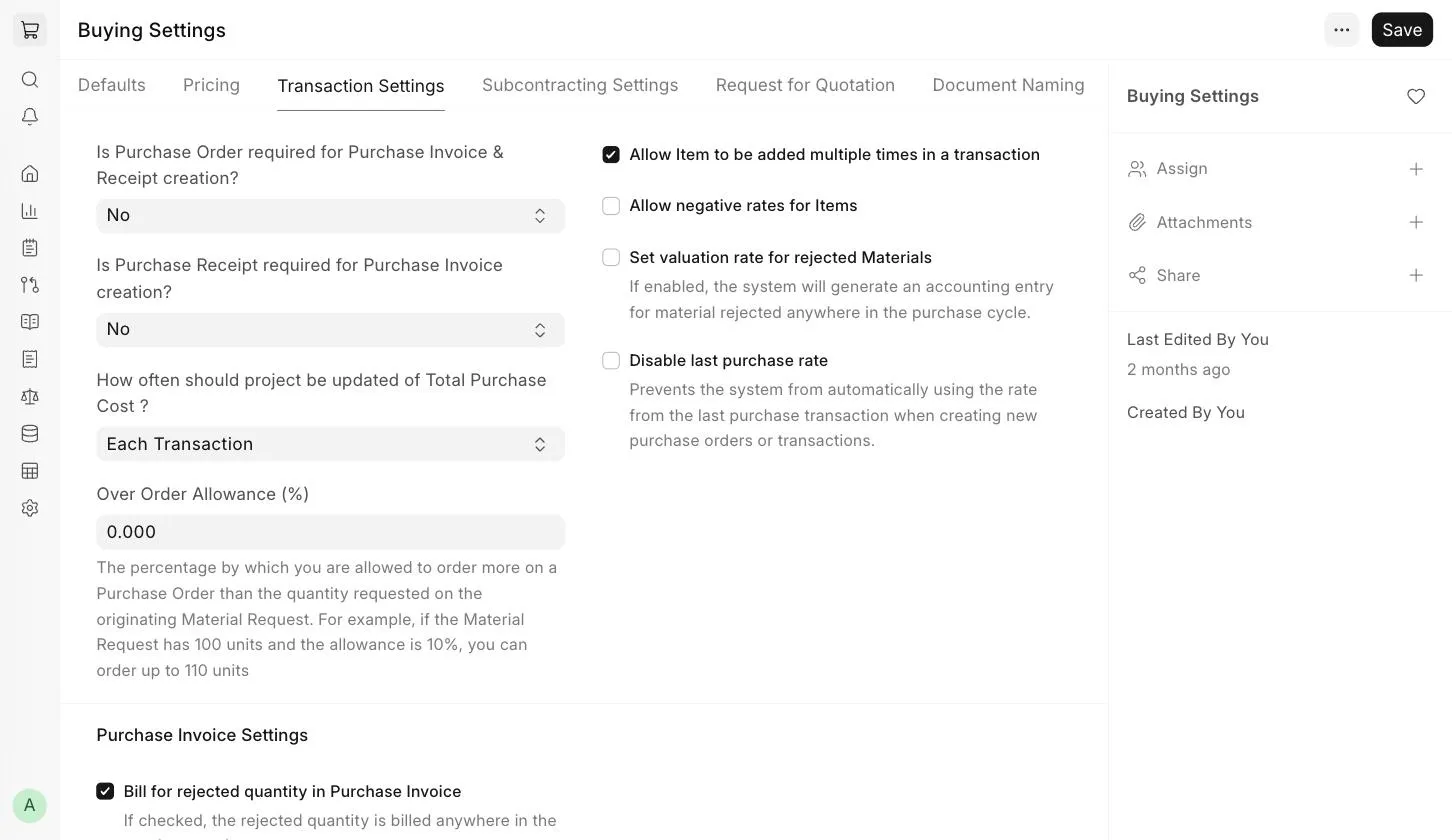
3.1 Is Purchase Order Required for Purchase Invoice & Receipt Creation?
If set to "Yes", ERPNext will not allow you to create a Purchase Invoice or a Purchase Receipt without creating a Purchase Order first.
If retail transactions are involved where the order happens offline, Purchase Orders can be skipped. If you are accepting sample Items, you can directly create a Purchase Receipt to receive the Items into your Warehouse.
This setting can be overridden for a particular supplier by enabling "Allow purchase invoice creation without purchase order" in the Supplier master.
3.2 Is Purchase Receipt Required for Purchase Invoice Creation?
If set to "Yes", ERPNext will not allow you to create a Purchase Invoice without creating a Purchase Receipt first. If the Item being purchased is a service item, a receipt is not required and you can directly create the invoice.
This setting can be overridden for a particular supplier by enabling "Allow purchase invoice creation without purchase receipt" in the Supplier master.
3.3 How often should Project be updated of Total Purchase Cost?
Defines how often the Total Purchase Cost of a Project is updated:
- Each Transaction : The Project is updated on every purchase transaction linked to it.
- Manual : The Project cost is updated only when triggered manually.
3.4 Over Order Allowance (%)
The percentage by which you are allowed to order more on a Purchase Order than the quantity requested in the originating Material Request. For example, if the Material Request is for 100 units and the allowance is 10%, you can order up to 110 units.
3.5 Allow Item to be Added Multiple Times in a Transaction
When unchecked, an Item cannot be added more than once in the same transaction, although you can still change its quantity. This helps prevent accidental duplicate purchases of the same Item. It can be checked for use cases where the same material is sourced in multiple lines, for example, in manufacturing.
3.6 Allow Negative Rates for Items
If enabled, Items can be added with a negative rate in buying transactions.
3.7 Disable Last Purchase Rate
Prevents the system from automatically using the rate from the last purchase transaction when creating new Purchase Orders or other buying transactions.
3.8 Purchase Invoice Settings
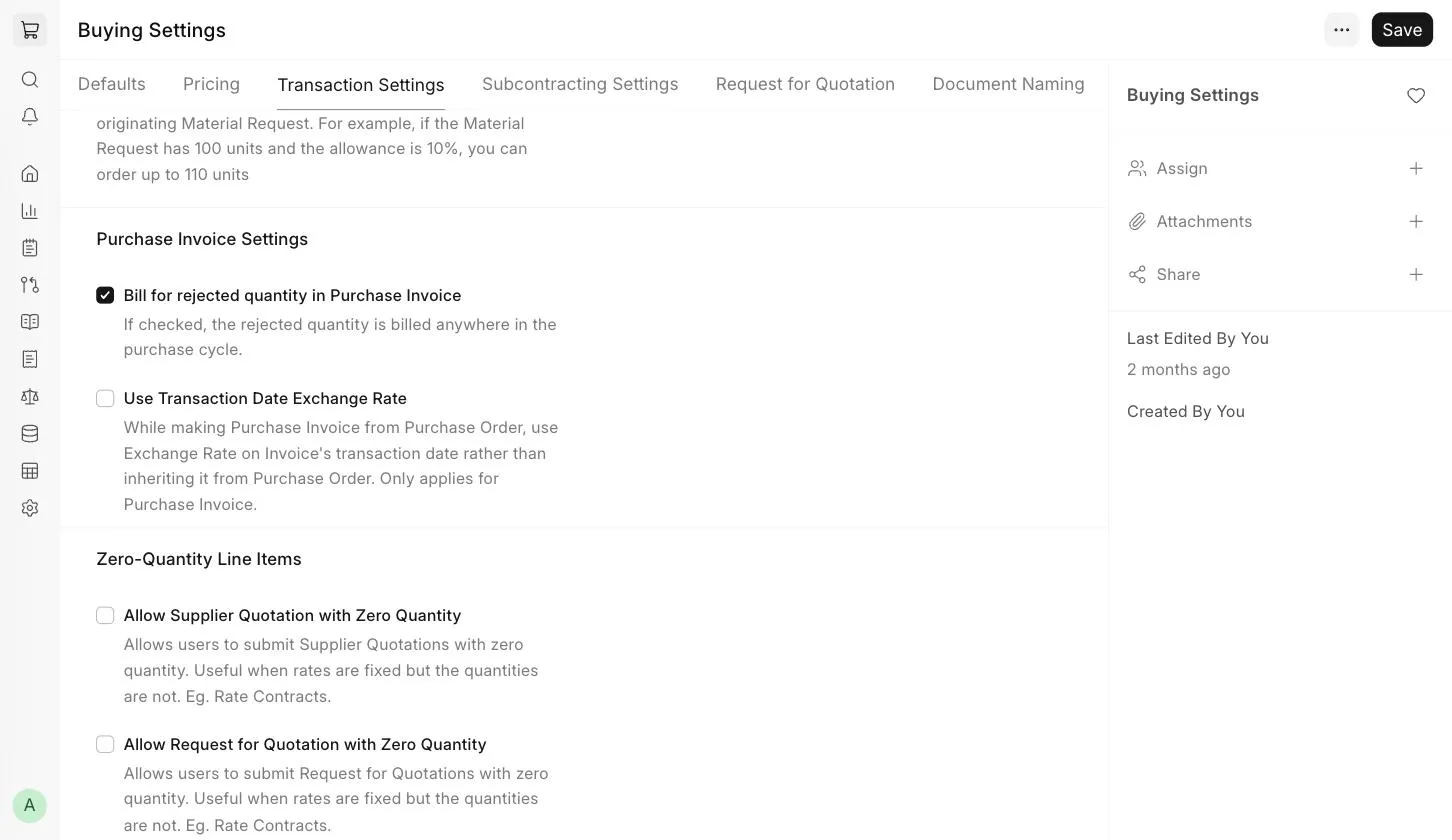
- Bill for Rejected Quantity in Purchase Invoice : If checked, the Rejected Quantity will be included while creating a Purchase Invoice from a Purchase Receipt.
- Use Transaction Date Exchange Rate : While creating a Purchase Invoice from a Purchase Order, the exchange rate on the invoice's transaction date will be used instead of the one inherited from the Purchase Order. This applies only to Purchase Invoices.
Set Valuation Rate for Rejected Materials
By default, the valuation rate for rejected materials is set to zero and no accounting ledger entry is created for them in the Purchase Receipt. To apply a valuation rate and create accounting entries for rejected materials, enable Set valuation rate for rejected Materials in the Transaction Settings tab.
:::note The "Set valuation rate for rejected Materials" option is visible only when Bill for Rejected Quantity in Purchase Invoice is enabled. :::
3.9 Zero-Quantity Line Items
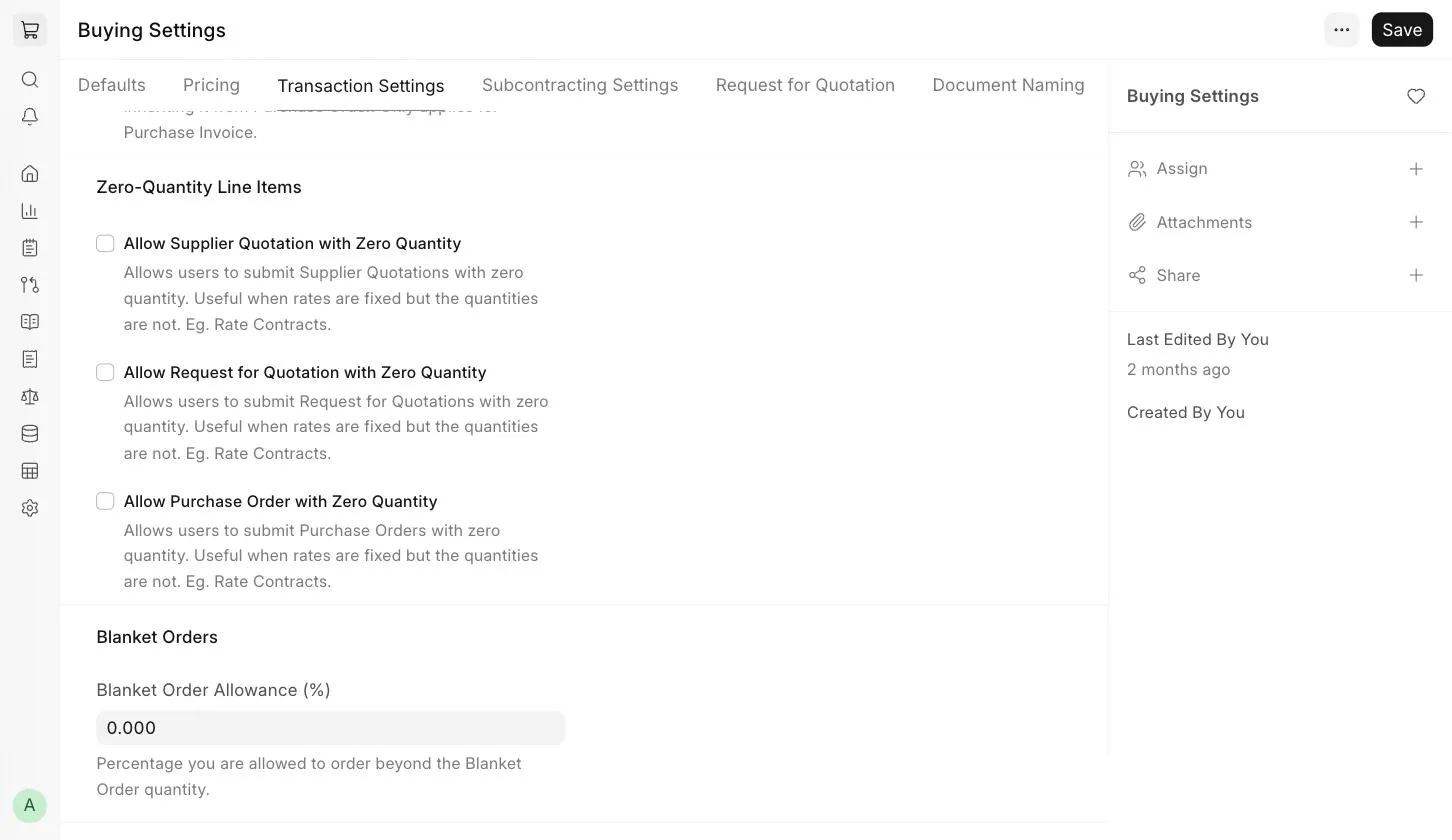
These options allow you to submit documents with zero quantity for Items. This is useful when rates are fixed but quantities are not, for example, in rate contracts.
- Allow Supplier Quotation with Zero Quantity
- Allow Request for Quotation with Zero Quantity
- Allow Purchase Order with Zero Quantity
3.10 Blanket Order Allowance (%)
The percentage you are allowed to order beyond the Blanket Order quantity. For example, if you have a Blanket Order for 100 units and the allowance is 10%, you are allowed to order up to 110 units.
4. Subcontracting Settings
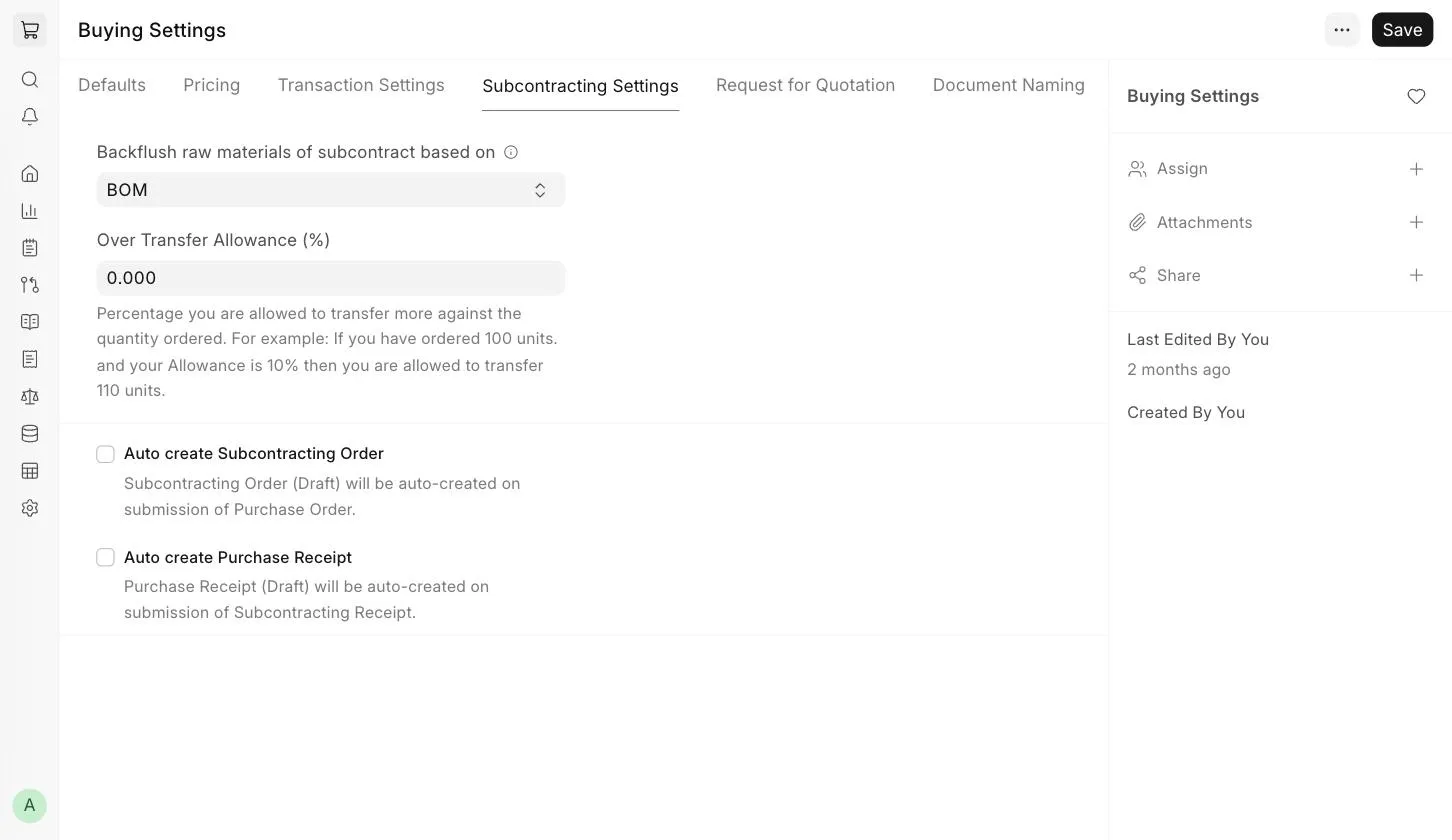
4.1 Backflush Raw Materials of Subcontract Based On
- BOM : Raw materials will be consumed in the Subcontracting Receipt as per the BOM of the finished good.
- Material Transferred for Subcontract : Raw materials will be consumed based on the materials transferred against the Subcontracting Order. If no stock has been transferred, no materials will be consumed at the time of the Subcontracting Receipt.
4.2 Over Transfer Allowance (%)
The percentage you are allowed to transfer more than the ordered quantity. For example, if you have ordered 100 units and the allowance is 10%, you are allowed to transfer 110 units. This field is visible when backflush is based on BOM .
4.3 Validate Consumed Quantity (as per BOM)
If enabled, the consumed quantity of raw materials will be validated against the quantity required as per the finished good's BOM. This field is visible when backflush is based on Material Transferred for Subcontract .
4.4 Auto Create Subcontracting Order
If enabled, a Subcontracting Order will be created automatically in Draft state on submission of a Purchase Order that has "Is Subcontracted" enabled.
4.5 Auto Create Purchase Receipt
If enabled, a Purchase Receipt for the service items will be created automatically in Draft state on submission of the Subcontracting Receipt.
5. Request for Quotation
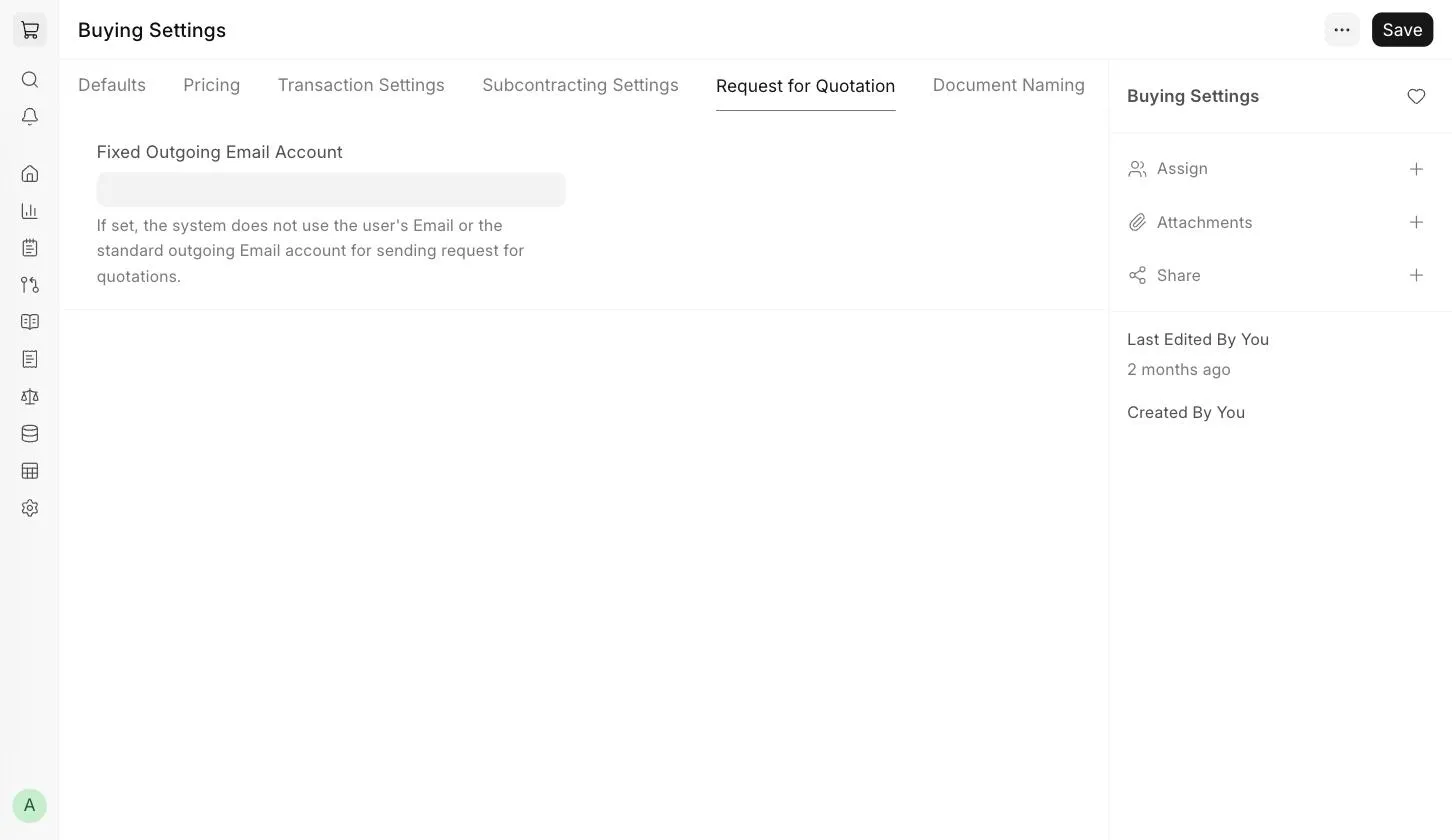
5.1 Fixed Outgoing Email Account
If set, Requests for Quotation will always be sent to suppliers from this Email Account, instead of the user's email or the standard outgoing Email Account.
6. Document Naming
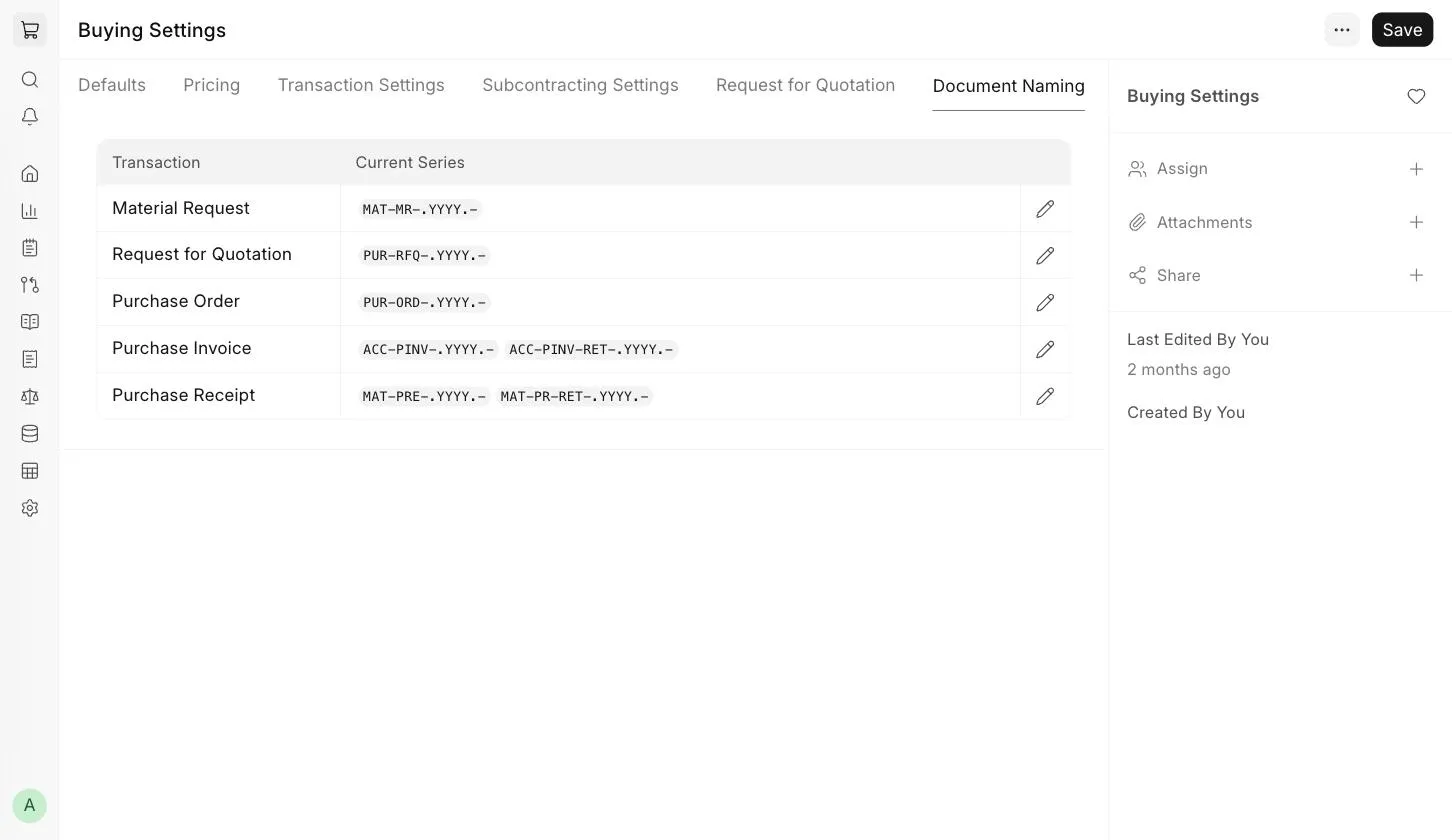
This tab shows the current Naming Series of buying transactions like Material Request, Request for Quotation, Purchase Order, Purchase Invoice and Purchase Receipt. Click on the edit icon against a transaction to change its Naming Series.
