ROOM64 / KNOWLEDGE / ERPNEXT

Make A Colorful Gantt Chart

ERPNext allows users to add colours to certain documents for better visual cues and representation. A good example of this would be the Event Calendar , where, for each event you c

อ่านต้นฉบับที่ ERPNext Official Docs ↗
เอกสารอ้างอิงภาษาอังกฤษเนื้อหาจากเอกสาร ERPNext คงรายละเอียดและโค้ดตามต้นฉบับ · ต้นฉบับอัปเดต 2026-03-02 ชื่อเมนูและ DocType ที่ใช้ได้ขึ้นอยู่กับเวอร์ชันและรุ่นที่ทีมใช้งาน

Projects · โครงการและงานบริการ · Make A Colorful Gantt Chart

สารบัญในหน้านี้

ERPNext allows users to add colours to certain documents for better visual cues and representation. A good example of this would be the Event Calendar , where, for each event you can add a colour.

We will be doing so by customizing Tasks under Projects module.

Steps To Add Colours To The Gantt Chart

  1. Go to Customize Form in the system and select Task in Enter Form Type option. Alternatively, you can reach this screen by going to Menu > Customize from the Task list or form.
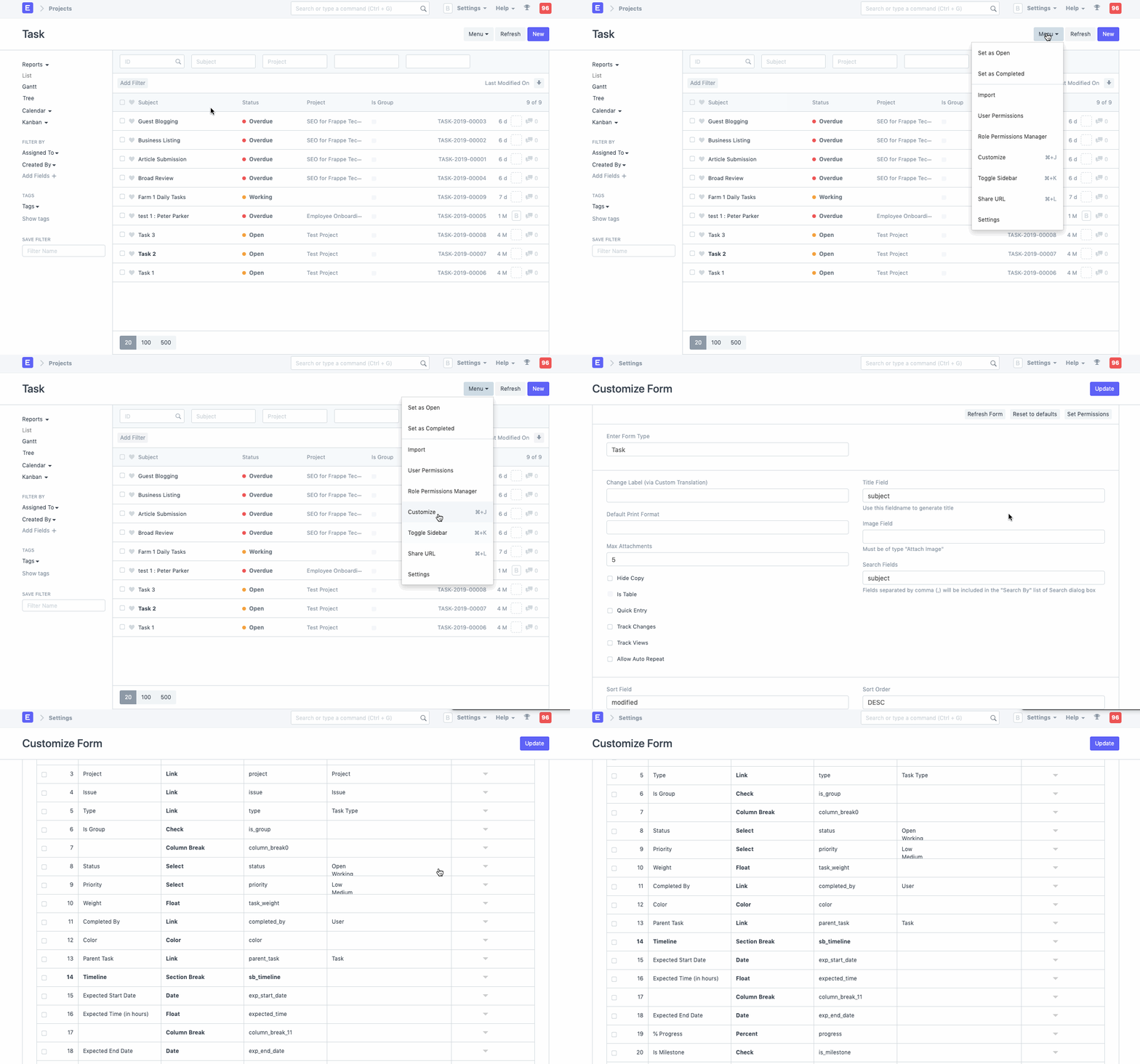
customize-form

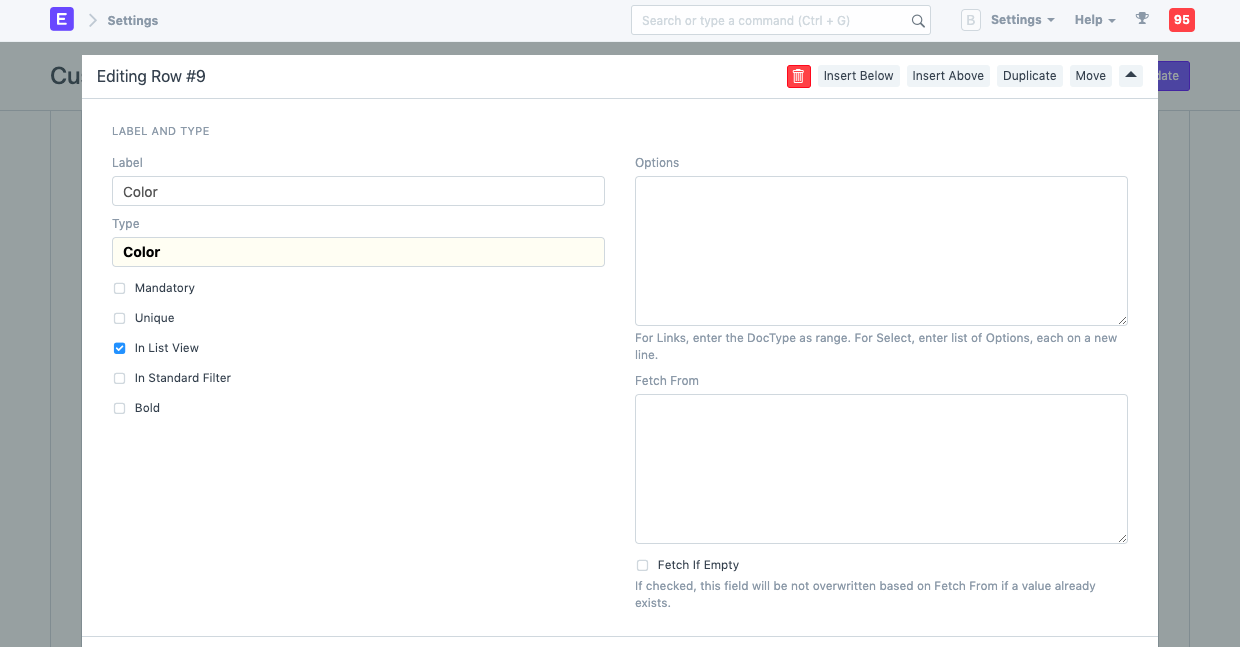
  1. Add a new field in the doctype of fieldtype color.
  2. Check In List View option.

customize-form

  1. Save the form, go back to the Task list, and reload.
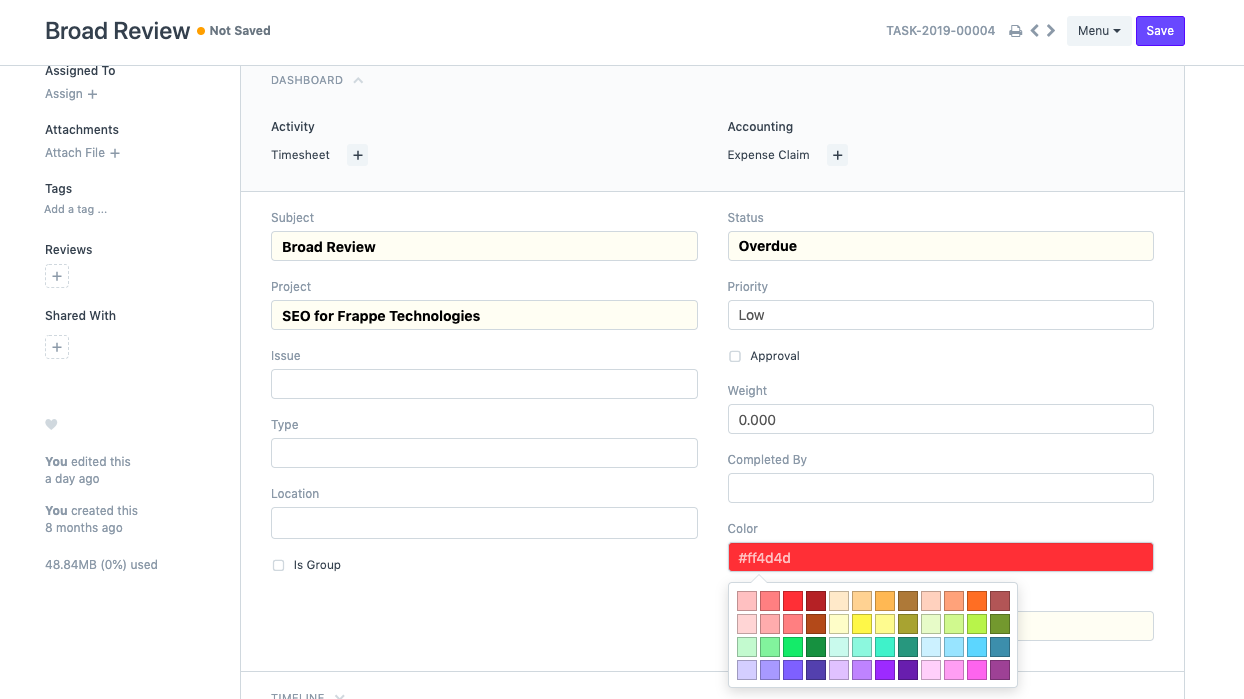
  2. When opening an existing or new Task, you should see a color field. Pick a color for the Task.
customize-form

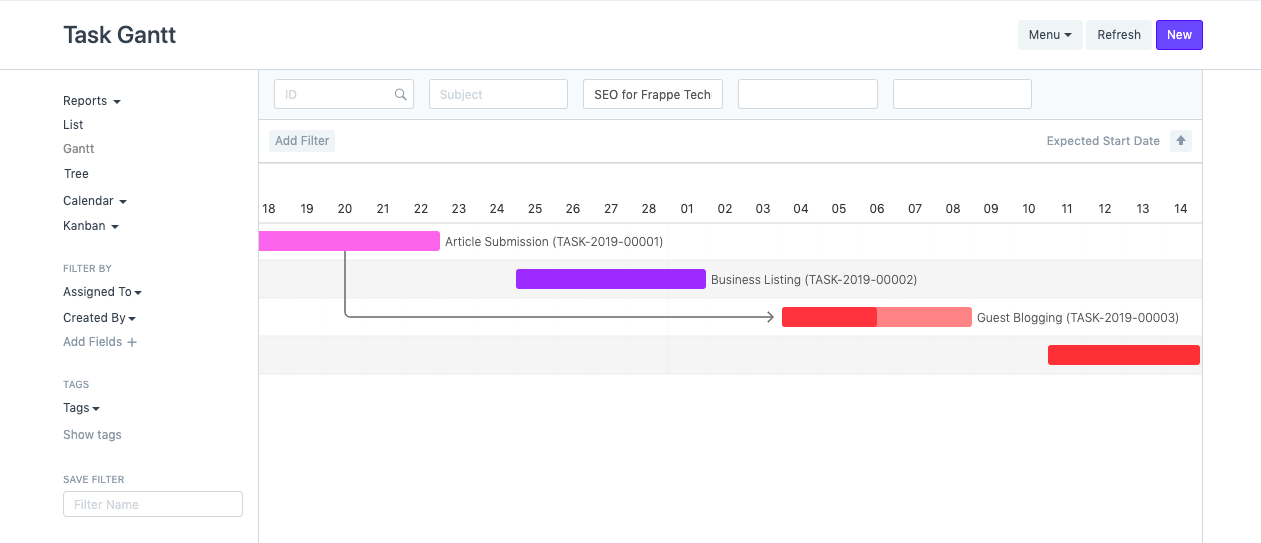
  1. Go back to the Task list and switch to Gantt view.
customize-form

เนื้อหาเอกสารอ้างอิงและภาพประกอบมาจาก ERPNext / Frappe Official Docs · บทความแนะนำภาษาไทยเรียบเรียงโดย Room64 · เว็บไซต์นี้เป็นคู่มือประกอบการใช้งานโดย Room64 · เอกสารทางการ ↗

มีงานที่อยากให้ Software, AI หรือ Automation ช่วยอยู่ไหม?

เล่า workflow หรือปัญหาที่ทีมกำลังเจอ เราช่วยดูได้ว่าควรใช้ระบบสำเร็จรูป เชื่อมเครื่องมือเดิม หรือพัฒนาเพิ่มเฉพาะส่วนไหน

คุยกับเราทาง LINEhello@room64.net