
Supplier Group is an aggregation of suppliers that are similar in some way.
A supplier may be distinguished from a contractor or subcontractor, who
commonly adds specialized input to deliverables. A supplier is also known as a
vendor. There are different types of suppliers based on the goods and
products they supply.
ERPNext allows you to create your own categories of suppliers. These
categories are known as Supplier Groups. For example, if your suppliers are
mainly pharmaceutical companies and FMCG distributors, you can create a new
Supplier Groups for them and name the groups accordingly.
To access Supplier Group, you can search Supplier Group in the Awesome bar.
1. Prerequisites
Before creating and using a Supplier Group, it is advised that you create the following first:
2. How to create a Supplier Group
- Go to the Supplier Group Tree, click on New.
- Type a name for your new Supplier Group.
- Ticking the Is Group checkbox will make it a Parent Supplier Group.
- You can set a Parent Supplier Group for this Supplier Group.
- You can also assign a default Payment Terms Template to the Supplier Group. Useful in a case where all your hardware suppliers take half payment on sales order and half post shipment.
- You can set the Default Payable Account.
- Save.
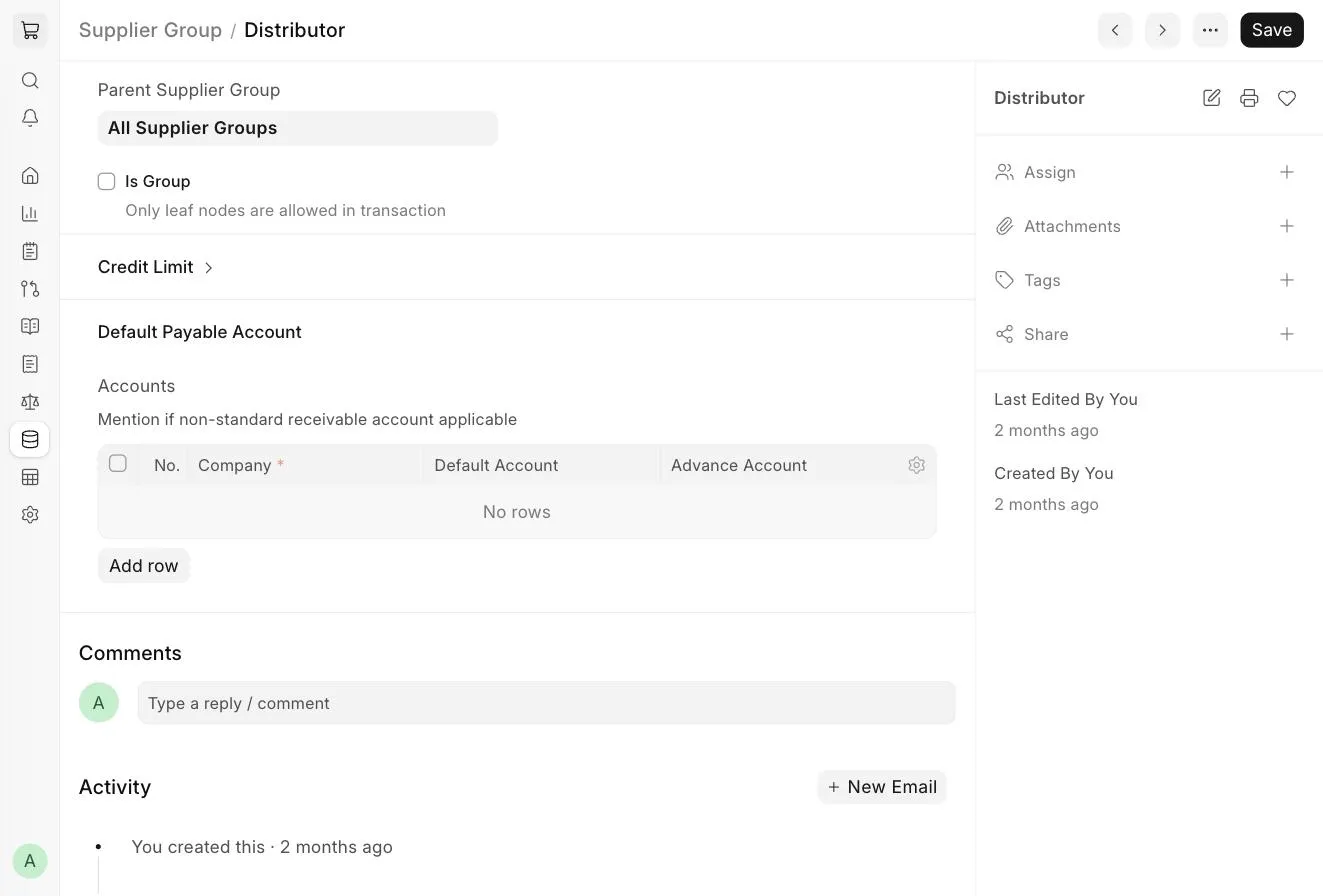
You can classify your suppliers from a range of choices available in ERPNext.
Choose from a set of given options like Distributor, Electrical, Hardware, Local, Pharmaceutical, Raw Material, Services etc. Classifying your supplier into different types facilitates accounting and payments.
3. Supplier Group Tree
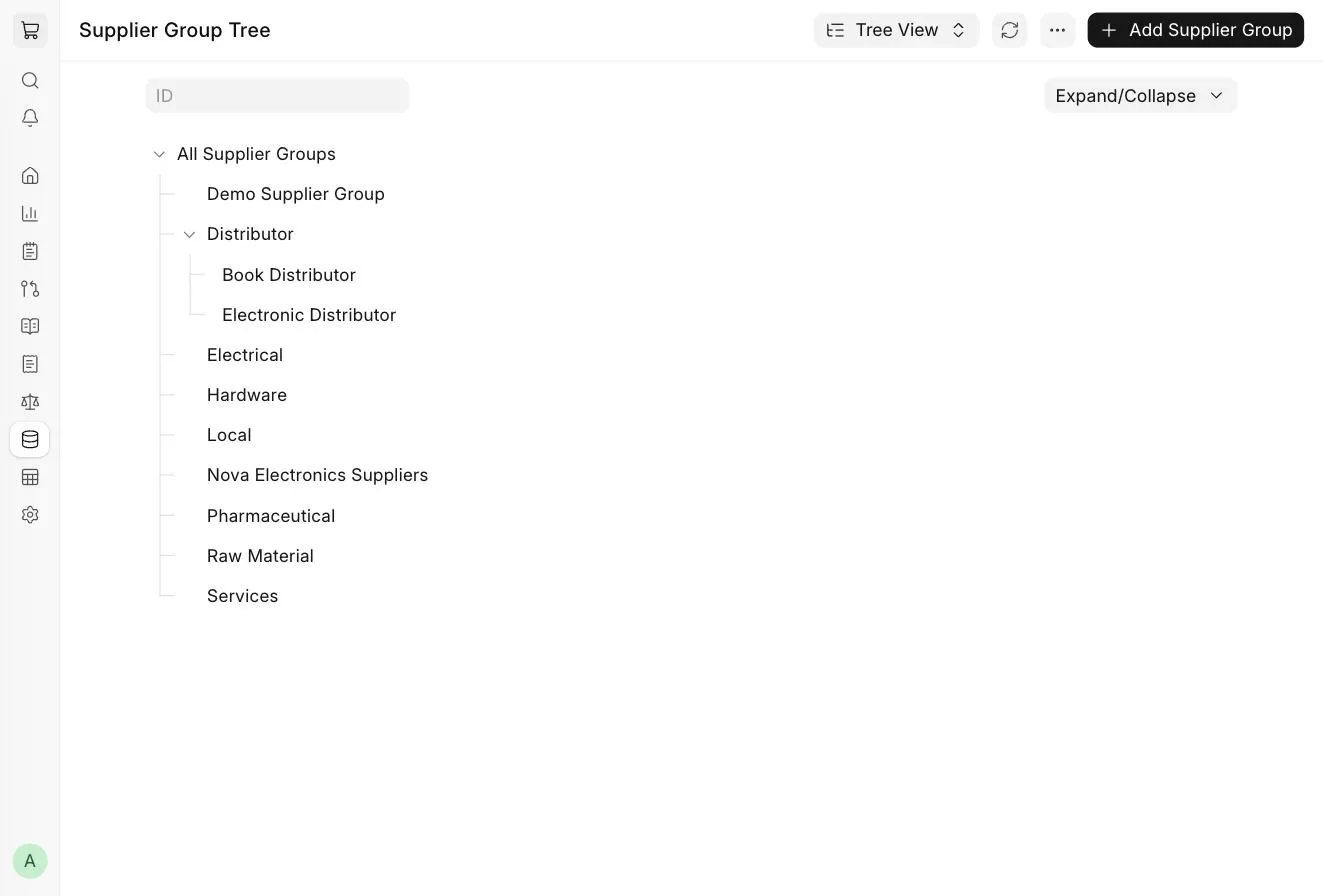
You can open the Supplier Group Tree by searching for it through Awesome Bar. The view will be similar to the Chart of Accounts.
With the new User Permissions in place, you can now apply hierarchy based permissions.
That is, if a User is permitted to view parent node of Supplier Group,
he/she automatically qualifies to view the child nodes of that parent node.
For example, in the above image, let's say that user permission is applied for a User to
view 'Distributor' document. Then the user also gets permitted to view its
child nodes 'Book Distributor', 'Electronic Distributor', etc.
