
This article explains how to invite members or teams to your base, manage their roles, and remove them when needed.
Invite Members to Base
Base-level member management allows you to control granular access to specific bases within your workspace. You can invite individual members directly to a base with specific role assignments.
- Navigate to the Overview > Members tab within your base.
- Click Add Members .
- Enter one or more email addresses (comma-separated).
- Select a role for the invited member(s) from the dropdown menu.
- Click Invite to Base .
หมายเหตุ: You can only assign roles that are at most equal to your own role on the base.
หมายเหตุ: You can invite multiple members simultaneously by entering their email addresses separated by commas.
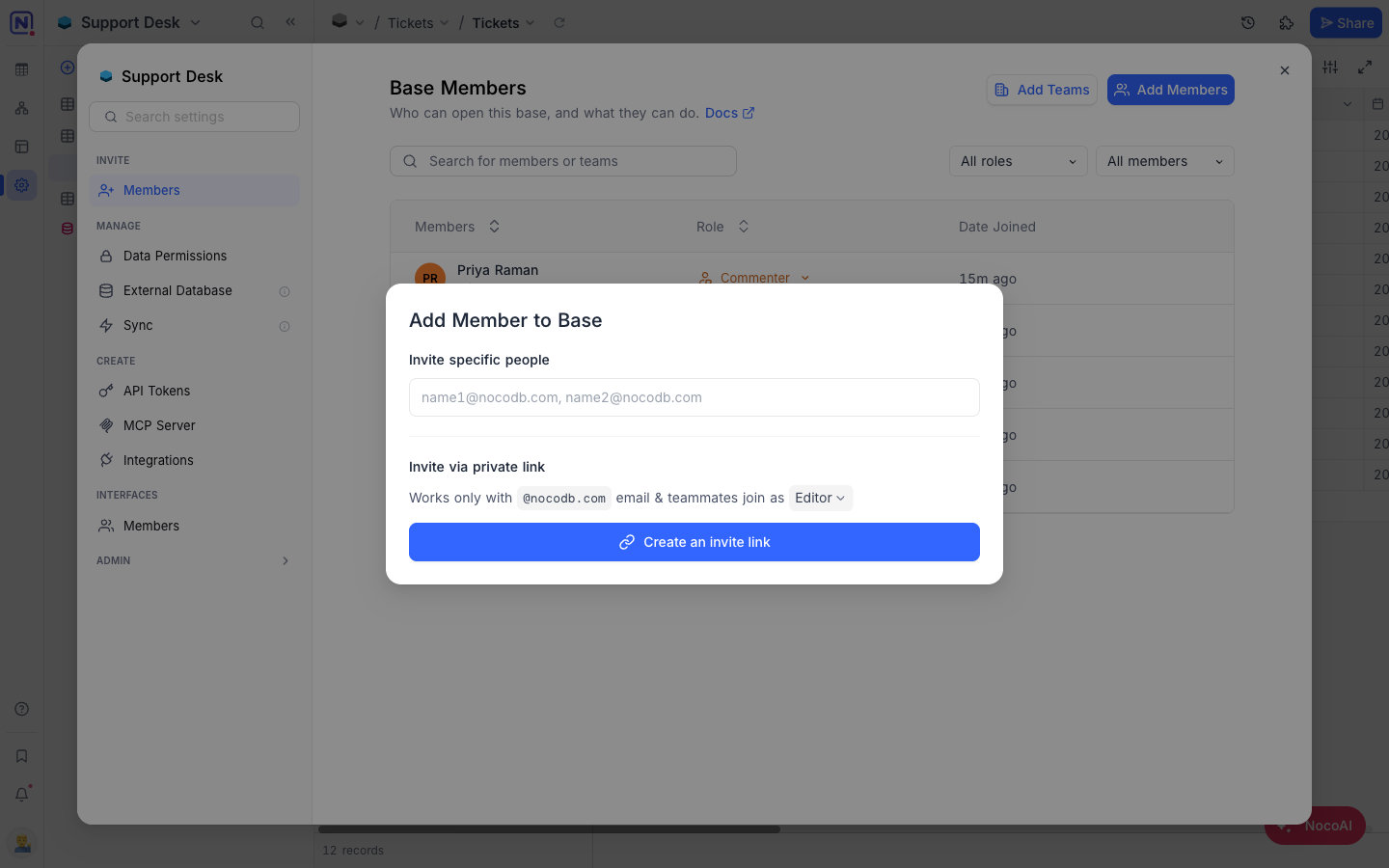
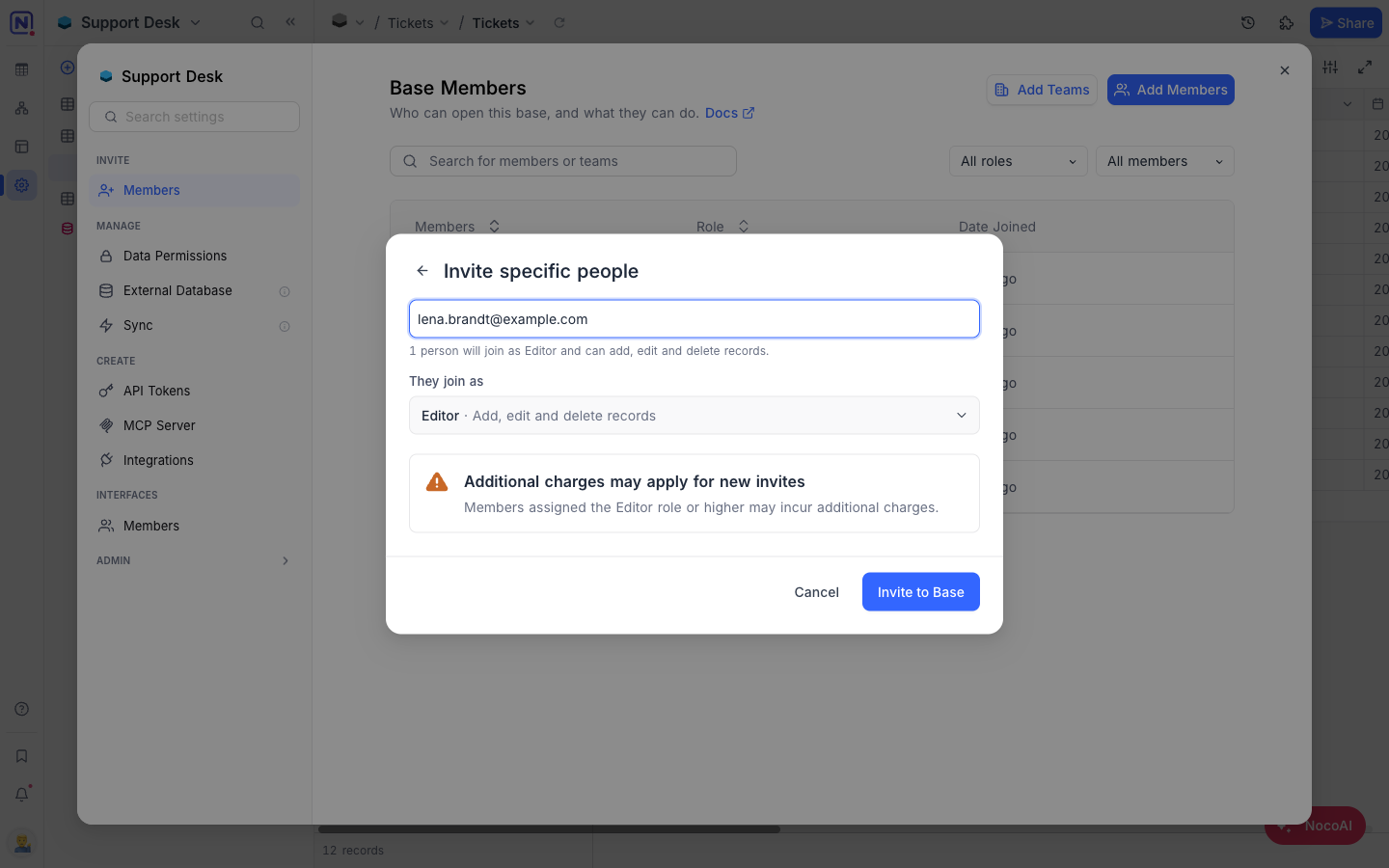
Members added to a workspace inherit the role assigned at the workspace level, unless a specific role is configured at the base level. Alternatively, you can invite users directly to a base with restricted workspace access. This allows you to grant access to a single base without exposing other workspace data — ideal for collaborating with external partners, clients, or temporary contributors in a controlled manner.
Invite via Link
Instead of inviting one address at a time, you can create an invite link that anyone who opens it can redeem to join the base at a role you choose. Creating a link requires the Editor role or above.
Learn more about invite links .
Invite Teams to Base ☁
You can assign entire teams to a base for streamlined collaboration. Teams inherit the base-level role assigned to them, making it easier to manage access for department-wide or functional group permissions.
- Navigate to the Overview > Members tab within your base.
- Click on the Add Teams button.
- From the dropdown, select one or multiple teams to add to the base. Teams already added to the base will be indicated as disabled in the dropdown.
- Choose the appropriate base-level role from the dropdown menu. Note that:
- Similar to individual members, you can only assign roles that are at most equal to your own role on the base.
- Teams can't be assigned the Owner role at the base level.
- Click on the Add Teams button to complete the process.
หมายเหตุ: When a team is invited to the base, all users under that team inherit the assigned base-level role unless overridden by an individual explicit member role.
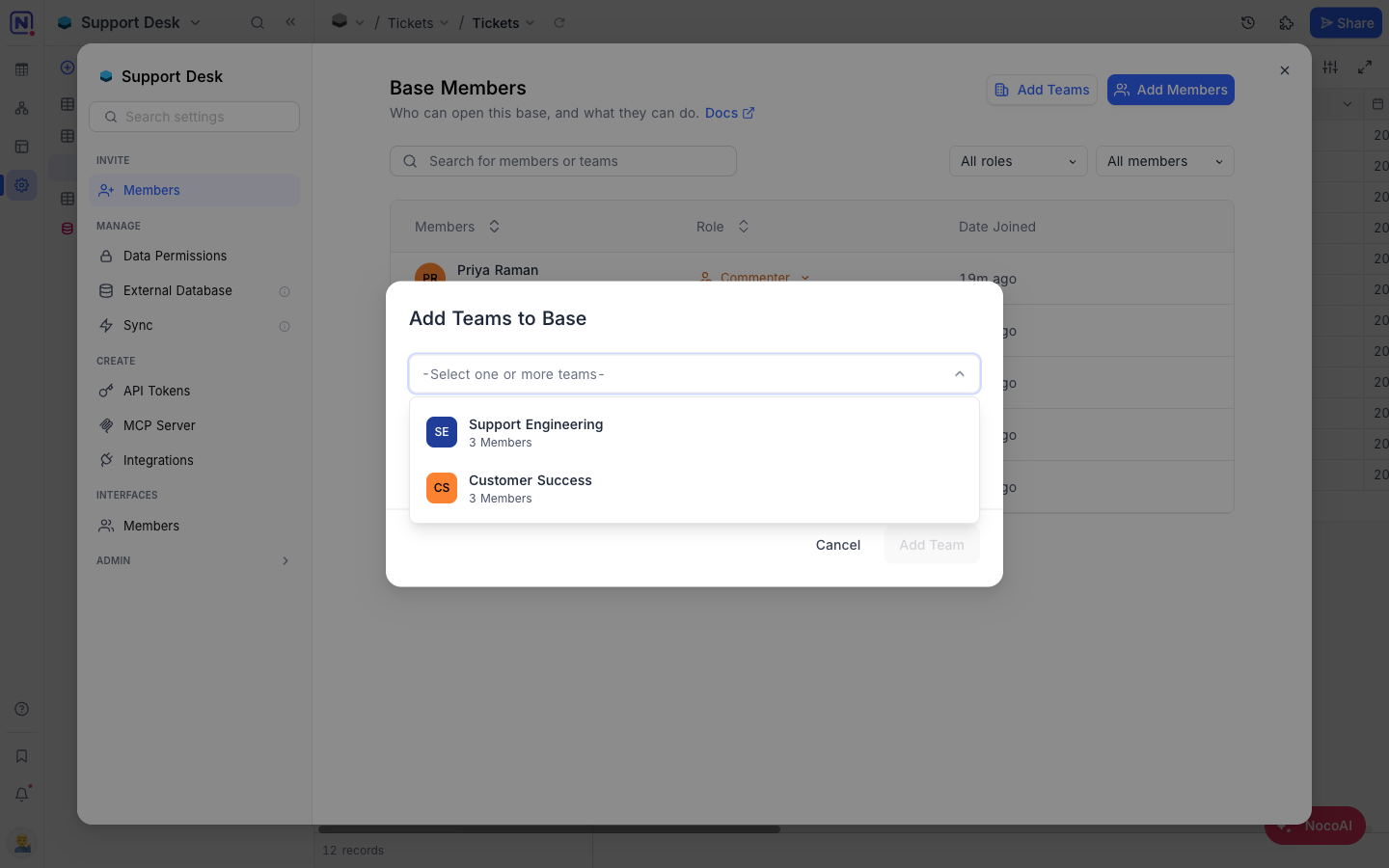
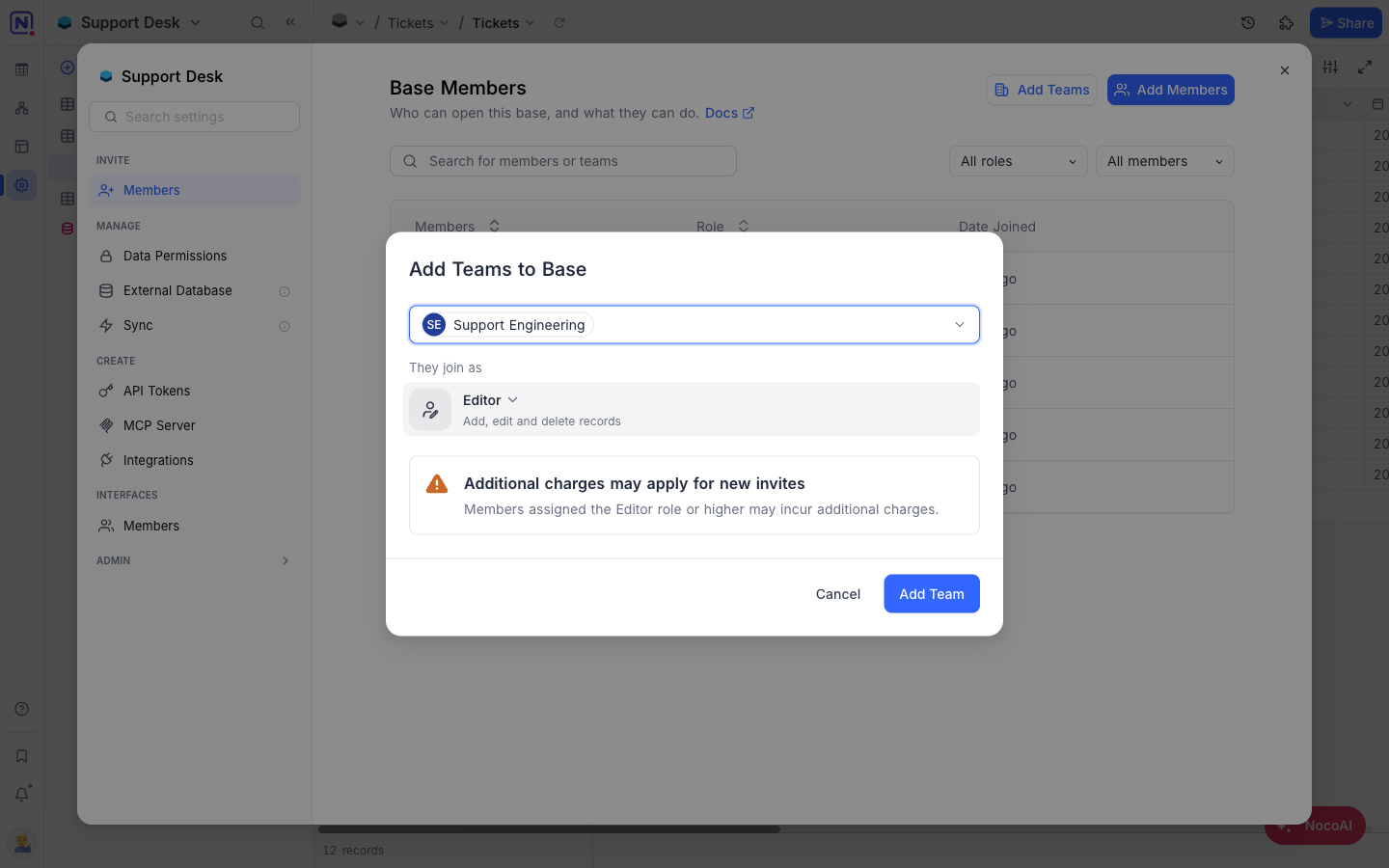
To learn more about creating and managing teams, refer to the Teams documentation .
Teams added to a workspace inherit the role assigned at the workspace level, unless a different role is configured at the base level. Alternatively, you can invite teams directly to a base with restricted workspace access. This allows team members to collaborate on a specific base without access to other workspace data — ideal for engaging external teams, partner organizations, or temporary project groups securely and efficiently.
List Base Members and Teams
The Members tab displays all users and teams that have access to the base.
- Individual members appear with their email addresses and assigned base role.
- Teams are listed with their name, member count, and assigned base role.
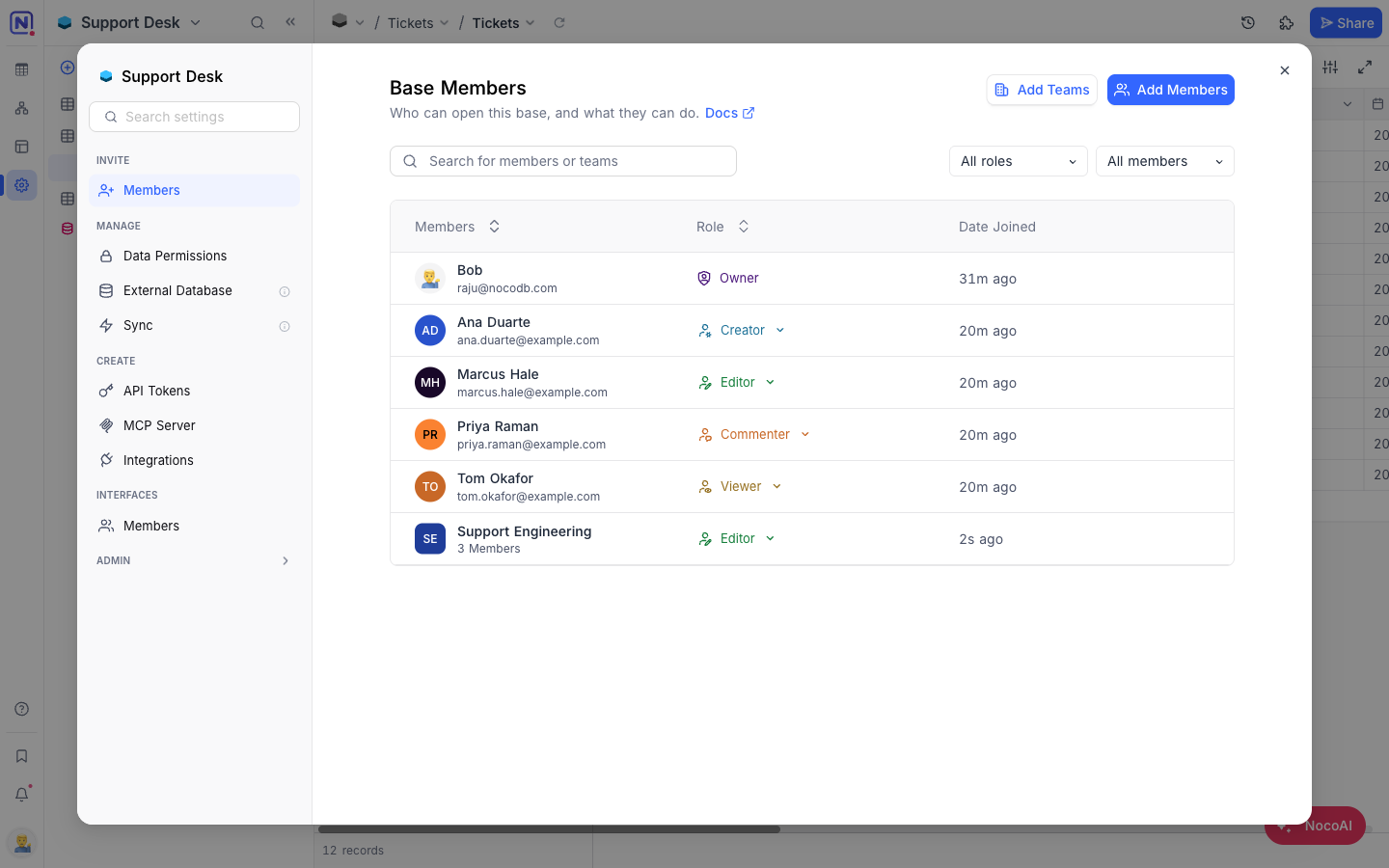
Inherited roles from workspace-level are displayed with workspace suffix to indicate their origin.
Modify Roles for Members or Teams
Access permissions for both members and teams can be updated directly from the Members tab.
- Click on the role dropdown next to the member or team.
- Select a new role from the list of available options.
- The role change takes effect immediately.
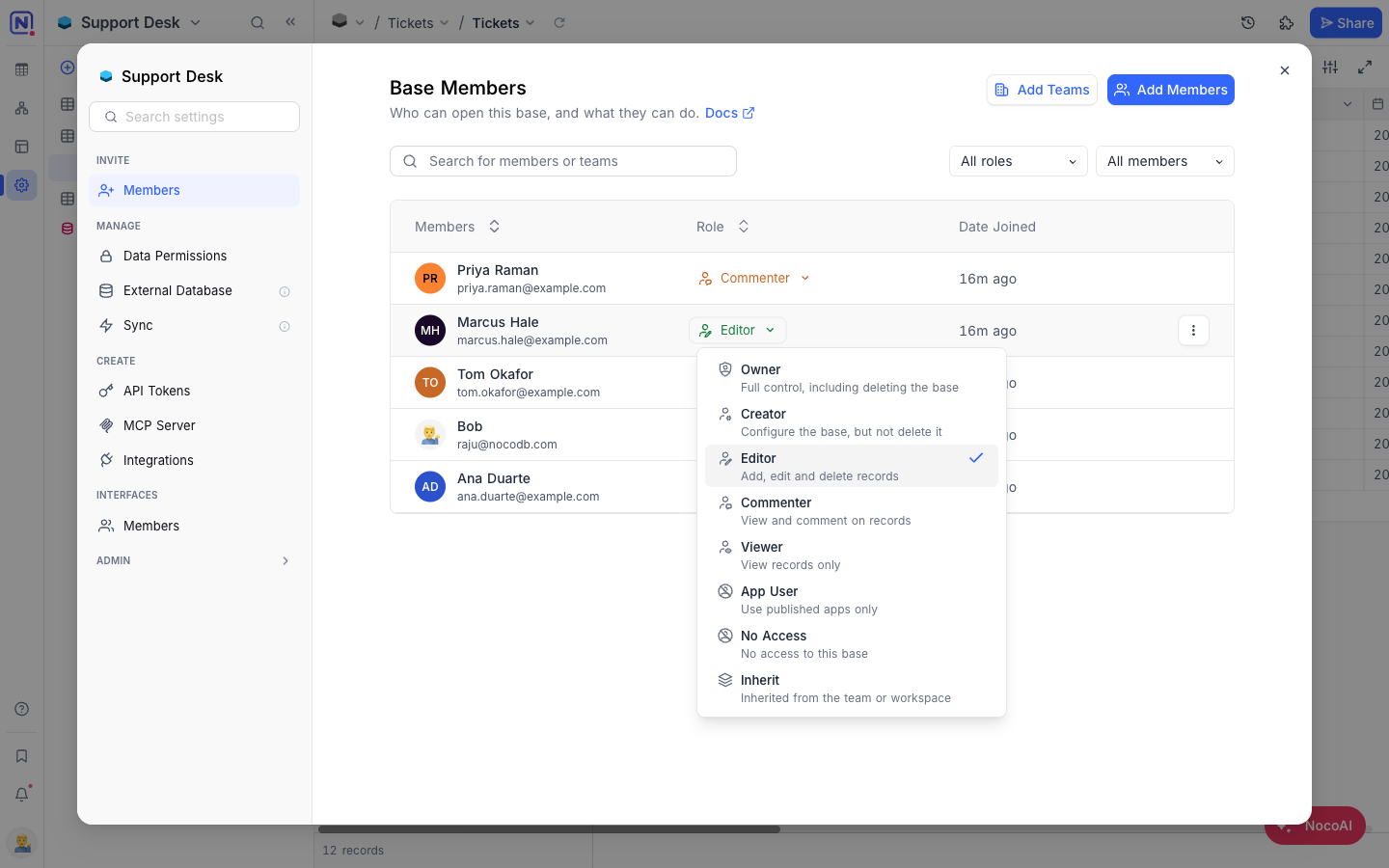
หมายเหตุ: You can only assign roles that are at most equal to your own role on the base. Teams cannot be assigned the Owner role at the base level.
Learn more about roles and permissions .
Role Precedence
When a user has multiple role assignments through both team and individual access at the base level, NocoDB resolves the final permission using a clear precedence order.
- Individual explicit role takes precedence over team-assigned role.
- Base-level roles override workspace-level roles.
- In case of multiple team roles, the highest permission applies.
Learn more about roles and permissions .
Remove or Revoke Base Access
There are two ways to manage member or team access to a base:
Deny Access
To prevent a user or team from accessing the base:
- Click on the role dropdown next to the member or team entry.
- Select
No Accessfrom the available roles.
The member or team will be blocked from accessing this base, regardless of their workspace or team-level permissions.
Revoke Explicit Assignment
To remove an explicit base-level role assignment and allow the user to inherit their workspace or team-level role:
- Click on the role dropdown next to the member or team entry.
- Select
Inheritfrom the available roles.
The member or team will now access the base based on their workspace-level or team-level permissions, rather than an explicit base-level assignment.
หมายเหตุ: Use No Access to explicitly block someone from a base. Use Inherit to remove the base-level assignment and fall back to workspace or team inheritance.
Best Practice
- Use base-level permissions to restrict access to sensitive data while maintaining broader workspace access.
- Assign teams to bases for departments or functional groups to manage access efficiently without individual invitations.
- Start by inviting teams to bases when possible, then add individual members for exceptions.
- Regularly audit base member lists to ensure access remains appropriate as team compositions change.
Learn more here .
Availability
- Teams are available on NocoDB Cloud (Business plan and above) and licensed self-hosted deployments (Scale plan and above).
Related
Related pages
- Workspace Collaboration : This article explains how to invite members or teams to your workspace, manage their roles, and remove them when needed.
- Invite Links : This article explains how to create, share, restrict and delete invite links that let people join a base or a workspace.
