
Learn how to share a view publicly in NocoDB.
Sharing a specific view of a table becomes highly valuable when you need to collaborate with individuals outside your organization who need access to specific sections of your database. This shared view provides a read-only perspective, accessible to anyone, regardless of their workspace affiliation. You have control over which data fields and records are visible to these external viewers, ensuring that any sensitive data remains hidden. Furthermore, if you decide to make changes to the visible fields or records within the view, the shared link will promptly reflect these adjustments, updating in real-time.
Generate Share View
- Click
Sharebutton on the top right of the toolbar - Open the
Share to webtab - Toggle the switch beside
Public link to <view name>to create shared view link - Click
Copy URLto copy the link to clipboard
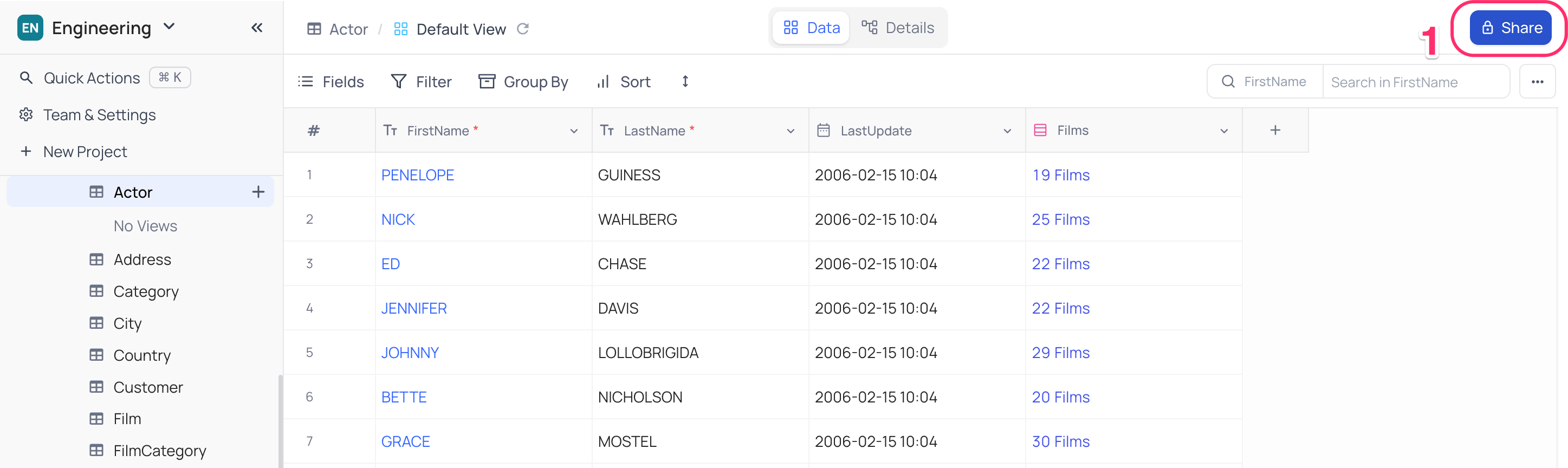
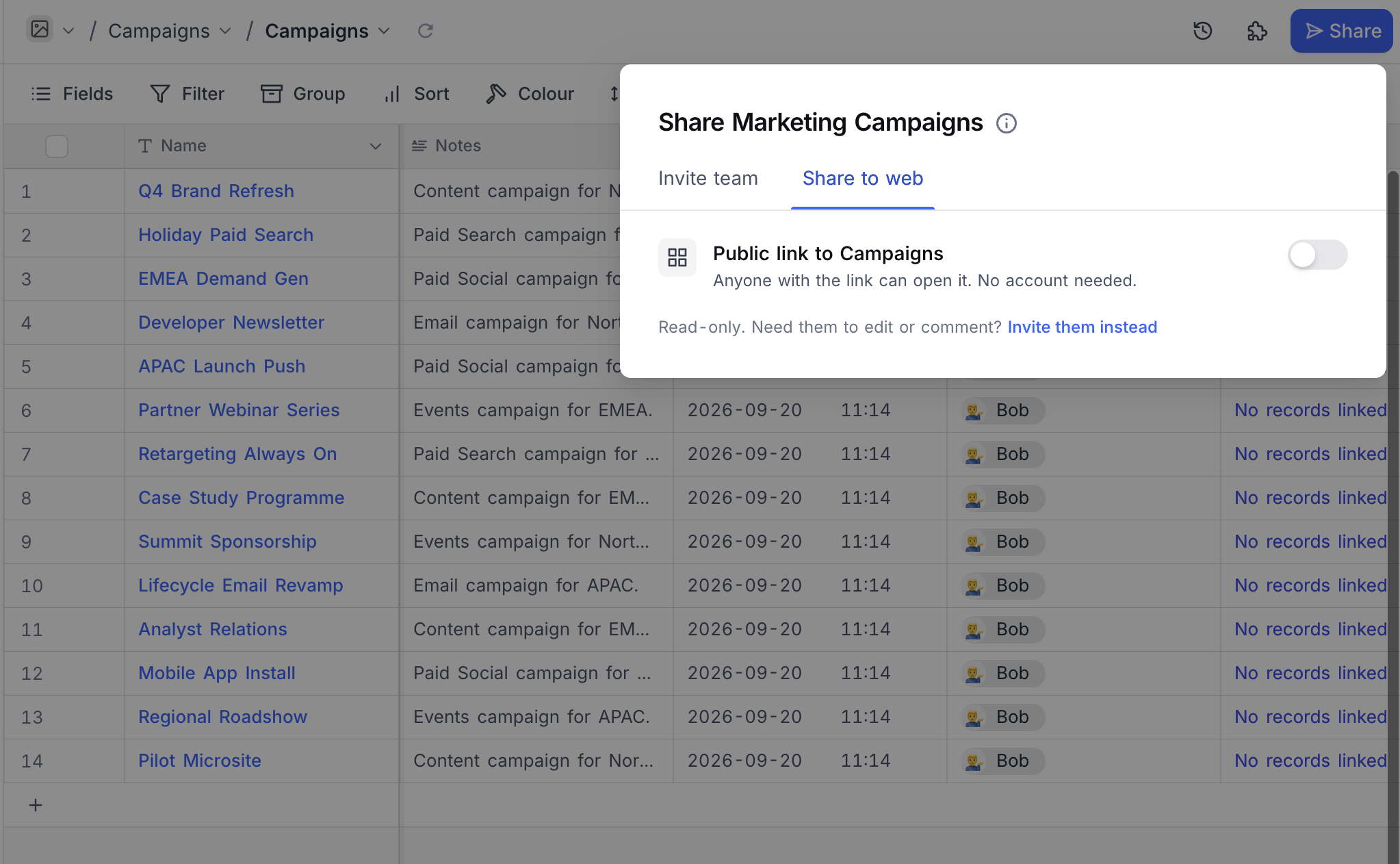
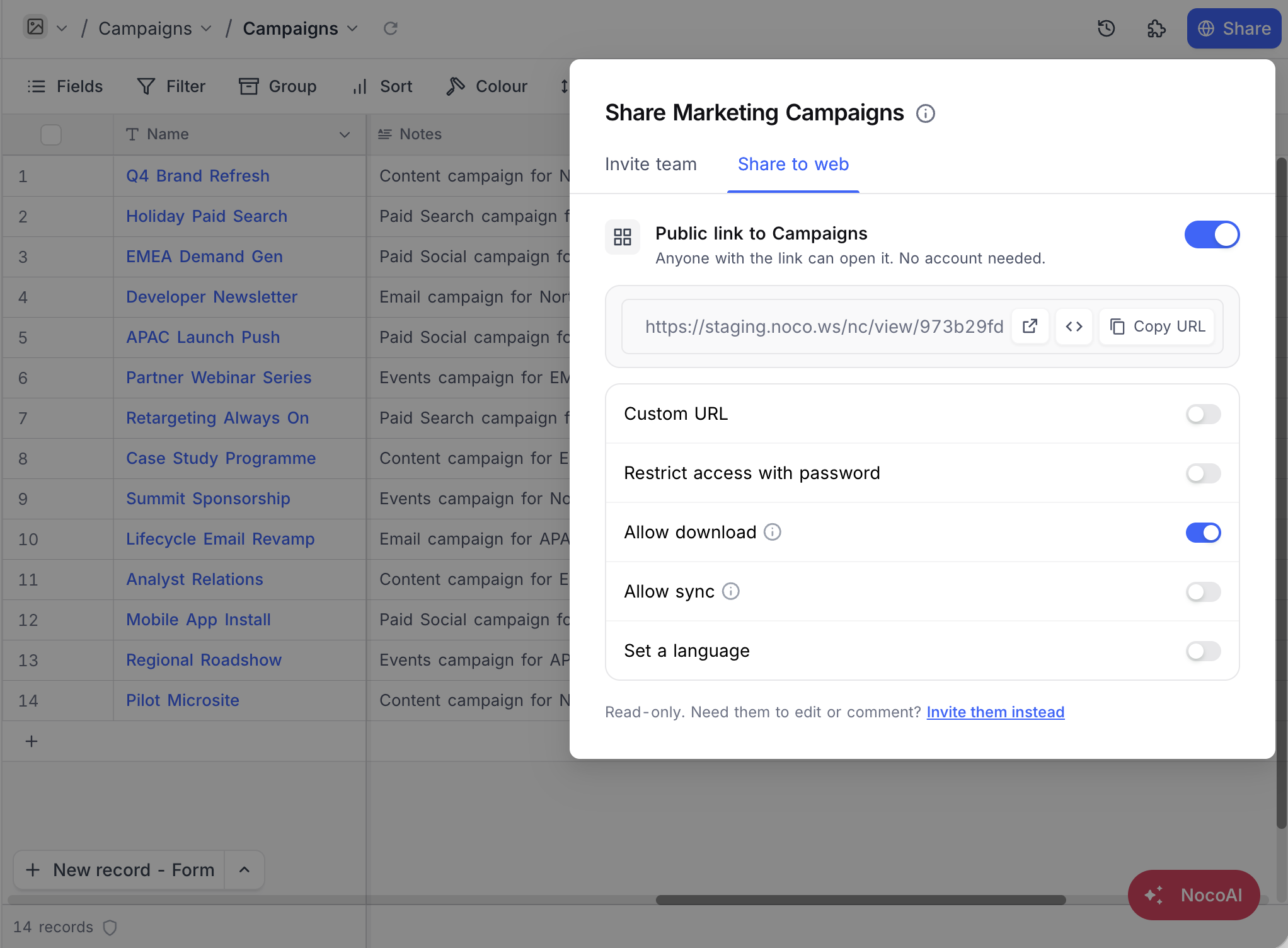
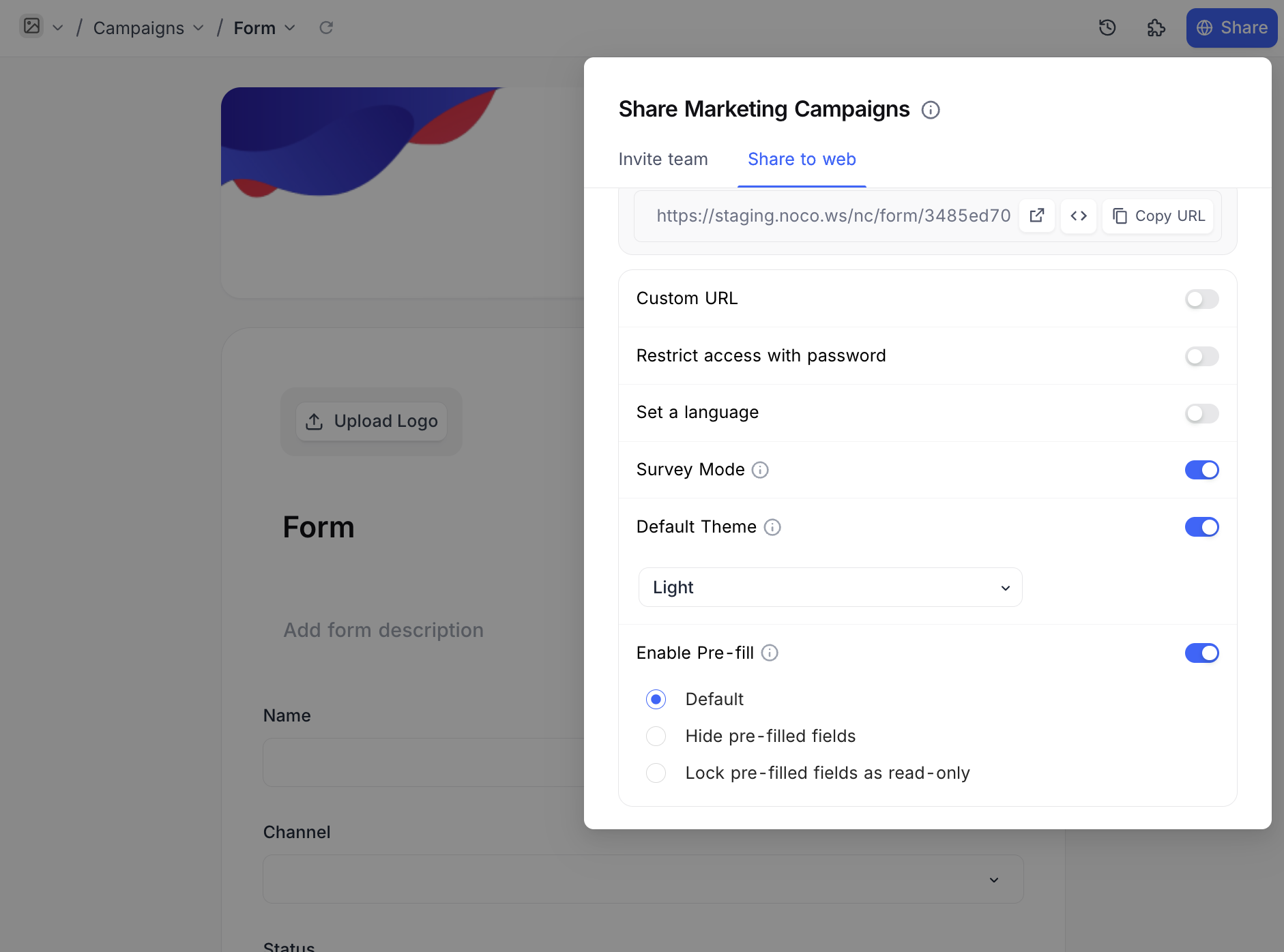
Share view options
Custom URL
You can customize the URL of the shared view by entering a custom URL in the input field. The custom URL should be unique and should not contain special characters from the set ( /, ?, # ). If the custom URL is already taken, you will be prompted to enter a different custom URL.
To enable custom URL,
- Click on the
Custom URLtoggle - Enter the custom URL in the input field
- Click on the
Savebutton to save the changes
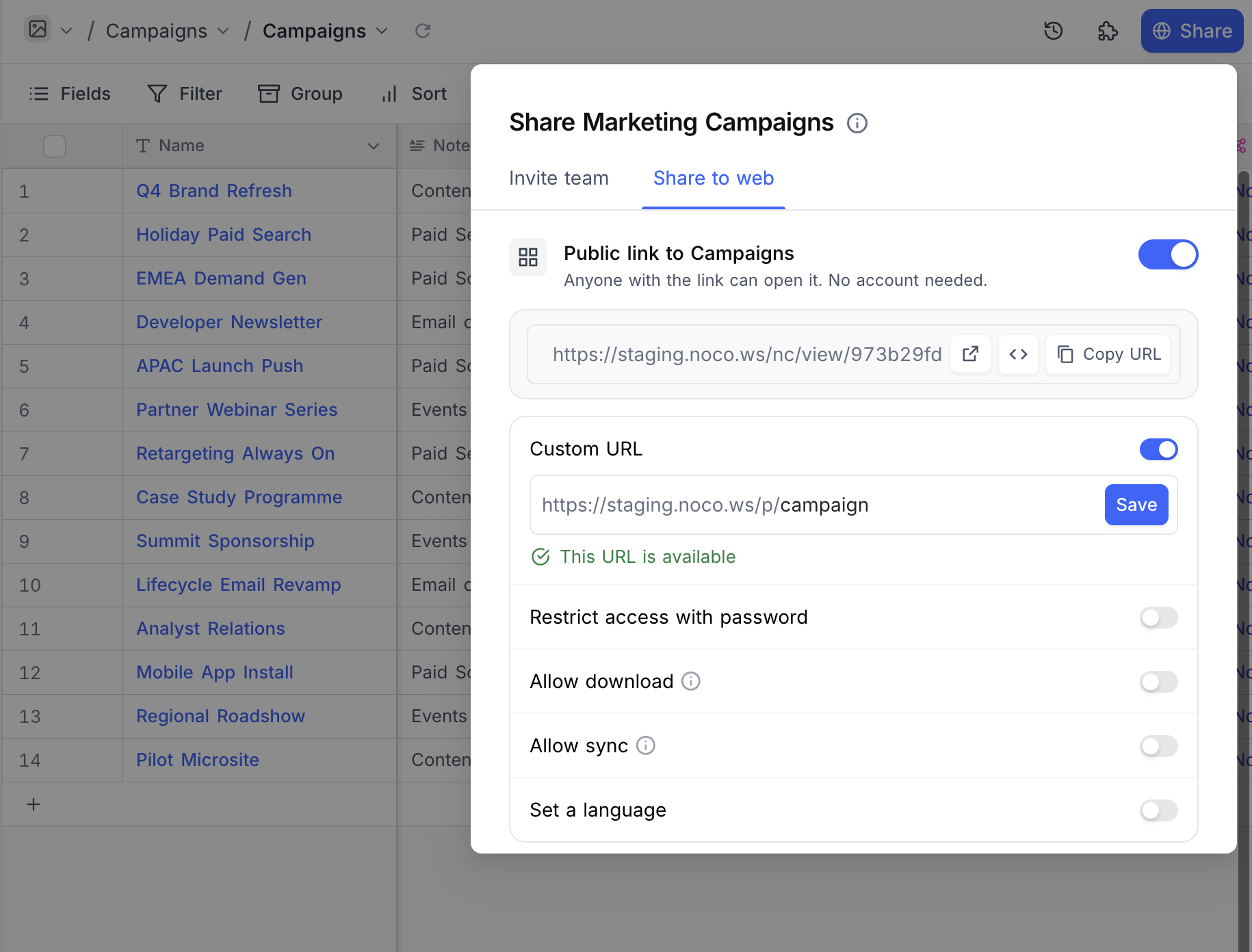
หมายเหตุ: Note that, the custom URL is case-sensitive.
Password protection
Toggle Restrict access with password on, enter a password and click Save . The password is not shown again after saving, so store it somewhere safe.
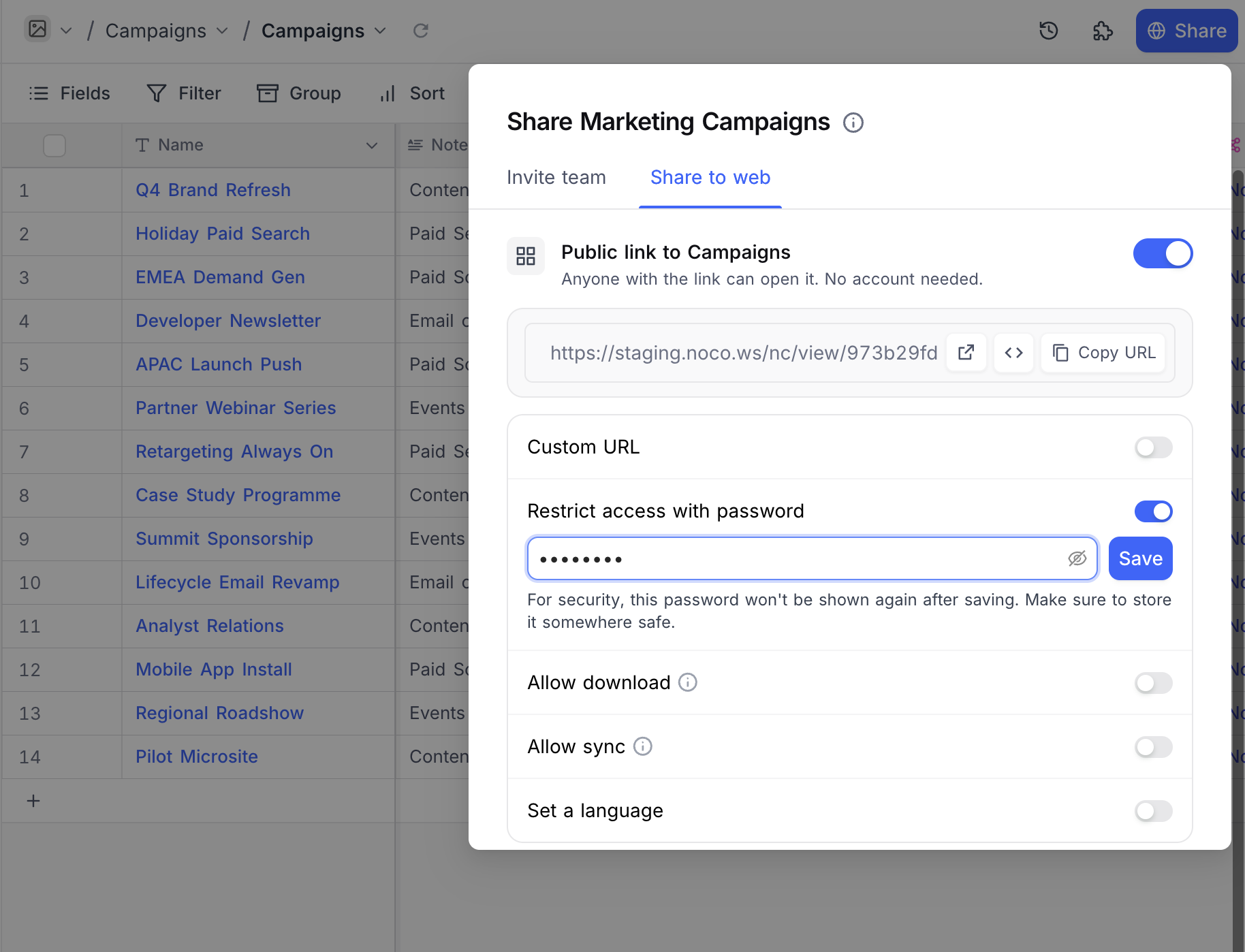
Download options
You can toggle Allow download to enable or disable download CSV/XLSX options in the shared view link
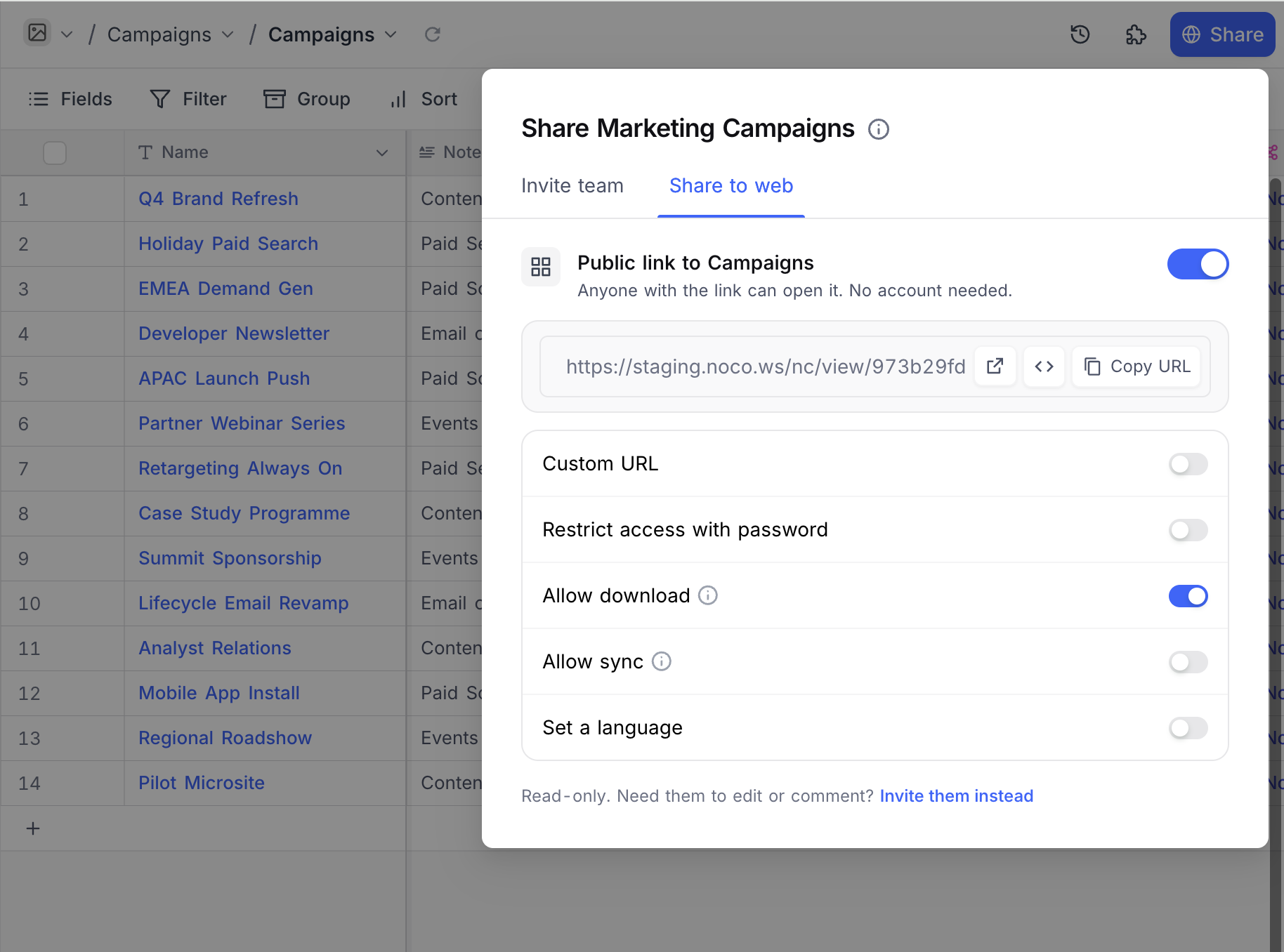
Allow sync
On a Grid view, toggle Allow sync on to let other NocoDB bases mirror this view as a live, read-only table. See NocoDB Sync for the full setup.
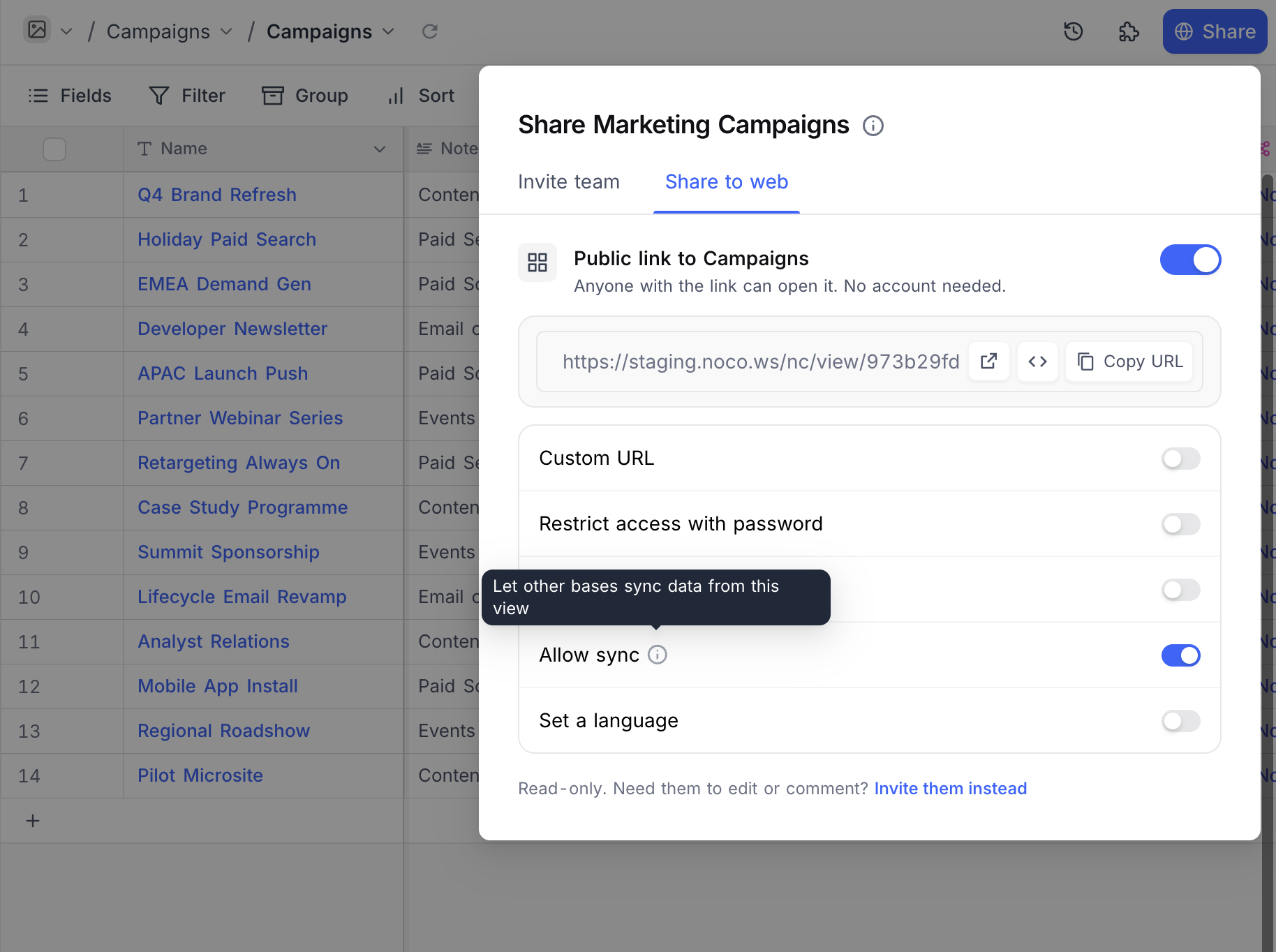
Set a language
Toggle Set a language on and pick a language to fix the interface language of the shared view, regardless of the viewer's own preference. Left off, the shared view follows the viewer's browser language.
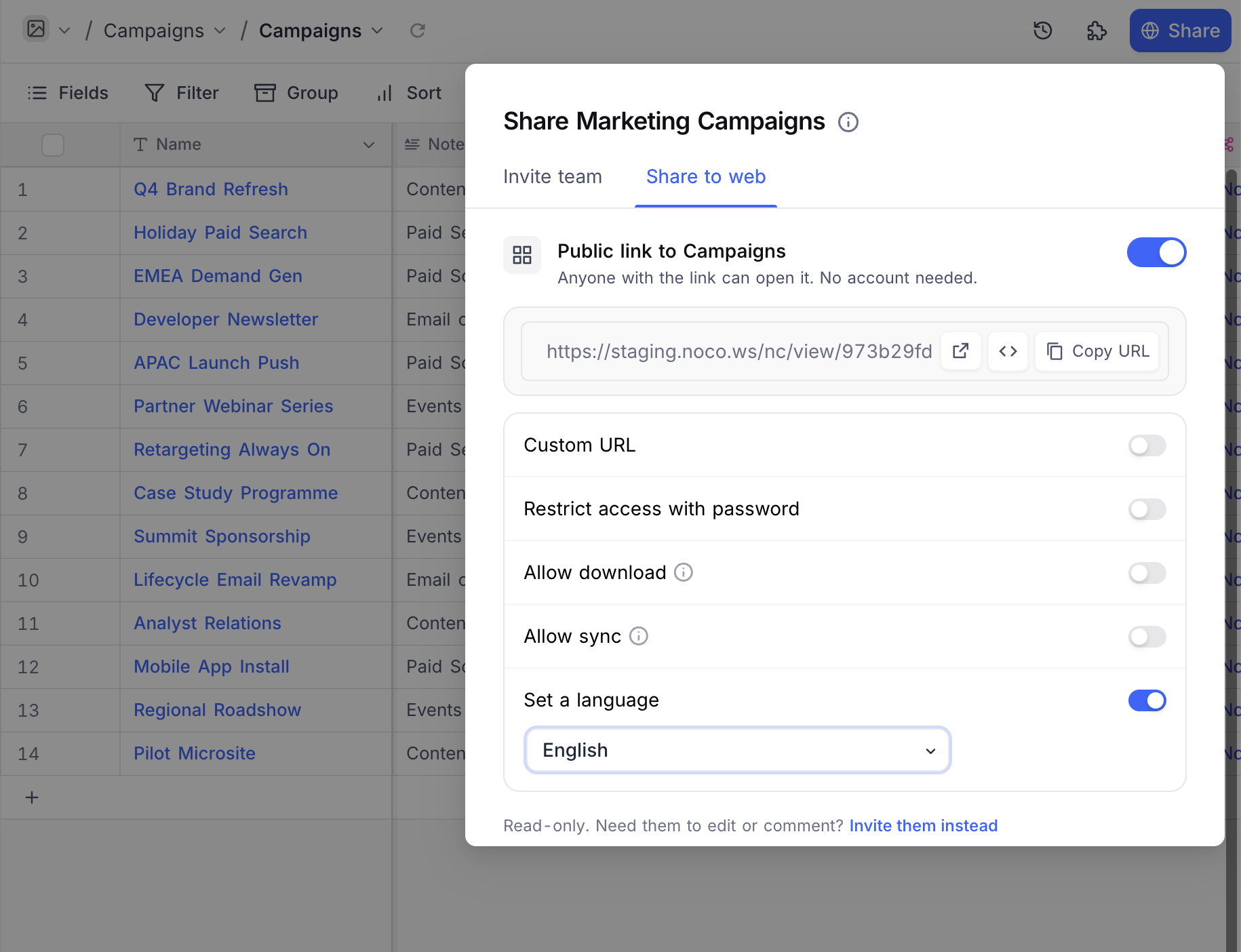
Share Form View Options
A shared Form view offers three options beyond the ones above:
Survey Mode: presents the form one field at a time instead of as a single page.Default Theme: fixes the form's theme,LightorDark, rather than following the viewer's.Enable Pre-fill: allows field values to be pre-filled from the share URL. ChooseDefaultto leave pre-filled fields editable,Hide pre-filled fieldsto remove them from the form, orLock pre-filled fields as read-onlyto show them without allowing edits.
หมายเหตุ: For a pre-filled link to work, fill the fields you want carried over in the form view builder first.
Access Share View
To access the shared view, please follow the steps below: Click on the Shared View URL . If the URL is password-protected, you will be prompted to enter the password to unlock it. Please input the required password to proceed.
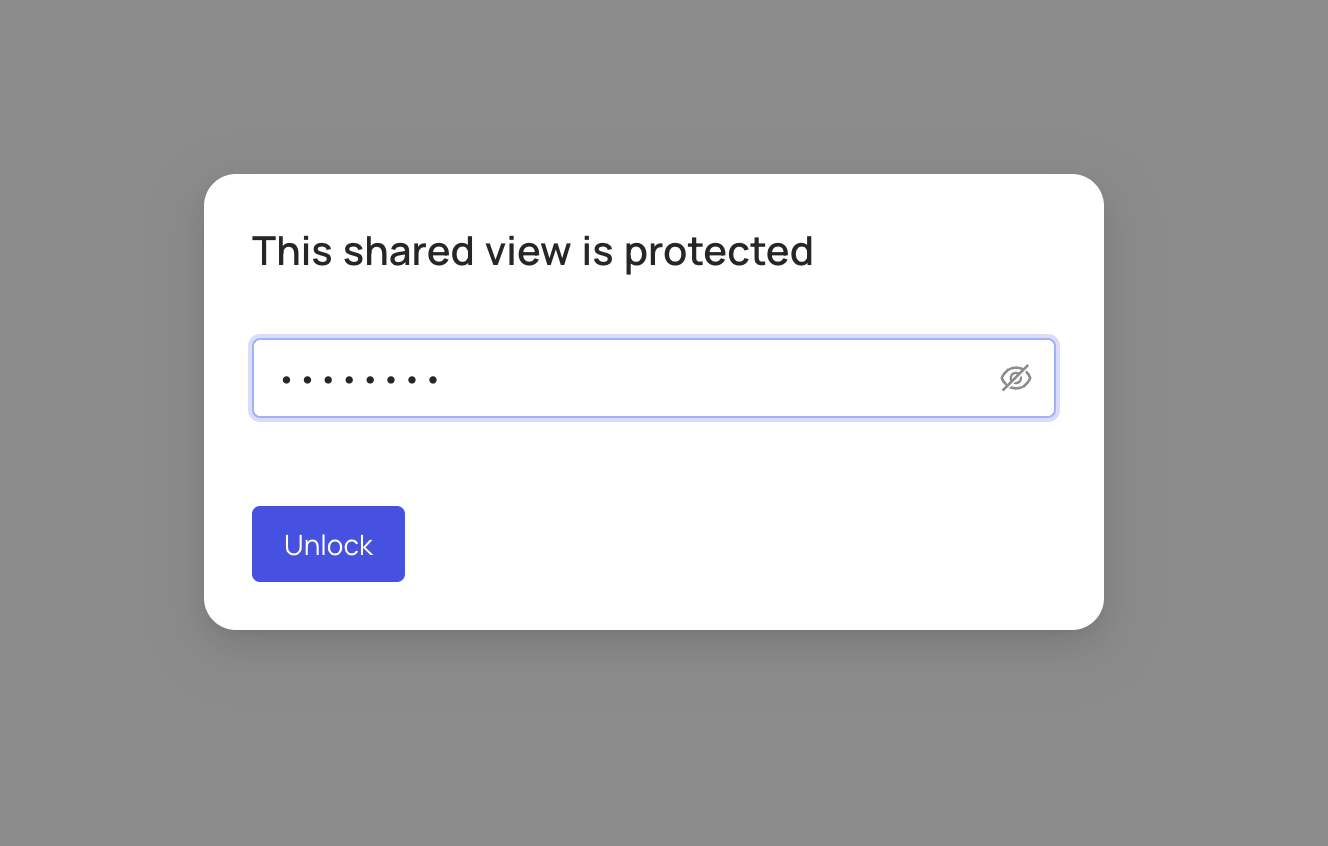
Once the password is successfully entered and authenticated, you will gain access to the shared view. In the event that the URL is not password-protected, you will be directed to the shared view directly, without the need for a password.
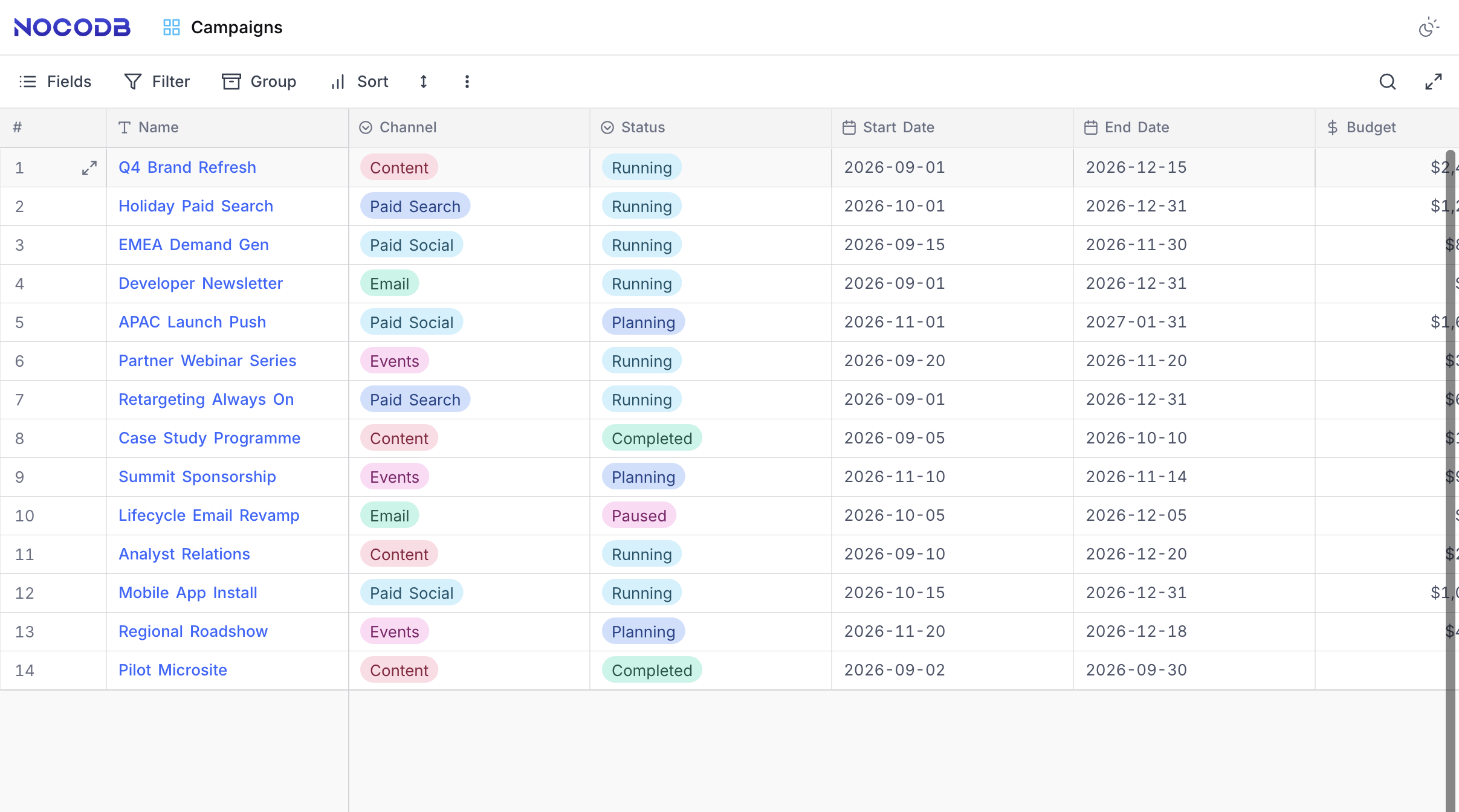
Users with the shared view link can only view the data and cannot make any changes to the view or its content. Records and fields in the shared view will be updated in real-time as changes are made to the original view. Users accessing shared view can apply filters and sort records as per their requirements.
หมายเหตุ: Filters & sorts applied to shared view will not be persisted. These filters & sorts will be reset when the shared view is accessed again.
Related pages
- Create View : Learn how to create a new view in NocoDB.
- View Folders : Learn how to organize views into collapsible folders in NocoDB.
- Actions on View : Learn how to delete, rename, duplicate a a view in NocoDB.
