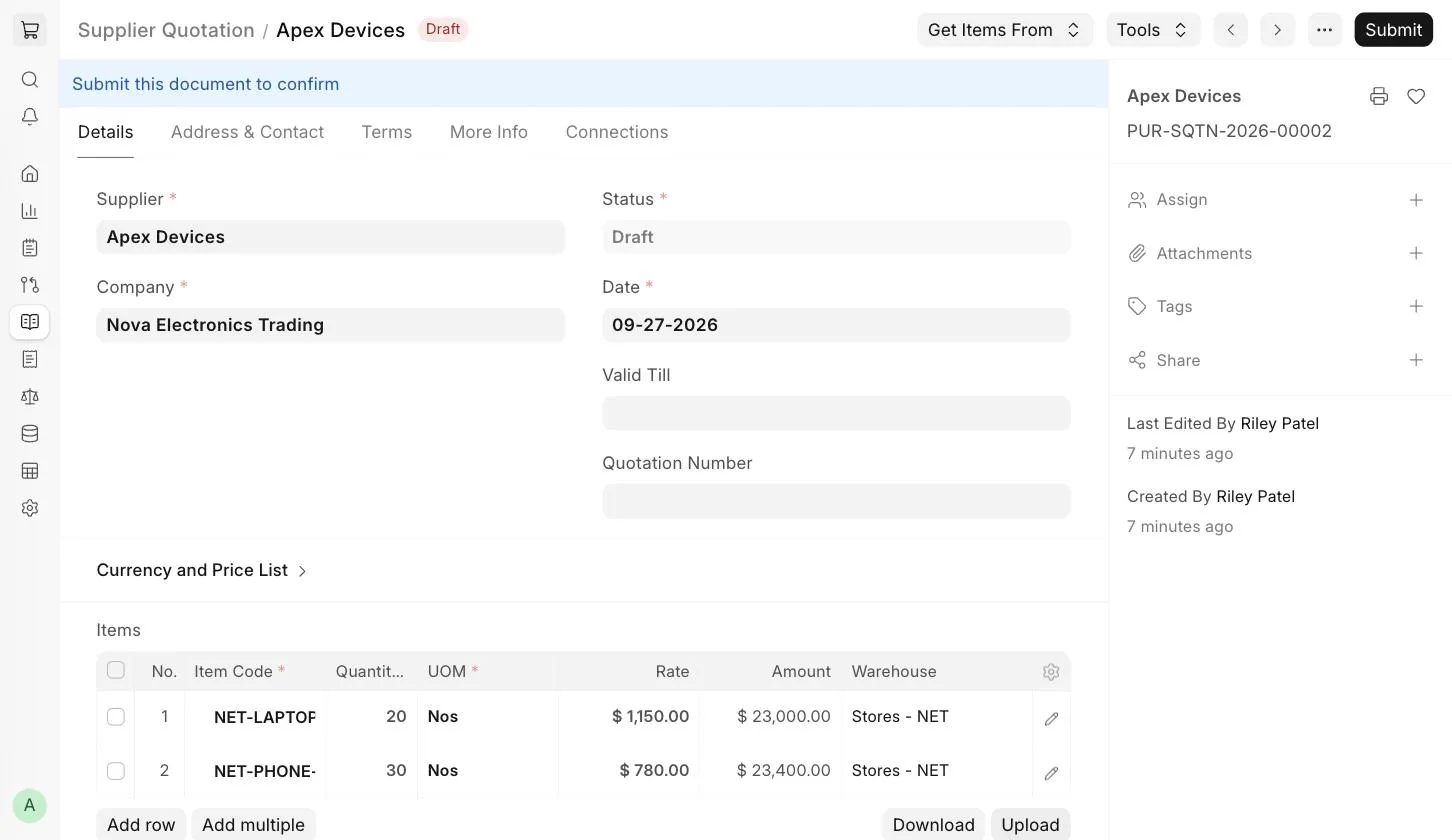
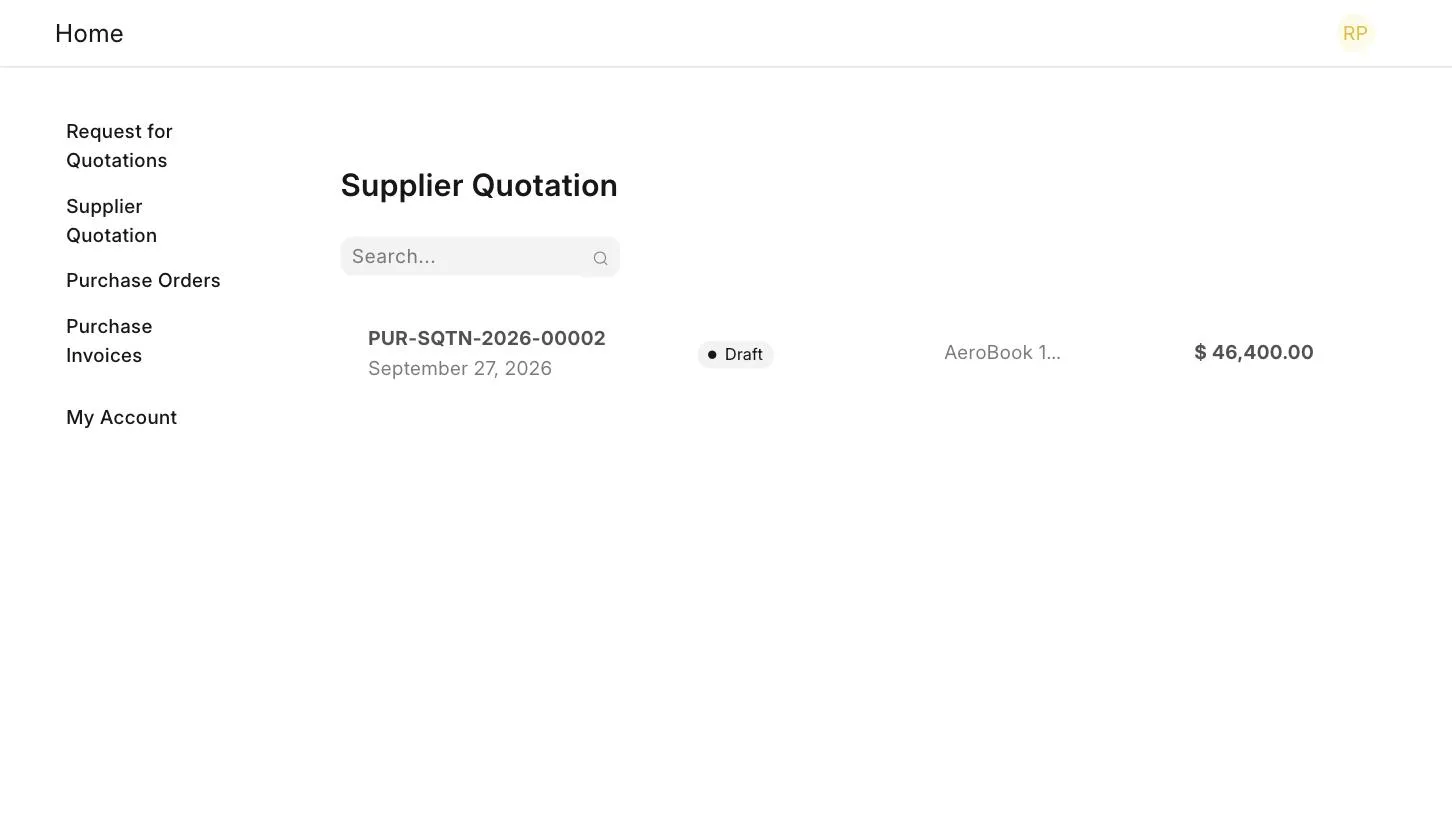
In ERPNext, Supplier Quotations can either be created manually or by the Supplier through the Supplier Portal. Suppliers can submit their quotations on the portal once they have logged in.
1. Prerequisites
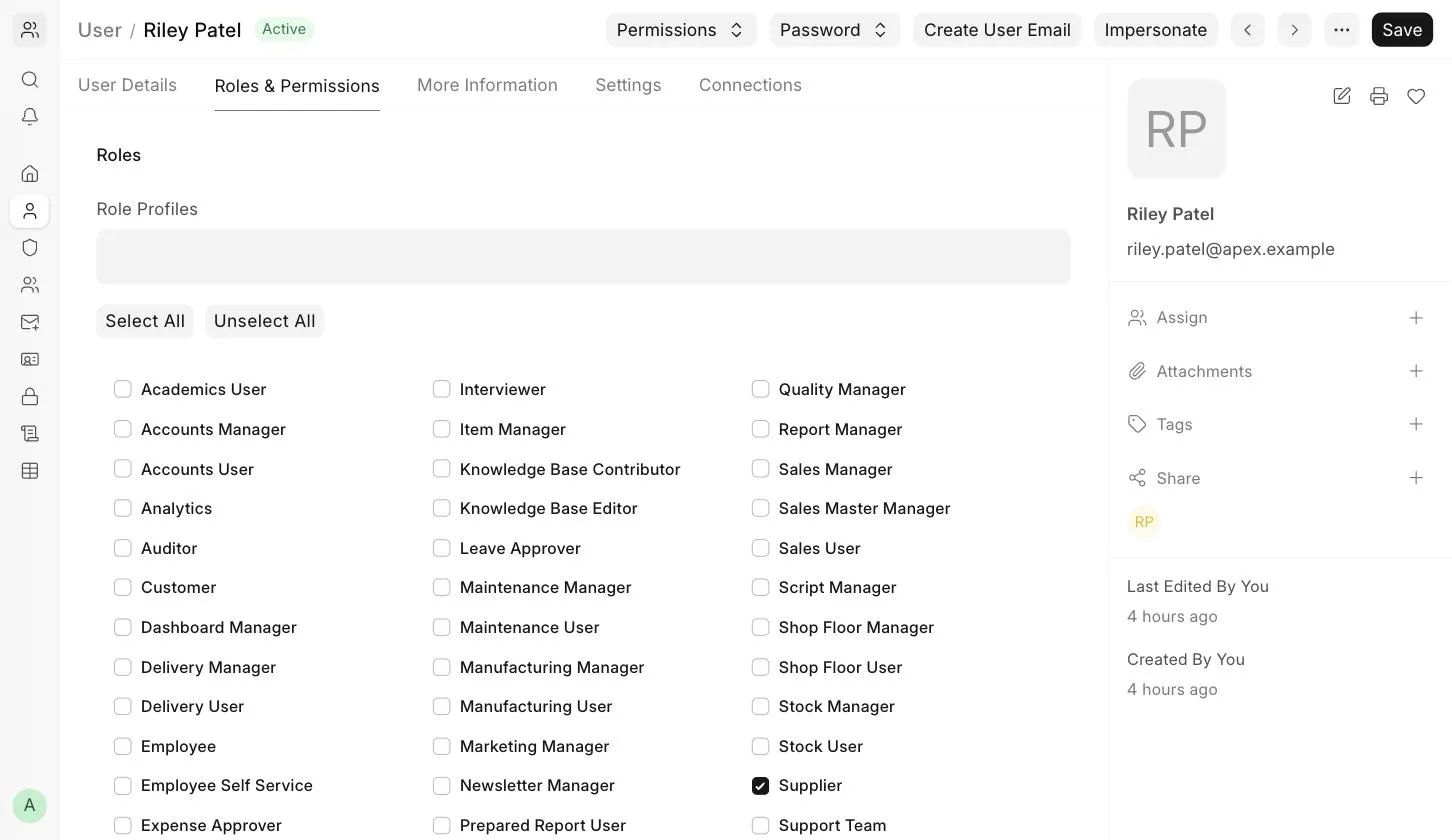
- The Supplier must be a registered Website User with the Supplier role.
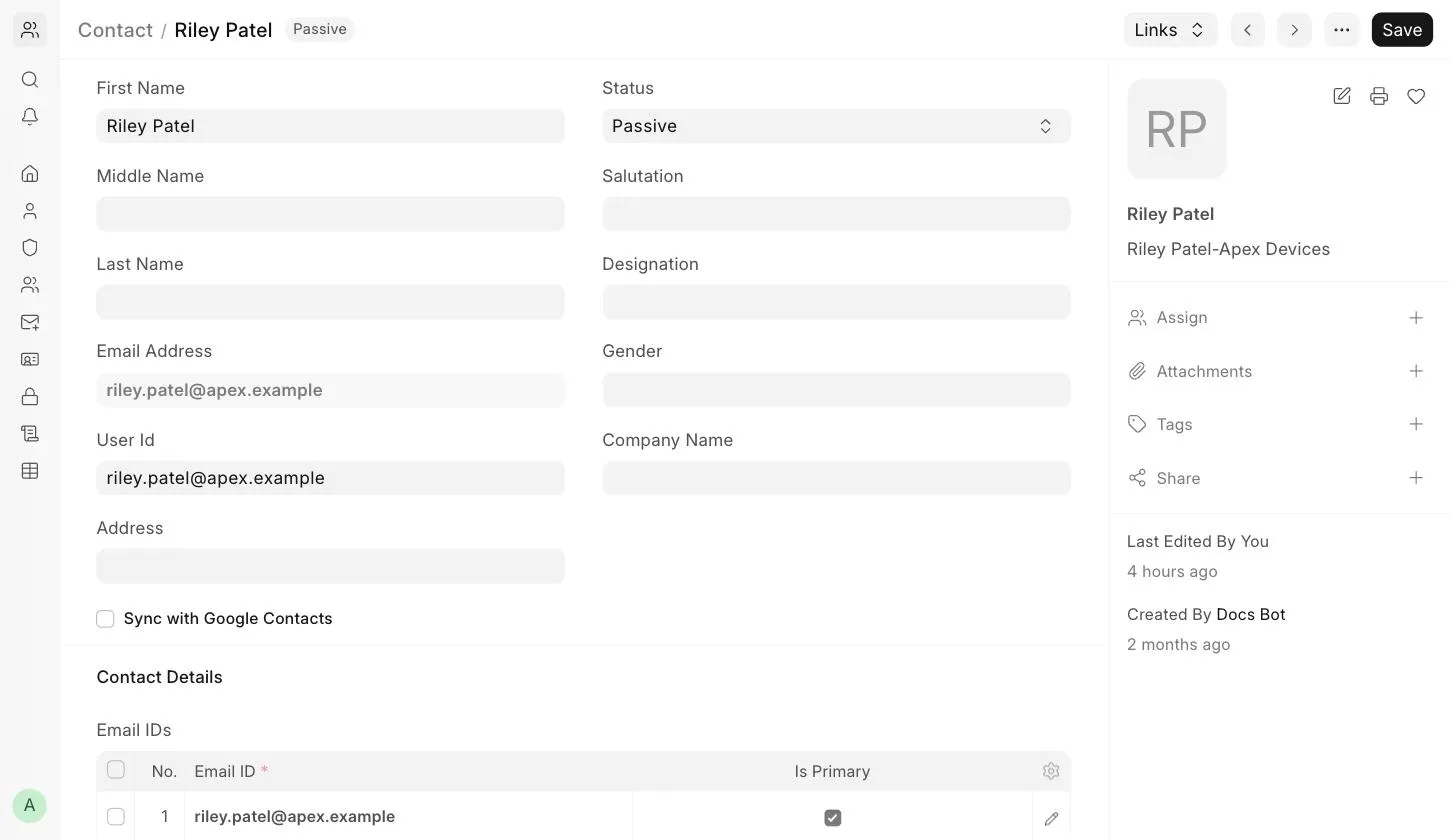
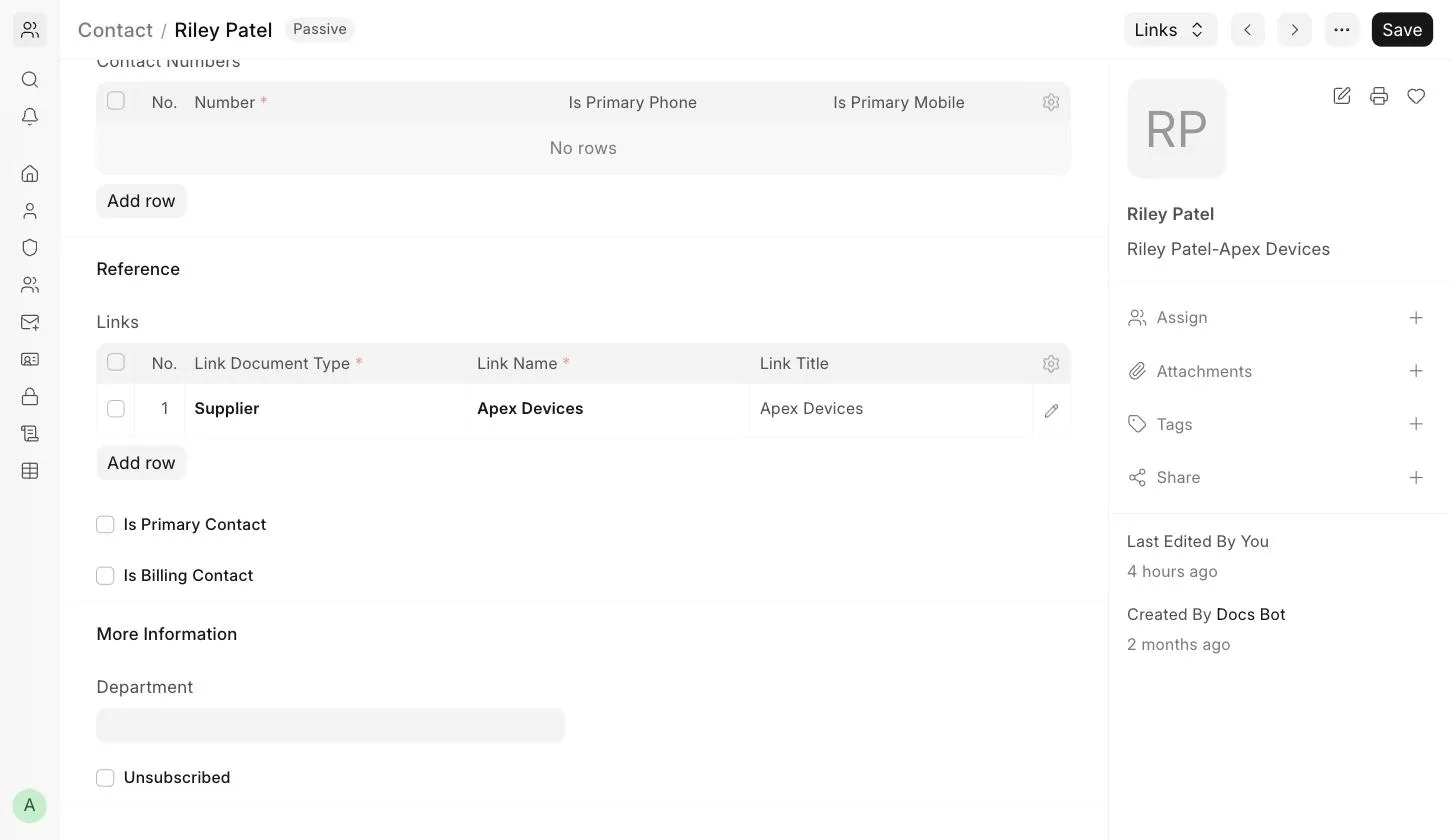
- The Supplier user's Contact must be linked to the Supplier , and the User Id must be set in the Contact.
- There should be a submitted Request for Quotation (RFQ) with the Supplier added to it.
When you submit a Request for Quotation with Send Email enabled for a Supplier, ERPNext automatically creates the Website User with the Supplier role for the Supplier's Contact, if it does not already exist.
2. How the Supplier Creates a Quotation
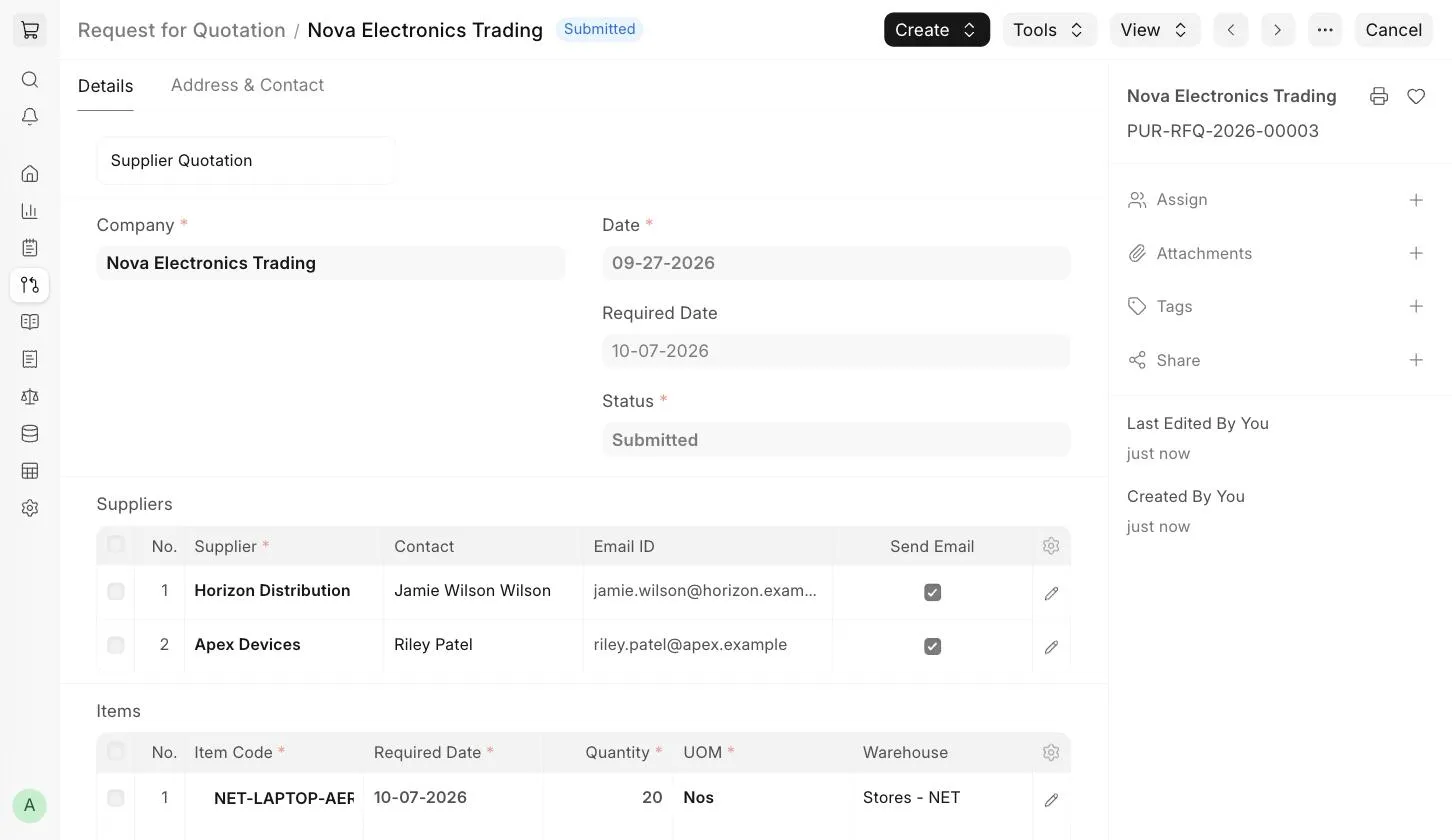
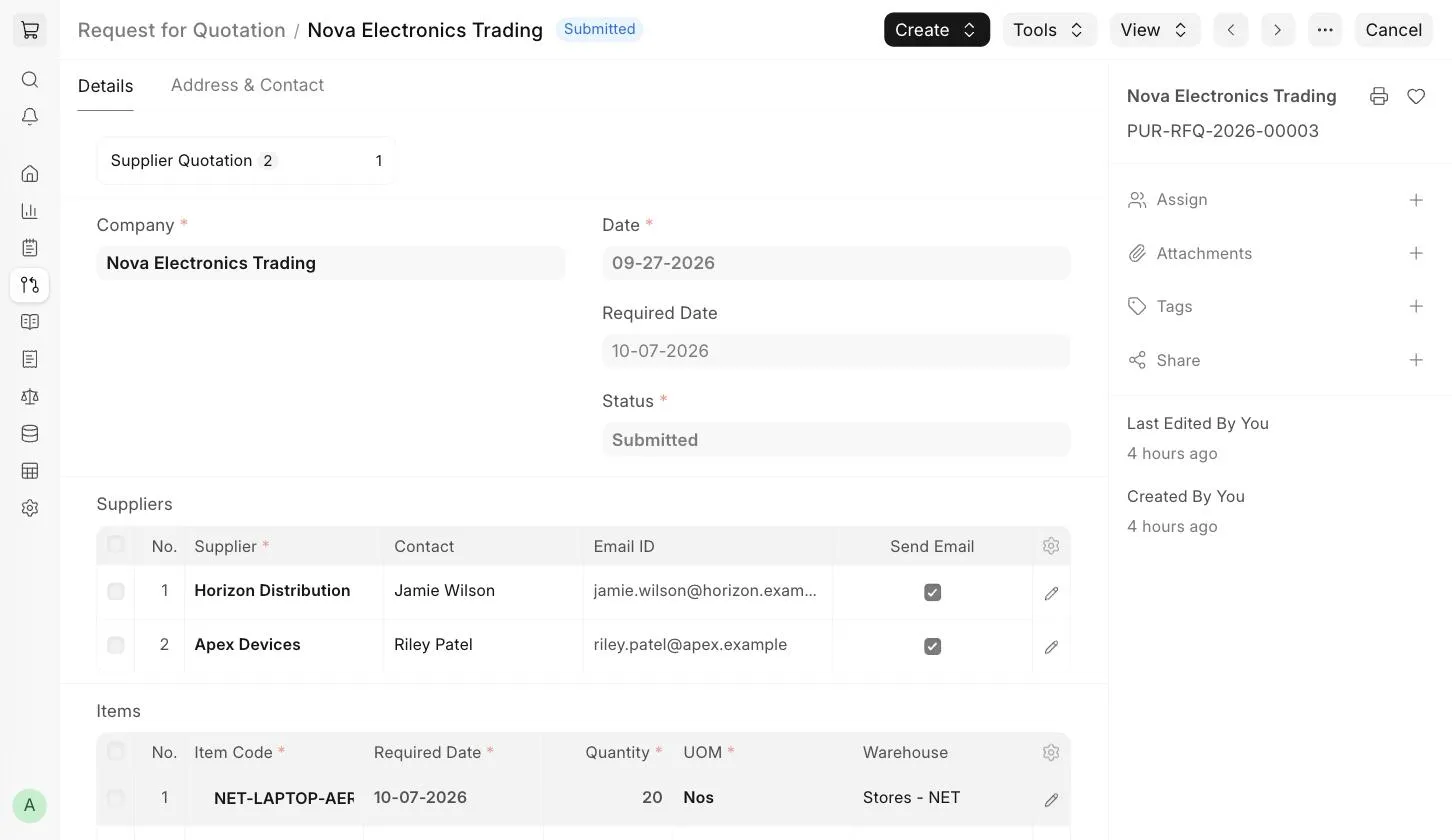
- Create and submit a Request for Quotation for the Supplier. In this example, a Request for Quotation is created for "Apex Devices".
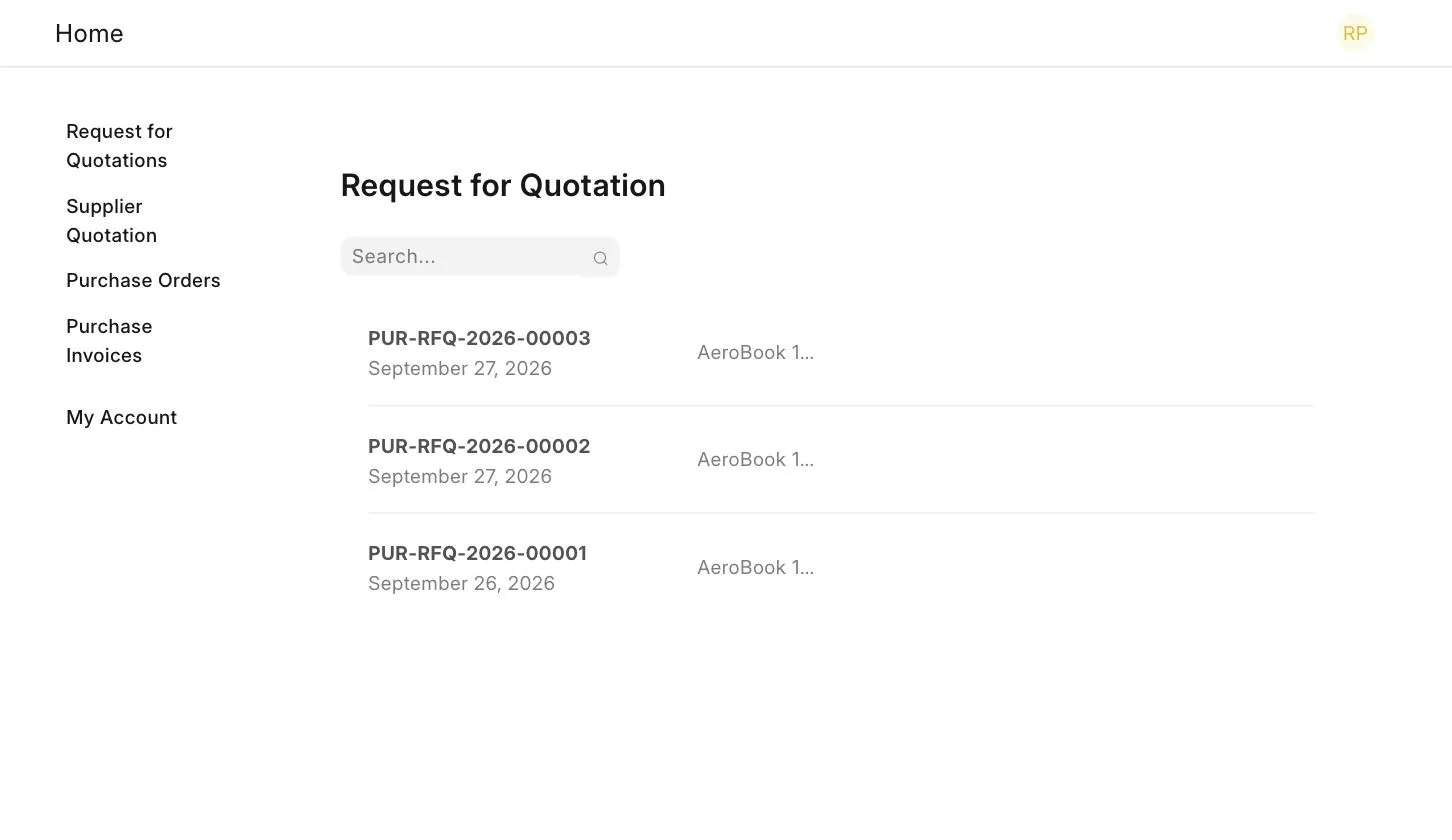
- The Supplier logs into the Supplier Portal using their login credentials. In the Request for Quotations list, the Supplier can view the Requests for Quotation sent to them.
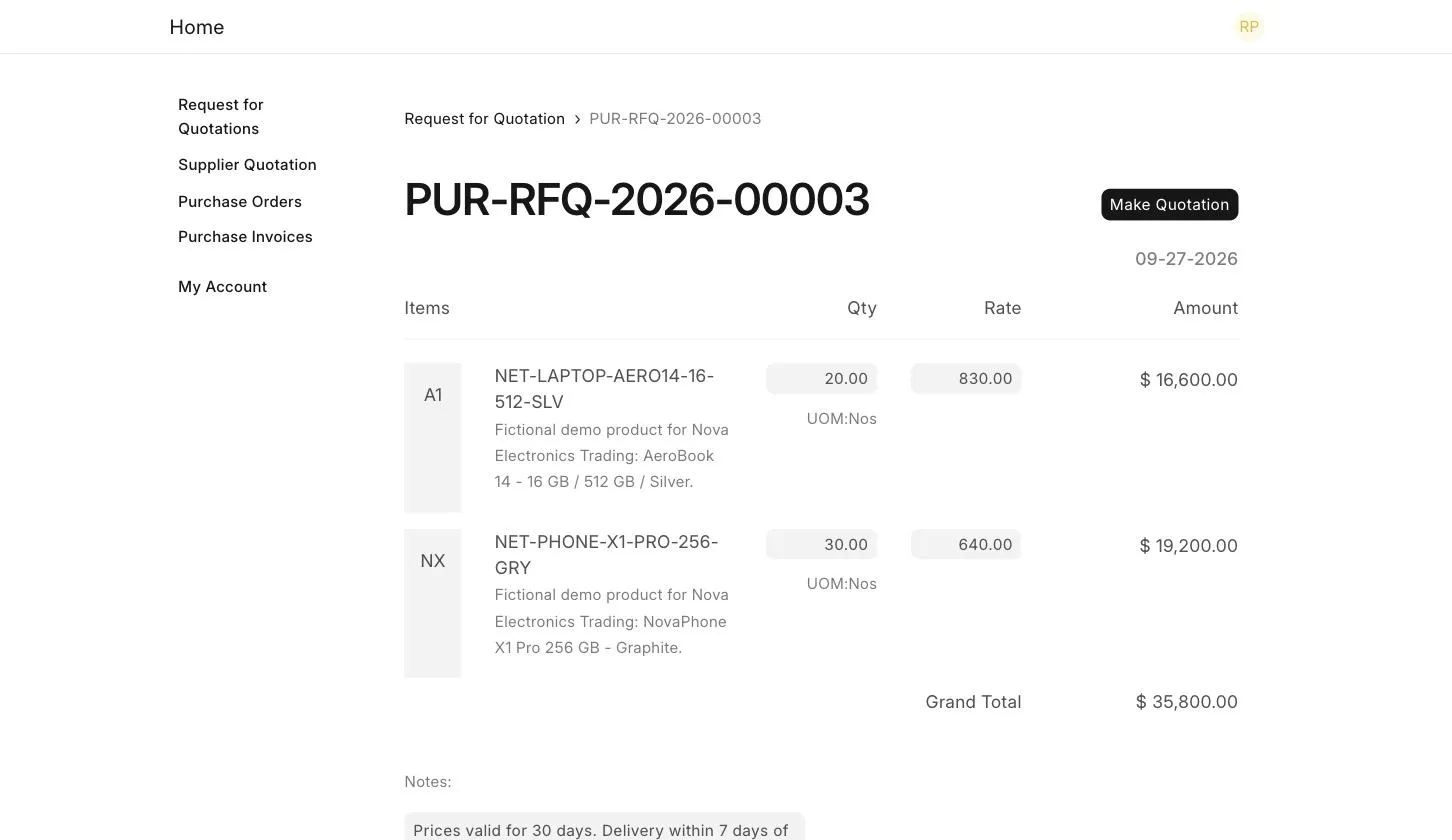
- The Supplier opens the Request for Quotation, enters the Rate for each Item, adds any Notes (like validity, delivery and payment terms) and clicks on Make Quotation .
- On clicking Make Quotation , a Supplier Quotation is automatically created in Draft state against this Request for Quotation. The Supplier can view it on the portal.
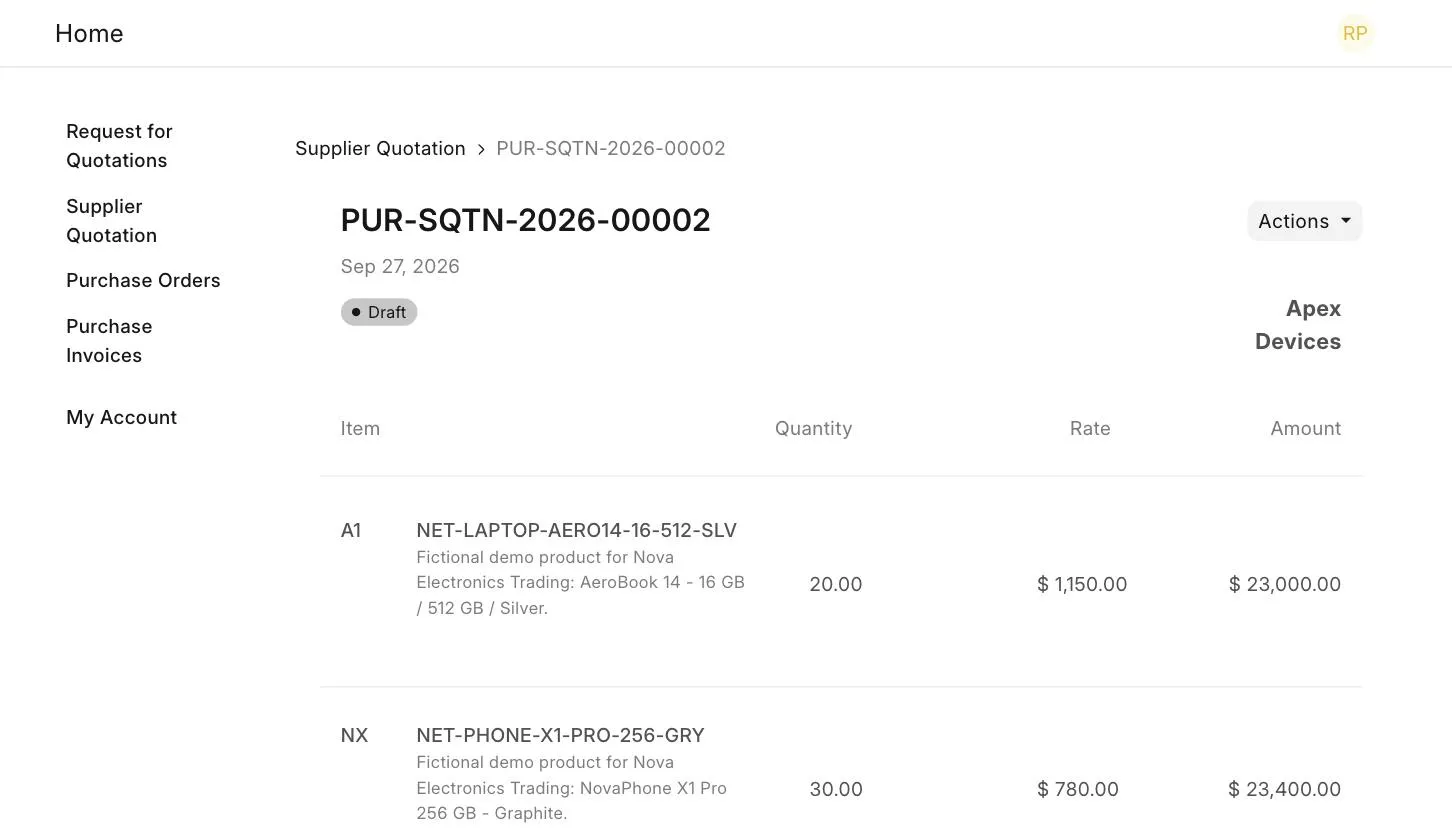
In ERPNext, the new Supplier Quotation is linked to the Request for Quotation. Click on Supplier Quotation at the top of the Request for Quotation to view it.
- Review the Supplier Quotation and submit it. The Supplier can see their quotations and their status in the Supplier Quotation list on the portal.