
A Supplier Quotation is a document from a potential Supplier specifying the cost of goods or services they will provide within a specified period.
A Supplier Quotation may also contain terms of sale, terms of payment and warranties. Acceptance of the quotation by the buyer can be considered as an agreement binding on both parties.
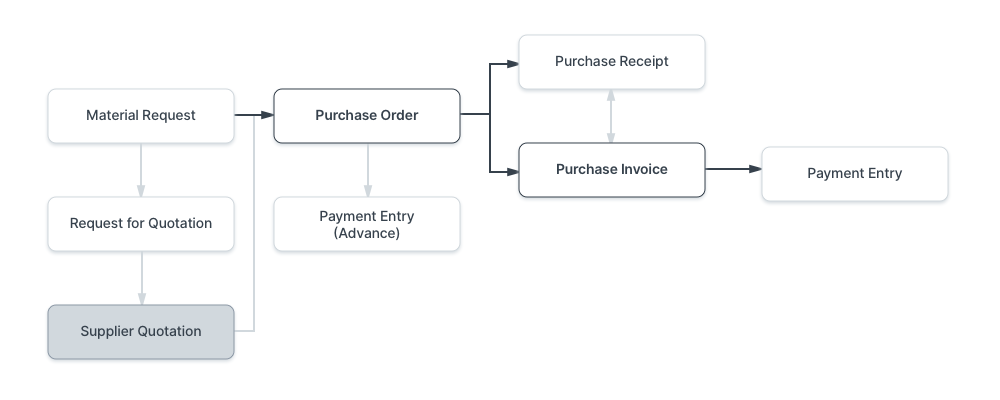
To access the Supplier Quotation list, go to: Home > Buying > Supplier Quotation
1. Prerequisites
Before creating and using a Supplier Quotation, it is advised that you create the following first:
2. How to Create a Supplier Quotation
2.1 From a Request for Quotation
If you have sent a Request for Quotation to your Suppliers, you can record each Supplier's reply as a Supplier Quotation:
- Open the submitted Request for Quotation and click on Create > Supplier Quotation .
- Select the Supplier and click on Create . A new Supplier Quotation will open with the Supplier and the Items from the Request for Quotation.
- Enter the Rate quoted by the Supplier for each Item. Optionally, enter the Valid Till date and the Supplier's Quotation Number .
- Save and Submit.
The Supplier can also submit the quotation themselves from the Supplier Portal. In this case, a Supplier Quotation is created in Draft for you to review and submit. To know more, visit the Request for Quotation page.
2.2 From a Material Request or Supplier
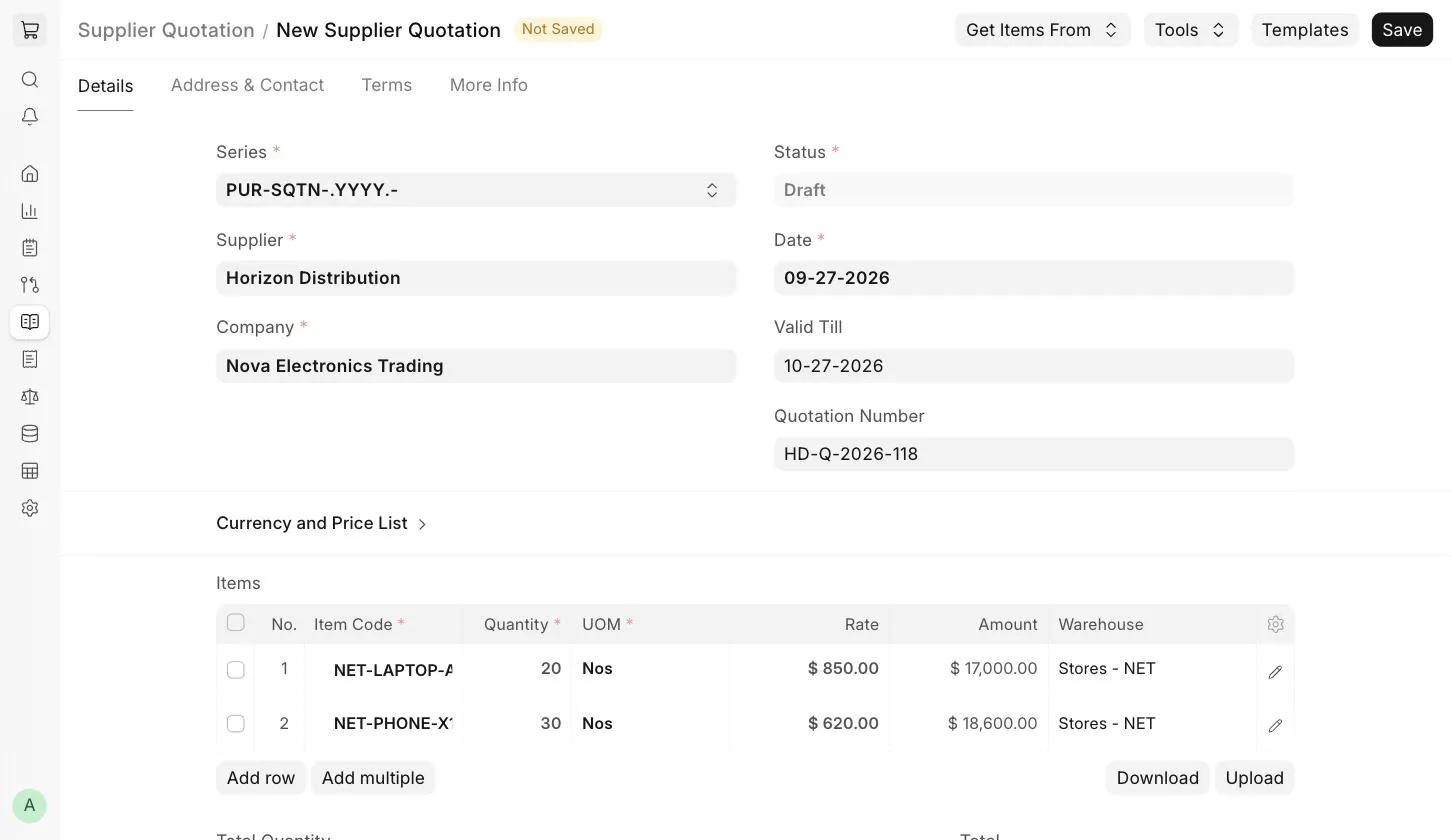
- From a submitted Material Request , click on Create > Supplier Quotation .
- From the Supplier master, click on Create > Supplier Quotation .
2.3 Creating a Supplier Quotation Manually
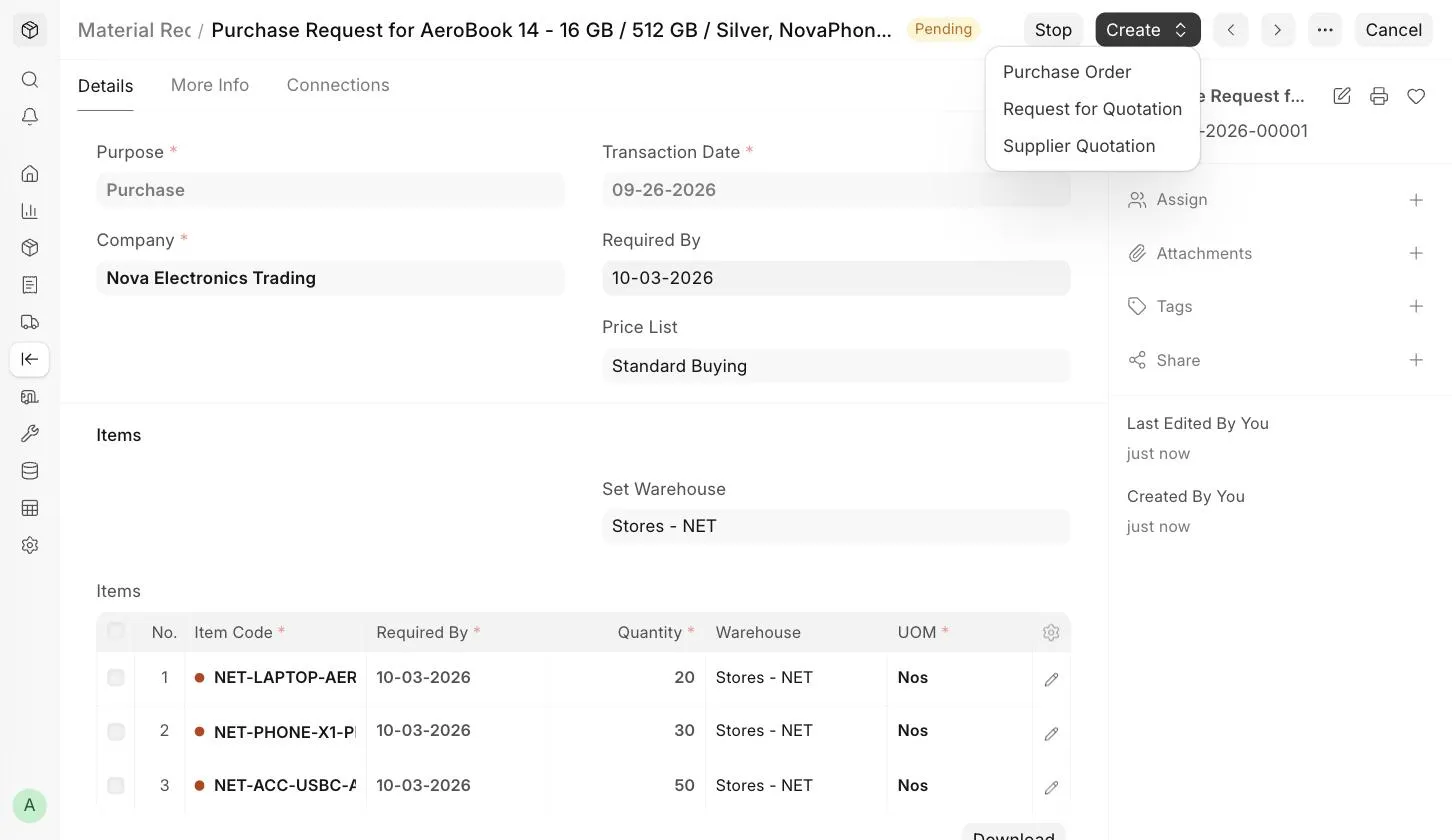
- Go to the Supplier Quotation list and click on Add Supplier Quotation .
- Select the Supplier who sent you the quotation. The Supplier's Address and Contact will be fetched if they are saved in the Supplier master.
- Select the Company and optionally set the Valid Till date and Quotation Number .
- Enter the Item Code and Quantity . The Rate will be fetched if you have set the Item Price for the Item in the selected buying Price List. Update the Rate as quoted by the Supplier.
- Save and Submit.
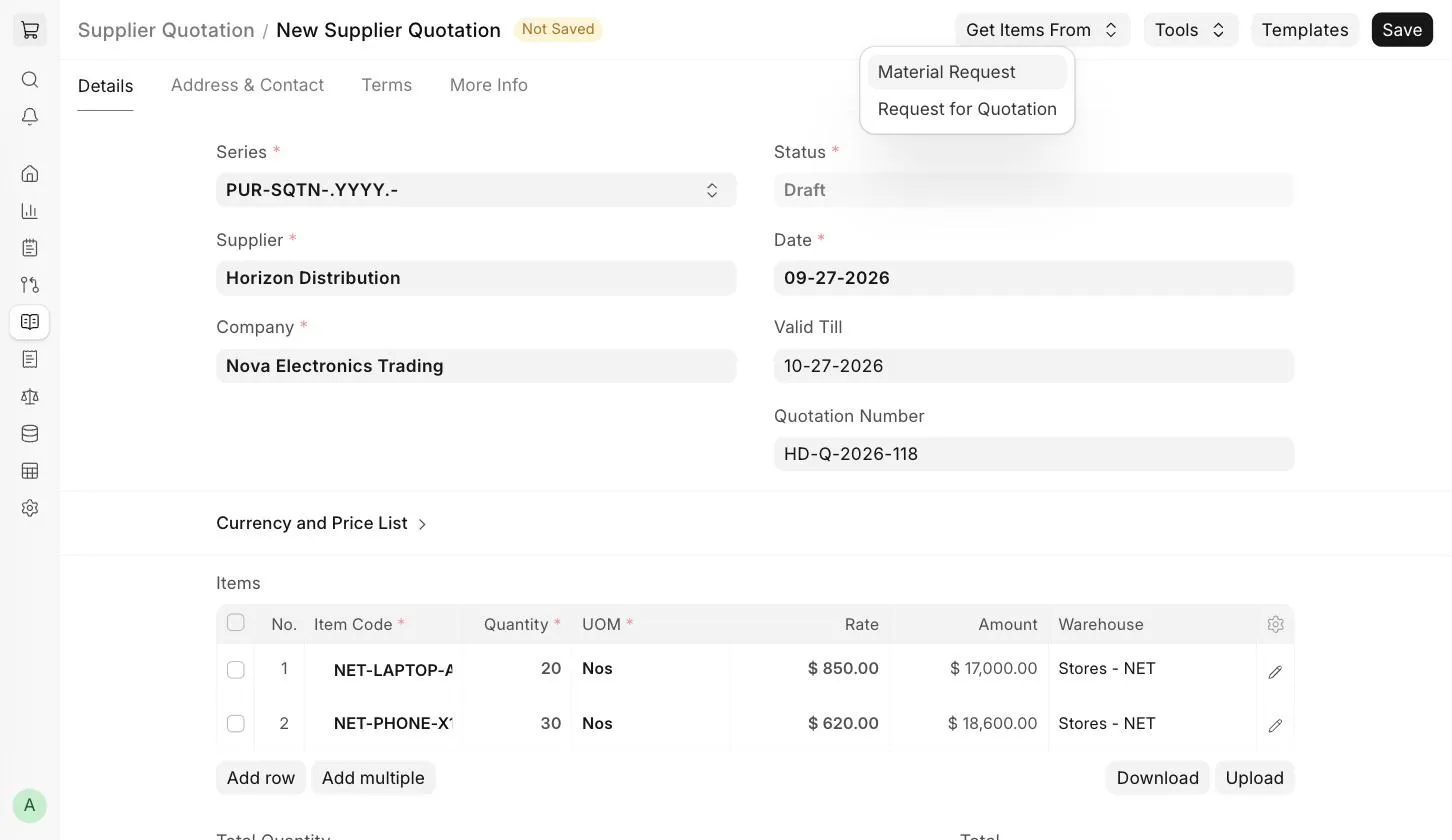
You can also fetch Items from a Material Request or Request for Quotation using the Get Items From button.
If you have multiple Suppliers who supply the same Item, you usually send out a Request for Quotation to various Suppliers. In many cases, especially if you have centralized buying, you may want to record all the quotes so that:
- You can easily compare prices in the future.
- You can audit whether all Suppliers were given the opportunity to quote.
:::tip Supplier Quotations are not necessary for most small businesses. Always evaluate the cost of collecting information against the value it really provides. As a recommendation, you can do this only for high-value Items. :::
3. Features
3.1 Taxes and Charges
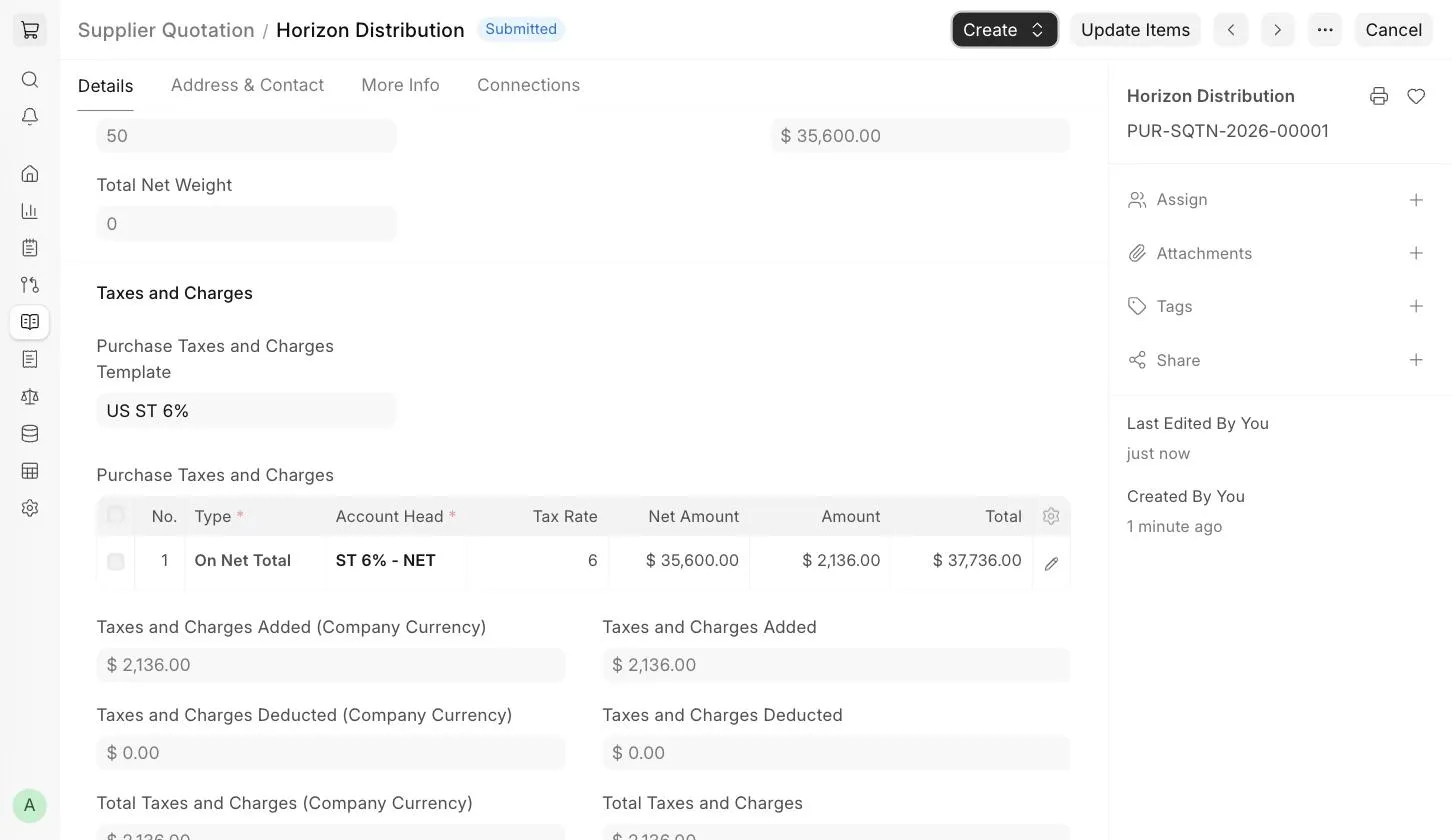
If your Supplier is going to charge you additional taxes or charges like shipping or insurance, you can add them in the Taxes and Charges section. This will help you accurately track your costs. You can select a Purchase Taxes and Charges Template to fetch the taxes automatically. The Tax Category will be fetched from the Supplier master, if set. For more information on setting up your taxes, see the Purchase Taxes and Charges Template page.
You can also set a Shipping Rule , and the Incoterm and Named Place agreed with the Supplier, in this section.
3.2 Other Sections
- Currency and Price List : Record the quotation in the Supplier's currency and select the buying Price List.
- Additional Discount : Record any additional discount offered by the Supplier on the Grand Total or Net Total.
- Address & Contact : The Supplier Address, Shipping Address and Company Billing Address.
- Terms : The Supplier's Terms and Conditions. To know more, visit the Terms and Conditions page.
- More Info : Printing Settings (Letter Head, Print Heading, Group same items), Auto Repeat and additional information.
Visit the Quotation page to know more about these sections. Note that details like the taxes, discount, Terms and Conditions and Quotation Number are from your Supplier and are recorded for accurate tracking.
:::note The Supplier Quotation can be linked to existing Material Requests using Tools > Link to Material Requests . :::
3.3 After Submitting
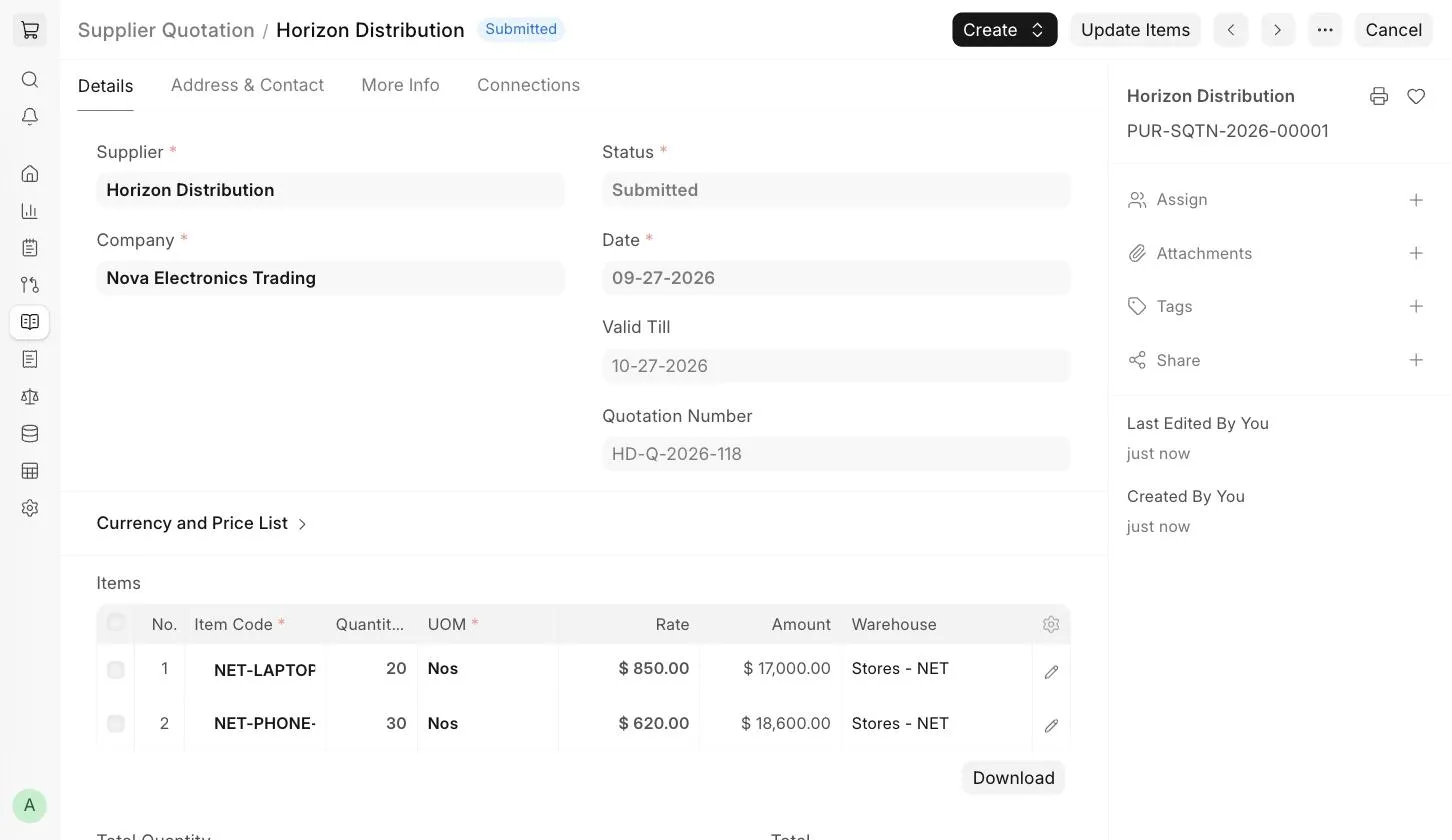
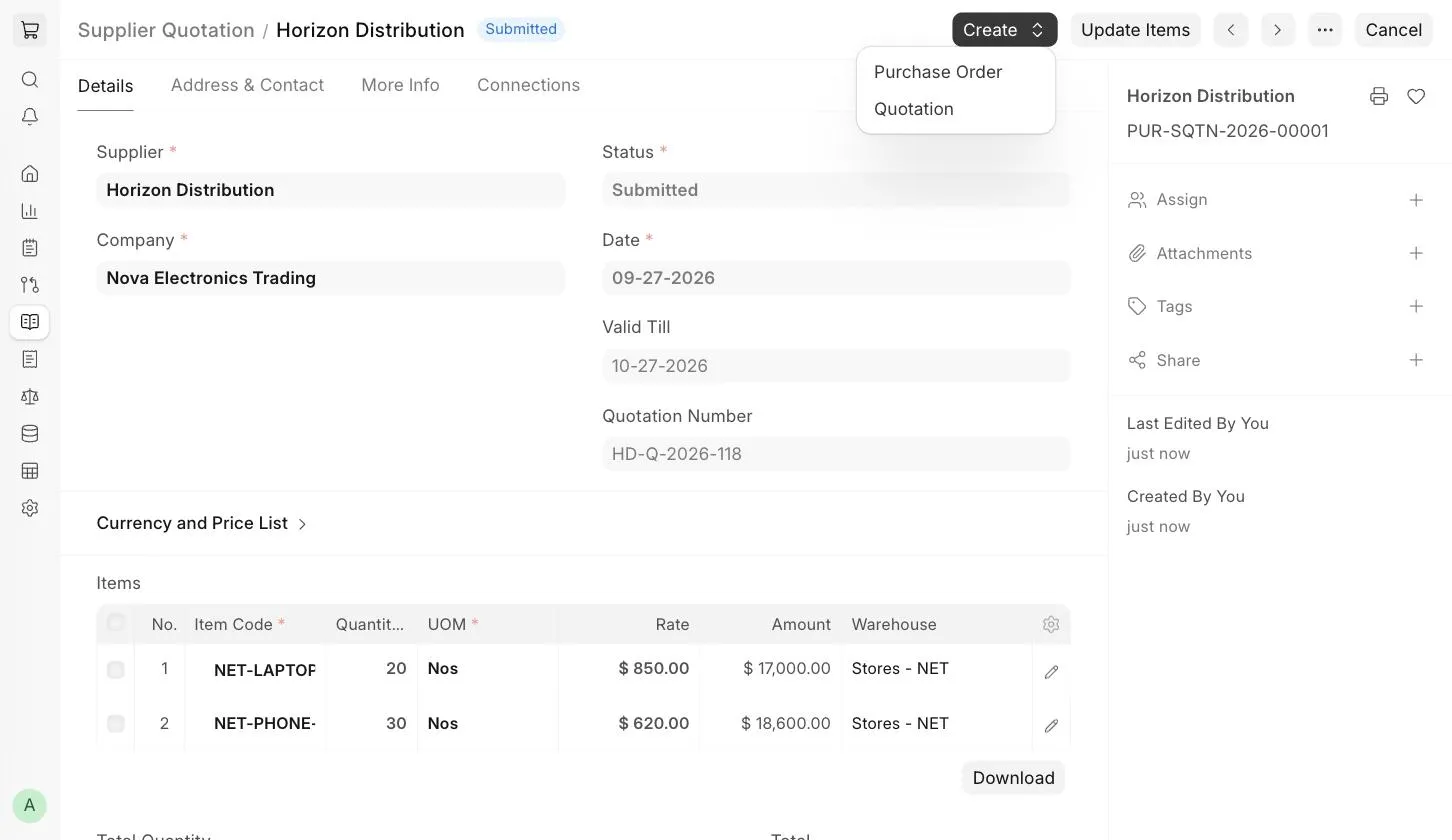
The following documents can be created from the Create button after submitting a Supplier Quotation:
- Purchase Order : If you agree with the Supplier's quotation.
- Quotation : A quotation to your Customer based on the Supplier's rates.
You can also use Update Items to change the Items, quantities or rates of a submitted Supplier Quotation, and set up Auto Repeat from the More Info tab to repeat the Supplier Quotation at specified intervals.
To compare quotations received from different Suppliers against a Request for Quotation, use the Supplier Quotation Comparison report ( View > Supplier Quotation Comparison in the Request for Quotation).
