
A Request for Quotation (RFQ) is a document that an organization sends to one or more Suppliers, asking them to quote for a set of Items.
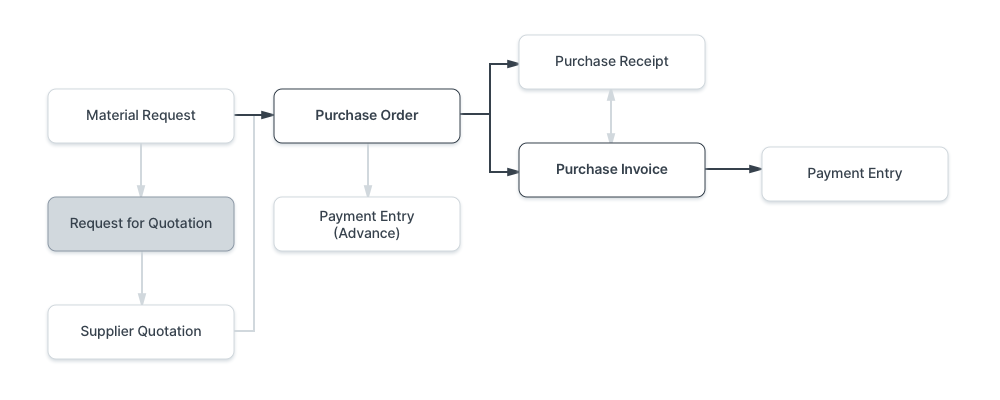
To access the Request for Quotation list, go to: Home > Buying > Request for Quotation
1. Prerequisites
Before creating and using a Request for Quotation, it is advised that you create the following first:
2. How to Create a Request for Quotation
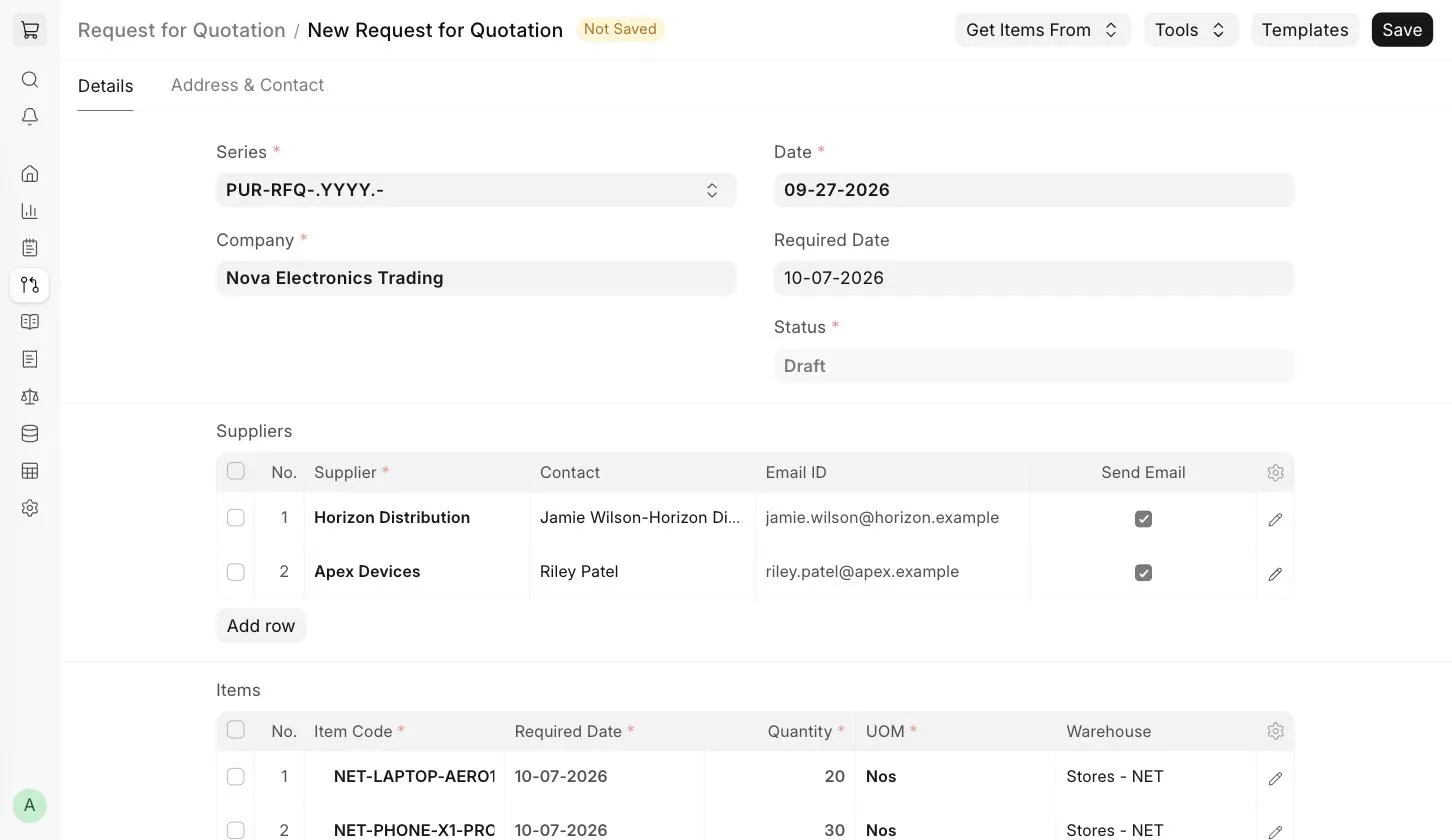
- Go to the Request for Quotation list and click on Add Request for Quotation .
- Select the Company and enter the Required Date by which you need the requested materials.
- In the Suppliers table, add the Suppliers you want to get quotes from. If you set a Contact and Email ID for a Supplier and keep Send Email checked, the RFQ will be emailed to that Supplier and they will get access to the Supplier Portal.
- In the Items table, enter the required Items along with the Quantity, UOM and Warehouse. The Warehouse can be left blank if Maintain Stock is not enabled for the Item.
- Save.
2.1 Email Details
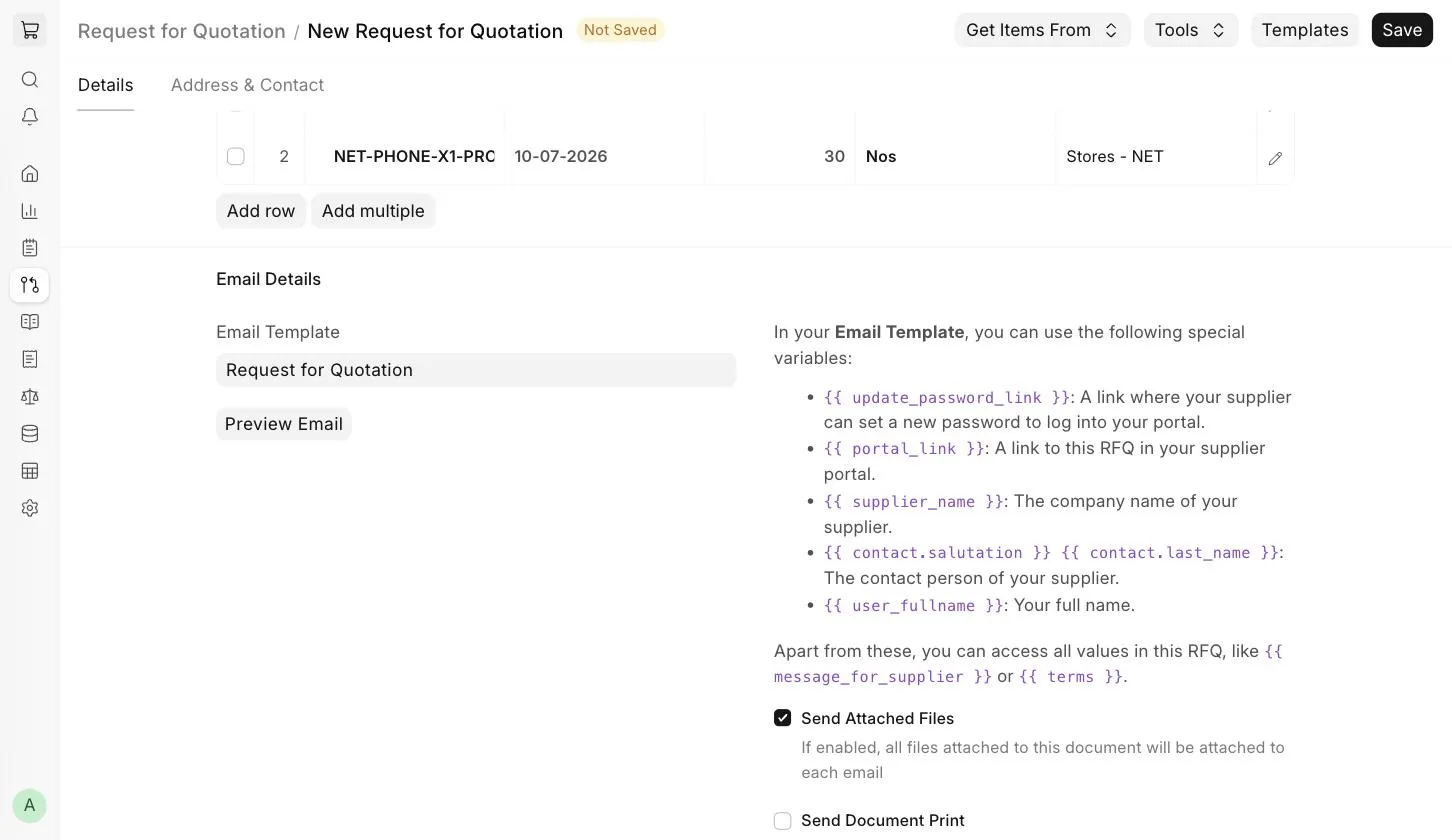
The Email Details section is shown when Send Email is checked for at least one Supplier. Here you can set the Subject and Message for Supplier of the email. If you want to use a standard email, create an Email Template and select it in the Email Template field. In the template, you can use the following special variables for Supplier-specific data:
{{ update_password_link }}: A link where your Supplier can set a new password to log into your portal.{{ portal_link }}: A link to this RFQ in your Supplier Portal.{{ supplier_name }}: The company name of your Supplier.{{ contact.salutation }} {{ contact.last_name }}: The contact person of your Supplier.{{ user_fullname }}: Your full name.
Apart from these, you can access all values in this RFQ, like {{ message_for_supplier }} or {{ terms }}.
- Send Attached Files : All files attached to the Request for Quotation will be attached to each Supplier email.
- Send Document Print : A print of the Request for Quotation will be attached to each Supplier email.
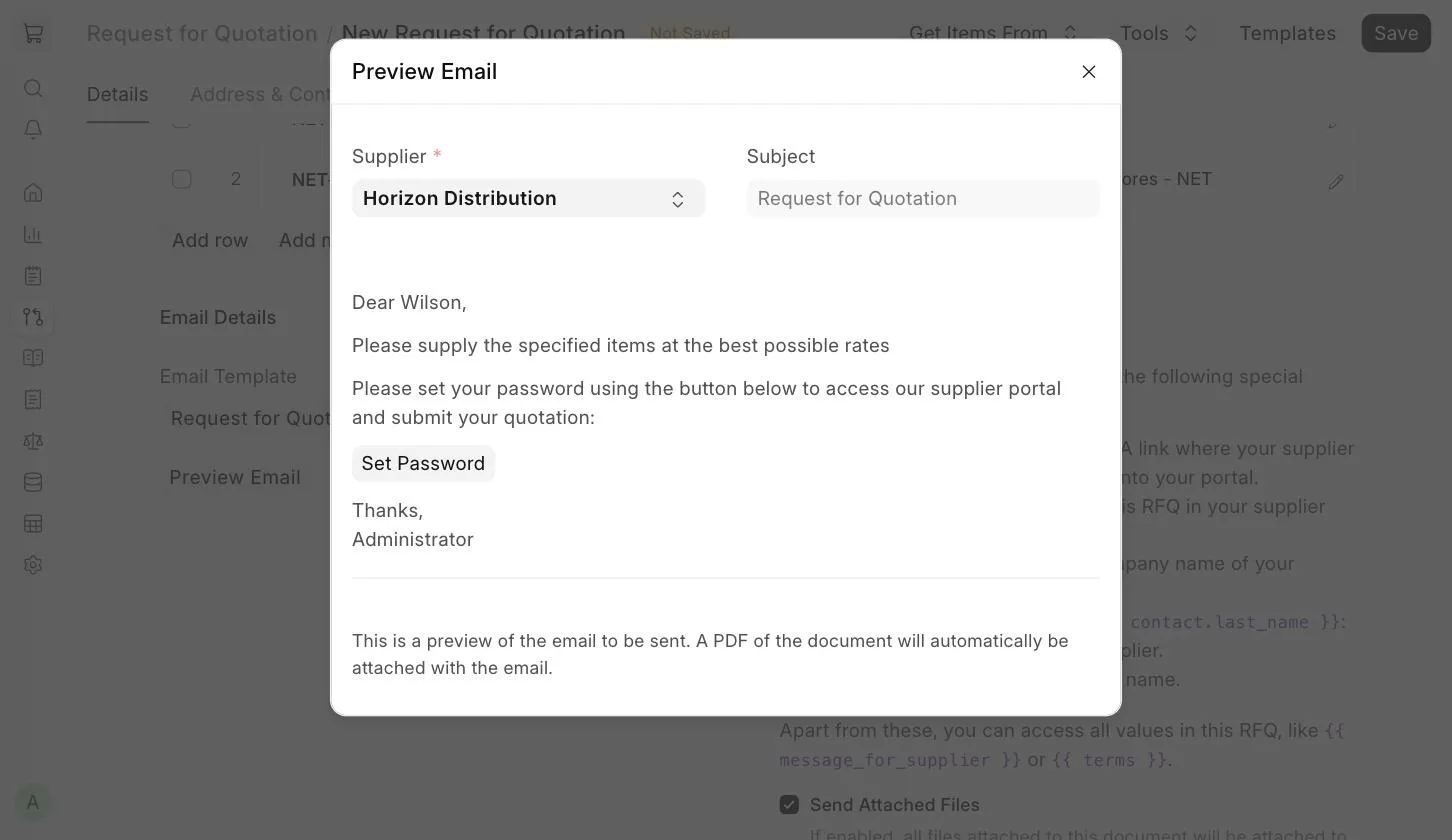
To check how the email will look for a specific Supplier, click on Preview Email and select the Supplier.
2.2 Submit
When you are ready, Submit the Request for Quotation. On submission, an email will be sent to each Supplier that has Send Email checked. You can also send the emails later using Tools > Send Emails to Suppliers .
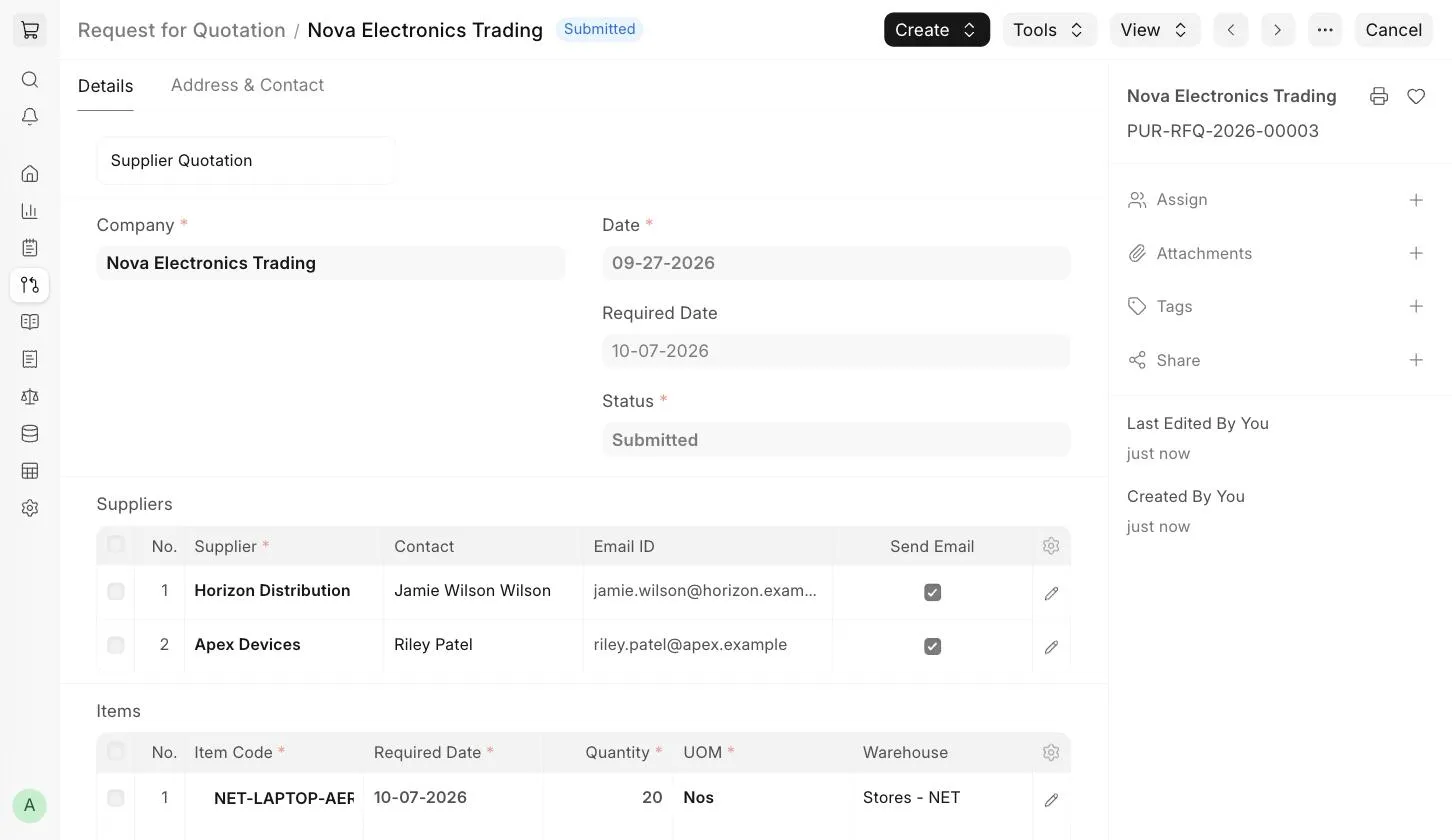
A Request for Quotation can also be created from a submitted Material Request using Create > Request for Quotation . Once the RFQ is created, you can print it and send the PDF to your Suppliers, or get their reply (Supplier Quotation) in ERPNext itself. See 4.1 Supplier Quotation by User .
3. Features
3.1 Get Items From
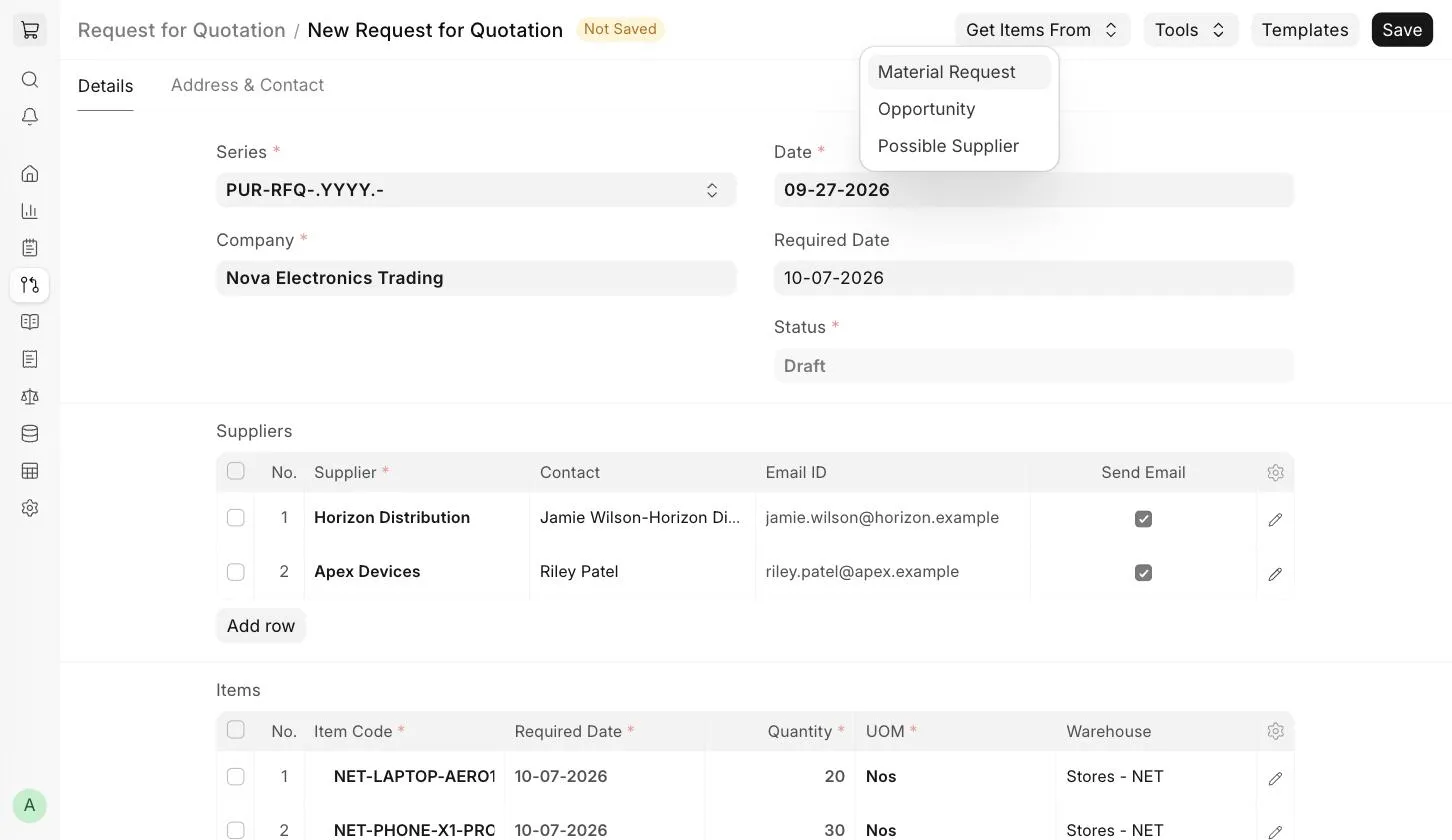
Items can be fetched into the Items table from other documents using the Get Items From button. The options are:
- Material Request : Items will be fetched from a submitted Material Request that you select. You can search Material Requests by matching words and filter them by a date range.
- Opportunity : Items will be fetched from a saved Opportunity. A date range can be selected here as well.
- Possible Supplier : Select a Supplier. If there are submitted Material Requests for Items that are supplied by this Supplier, the Items can be fetched from them.
3.2 Get Suppliers
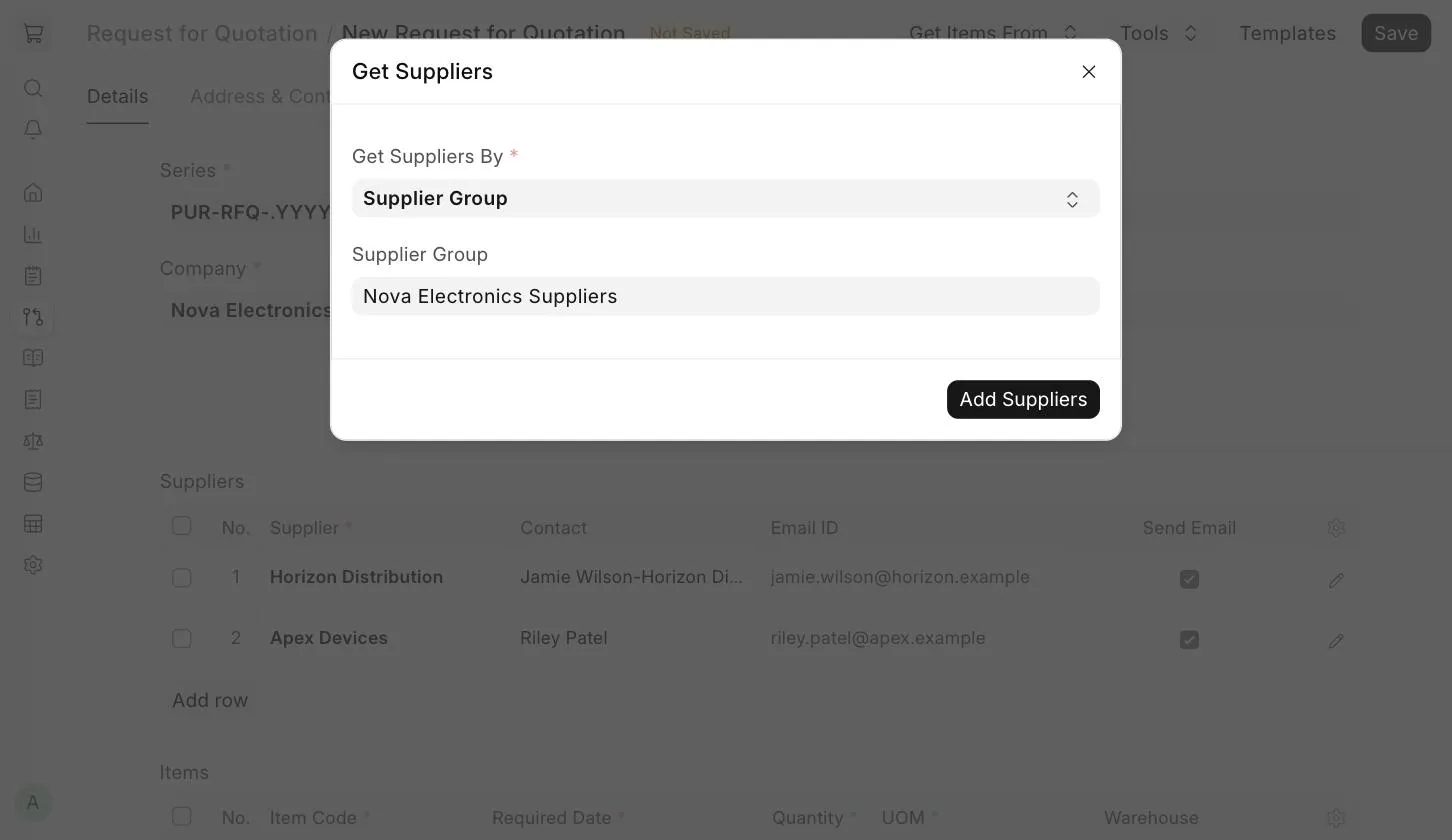
Instead of entering the Suppliers manually, you can fetch them using Tools > Get Suppliers . In the dialog, select Get Suppliers By :
- Supplier Group : Select a Supplier Group. All Suppliers in this group will be added. For example, if you select Hardware, all your hardware Suppliers will be added, so that you can get a quote from all of them.
- Tag : Select a Tag. All Suppliers with this tag will be added. The tags must first be created and assigned to the Suppliers.
Click on Add Suppliers to add them to the Suppliers table.
3.3 Link to Material Requests
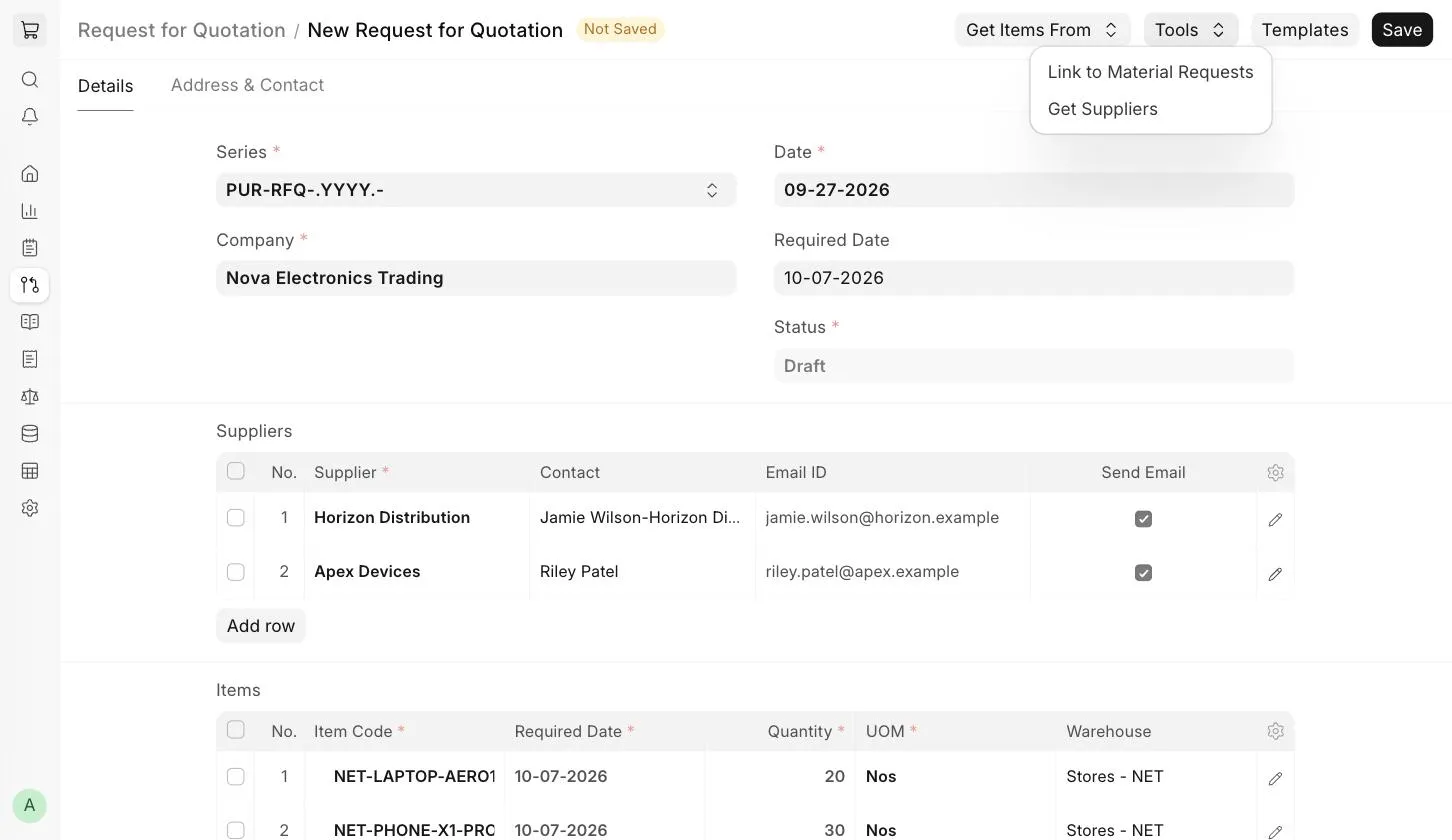
Using Tools > Link to Material Requests , you can link the Request for Quotation to existing Material Requests. The Items should be the same in the Request for Quotation and the Material Request. If there are multiple Material Requests with the same Items, the link will be created with the newest Material Request.
3.4 Terms and Conditions
In purchase transactions, there might be certain Terms and Conditions based on which the Supplier provides goods or services. You can apply Terms and Conditions to the Request for Quotation, and they will appear when printing the document. You can also set the Incoterm and Named Place in this section. To know more, visit the Terms and Conditions page.
3.5 Printing Settings
Letter Head
You can print your Request for Quotation on your company's letterhead.
Print Heading
Titles of your documents can be changed.
Special Properties
When printing an RFQ using the Tools > Download PDF button, you are asked to select the Supplier you want to address. In the Print Format for RFQ, this information can be accessed via special properties:
{{ doc.vendor }}holds the selected Supplier ID.{{ doc.items[i].supplier_part_no }}holds the Supplier Part Number of a requested line Item.
The data of the first Supplier will be used while rendering the standard print preview. If you want to print for a different Supplier, use the Tools > Download PDF button.
3.6 Address & Contact
In the Address & Contact tab, you can set the Company Billing Address and Company Shipping Address to be shown on the Request for Quotation.
4. Creating a Supplier Quotation from a Request for Quotation
After submitting a Request for Quotation, there are two ways to create a Supplier Quotation against it.
4.1 Supplier Quotation by User
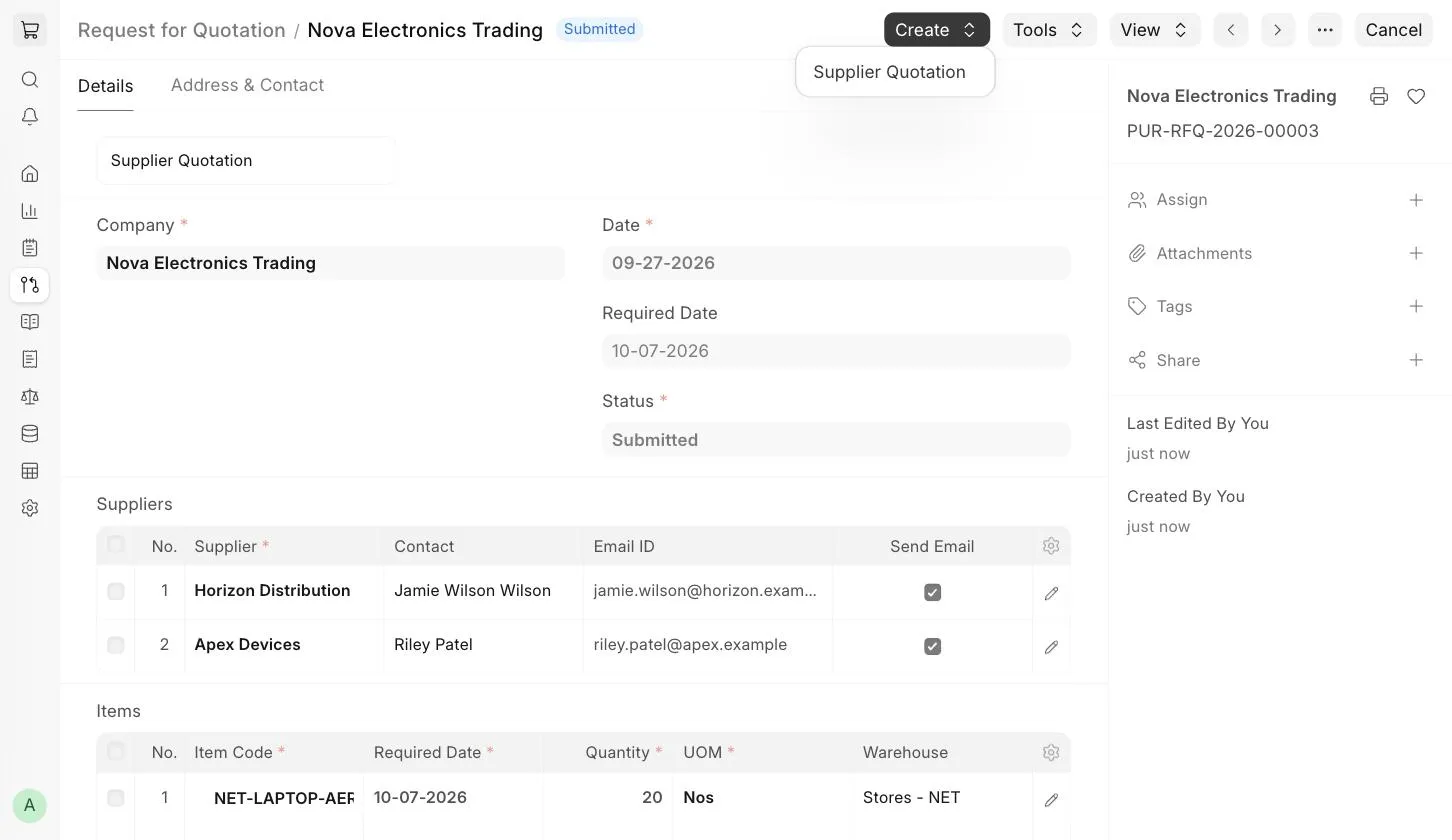
- Open the submitted Request for Quotation and click on Create > Supplier Quotation .
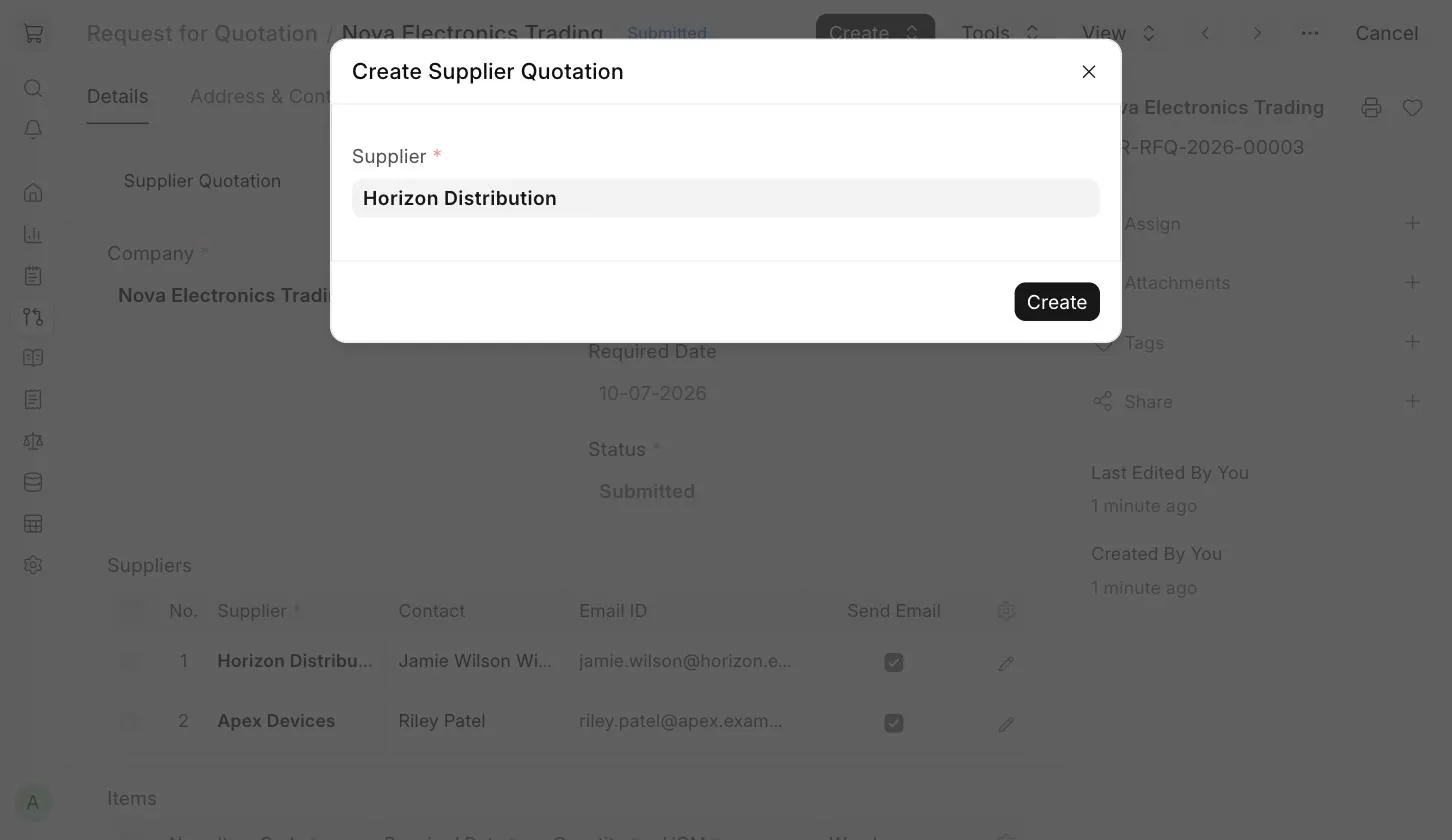
- Select the Supplier and click on Create .
- A new Supplier Quotation will open with the Items from the Request for Quotation. Enter the rates quoted by the Supplier, then Save and Submit it.
4.2 Supplier Quotation from Supplier
If a Contact with an email address is set for the Supplier, the Contact and Email ID will be fetched on selecting the Supplier. Create a Contact with an email address if not present already.
- Click on Tools > Send Emails to Suppliers (or submit the Request for Quotation with Send Email checked).
- If the Supplier's user account is not present, the system will create it as a Website User for the Supplier's Contact. The email will contain a Set Password link (using the {{ update_password_link }} variable in the Email Template). After setting the password, the Supplier can access the Request for Quotation on the portal.
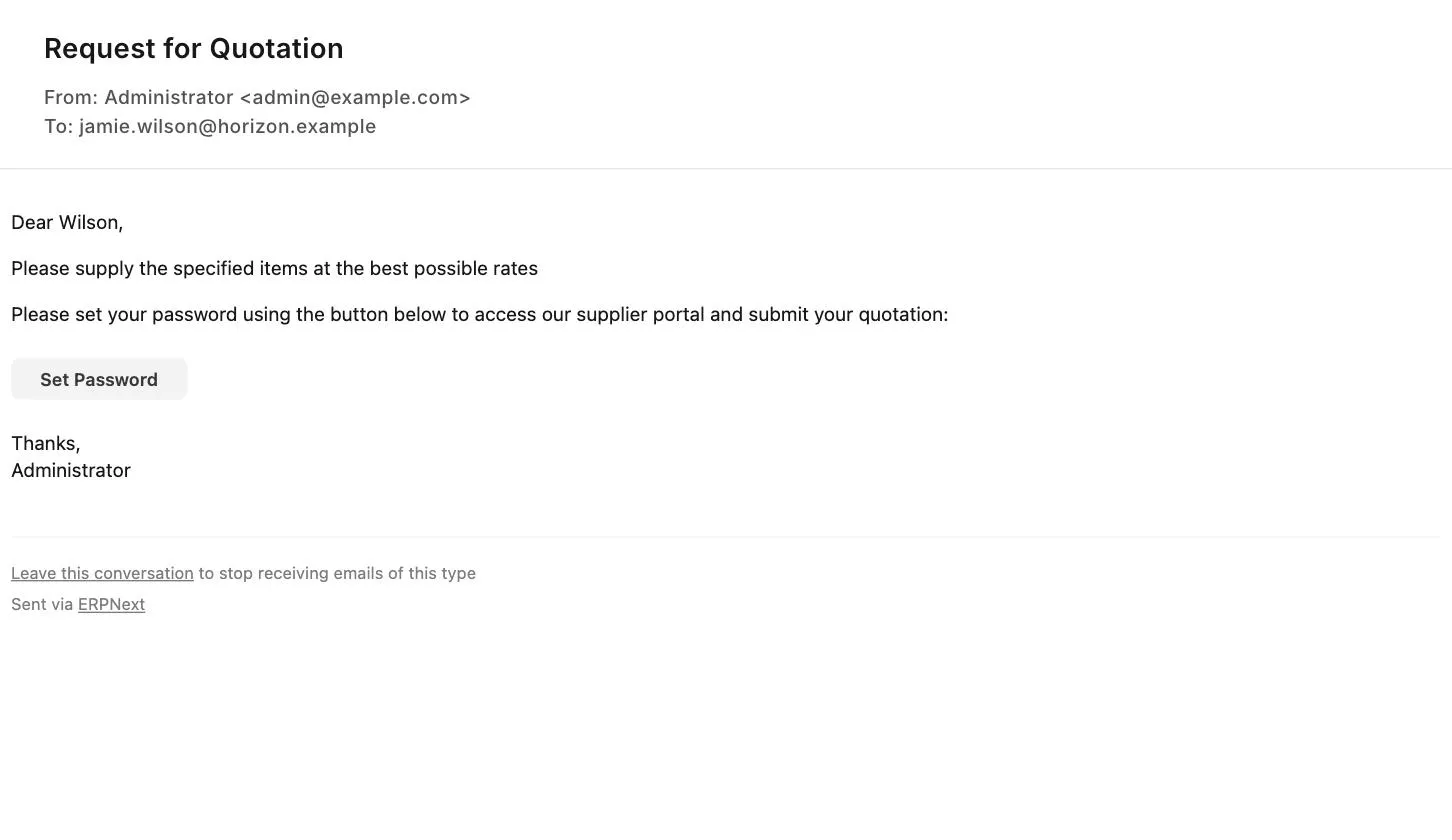
:::note The content of the email depends on the Email Template selected in the Request for Quotation. The email above uses an example template with the {{ update_password_link }} and {{ portal_link }} variables. If no template is selected, the email contains only the Message for Supplier. :::
- If the Supplier has already set a password, the email will contain a link to the Request for Quotation on the portal instead (using the {{ portal_link }} variable). The Supplier must log in using their credentials to view it.
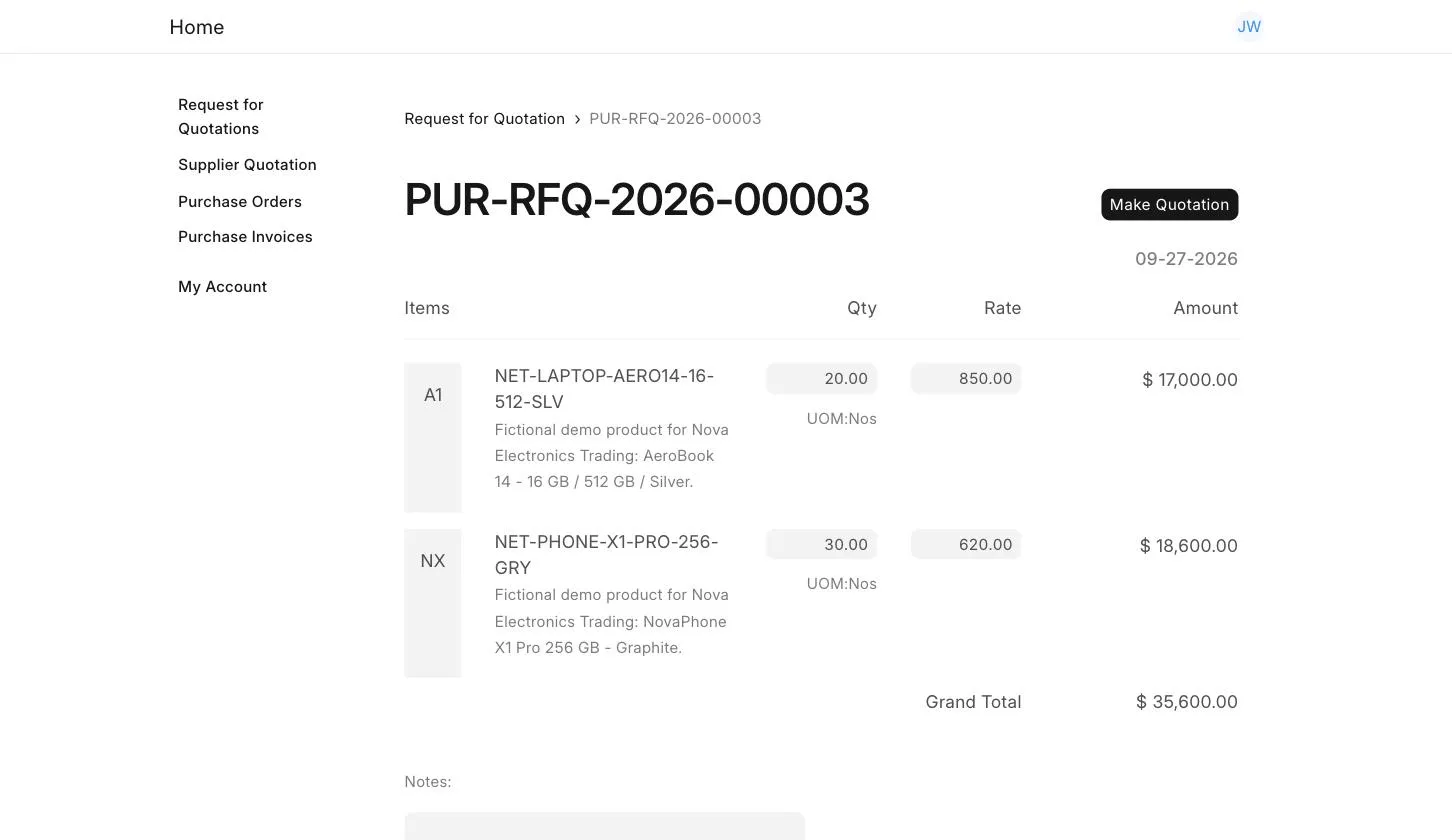
- When the Supplier opens the Request for Quotation on the portal, they can enter the rates and notes (like payment terms) and click on Make Quotation .
- On submission, ERPNext will create a Supplier Quotation (in Draft) against the Supplier. Review the Supplier Quotation and submit it. When all the Items in the Request for Quotation have been quoted by a Supplier, the Quote Status is updated to "Received" in the Suppliers table of the Request for Quotation.
To compare the quotations received from different Suppliers, use View > Supplier Quotation Comparison in the Request for Quotation. Read Supplier Quotation to know more.
