
A Material Request is a document that records a requirement for a set of Items (products or services) for a particular purpose.
A Material Request can have one of the following purposes:
- Purchase : The requested material is to be purchased.
- Material Transfer : The requested material is to be moved from one Warehouse to another.
- Material Issue : The requested material is to be issued for some purpose, like manufacturing.
- Manufacture : The requested material is to be produced.
- Subcontracting : The requested material is to be subcontracted to a vendor.
- Customer Provided : The requested material is to be provided by a Customer. To know more, visit the Customer Provided Item page.
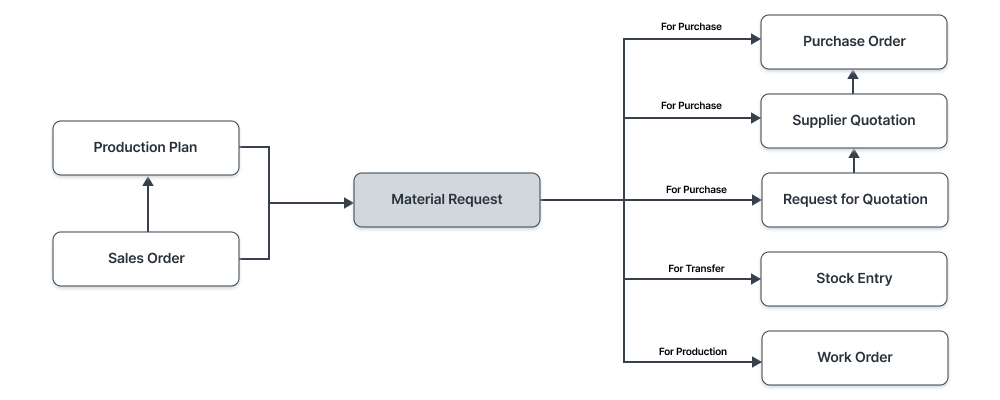
To access the Material Request list, go to: Home > Buying > Material Request or Home > Stock > Material Request
1. How to Create a Material Request
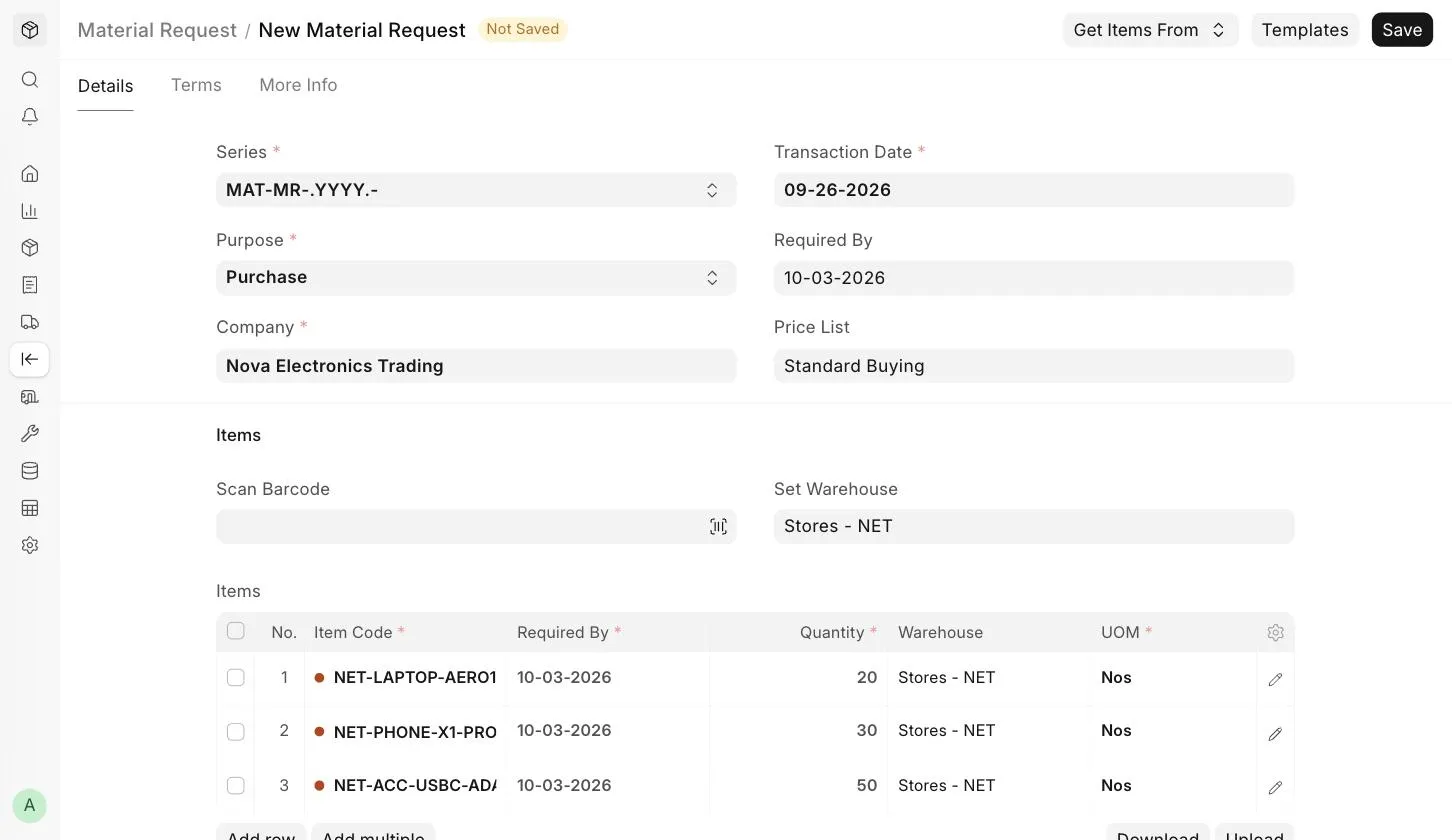
- Go to the Material Request list and click on Add Material Request .
- Select the Purpose of the request.
- Select the Company and set the Required By date.
- Optionally, set a Set Warehouse (target warehouse) to apply it to all Item rows. For a Material Transfer, you can also set a Set Source Warehouse .
- In the Items table, select the Item Code and enter the Quantity . You can change the Required By date and the Warehouse for individual Items in this table.
- Alternatively, click on Get Items From to fetch Items from a Bill of Materials , Sales Order or Product Bundle .
- Save and Submit.
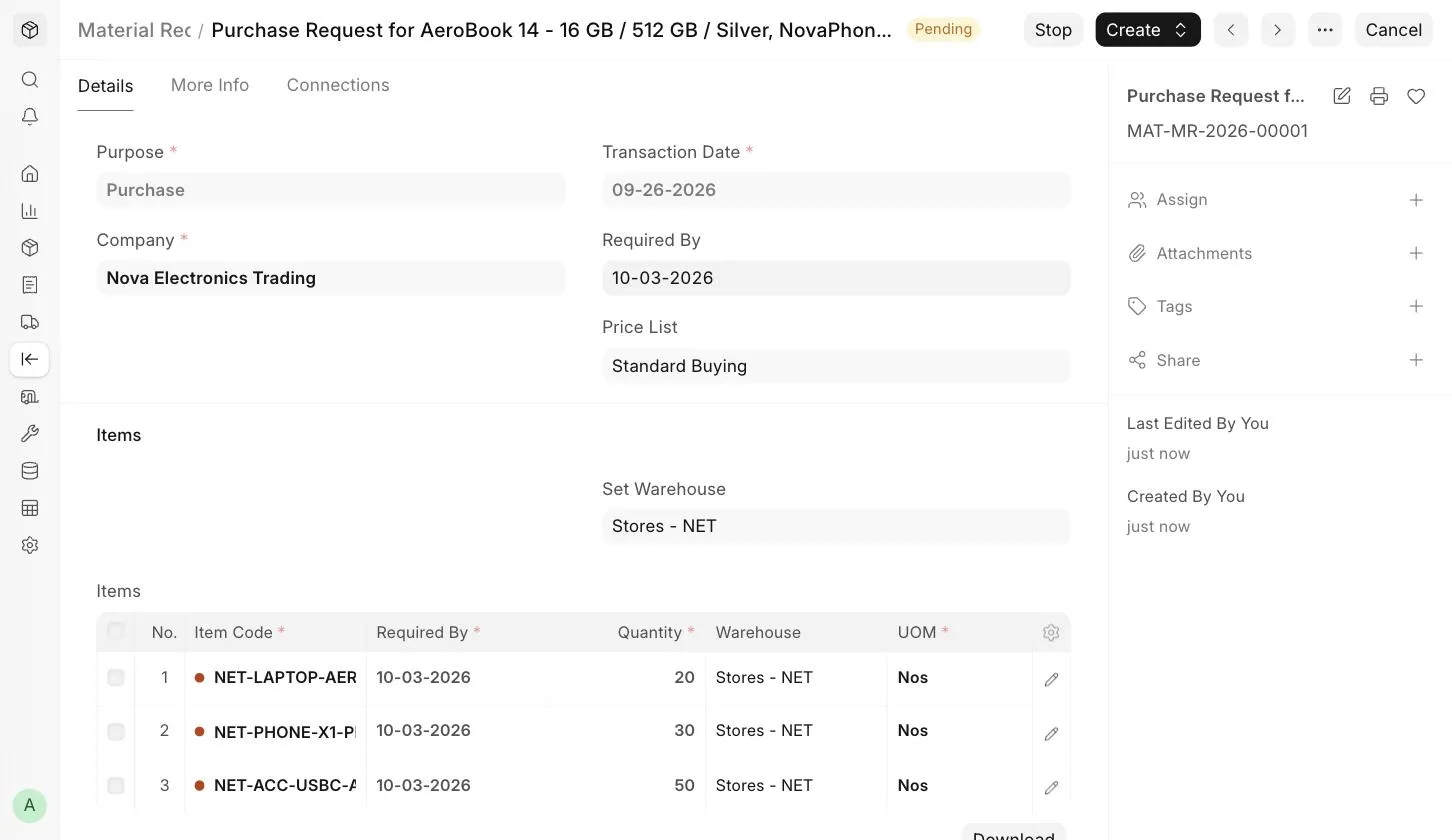
On submission, the Material Request status changes to "Pending" until the requested Items are ordered, transferred, issued or received.
1.1 Alternate Ways of Creating a Material Request
A Material Request can also be created automatically:
- From a Sales Order . While creating the Material Request, you can choose to ignore or include the Projected Quantity. Accordingly, the Sales Order Items are fetched into the Material Request.
- When the Projected Quantity of an Item in a Warehouse falls below its re-order level. See section 2.6 below.
- From a Production Plan , to plan your manufacturing activities.
If your Items are stock Items, you must also mention the Warehouse where you expect these Items to be delivered. This helps keep track of the Projected Quantity of the Item.
:::note A Material Request is not mandatory. It is ideal if you have centralized buying, so that you can collect requirements from various departments. :::
1.2 Statuses
These are the statuses a Material Request can be in:
- Draft : Saved but not yet submitted.
- Submitted : The document is submitted.
- Pending : The purchase, transfer, issue or manufacture against the Material Request is pending.
- Partially Ordered : Purchase Orders have been created for some of the Items, while others are pending.
- Ordered : All Items in the Material Request have been ordered via Purchase Orders.
- Partially Received : Some of the ordered Items have been received.
- Received : The ordered materials have been received in your Warehouse using a Purchase Receipt.
- Issued : The materials have been issued using a Material Issue Stock Entry.
- Transferred : The materials have been transferred from one Warehouse to another using a Stock Entry.
- Stopped : The Material Request has been stopped because no more materials are needed.
- Cancelled : The materials are not needed at all and the request has been cancelled.
For a Material Transfer with goods in transit, the Transfer Status (Not Started, In Transit or Completed) is also shown in the More Info tab.
2. Features
2.1 Items Table
- Scan Barcode : You can add Items to the Items table by scanning their barcodes if you have a barcode scanner. Read the documentation on tracking items using barcode to know more.
- The Item Name, Description, Item Group, Brand and Manufacturer details are fetched from the Item master.
- The UOM, UOM Conversion Factor, Stock Qty, Projected Qty and Actual Qty are fetched for each Item. The Rate and Amount are fetched from the selected Price List .
- Accounting details like Expense Account , Cost Center and Project can be set for each Item.
- Page Break will create a page break just before this Item when printing.
2.2 Setting Warehouses
- Set Warehouse : Optionally, set the Warehouse where the requested Items will arrive. This will be fetched into the Target Warehouse field of each Item row.
- Set Source Warehouse : For a Material Transfer, set the Warehouse from which the Items will be transferred.
2.3 More Information
The More Info tab shows the Status , % Ordered and % Received of the Material Request. If the Material Request was created from a Job Card or a Work Order , the reference is shown in the Reference section.
2.4 Printing Details
Letter Head
You can print your Material Request on your company's letterhead. Read the Letter Head documentation to learn more.
Print Heading
Material Request headings can also be changed when printing the document by selecting a Print Heading. To create new Print Headings, go to: Home > Settings > Printing > Print Heading .
2.5 Terms and Conditions
You can apply Terms and Conditions to the Material Request from the Terms tab, and they will appear when printing the document. To know more, visit the Terms and Conditions page.
2.6 Automatically Generate Material Requests
Material Requests can be generated automatically by enabling the setting in Stock Settings and setting the re-order level in the Item form . When the stock level falls below the re-order level, a Material Request is created automatically for the Item. Such Material Requests have the Auto Created (Reorder) checkbox enabled.
2.7 After Submitting
Once the Material Request is submitted, you can create the following documents from the Create button, depending on the Purpose:
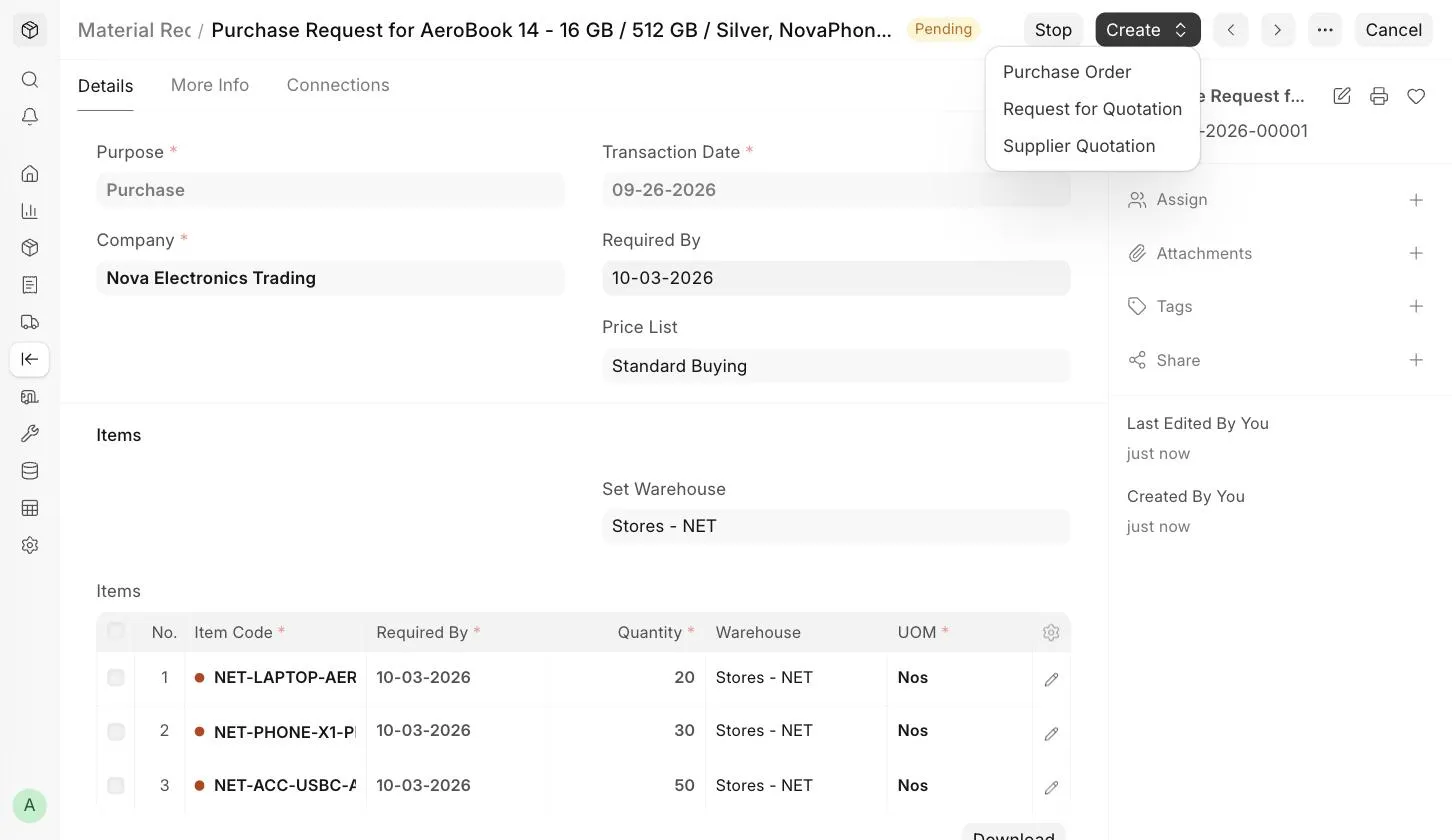
You can also Stop a submitted Material Request if no more materials are needed. For a Material Request with the purpose "Subcontracting", you can create a Subcontracted Purchase Order directly from the Material Request after submission.
