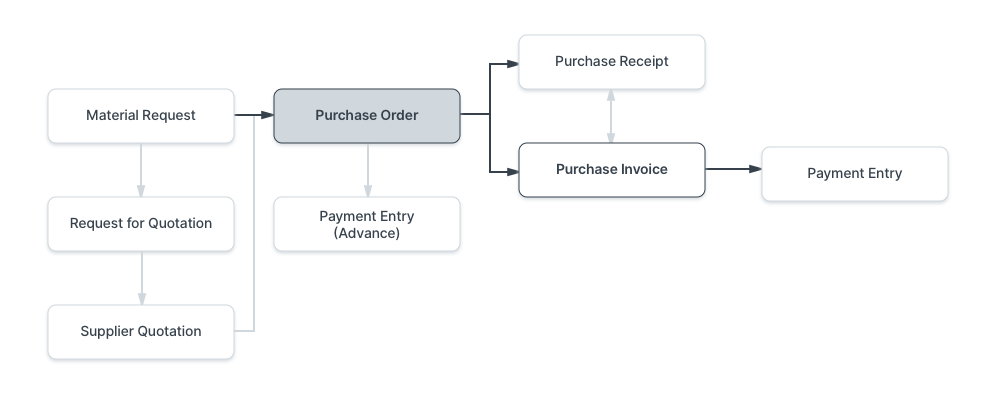
A Purchase Order is a binding contract with your Supplier in which you promise to buy a set of Items under given conditions.
It is similar to a Sales Order, but instead of receiving it from an external party, you send it to your Supplier and keep it for your records.
To access the Purchase Order list, go to: Home > Buying > Purchase Order
1. Prerequisites
Before creating and using a Purchase Order, it is advised that you create the following first:
2. How to Create a Purchase Order
A Purchase Order can be created from a submitted Material Request or Supplier Quotation using Create > Purchase Order . To create one manually:
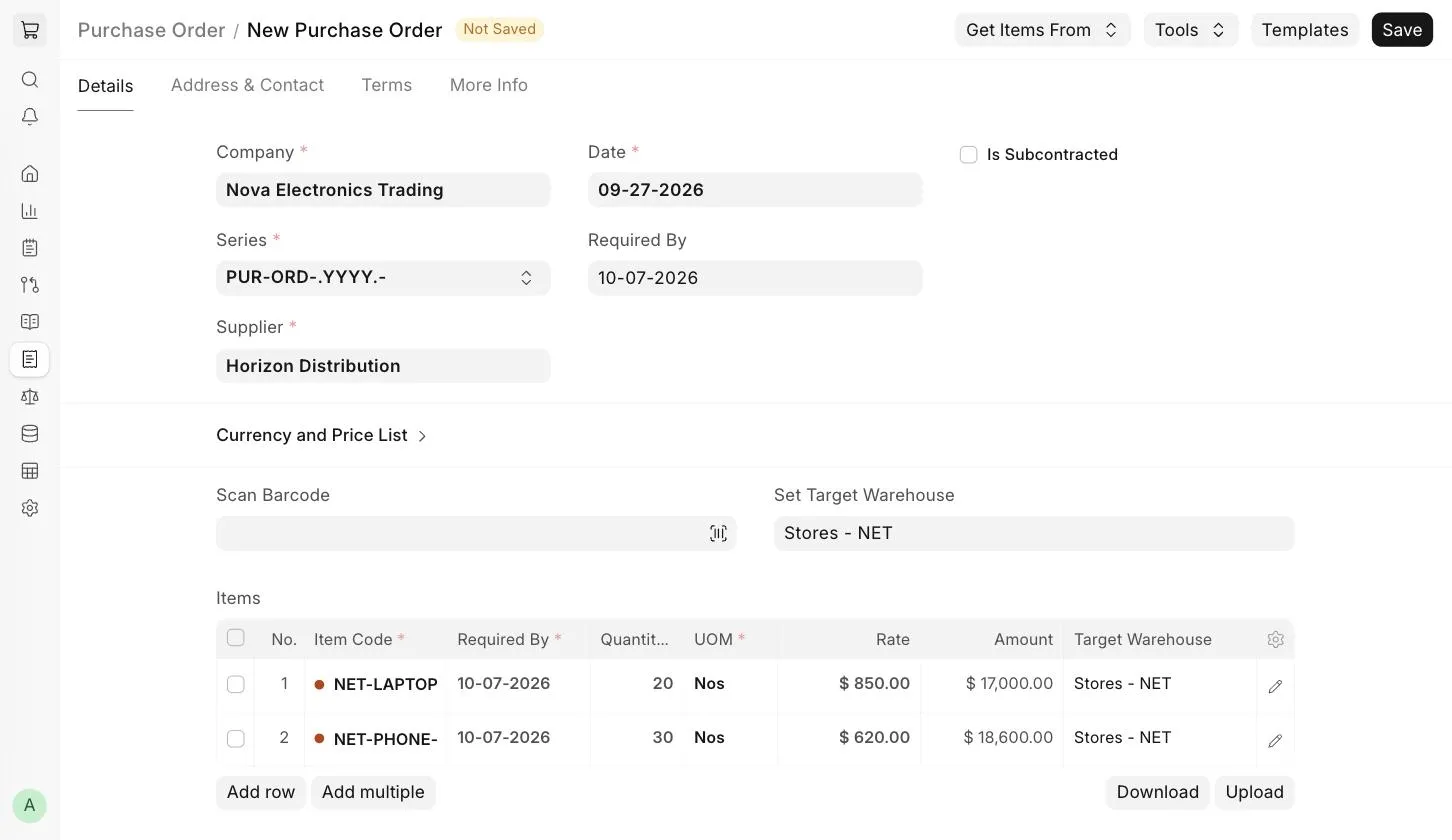
- Go to the Purchase Order list and click on Add Purchase Order .
- Select the Company , the Supplier and the Required By date.
- In the Items table, select the Item Code and enter the Quantity . The Rate will be fetched if an Item Price is set for the Item in the selected buying Price List. You can change the Required By date for each Item.
- Set the taxes in the Taxes and Charges section.
- Save and Submit.
2.1 Setting Warehouses
Set Target Warehouse : Optionally, you can set the default target Warehouse where the purchased Items will be delivered. This will be fetched into the Target Warehouse of each Item row.
2.2 Get Items From
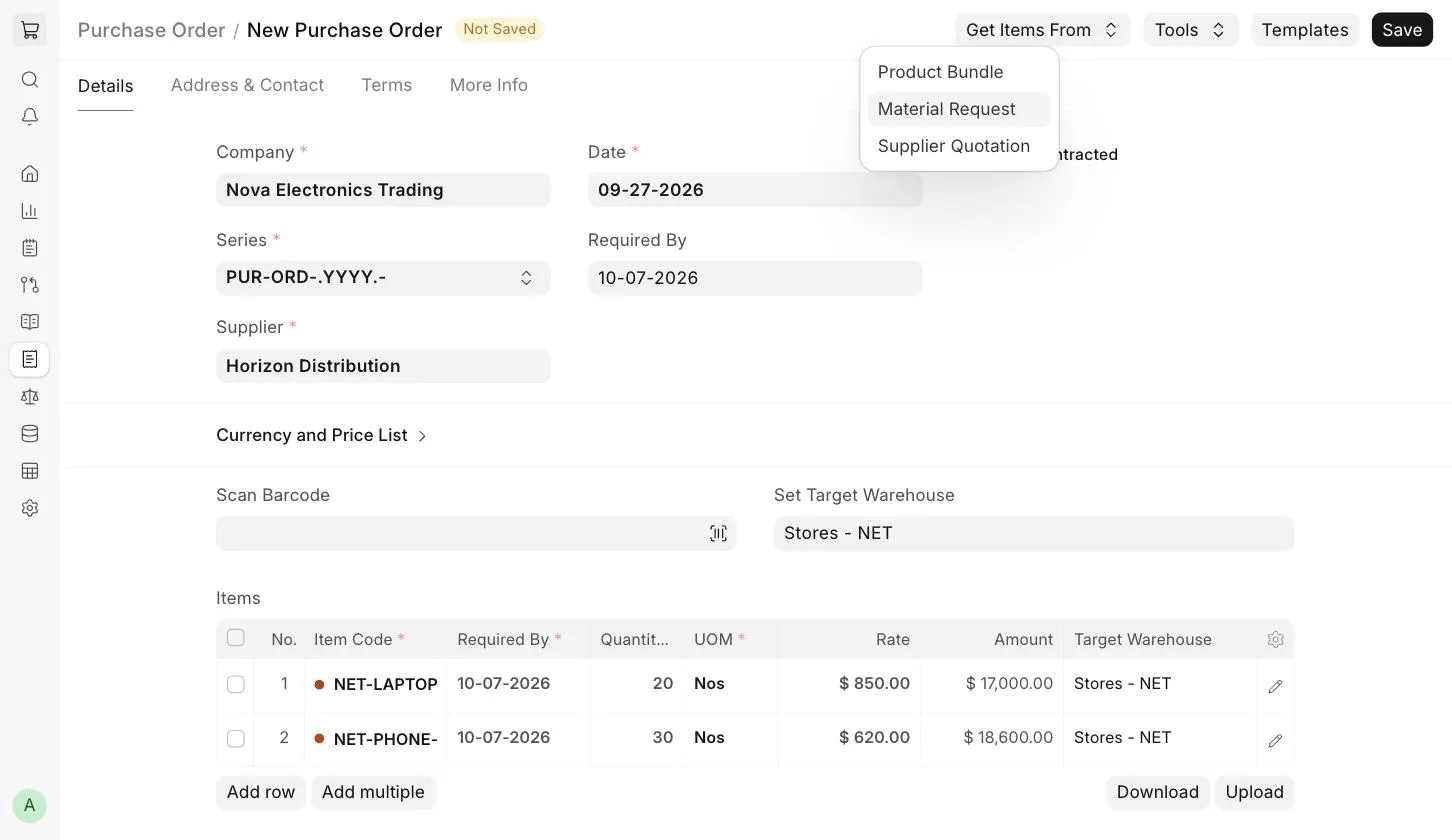
Instead of adding Items manually, you can fetch them from other documents using the Get Items From button:
- Product Bundle : Fetch the Items of a Product Bundle.
- Material Request : Fetch Items from submitted Material Requests of type "Purchase". You can filter the Material Requests and select the Items to be fetched.
- Supplier Quotation : Fetch Items and rates from a submitted Supplier Quotation.
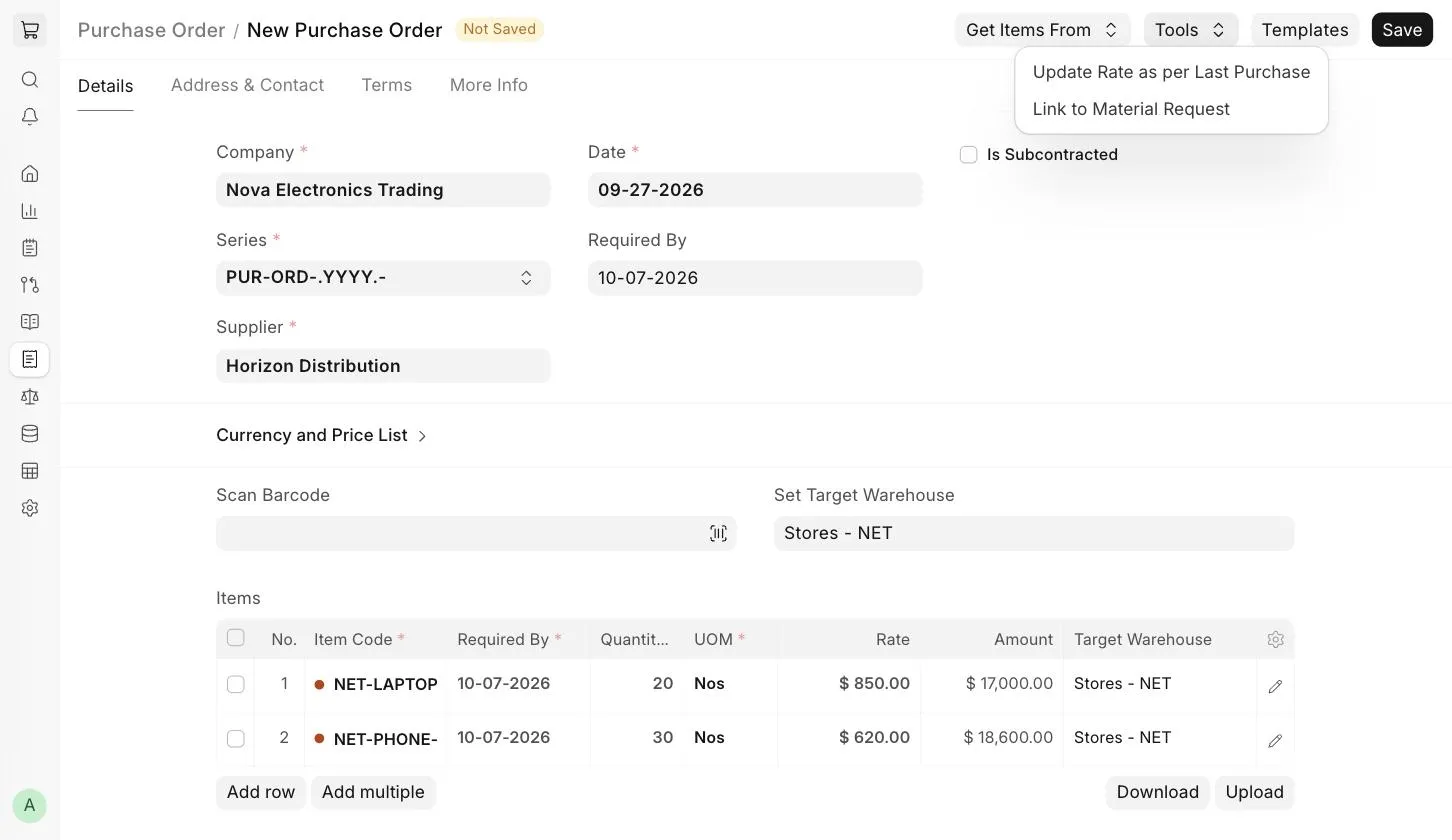
The Tools menu has the following options:
- Update Rate as per Last Purchase : Update the rates of the Items as per their last purchase rate.
- Link to Material Request : Link the Purchase Order Items to existing Material Requests with the same Items.
3. Features
3.1 Address and Contact
- Supplier Address : The Supplier's billing address.
- Shipping Address : The address where the Supplier will deliver the Items.
- Company Billing Address : Your company's billing address.
The Supplier Address and Contact will be fetched if they are saved in the Supplier master.
:::note For India, fields like Supplier GSTIN, Company GSTIN and Place of Supply are added by the India Compliance app. :::
3.2 Currency and Price List
You can set the currency in which the Purchase Order is to be recorded. If you set a Price List, the Item prices will be fetched from that list. Checking Ignore Pricing Rule will ignore the Pricing Rules set in Accounts > Pricing Rule .
Read about Price Lists and Multi-Currency Transactions to know more.
3.3 Subcontracting
Check Is Subcontracted if you are getting the Items manufactured by a Supplier and will supply them with the raw materials. To know more, visit the Subcontracting page.
3.4 The Items Table
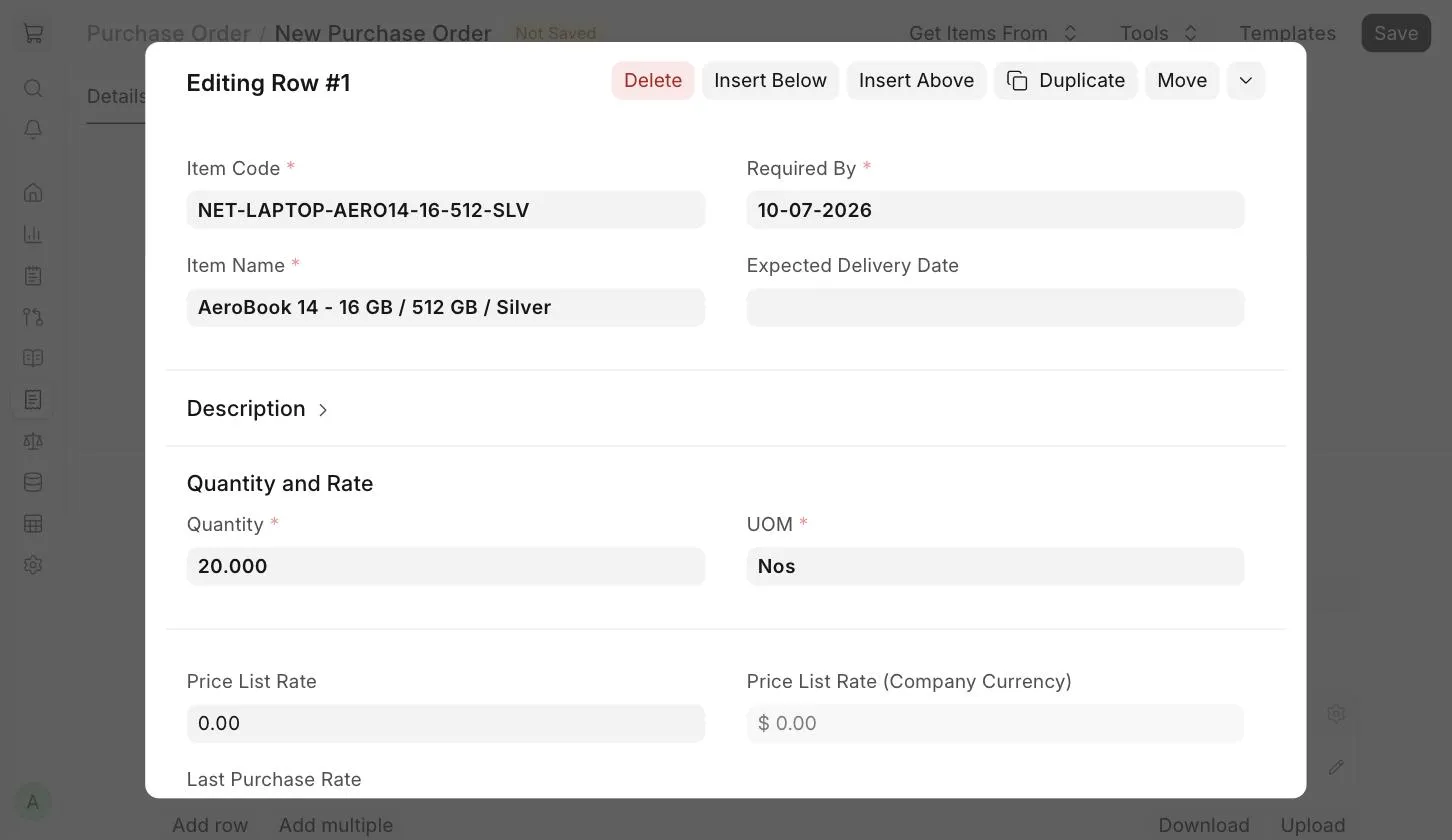
- Scan Barcode : You can add Items to the Items table by scanning their barcodes. Read the documentation on tracking items using barcode to know more.
- Quantity and Rate : When you select the Item Code, its name, description and UOM will be fetched. The Price List Rate will be fetched from the selected Price List, and the Last Purchase Rate shows the rate of the Item from your last purchase. You can set an Item Tax Template to apply a specific tax rate to the Item.
- Warehouse Settings : The Target Warehouse where the Items will be delivered. It is auto-filled if Set Target Warehouse is set. The available quantity at the Target Warehouse and at the Company is also shown.
- References : A Blanket Order , Material Request, Supplier Quotation, Project or BOM can be linked to the Item.
- Billed, Received & Returned : The received and billed quantities are updated as Purchase Receipts and Purchase Invoices are created.
- Accounting Details : The Expense Account and Cost Center against which the Item will be booked.
- Required By : A date for each Item. If you are expecting partial deliveries, your Supplier will know how much quantity to deliver on which date. This also helps you track how well your Supplier is doing on timeliness.
3.5 Purchase UOM and Stock UOM Conversion
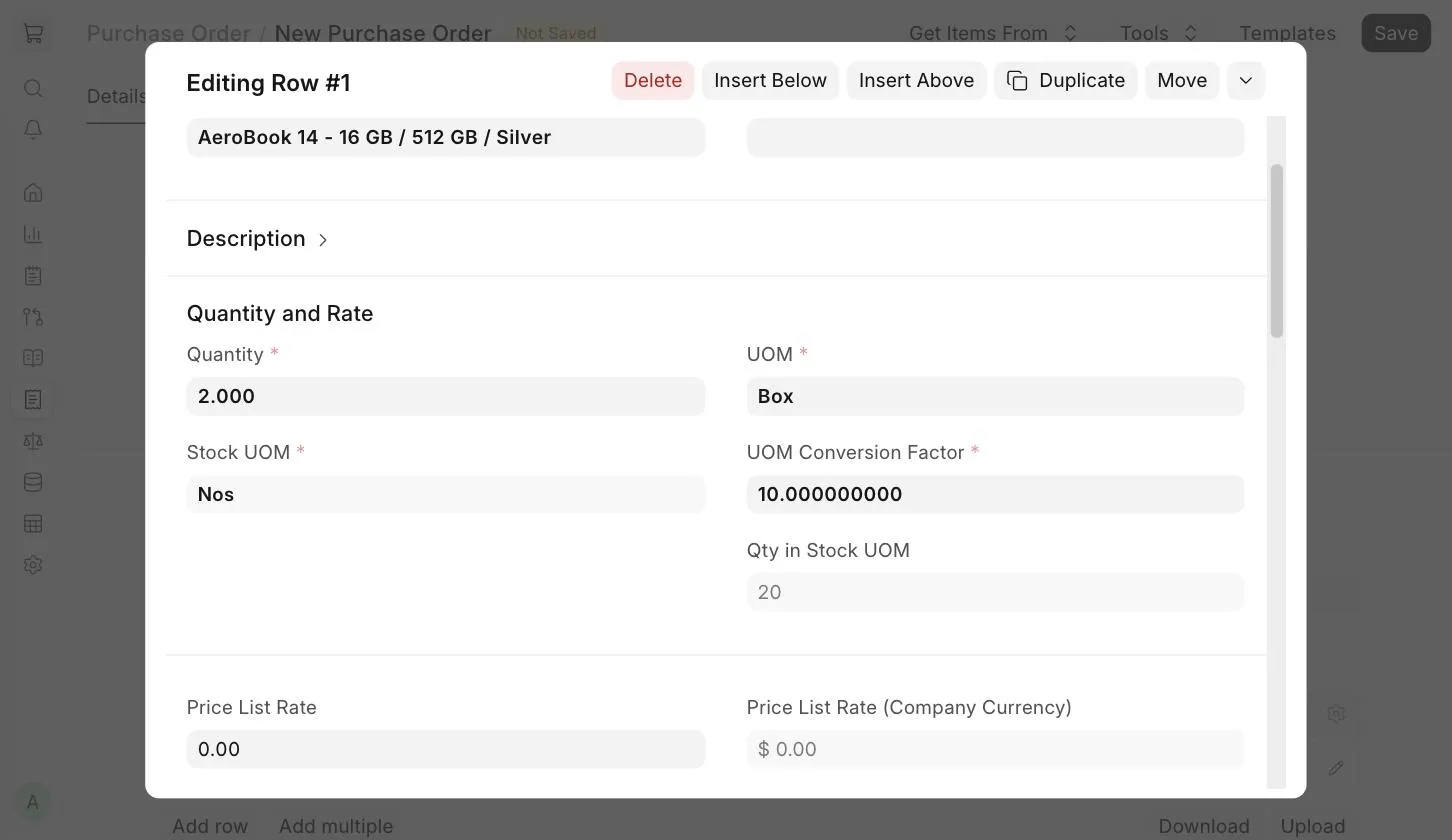
You can purchase an Item in a different UOM than the one it is stocked in. For example, if you buy an Item in Boxes and stock it in Nos:
- Keep the Stock UOM of the Item as Nos in the Item master.
- In the Purchase Order Item row, set the UOM as Box.
- Set the UOM Conversion Factor , for example, 10 if one Box has 10 Nos.
- The Qty in Stock UOM will be updated accordingly.
3.6 Taxes and Charges
If your Supplier is going to charge you additional taxes or charges like shipping or insurance, you can add them here. This helps you accurately track your costs. Select a Purchase Taxes and Charges Template to fetch the taxes automatically, or add them manually in the table. The total taxes and charges are displayed below the table. Visit the Purchase Taxes and Charges Template page to know more.
To apply taxes automatically based on a Tax Category , visit the Tax Category page. You can also set the Incoterm and Named Place agreed with the Supplier in this section.
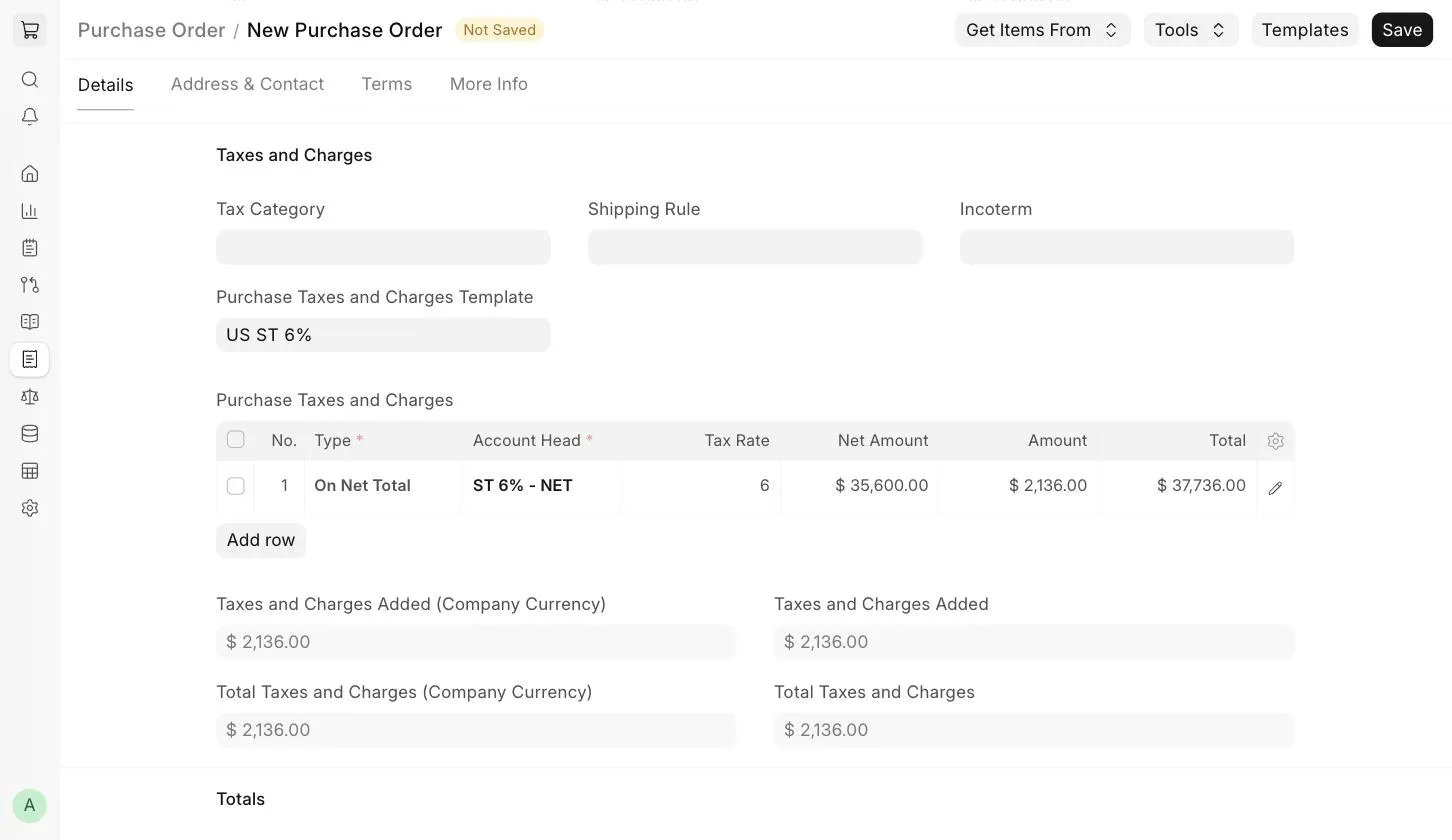
:::tip Make sure to mark all your taxes correctly in the Taxes and Charges table for an accurate valuation of the Items. :::
Shipping Rule : A Shipping Rule helps set the cost of shipping an Item. To know more, visit the Shipping Rule page.
3.7 Additional Discount
Other than recording a discount per Item, you can add a discount to the whole Purchase Order in this section. The discount can be applied on the Grand Total (after taxes and charges) or the Net Total (before taxes and charges), as a percentage or an amount. Read Applying Discount for more details.
3.8 Payment Terms
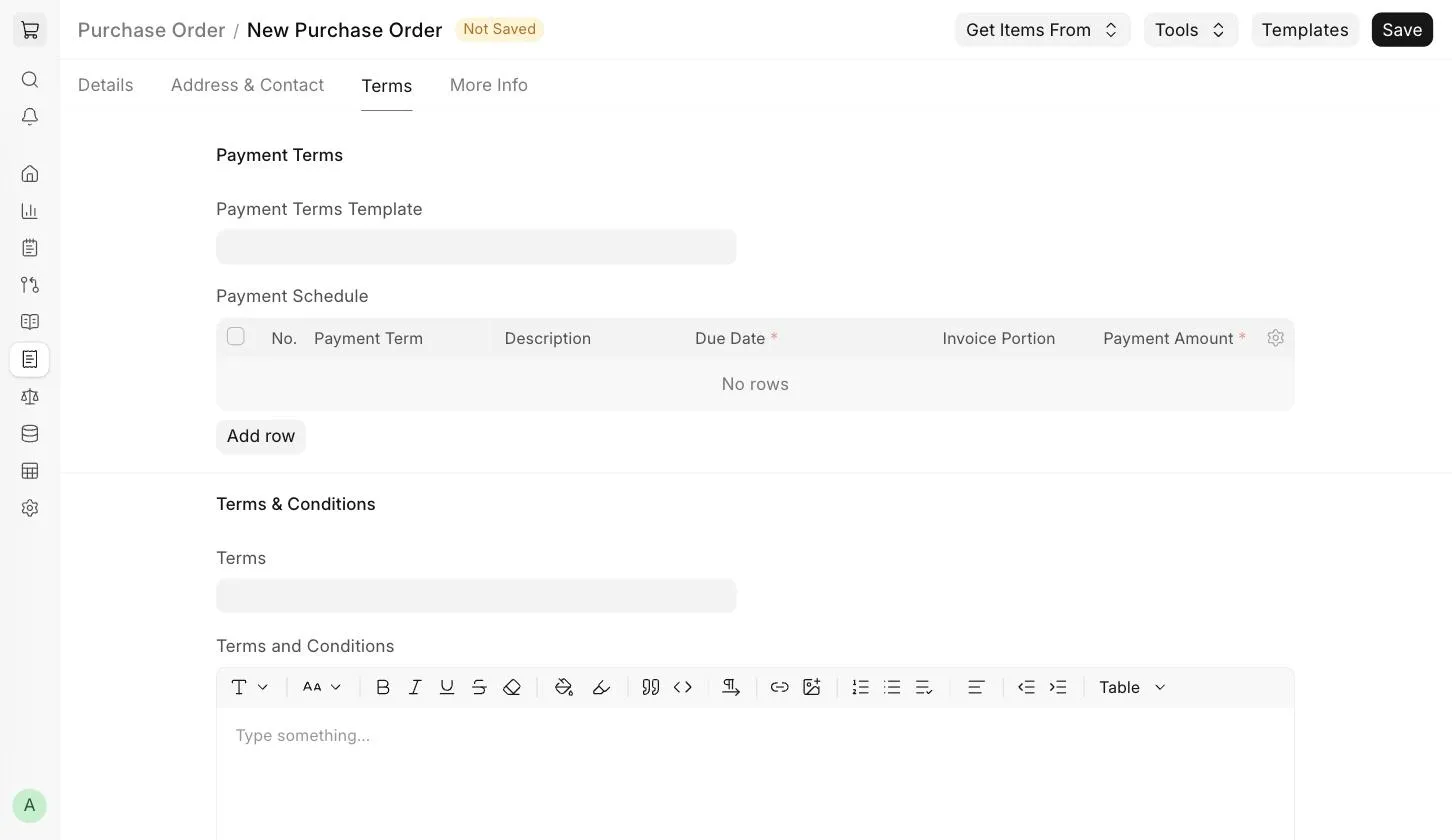
Sometimes payment is not done all at once. Depending on the agreement, half of the payment may be made before shipment and the other half after receiving the goods. You can select a Payment Terms Template or add the terms manually in the Payment Schedule table in the Terms tab. Read Payment Terms to know more.
3.9 Terms and Conditions
In purchase transactions, there might be certain Terms and Conditions based on which the Supplier provides goods or services. You can apply Terms and Conditions in the Terms tab, and they will appear when printing the document. To know more, visit the Terms and Conditions page.
3.10 Printing Settings
- Letter Head : You can print your Purchase Order on your company's letterhead. Know more here .
- Group same items : Groups the same Items added multiple times in the Items table when printing.
- Print Heading : Titles of your documents can be changed. Know more here .
3.11 More Information
The More Info tab shows the Order Status of the Purchase Order, i.e. the percentage of Items received and billed. If this is an inter-company order, the linked Sales Order is shown here. You can also set up Auto Repeat from this tab.
3.12 After Submitting
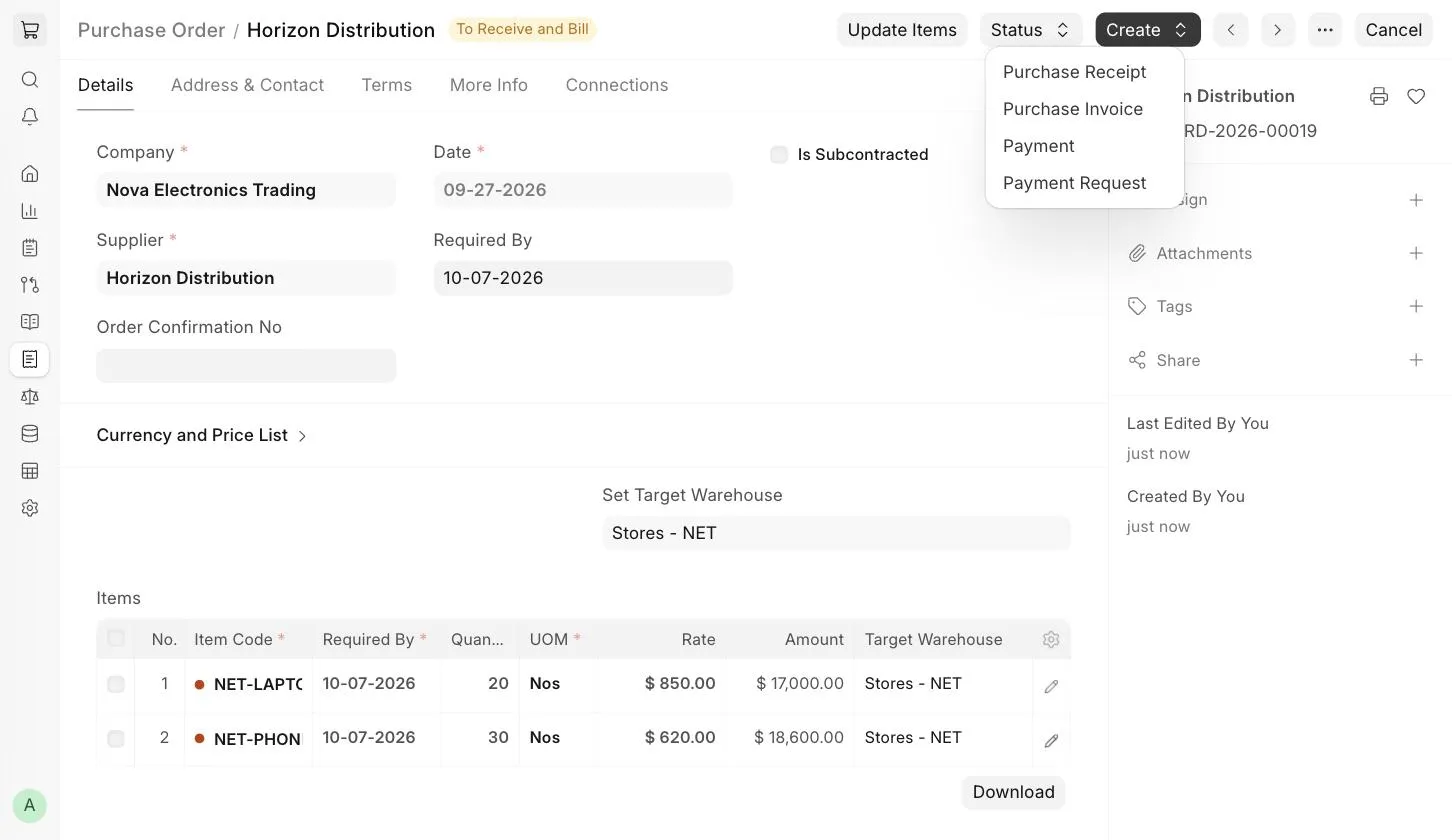
Once submitted, the status of the Purchase Order will be To Receive and Bill . You can enter the Supplier's Order Confirmation No and date after submission.
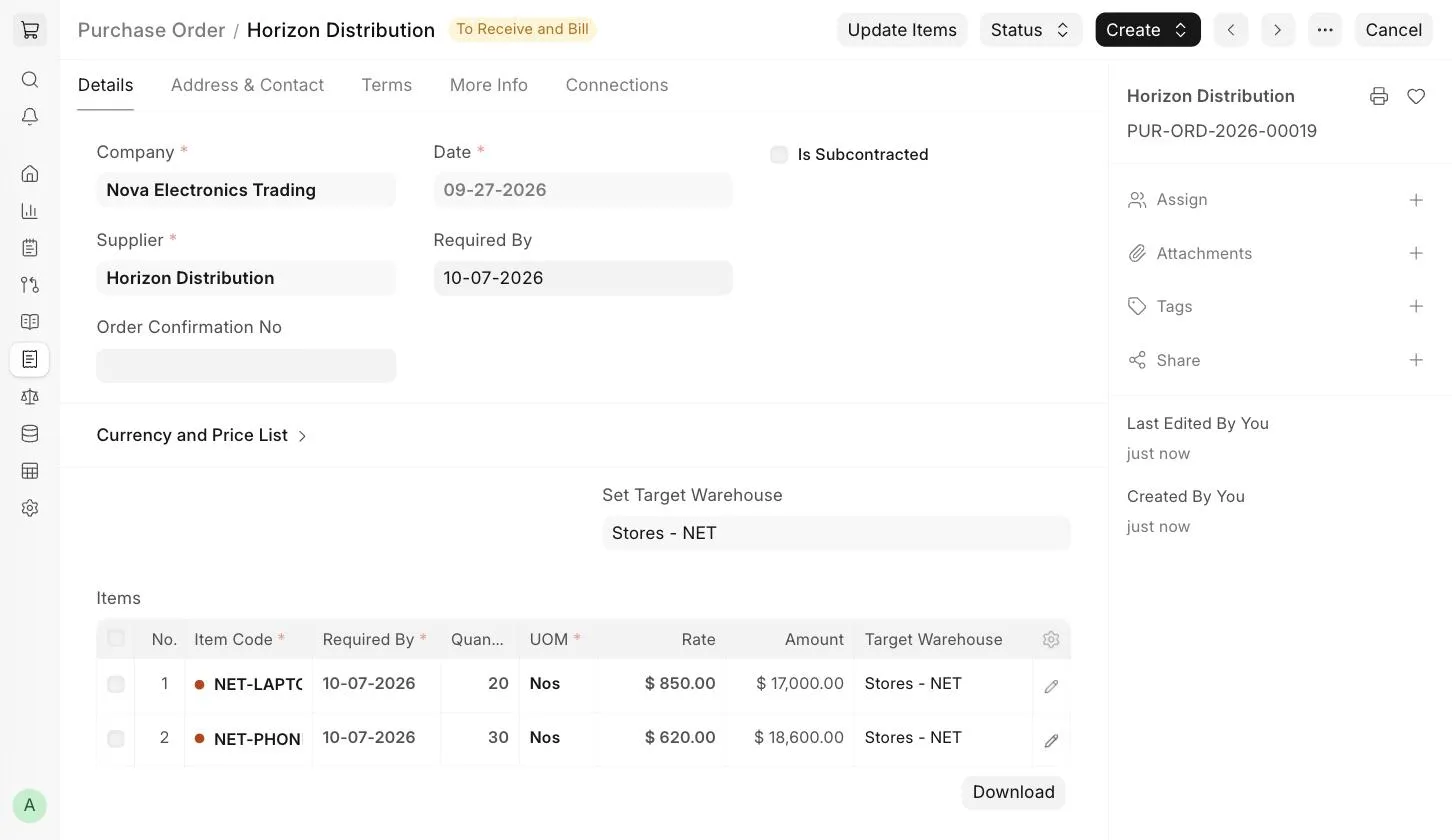
- Update Items : Add, update or delete Items in the Purchase Order. However, you cannot delete Items that have already been received or billed.
- Status : Put the Purchase Order on Hold , Close it, or close specific Items using Close Items .
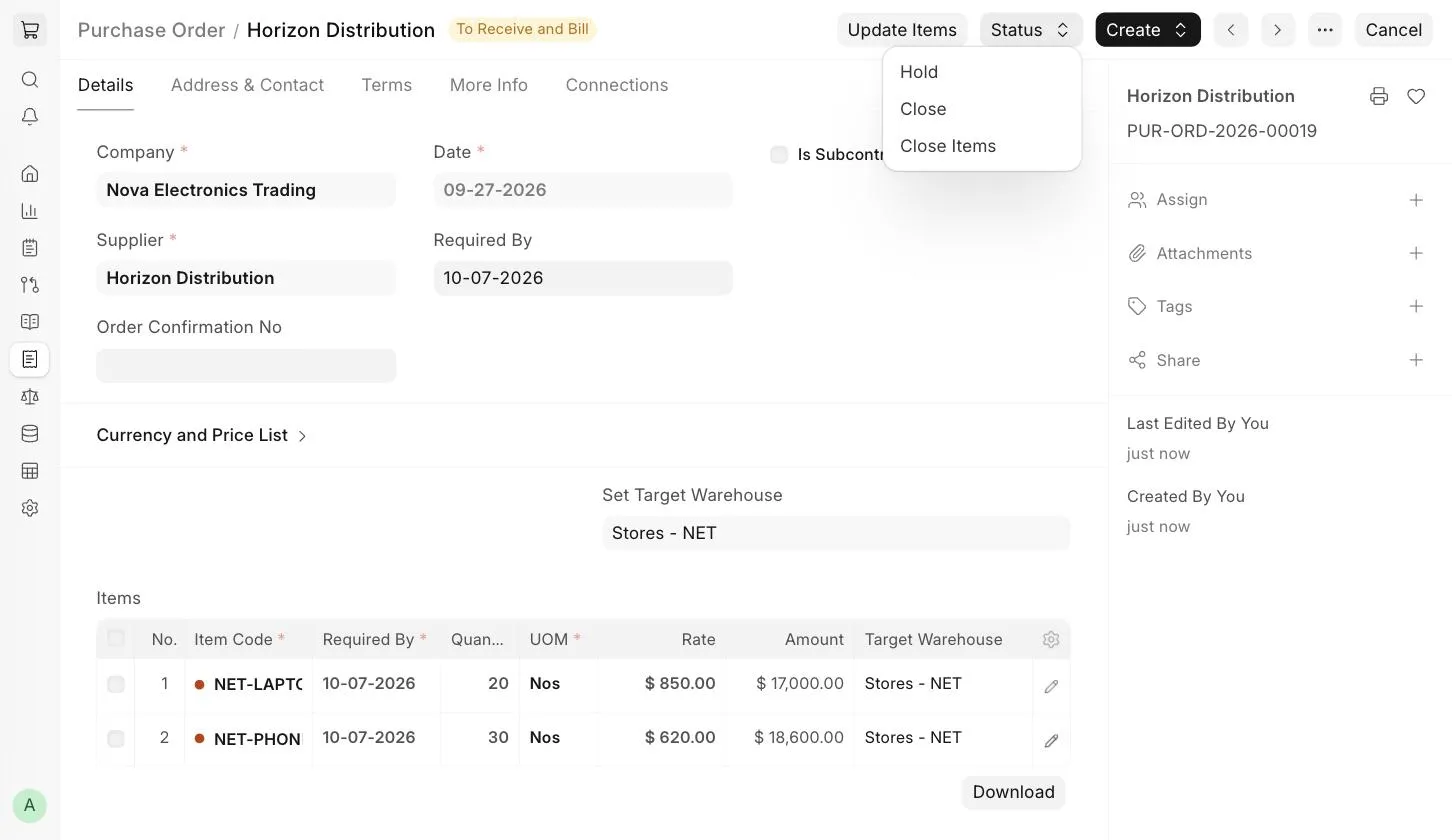
From the Create button, you can create the following:
- Purchase Receipt : To record the receipt of the Items.
- Purchase Invoice : To record the Supplier's bill for the Purchase Order.
- Payment : A Payment Entry for an advance payment against the Purchase Order.
- Payment Request : To request a payment against the Purchase Order.