
Learn how to configure Ping Identity as an identity provider for NocoDB.
This article briefs about the steps to configure Auth0 as Identity service provider for NocoDB
NocoDB, Retrieve SAML SSO Configuration details
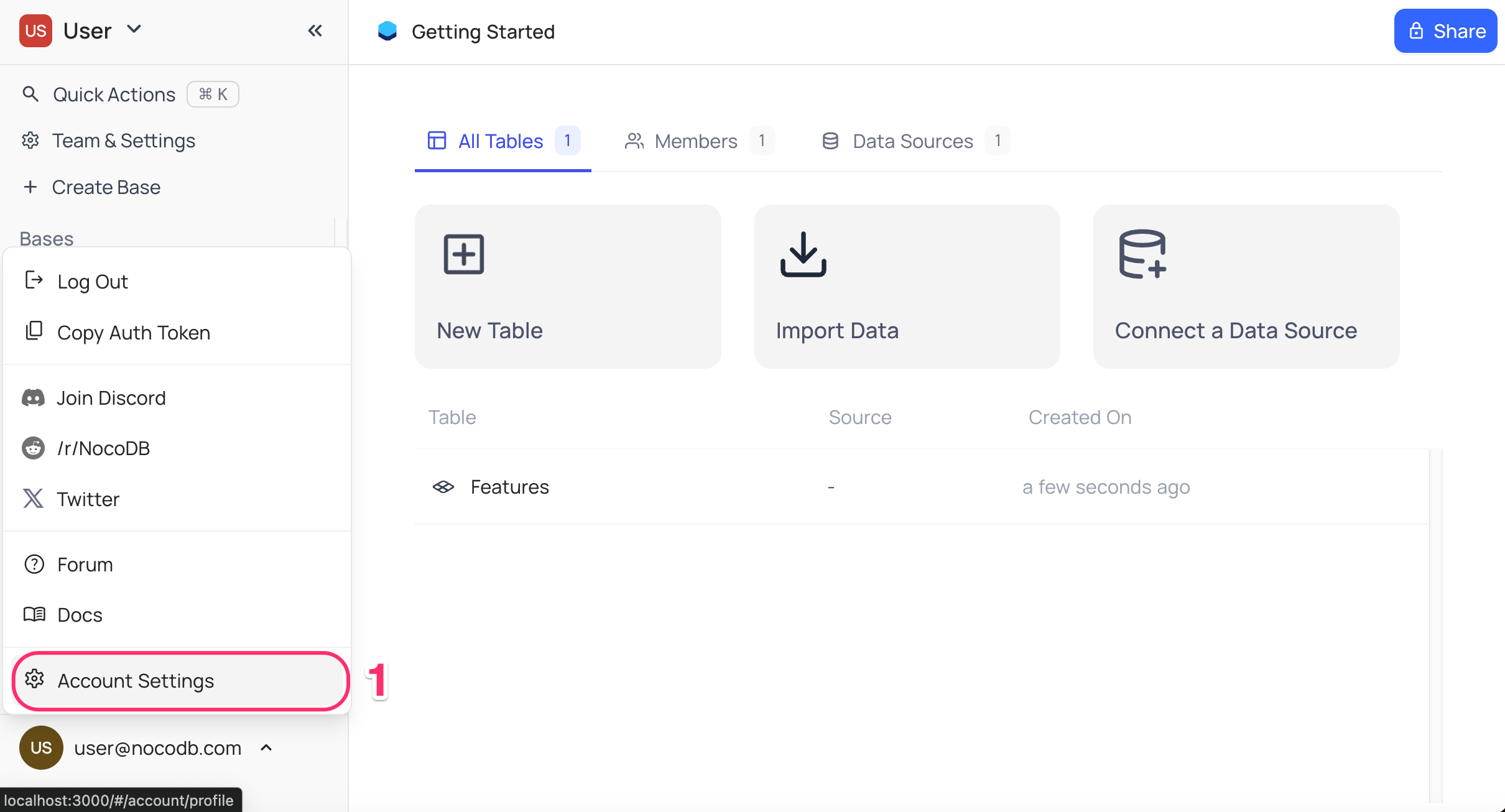
- Go to
Account Settings - Select
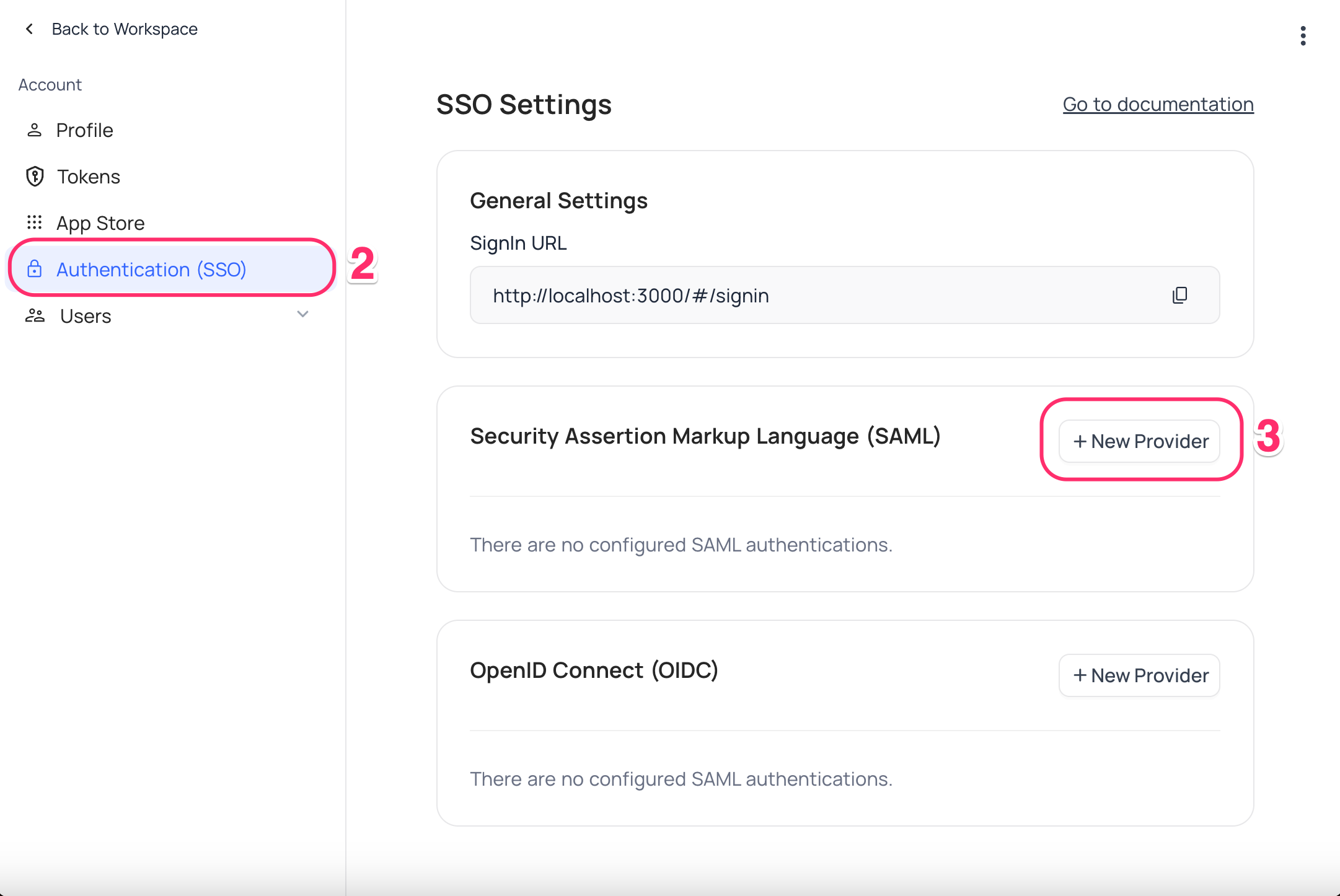
Authentication (SSO) - Click on
New Providerbutton - On the Popup modal, Specify a
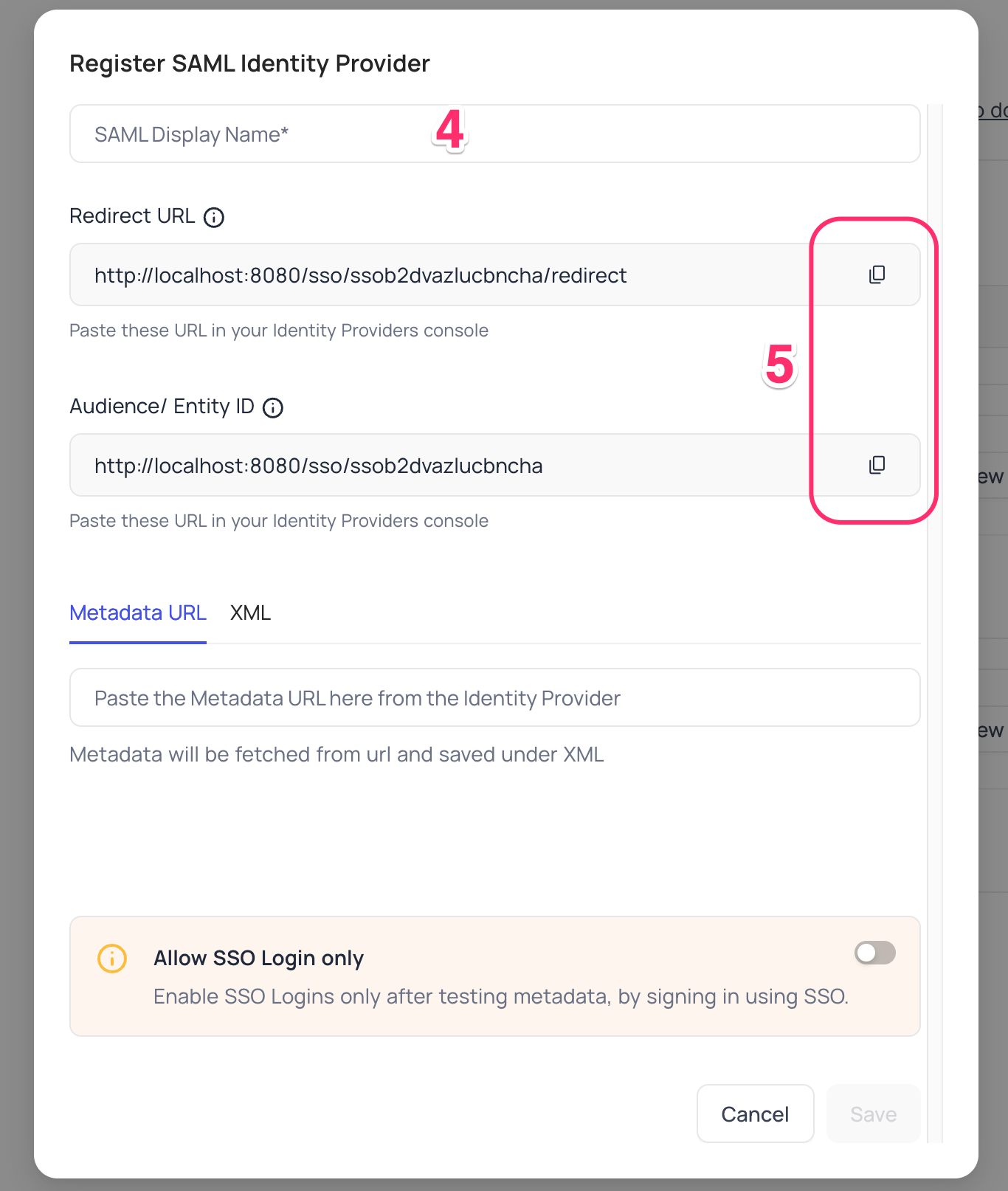
Display namefor the provider; note that, this name will be used to display the provider on the login page - Retrieve
Redirect URL&Audience / Entity ID; these information will be required to be configured later with the Identity Provider
Ping Identity, Configure NocoDB as an Application
- Access your PingOne account and navigate to the homepage.
- Click on
Add Environmentfrom the top right corner. - On the
Create Environmentscreen,- Opt for
Build your own solution - In the
Select solution(s) for your Environmentsection, selectPingOne SSOfromCloud Services - Click
Next - Provide a name and description for the environment,
- Click
Next
- Opt for
- Access the newly created environment and go to
Connections>Applicationsfrom the sidebar. - Within the Applications homepage, initiate the creation of a new application by clicking the "+" icon.
- On the "Add Application" panel:
- Input the application name and description.
- Choose "SAML Application" as the Application Type and click "Configure."
- Within the SAML Configuration panel, opt for "Manually Enter."
- Populate the
ACS URLsfield with theRedirect URLretrieved from step (2) above - Insert the
Audience URIretrieved above in step (2) in theEntity IDfield Save
- In your application,
- Navigate to the
Configurationstab - Copy the
IDP Metadata URL
- Navigate to the
- On your application panel, activate user access to the application by toggling the switch in the top right corner.
NocoDB, Configure Ping Identity as an Identity Provider
- Go to
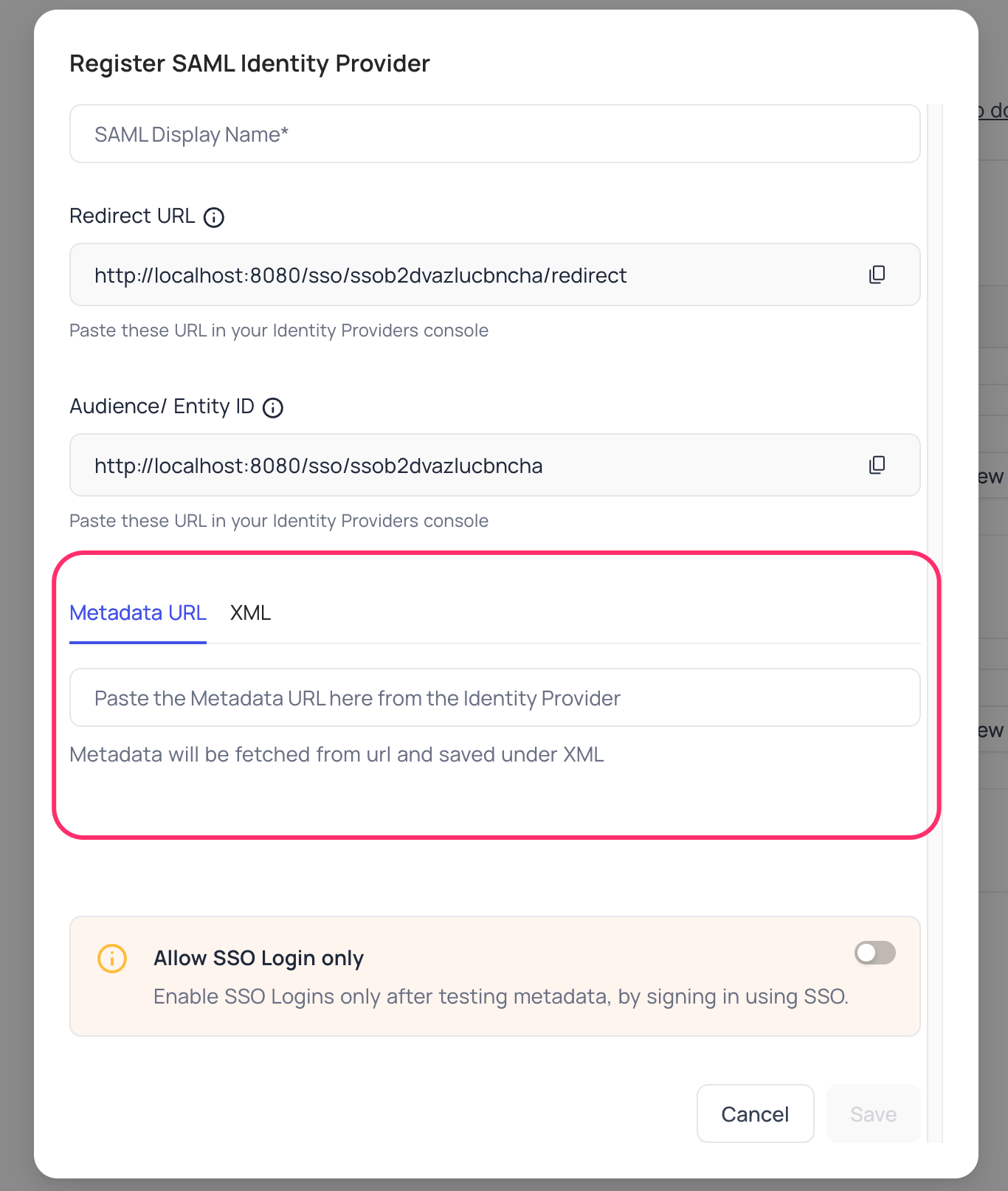
Account Settings>Authentication>SAML - Insert
Metadata URLretrieved in step above; alternatively you can configure XML directly as well Save
For Sign-in's, user should be able to now see Sign in with option.
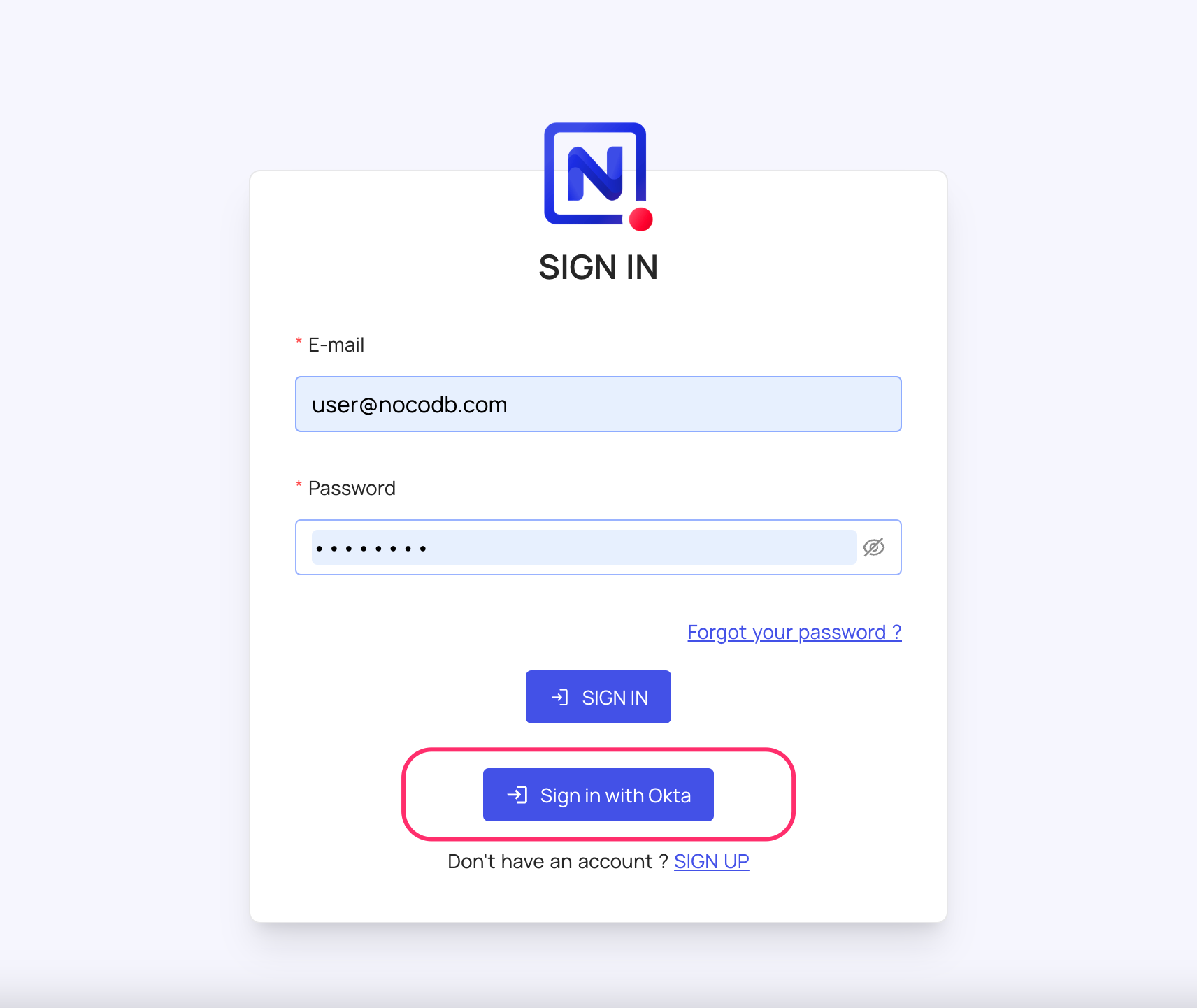
หมายเหตุ: Post sign-out, refresh page (for the first time) if you do not see
Sign in with SSOoption
หมายเหตุ: For more common questions and troubleshooting, see our SSO FAQ .
Availability
- SAML SSO is available on NocoDB Cloud (Business plan and above) and licensed self-hosted deployments (Business plan and above). For access, please reach out to sales team .
- For users on Business plan , the SSO configuration menu is available under Settings > Single Sign-On (SSO) in the workspace sidebar. Refer here for more details.
- Domain Verification Required for Cloud Plans : Before configuring SAML SSO, you must verify your domain in NocoDB (required for both Business and Enterprise plans in the cloud). Only users with email addresses from verified domains can sign in via SSO. See Domain Verification for details.
Related pages
- Okta : Learn how to configure Okta as an identity provider for NocoDB.
- Auth0 : Learn how to configure Auth0 as an identity provider for NocoDB.
- Azure AD (Entra) : Learn how to configure Active Directory as an identity provider for NocoDB.
