
This article explains how to perform various actions on a field- like rename, change field type, default, field width, record height, show/hide.
สั่งงานด้วย NocoAI
Rename [old field name] to [new field name]Change [field name] to a [date] fieldDelete the [field name] fieldChange [Amount] to a currency field in [euros]
Fields context menu
Fields context menu can be accessed by clicking on the dropdown icon (🔽) next to the field name.\
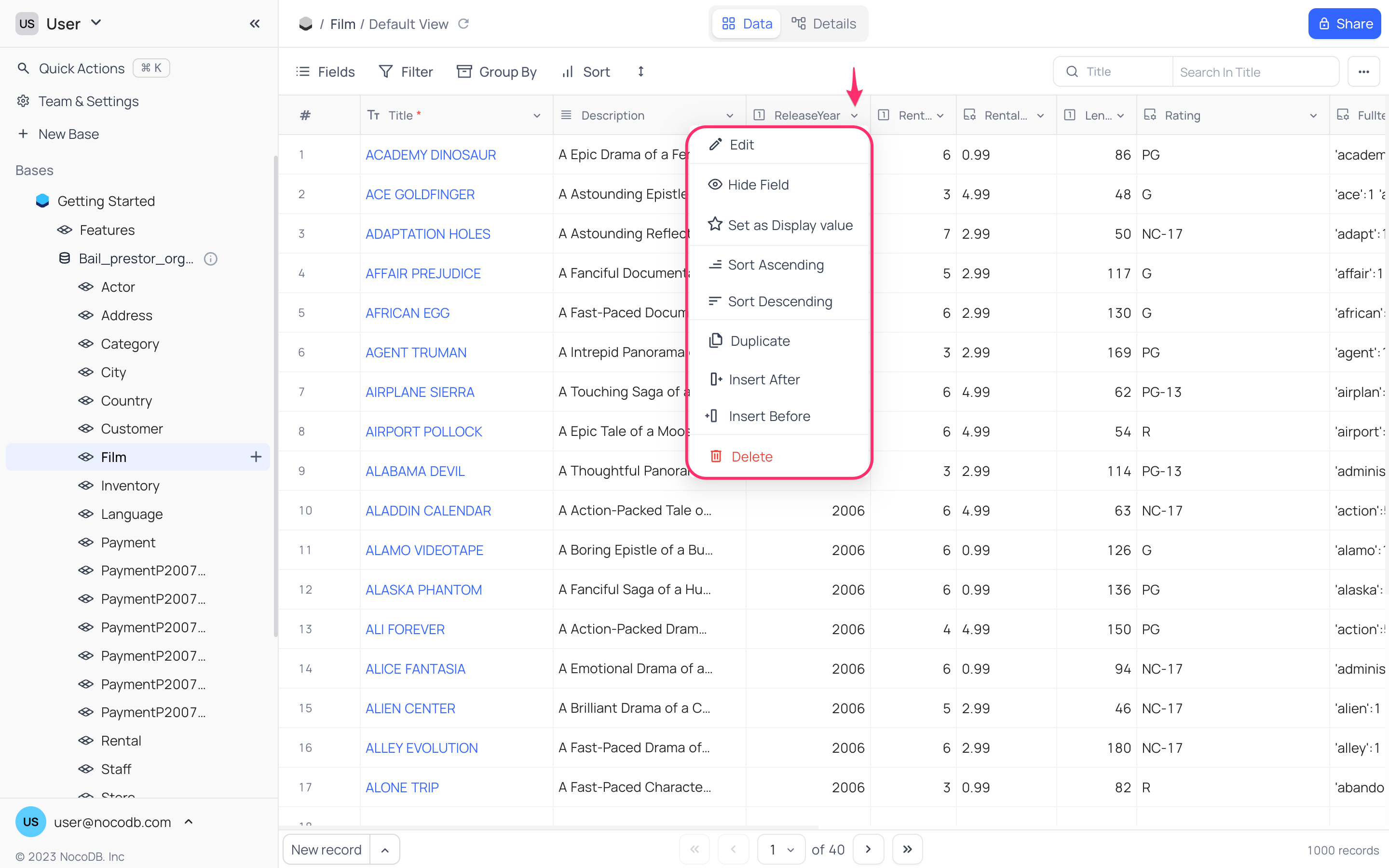
Edit
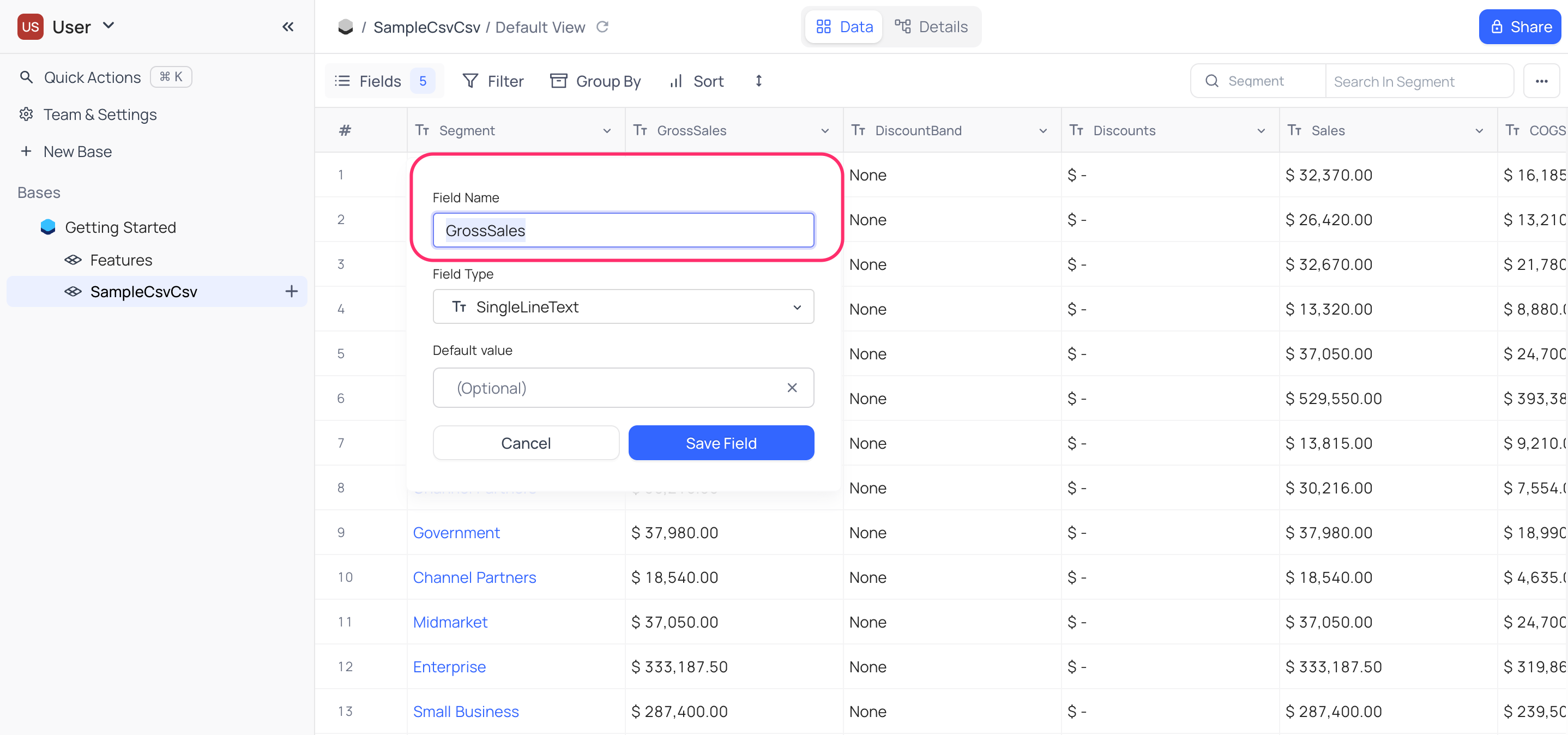
Rename field
- Open the field context menu
- Click on
Editoption. - Enter new field name as required in the
Field Namefield. - Click on
Save Fieldbutton.
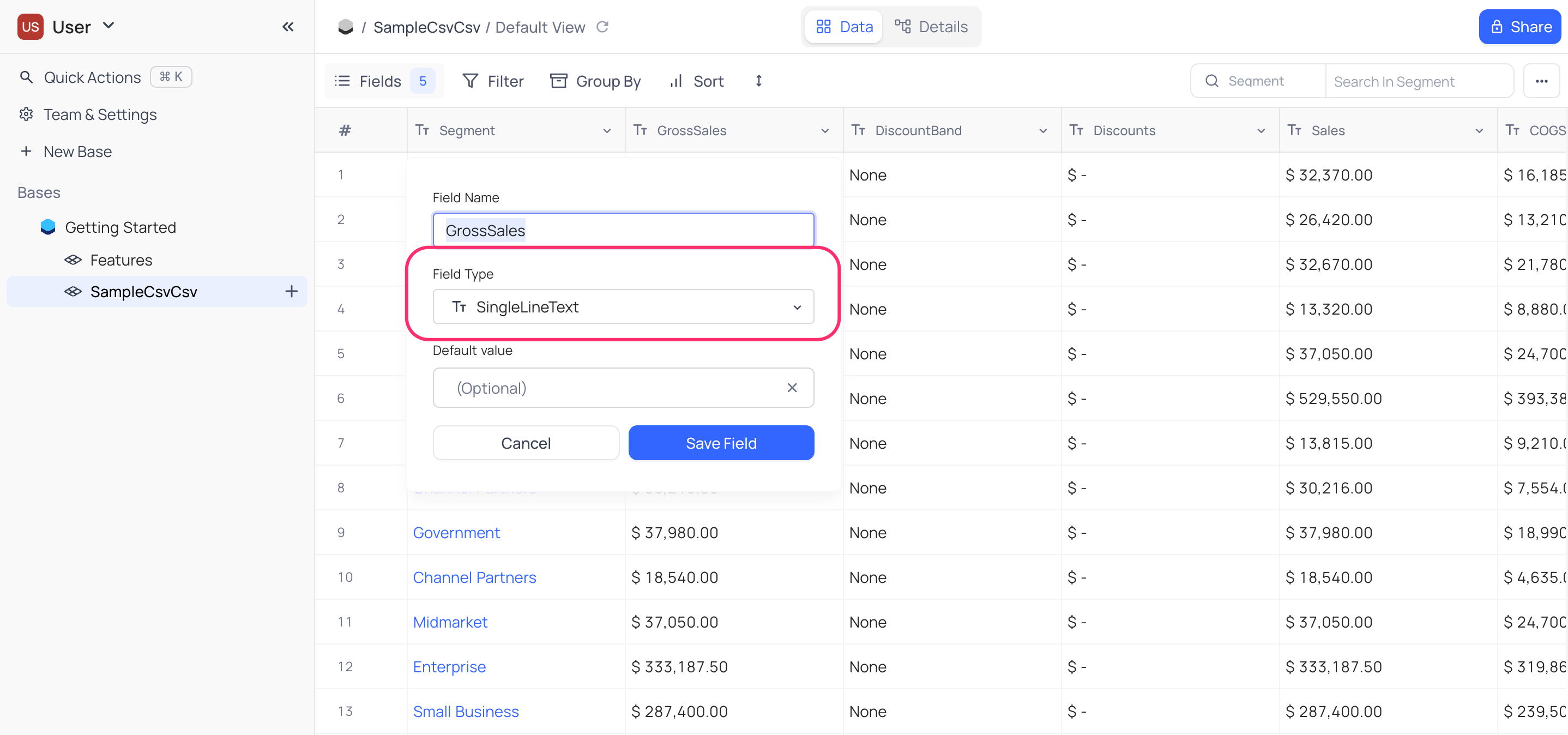
Change field type
- Open the field context menu
- Click on
Editoption. - Select new field type from the
Field Typedropdown. - Click on
Save Fieldbutton.
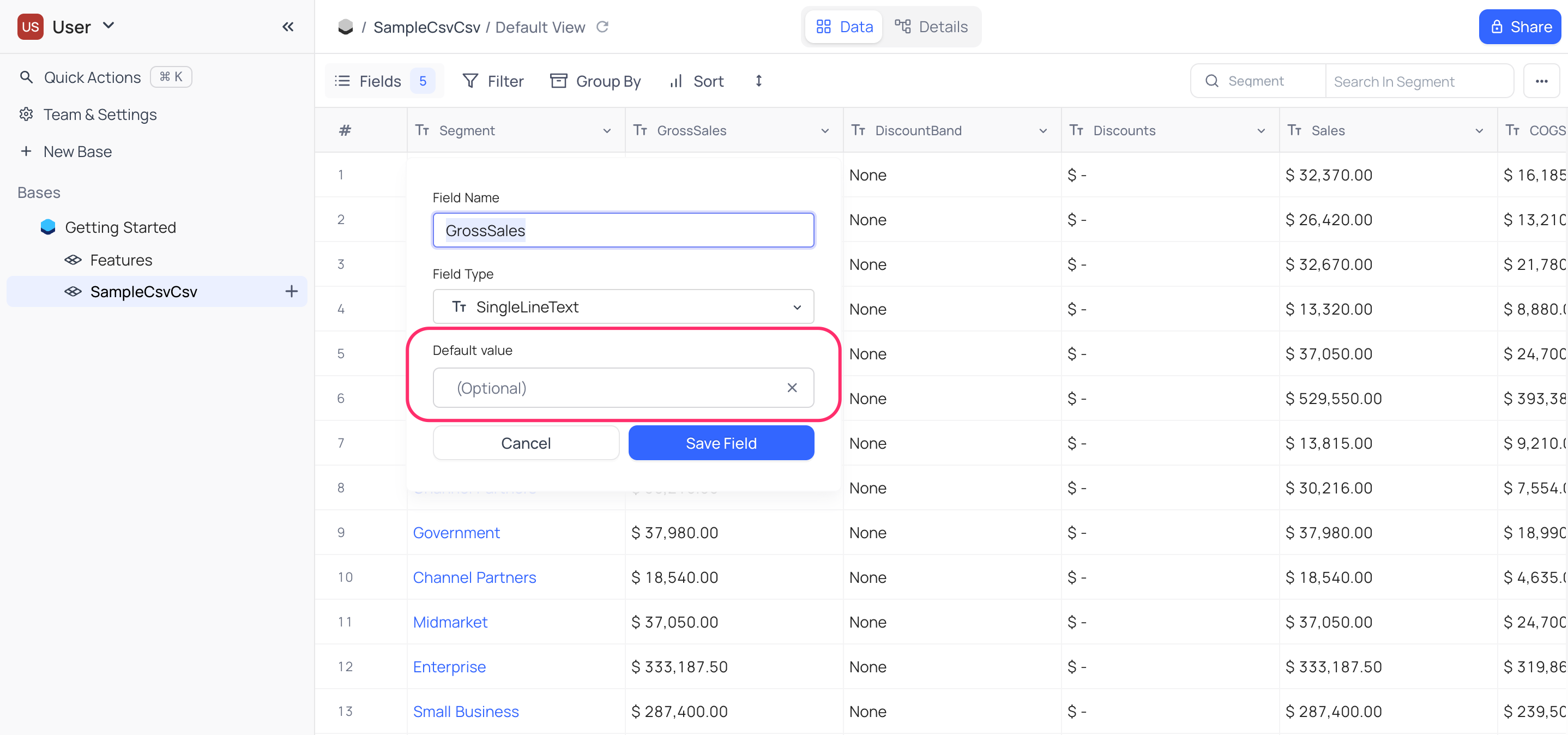
Change default value
- Open the field context menu
- Click on
Editoption. - Enter new default value in the
Default Valuefield. To disable, click onxicon. - Click on
Save Fieldbutton.
Change field width
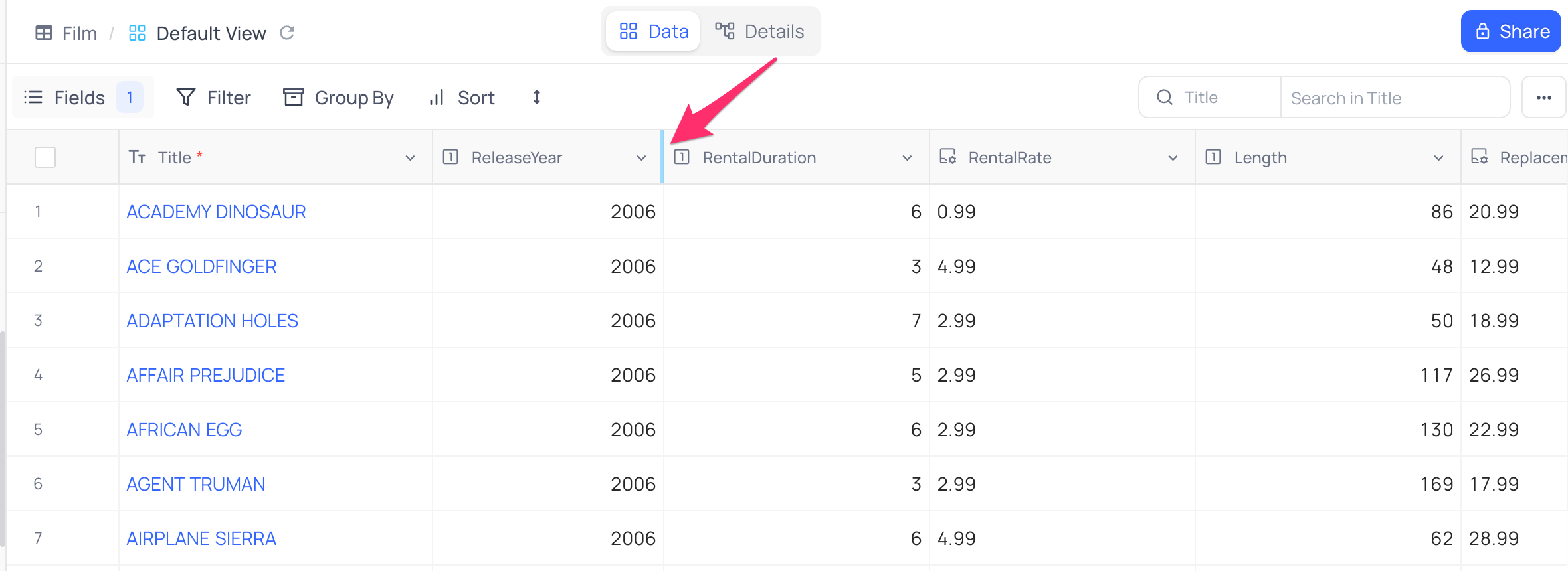
To adjust the width of the field, hover over the field edge and drag to adjust the width.
Hide field
- Open the field context menu
- Click on
Hide Fieldoption
หมายเหตุ: * Hidden fields are not visible in the table view, but will still be accessible for Formulas, Sort, Filter, etc.
- To un hide a field, use
Toolbar > Fieldsmenu- Fields can also be marked as hidden from
Toolbar > Fieldsmenu
Set as Display value
- Open the field context menu
- Click on
Set as Display Valueoption.
Refer to Display Value for more details.
Sort Ascending
- Open the field context menu
- Click on
Sort Ascendingoption.
Sort Descending
- Open the field context menu
- Click on
Sort Descendingoption.
Duplicate field
- Open the field context menu
- Click on
Duplicateoption.
Duplicated field sans the data will be created with suffix _copy in its name & will be placed to the right of the original field.
Insert after a field
- Open the field context menu
- Click on
Insert afteroption.
New field will be created to the right of the original field.
Insert before a field
- Open the field context menu
- Click on
Insert beforeoption.
New field will be created to the left of the original field.
Delete field
หมายเหตุ: This action cannot be undone
To delete a field, follow the steps below:
- Open the field context menu by clicking on dropdown icon (🔽) .
- Click on Delete .
- Confirm the deletion by clicking on Delete Field on the confirmation modal.
Add / edit field description
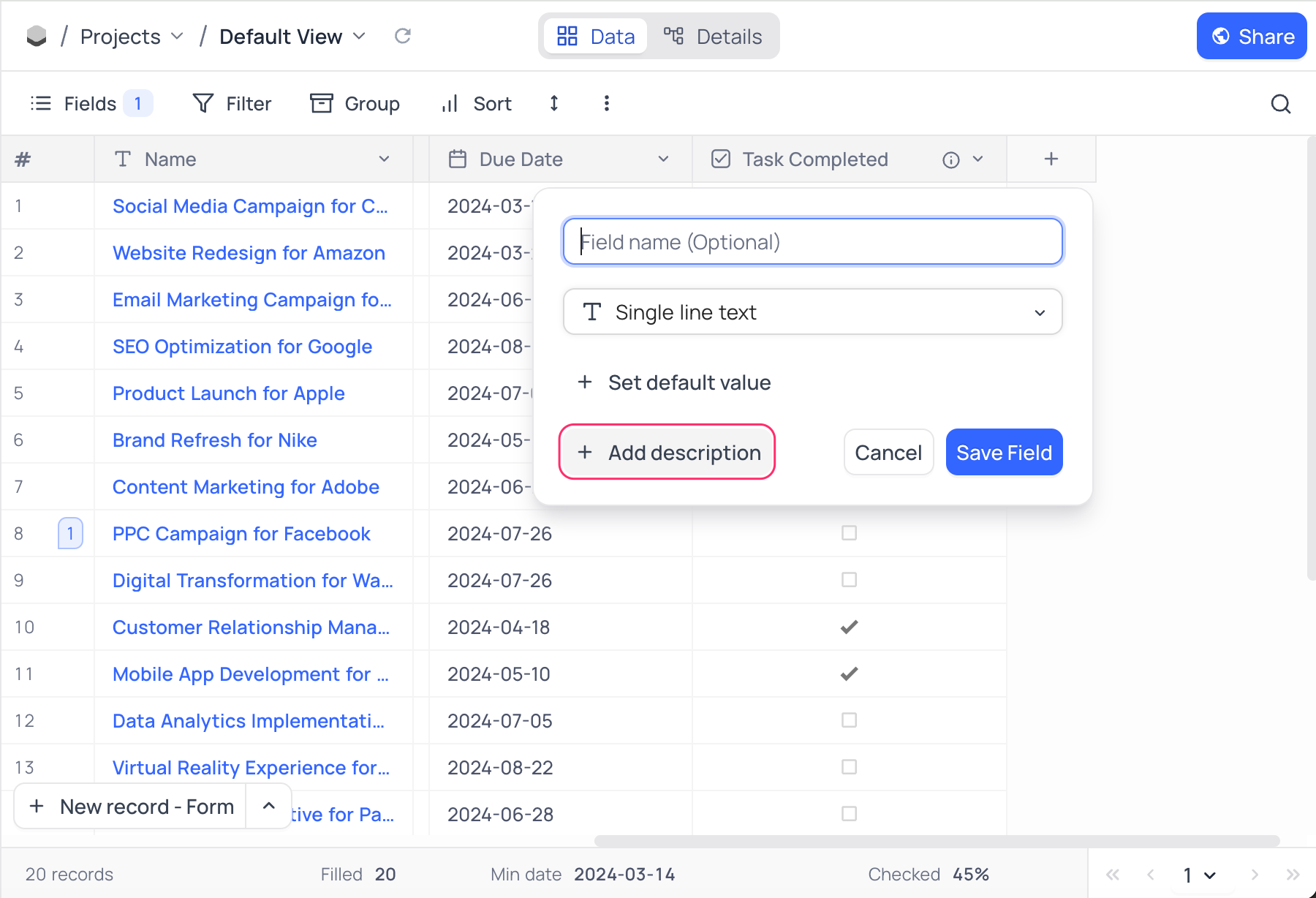
Field description can be added by clicking on the Add Description button on the field creation modal or by clicking on the Edit Description button from the field context menu.
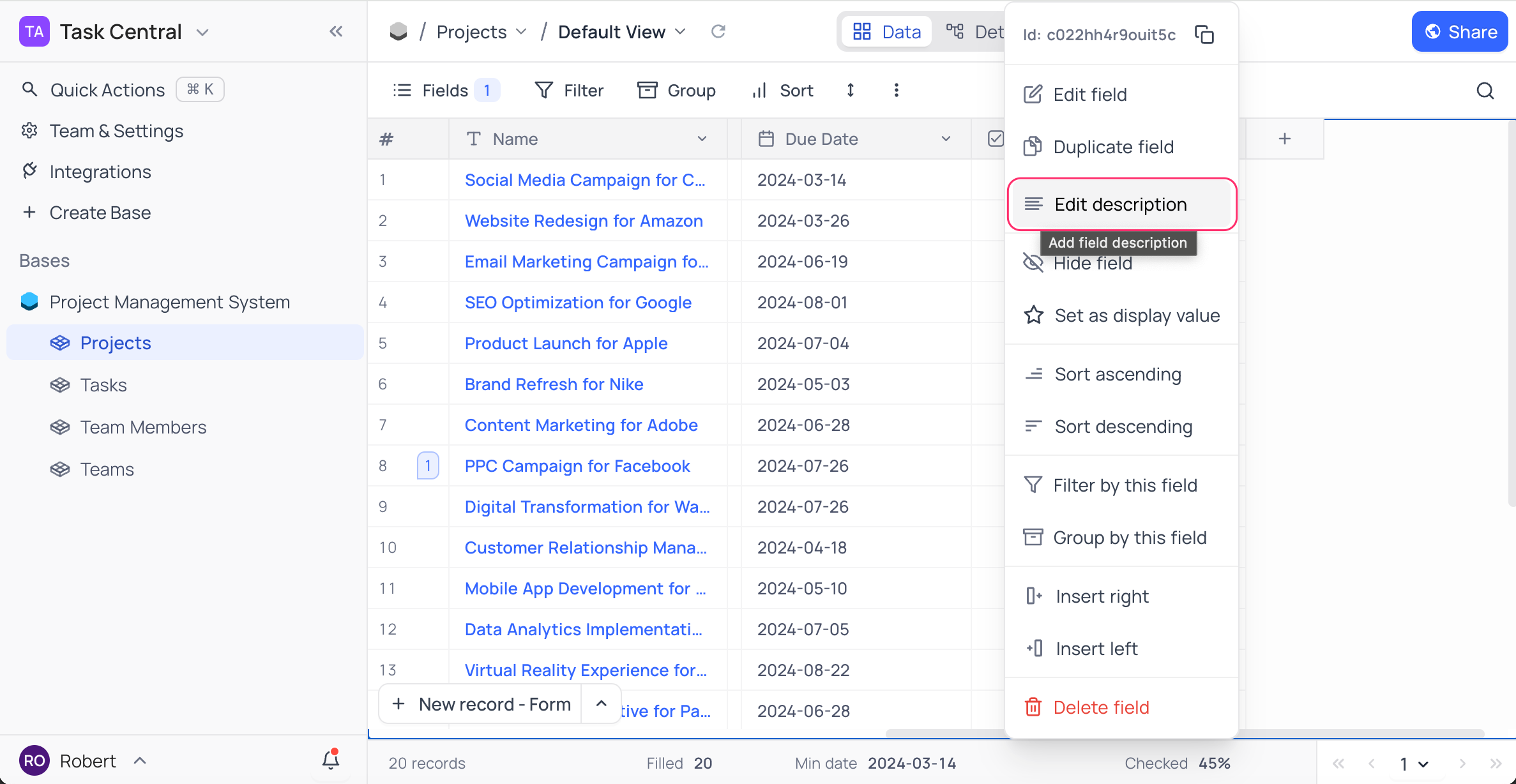
Description for a field will be visible as a tooltip when hovering over the info icon next to the field name.

The same info icon also appears next to the field name in the expanded record and in the New record form. Hover over it to read the field description. The description is visible to viewers as well, and it appears on public and shared views, making it a convenient way to give people filling in a record additional context about a field.
Set field as unique
To set a field as unique, follow the steps below:
- Open the field context menu by clicking on dropdown icon (🔽) .
- Click on Edit field .
- Toggle on the Unique values only option.
- Click on Save Field button.
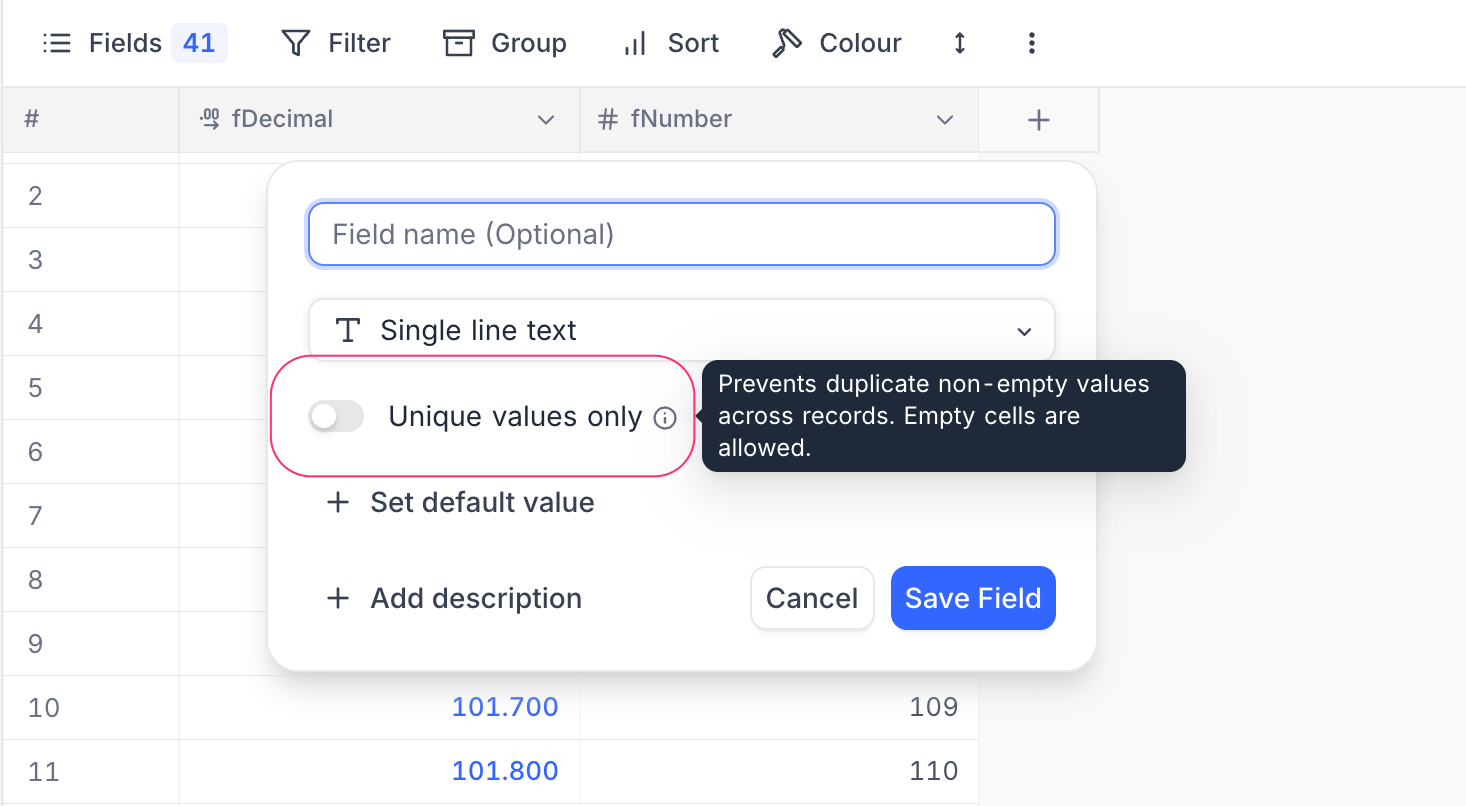
Note that, this feature is only available for certain field types like Single line text, Email, Number, etc. Find more details on setting a field as unique in Unique Fields article.
Related pages
- Primary Key : This article explains what a primary key is and how it is used in NocoDB.
- Display Value : This article explains how to set the display value for a table and its significance.
- Multi-Field Editor : Understanding use of multi-field editor in NocoDB!
- Field Summary : Understanding the field summary bar in NocoDB!
