
Understanding use of multi-field editor in NocoDB!
NocoDB offers a handy tool for easily managing the fields within a table. With this tool, you can add, modify, rename, arrange, or hide fields efficiently. It's particularly useful when creating a new table structure or making changes to an existing one.
Accessing the Multi-Field Editor
- Navigate to the table you wish to edit
- Click on
Toolsin the toolbar - Select
Manage fields
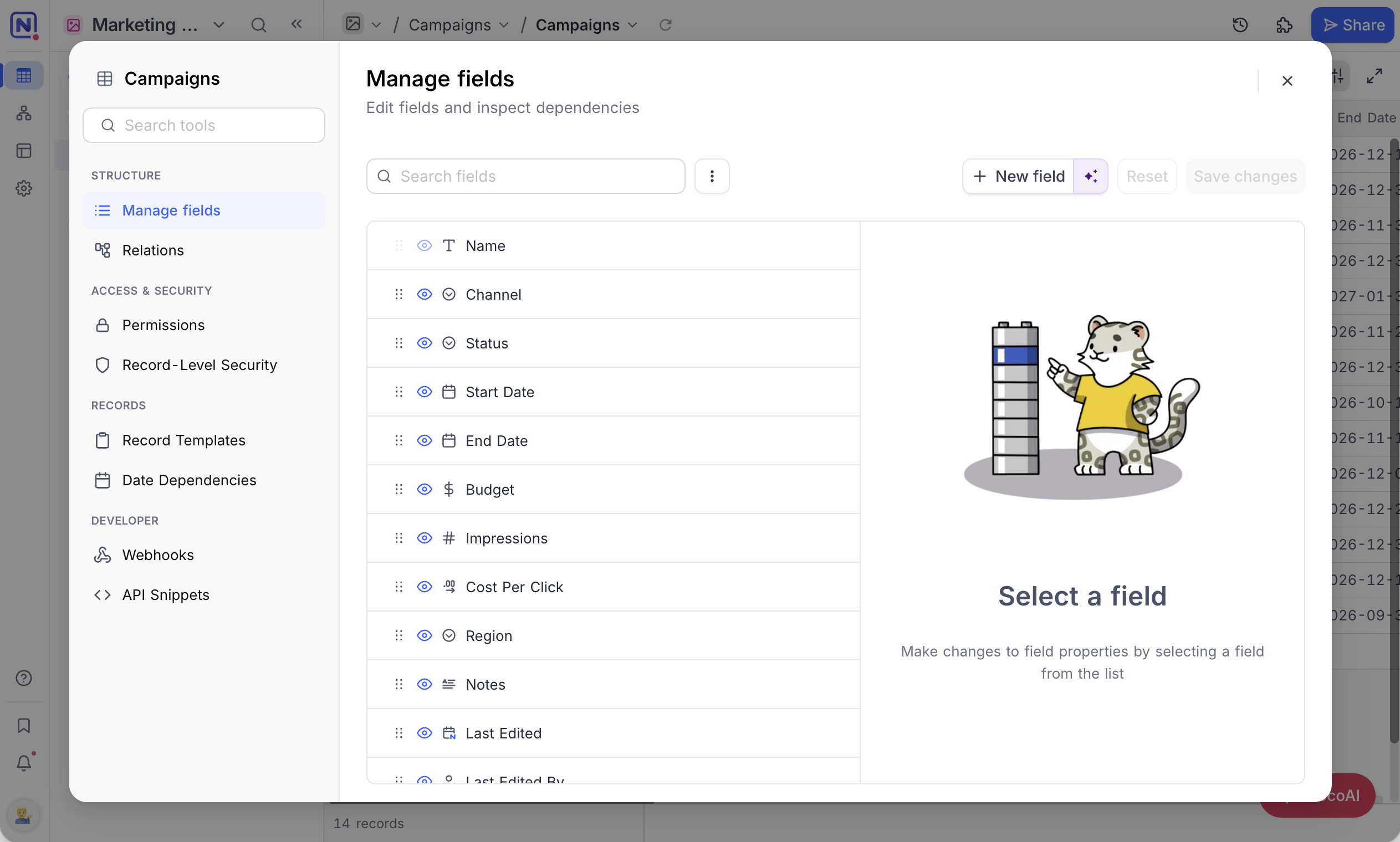
Adding fields
On the Multi-field editor page,
- Click
New field, or pressAltC, to add a field. - Enter the field name and select the field type; configure default value (optional).
- The field is added to the end of the list, marked
New field, and you can reorder it from there. You can add and update several fields before saving. - Click
Save changes, or pressCmdS, to apply them.
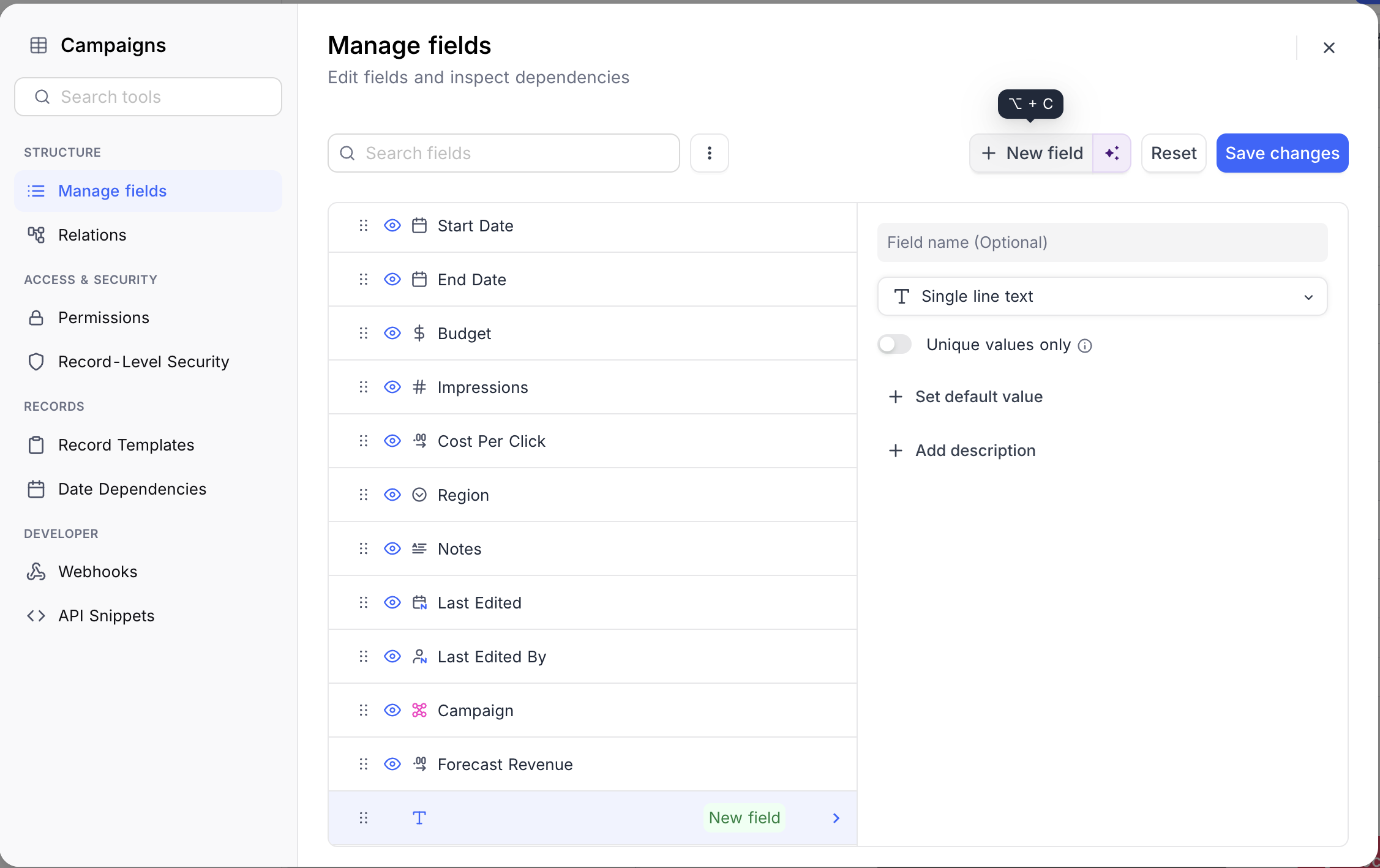
เคล็ดลับ: * You can add / update/ delete multiple fields & save changes in one go.
- Use
Restoreto discard edits to a particular field. UseResetto discard all active changes on multi-field editor.
Editing fields
On the Multi-field editor page,
- Click on the field you wish to edit.
- Make the changes in the properties panel on the right. You can update the field name, type, default value, and other attributes.
- The field is marked
Updated fieldin the list, with aRestorebutton to discard just that field's edits. You can update several fields before saving. - Click
Save changesto apply them.
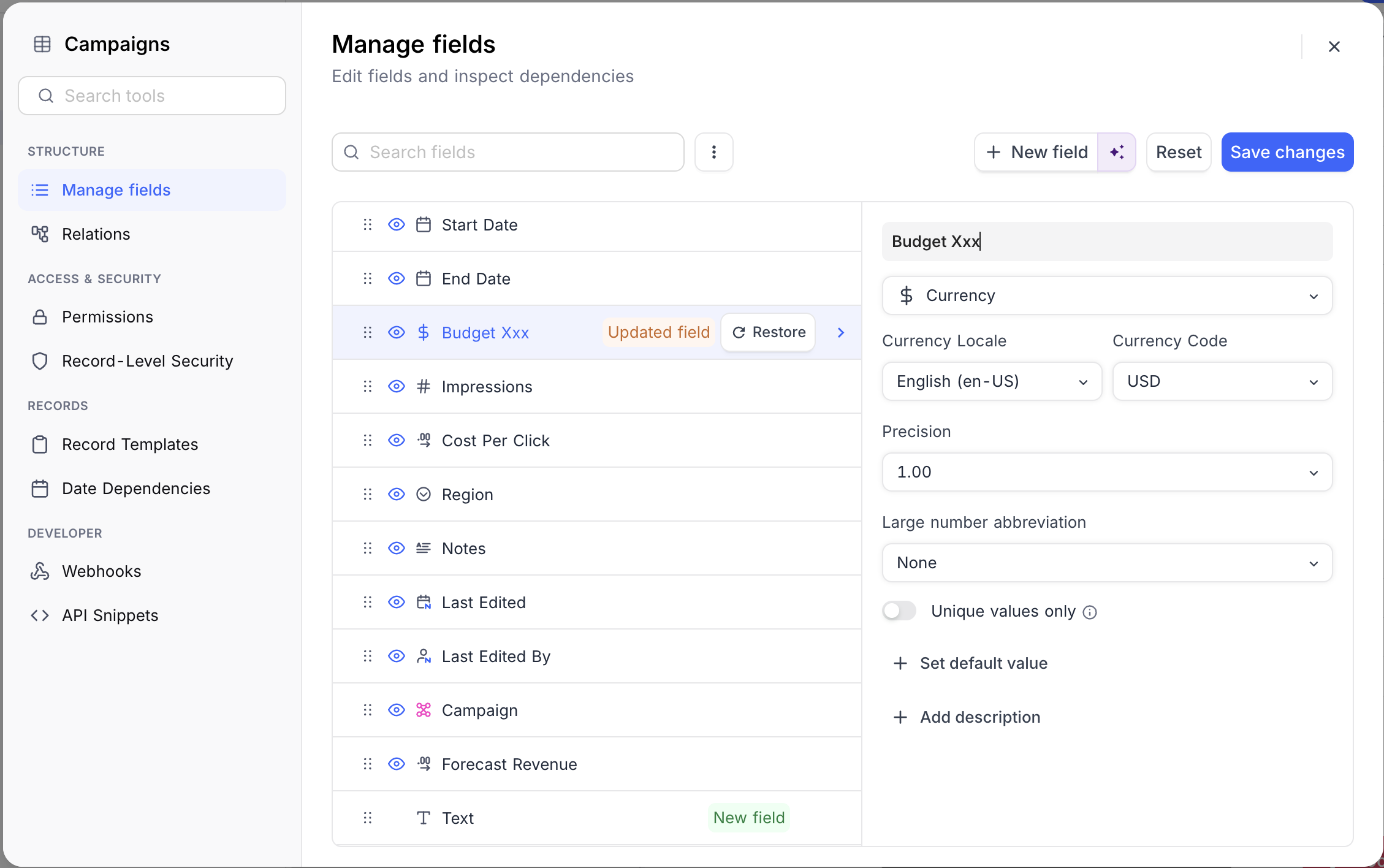
เคล็ดลับ: * You can add / update/ delete multiple fields & save changes in one go.
- Use
Restoreto discard edits to a particular field. UseResetto discard all active changes on multi-field editor.
Deleting fields
On the Multi-field editor page,
- Hover over the field you wish to delete and click the
...icon to open its menu. The menu also shows the field's ID, with a button to copy it. - Click
Delete field. - The field is marked
Deleted fieldin the list, with aRestorebutton. You can delete several fields before saving. - Click
Save changesto apply them.
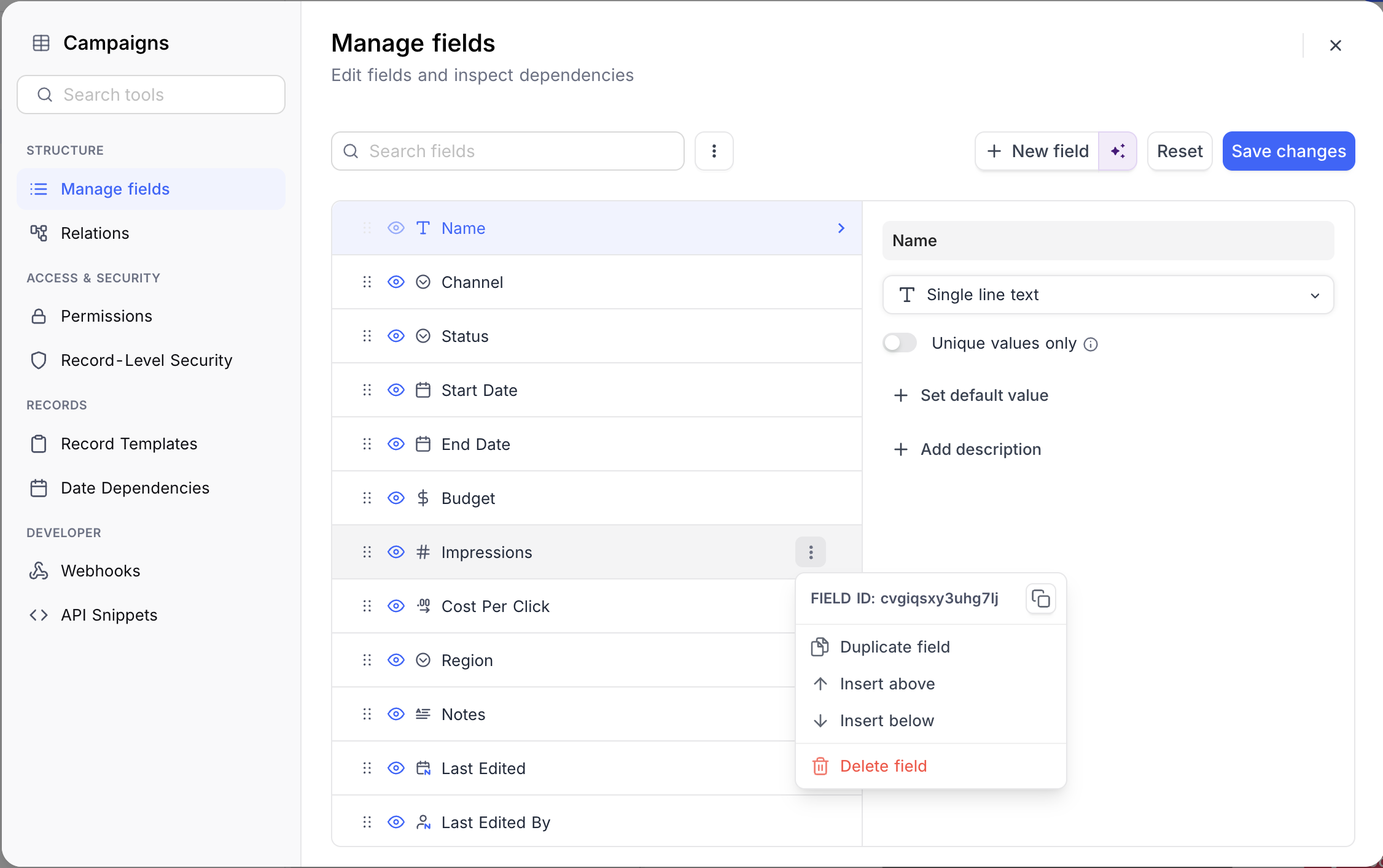
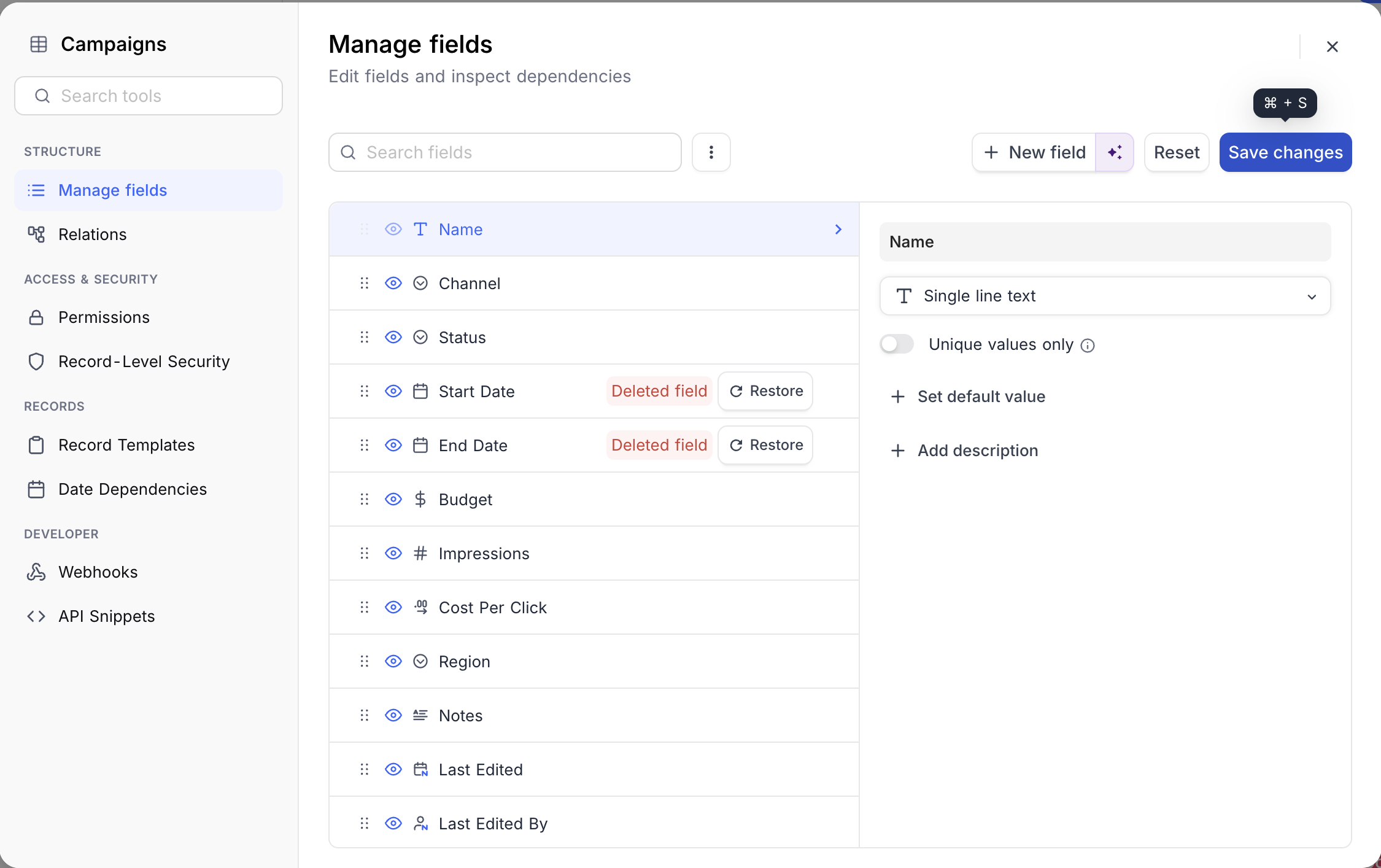
เคล็ดลับ: * You can add / update/ delete multiple fields & save changes in one go.
- Use
Restoreto discard edits to a particular field. UseResetto discard all active changes on multi-field editor.
Reordering fields
On the Multi-field editor page, use drag-drop handle to drag and drop the fields to reorder them.
หมายเหตุ: The changes will only be saved when you click
Save changesbutton.
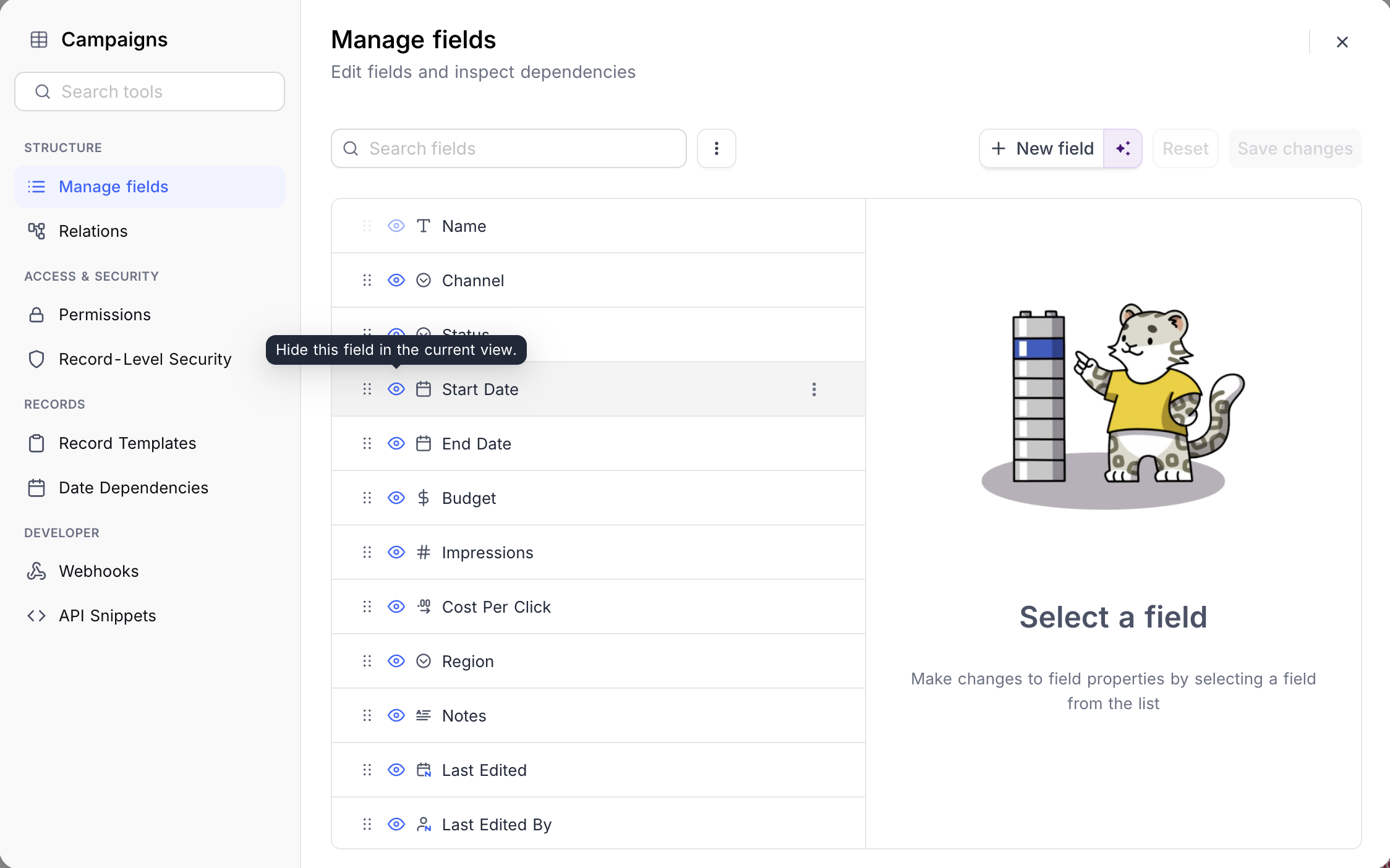
Show / Hide fields
On the Multi-field editor page, click the eye icon next to a field to hide it in the current view, or to show it again.
หมายเหตุ: The changes will only be saved when you click
Save changesbutton.
Related pages
- Primary Key : This article explains what a primary key is and how it is used in NocoDB.
- Display Value : This article explains how to set the display value for a table and its significance.
- Field Summary : Understanding the field summary bar in NocoDB!
- Actions on Field : This article explains how to perform various actions on a field- like rename, change field type, default, field width, record height, show/hide.
