
Learn how to perform actions (edit, duplicate, delete, etc) on a record in NocoDB.
สั่งงานด้วย NocoAI
Set [Status] to [Done] for every record assigned to [person]Delete the records where [Status] is [Cancelled]Fill in the empty [Country] values based on [City]Find duplicate records by [Email]
Keyboard navigation within Grid view
A selected cell can be in one of the following states:
Selectstate : A single click on the cell selects the cell. When in this state, arrow keys can be used to navigate to adjacent cells.Editstate : A double click on the cell puts the cell in edit state. Cursor can be moved within the cell using arrow keys.
หมายเหตุ: * Double-click on a cell to put it in edit state directly.
- From Select state, press
Enterkey to enter edit state.- Press
Esckey to exit edit state.- From Edit state, press
Enterkey to save the changes.
Edit state for some cells will be a picker. For example, a cell with Single Select field type will have a picker with options to choose from. In such cases, arrow keys can be used to navigate between options.
Keyboard shortcuts for cell navigation
| Key | Behaviour |
|---|---|
⌘ ↑ | Jump to first record in this field (in same page) |
⌘ ↓ | Jump to last record in this field (in same page) |
⌘ C | Copy cell contents to clipboard |
⌘ V | Paste clipboard contents to cell |
Enter | Switch cell in focus to EDIT mode; opens modal/picker if cell is associated with one |
Esc | Exit cell EDIT mode |
Delete | Clear cell |
Space | Expand current record |
← → ↑ ↓ | General cell navigation : left, right, top, bottom |
Tab | Move to next cell horizontally; if on last cell, move to beginning of next record |
Update Record
You can start editing by any of the following methods
- Double-click on cell to edit
- Click on cell and start typing (this way it will clear the previous content)
- Click on cell and press enter to start editing
And it will automatically save on blur event or if inactive.
Duplicate Record
Right-click on a record and select Duplicate record from the context menu to create a copy of the row in place, with the same field values.
หมายเหตุ: Records cannot be duplicated in a synced table .
Bulk Update Records ☁
- Select the records you wish to update together.
- Right-click on the index field area (first column on the grid view) and then select
Update selected recordsoption from the context menu.
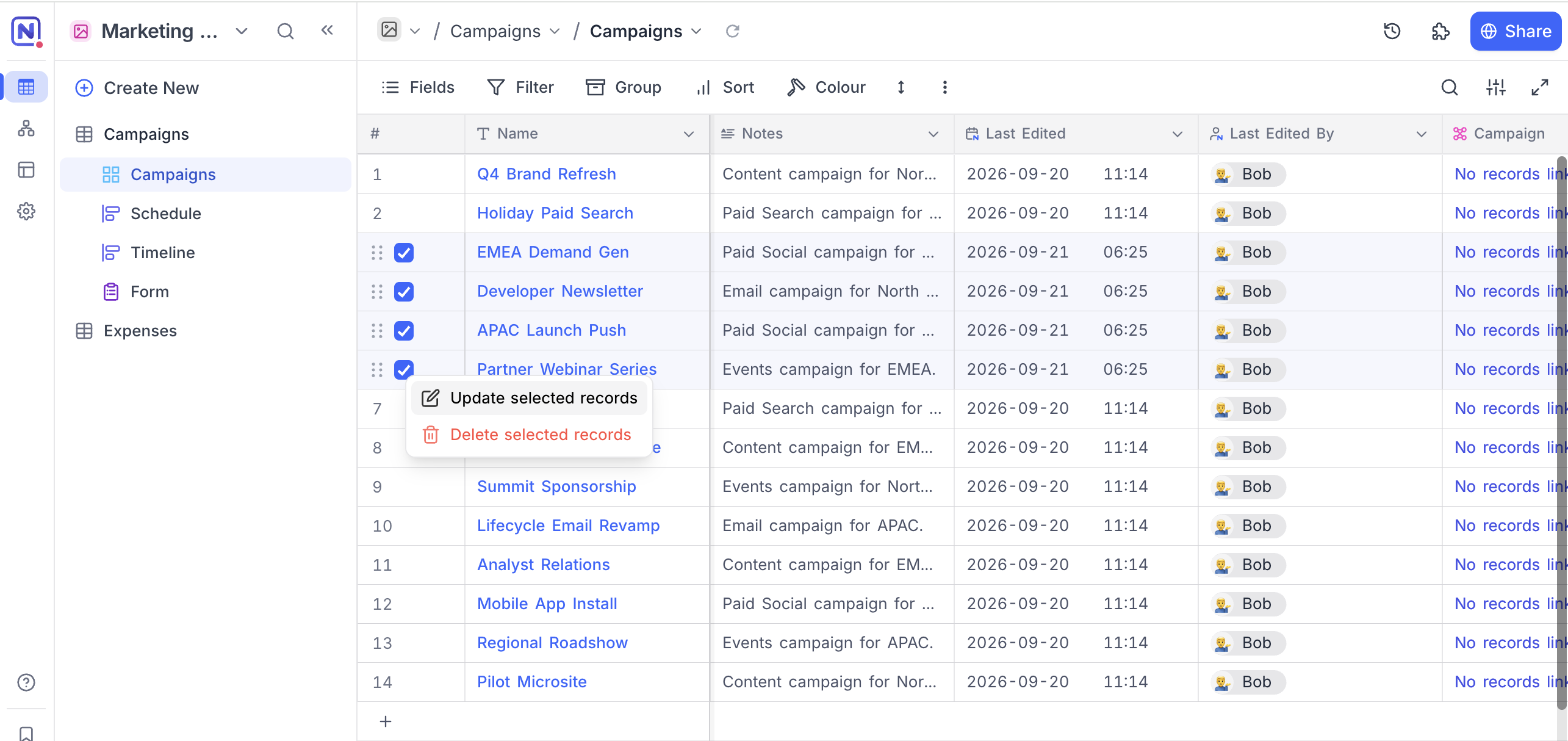
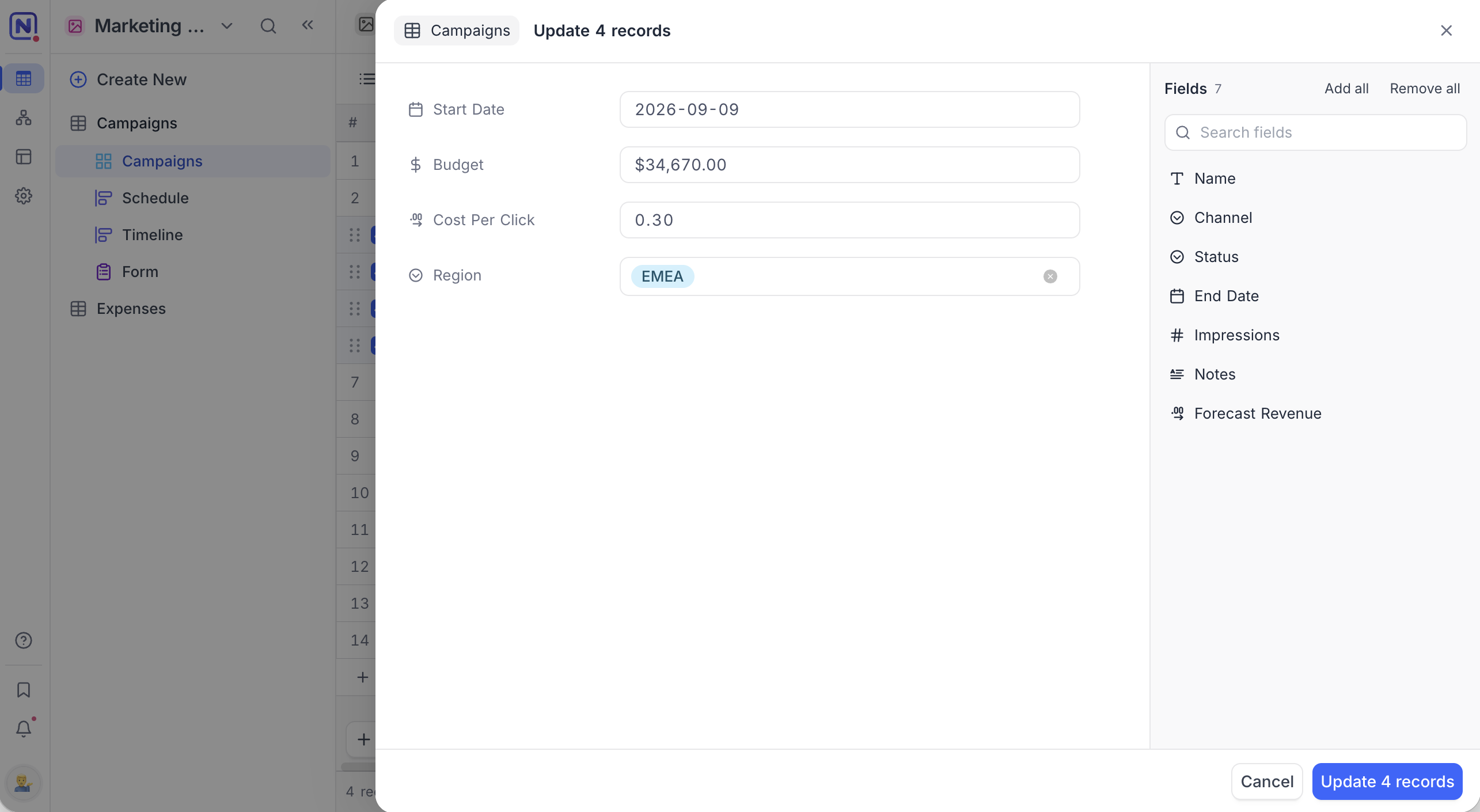
This opens the Update <n> records panel.
- The
Fieldslist on the right holds every field you can update, with a count beside the heading. Click a field to add it, or useAdd all. Use theSearch fieldsbox to find one in a wide table. - Enter the new value for each field on the left.
Remove allempties the list. - Click
Update <n> records.
- A confirmation dialog is displayed. Click on
Updateto apply the values.
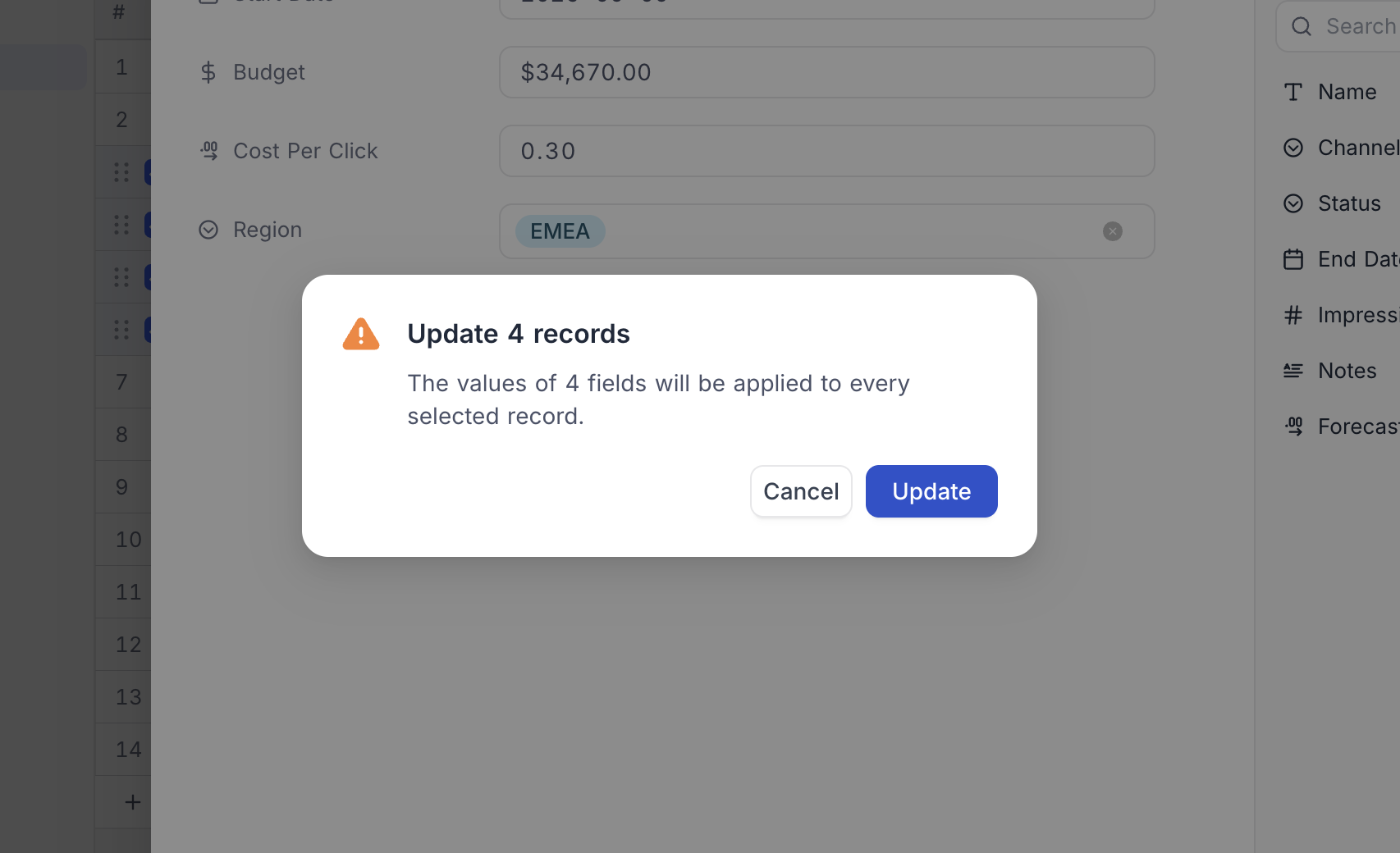
หมายเหตุ: This action cannot be undone
หมายเหตุ: Fields can also be dragged between the two panes, and reordered on the left.
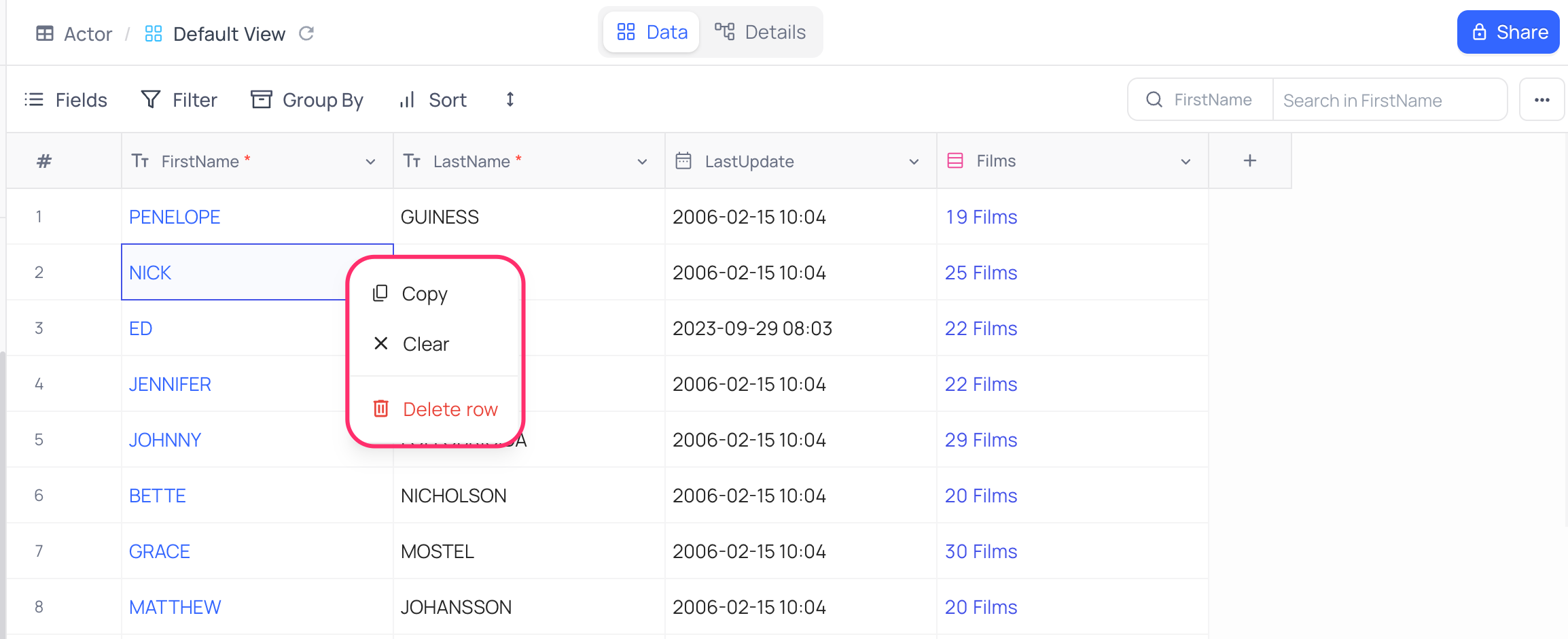
Delete Record (Single)
Right-click on record and then from the cell context menu, select Delete Record option.
Delete Record (Bulk)
Select multiple records by using the checkbox in first column and then Delete Selected Records options from the right click context menu.
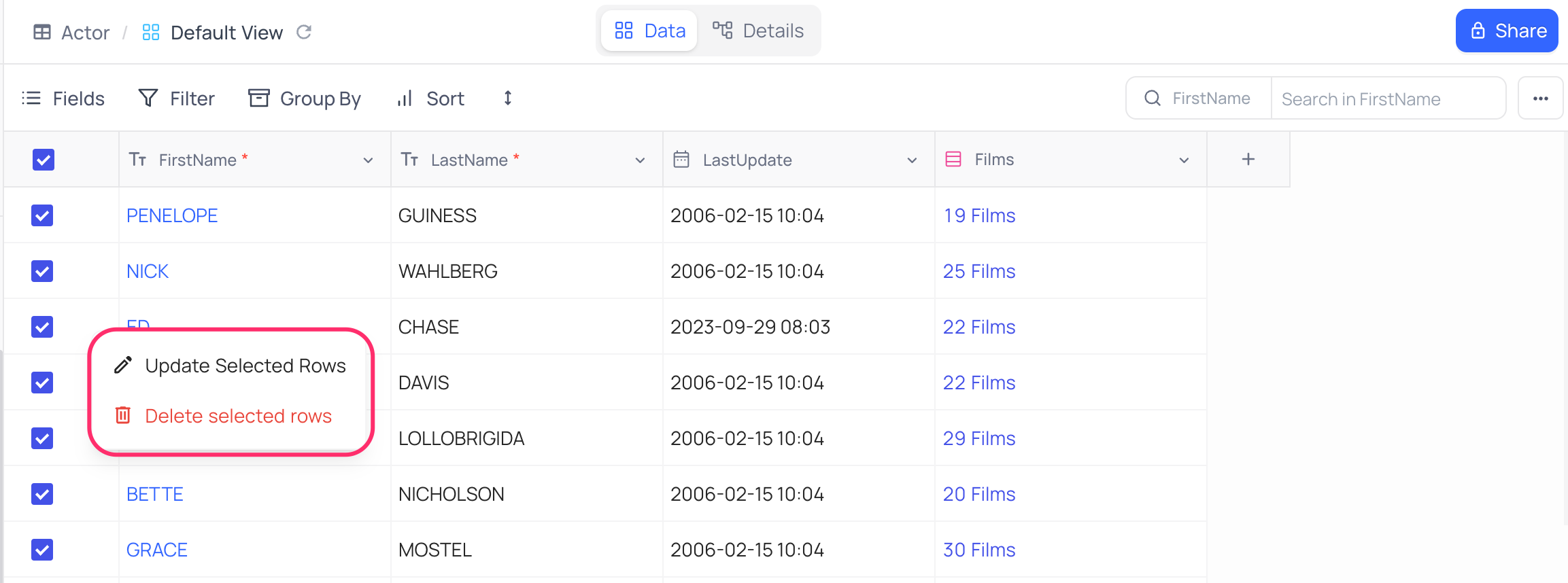
หมายเหตุ: Deleted records are moved to the base Trash alongside other deleted items (tables, views, fields, etc.) and can be restored or permanently deleted from there. See Base trash for details.
Drag and Drop to reorder records
You can reorder records by dragging and dropping them to the desired position. Use the drag icon on the left side of the record to drag and drop.
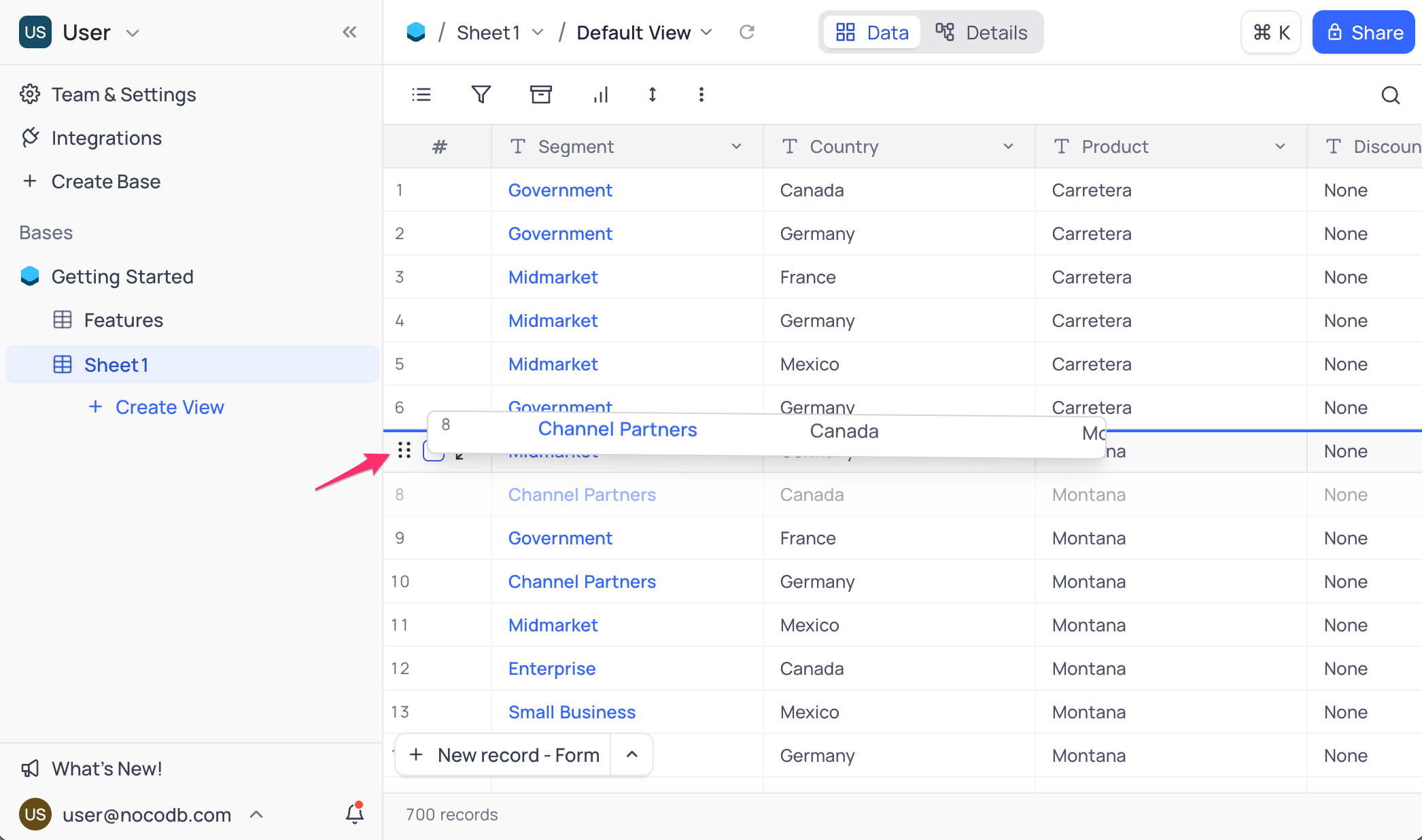
หมายเหตุ: * Bulk record drag-drop reordering is not supported currently.
- Drag-drop is not supported in Group-by view currently.
Related pages
- Create Record : Learn how to create a record in NocoDB.
- Expanded Record : Learn how to expand a record & work with it in NocoDB.
- Record Templates : Learn how to create and use record templates in NocoDB to quickly add records with pre-filled values.
- Date Dependencies : Define which records are dependent on others. When you reschedule a record, dependent records are automatically rescheduled.
