
Learn how to rename, duplicate, and delete a table in NocoDB.
สั่งงานด้วย NocoAI
Rename this table to [new name]Add a short description to this table explaining what it is forDelete the [table name] table
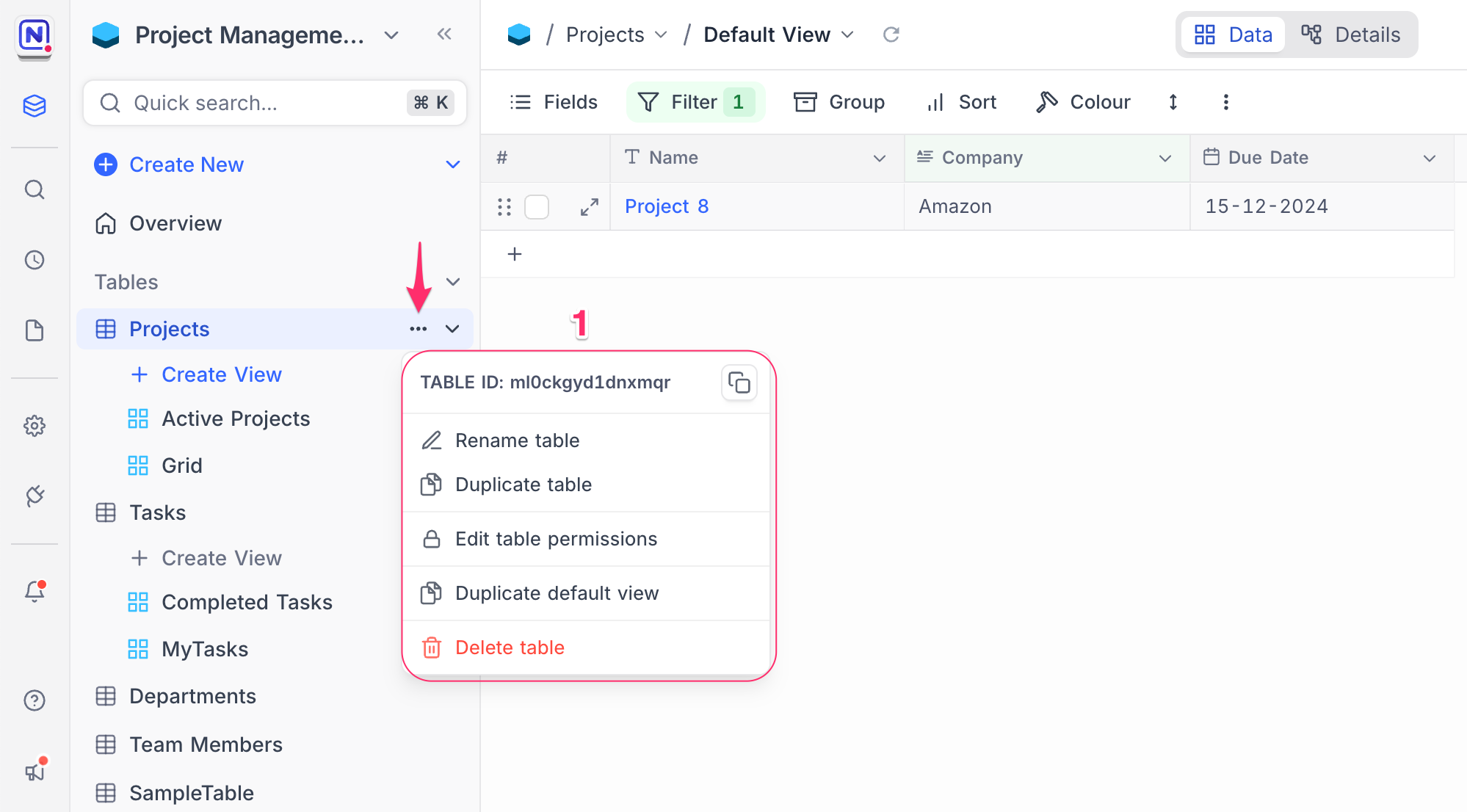
Rename table
- Click the
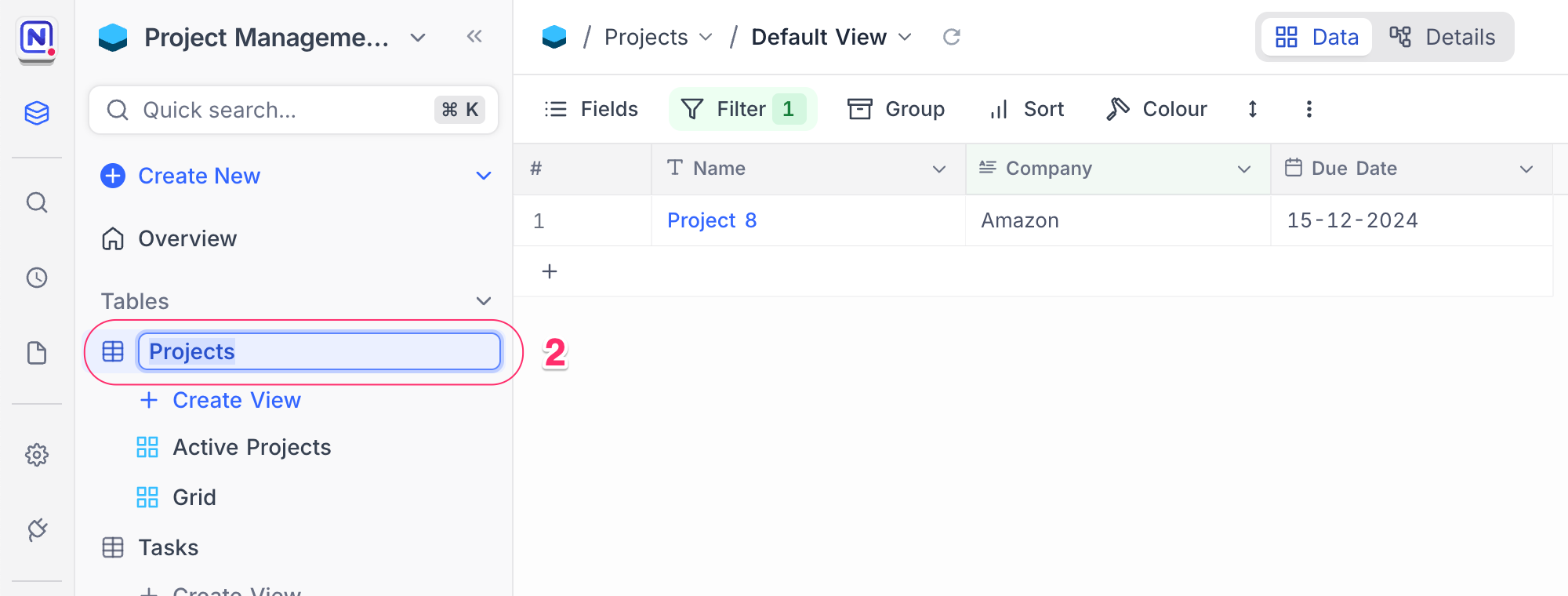
...(ellipsis) next to the table name in the left sidebar and selectRename tablefrom the context menu.- Alternatively, double-click on the table name in the left sidebar to make it editable.
- Enter the new name for the table in the input field that appears. Use the
Enterkey to confirm the new name or click outside the input field to save changes.
Change table icon
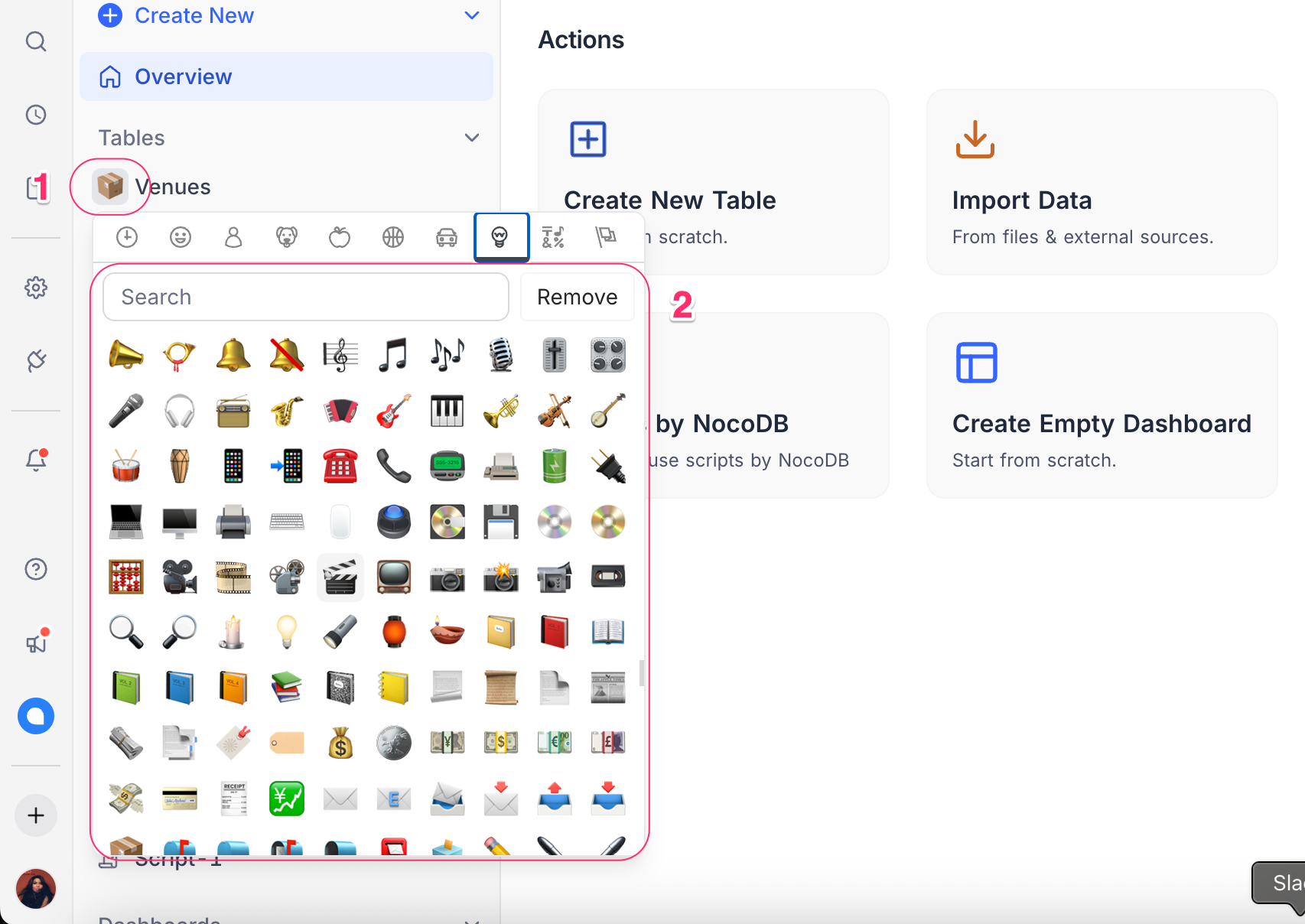
- Click the current table icon next to the table name in the left sidebar.
- Choose a new icon from the available options.
Duplicate table
- Click the
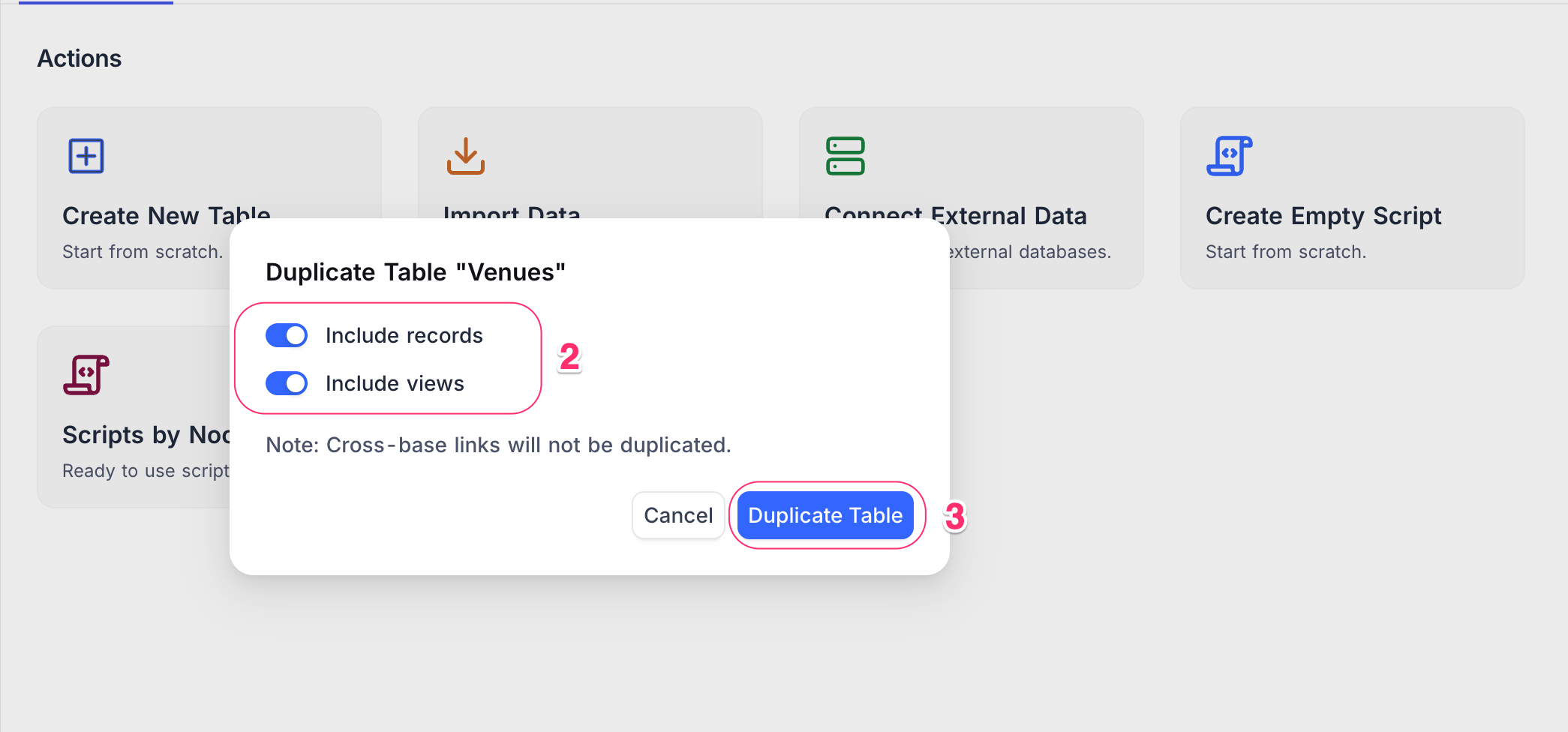
...(ellipsis) next to the table name in the left sidebar and selectDuplicate table. - (Optional) In the dialog:
- Use Include data to copy the table with or without its records.
- Use Include views to copy it with or without its saved views.
- Click Duplicate Table .
A new table will be created based on your selected options.
Additional notes
- Duplicate table will be created in the same base as the original table
- Duplicate table will carry suffix
Copyin its name. - Duplicate table option is not available for
External DBbases
Delete table
หมายเหตุ: This action cannot be undone
- Click the
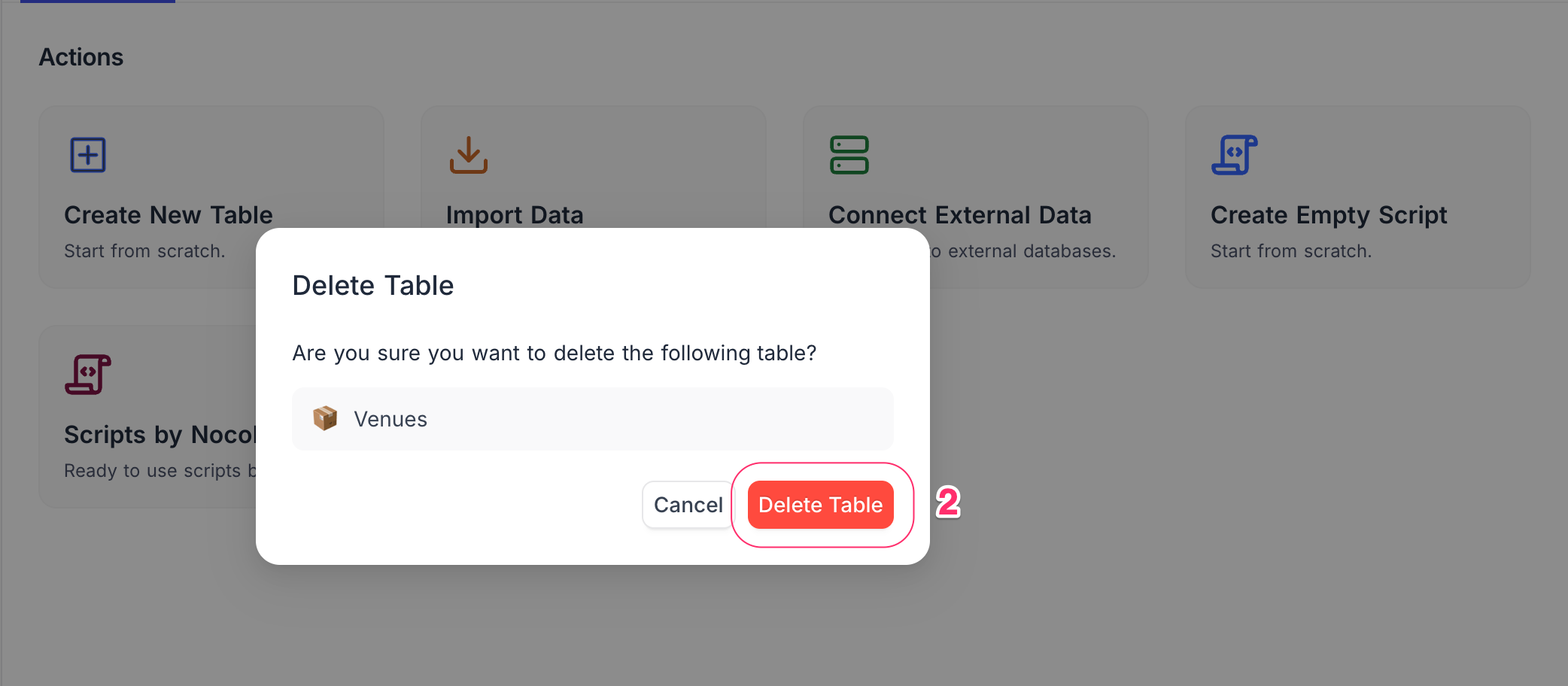
...(ellipsis) next to the table name in the left sidebar and selectDelete table. - In the confirmation dialog, click
Delete Tableto confirm.
Add / edit table description
Table description can be added by clicking on the Add Description button on the table creation modal or by clicking on the Edit Description button from the table context menu. Description for a table will be visible as a tooltip when hovering over the info icon next to the table name in the left sidebar.
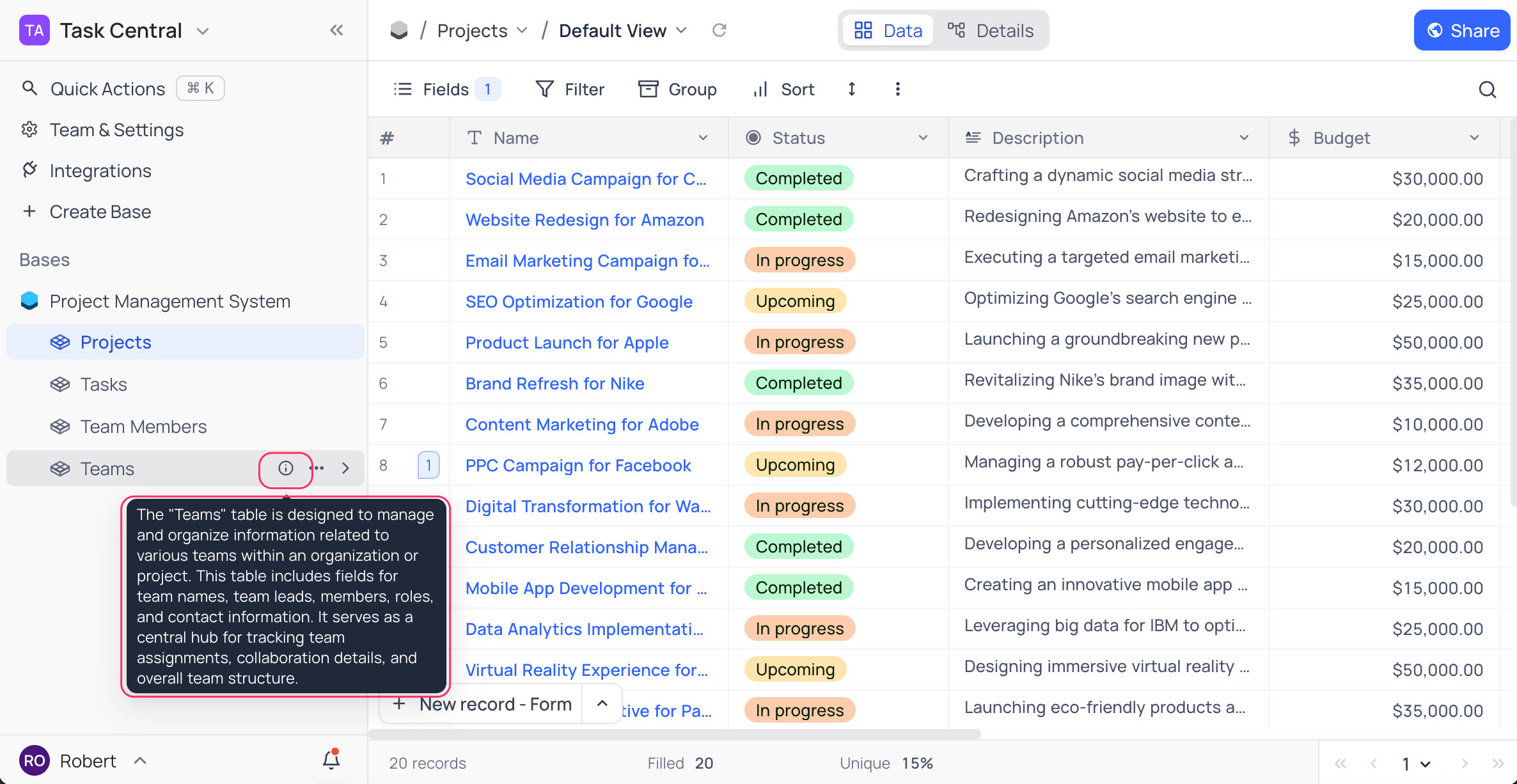
Table permissions
หมายเหตุ: Table permissions are available on NocoDB Cloud (Plus plan and above) and licensed self-hosted deployments (Business plan and above).
Table permissions in NocoDB let you control who can create or delete records in each table. Find more details here
Find table ID
Each table in NocoDB has a unique ID (prefixed with m , short for model ) that identifies it within a base.
You can find the table ID in the URL when viewing a table.
Example:
https://app.nocodb.com/#/wqd7e84kkpg8169/pqh6trao813gar7/mxo5v3uj1l1xjpz
In this example, the table ID is: mxo5v3uj1l1xjpz
You can also copy the table ID by clicking the ... (ellipsis) next to the table name and selecting Copy Table ID .
Usage : Table IDs are commonly used in API calls, scripting, and integrations where you need to reference a specific table.
Related pages
- Create Table : Learn how to create a table in NocoDB.
- Create Table via Import : Learn how to create a table in NocoDB via import from CSV, Excel or JSON.
- Upload Data into a Table : Learn how to upload data into an existing table in NocoDB.
- Table Tools : Manage fields, relations, permissions, webhooks and other table tools from one panel
