
A Supplier Scorecard is an evaluation tool used to assess the performance of suppliers.
Supplier Scorecards help you keep track of the item quality, delivery and responsiveness of suppliers over long periods of time. This data is typically used to help in purchasing decisions. A Supplier Scorecard is created manually for each Supplier.
To access Supplier Scorecard, go to:
Home > Buying > Setup > Supplier Scorecard
1. Prerequisites
Before creating a Supplier Scorecard, it is advised that you create the following first:
- Supplier
- Supplier Scorecard Criteria
2. How to Create a Supplier Scorecard
- Go to the Supplier Scorecard list and click on + Add Supplier Scorecard .
- Select the Supplier to be scored.
- Select the Evaluation Period : Per Week, Per Month or Per Year.
- Set up the Weighting Function and Scoring Standings under Scoring Setup (details in the next section).
- Under Criteria Setup , add the Scoring Criteria and their weights, or click on Load All Criteria to add all existing criteria.
- Optionally, select the Scorecard Actions to warn or prevent new Request for Quotations and Purchase Orders for this Supplier.
- Save .
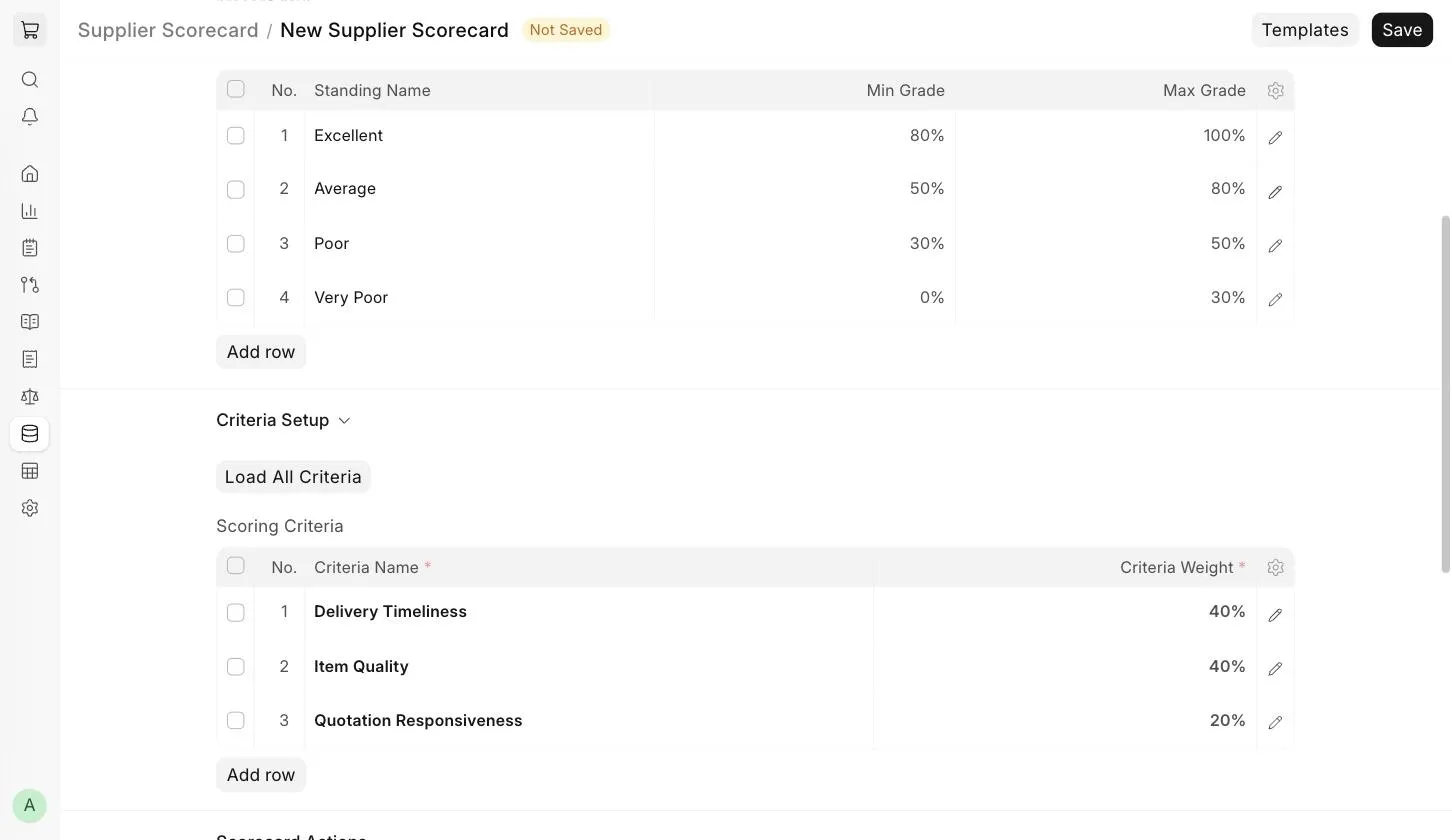
:::note A Supplier Scorecard is created for each Supplier individually. Only one Supplier Scorecard can be created for each Supplier. :::
3. Features
3.1 Scoring Setup
The Supplier Scorecard consists of a set of evaluation periods, during which the performance of the Supplier is evaluated. This period can be weekly, monthly or yearly. The current score is calculated from the score of each evaluation period based on the Weighting Function . The default formula is linearly weighted over the previous 12 scoring periods.
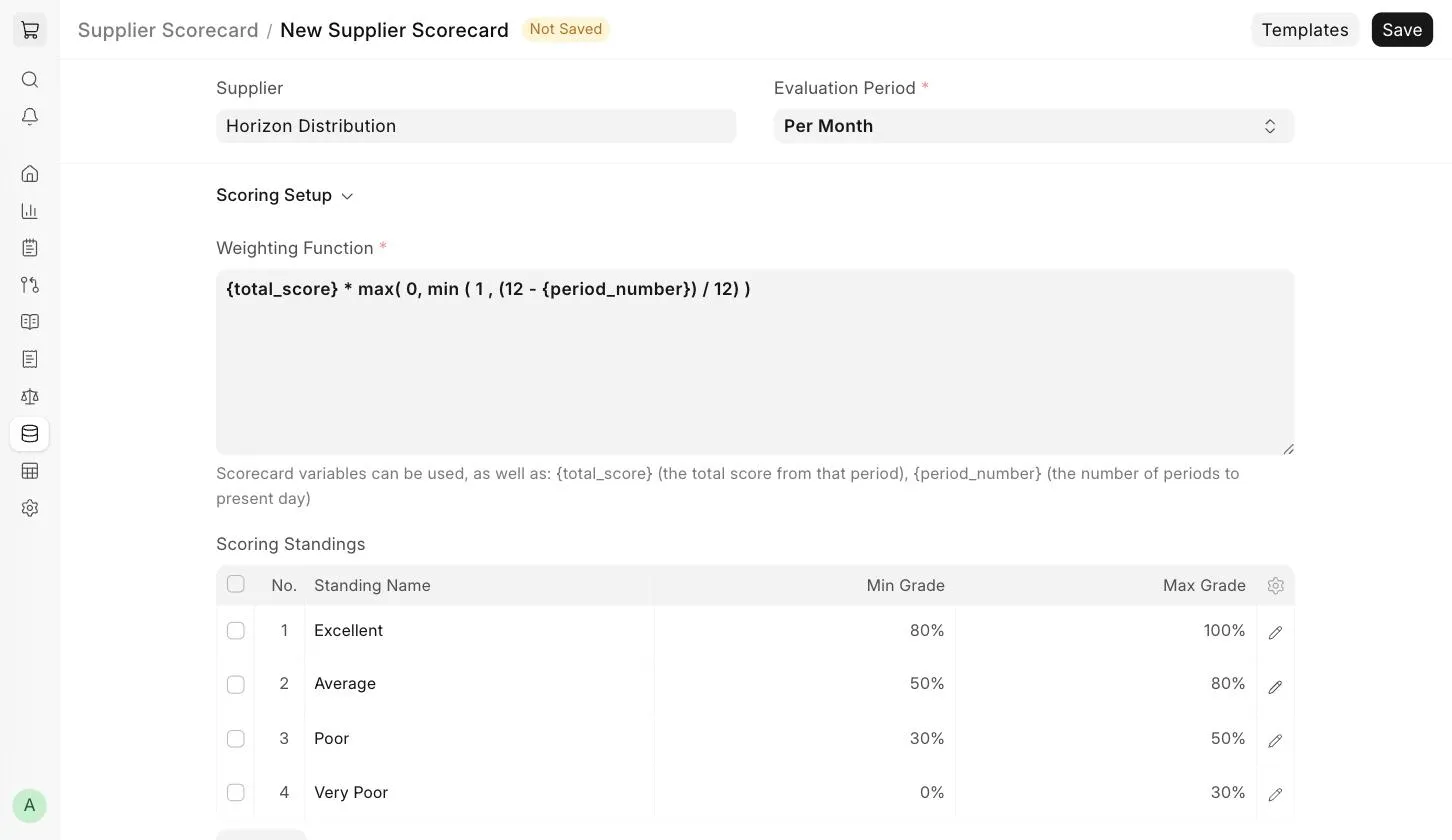
This formula is customizable. Along with the scorecard variables, you can use {total_score} (the total score from that period) and {period_number} (the number of periods to present day).
Scoring Standings
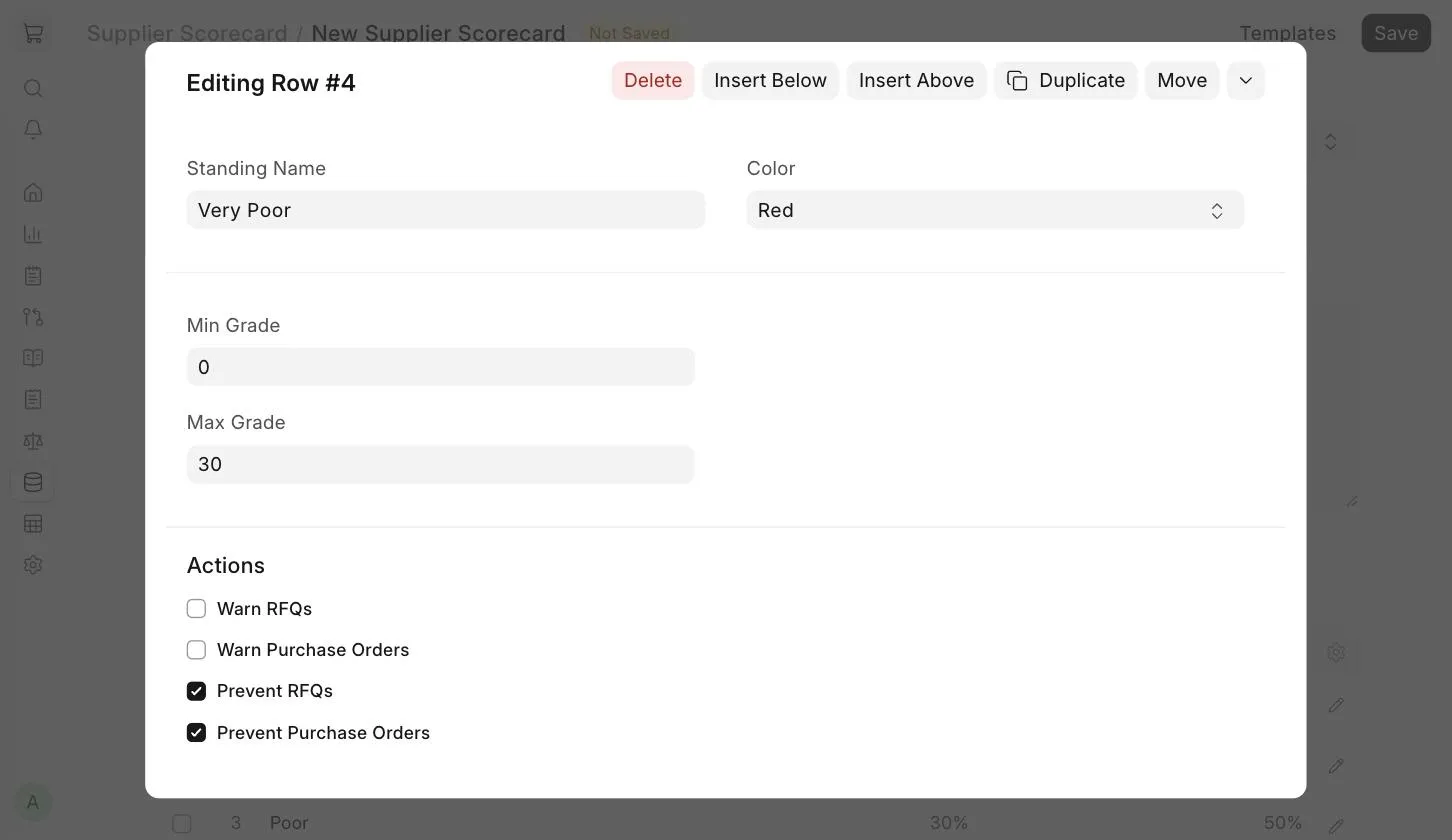
The Supplier standing is used to quickly sort Suppliers based on their performance. The standings are customizable for each Supplier.
The standing of a Supplier can also be used to warn or prevent users from including the Supplier in Request for Quotations or issuing Purchase Orders to them. To set the color and actions of a standing, click on the edit icon of a row in the Scoring Standings table.
3.2 Criteria Setup
A Supplier can be evaluated on several individual criteria, including (but not limited to) quotation response time, delivered item quality and delivery timeliness. These criteria are weighted to determine the final period score.
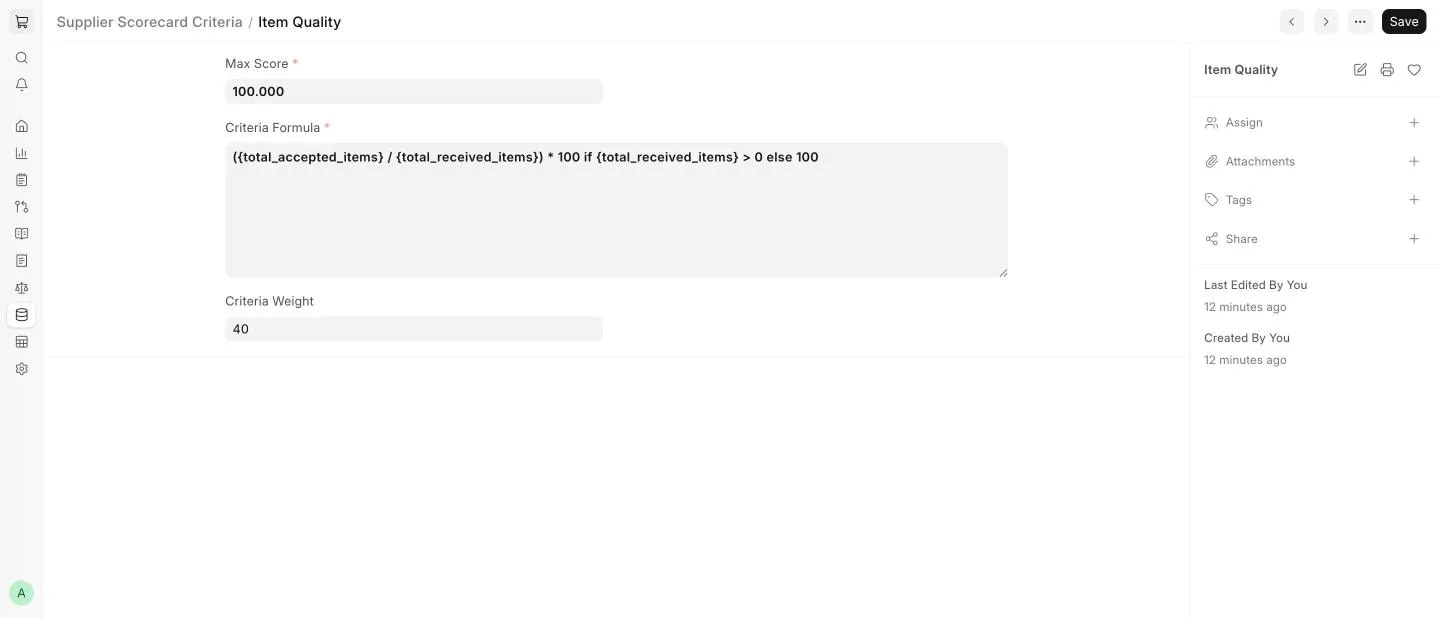
To create a new Criteria, go to Buying > Supplier Scorecard Criteria > + Add Supplier Scorecard Criteria , and set the Max Score , Criteria Formula and Criteria Weight .
:::note The criteria weights in a Supplier Scorecard should add up to 100. :::
3.3 Supplier Scorecard Variables
The method for calculating each criteria is set in the Criteria Formula field, which can use a number of pre-established variables, as seen in the preceding screenshot.
The value of each of these variables is calculated over the scoring period for each Supplier. Examples of such variables include:
- The total number of items received from the Supplier
- The total number of accepted items from the Supplier
- The total number of rejected items from the Supplier
- The total number of deliveries from the Supplier
- The total amount received from the Supplier
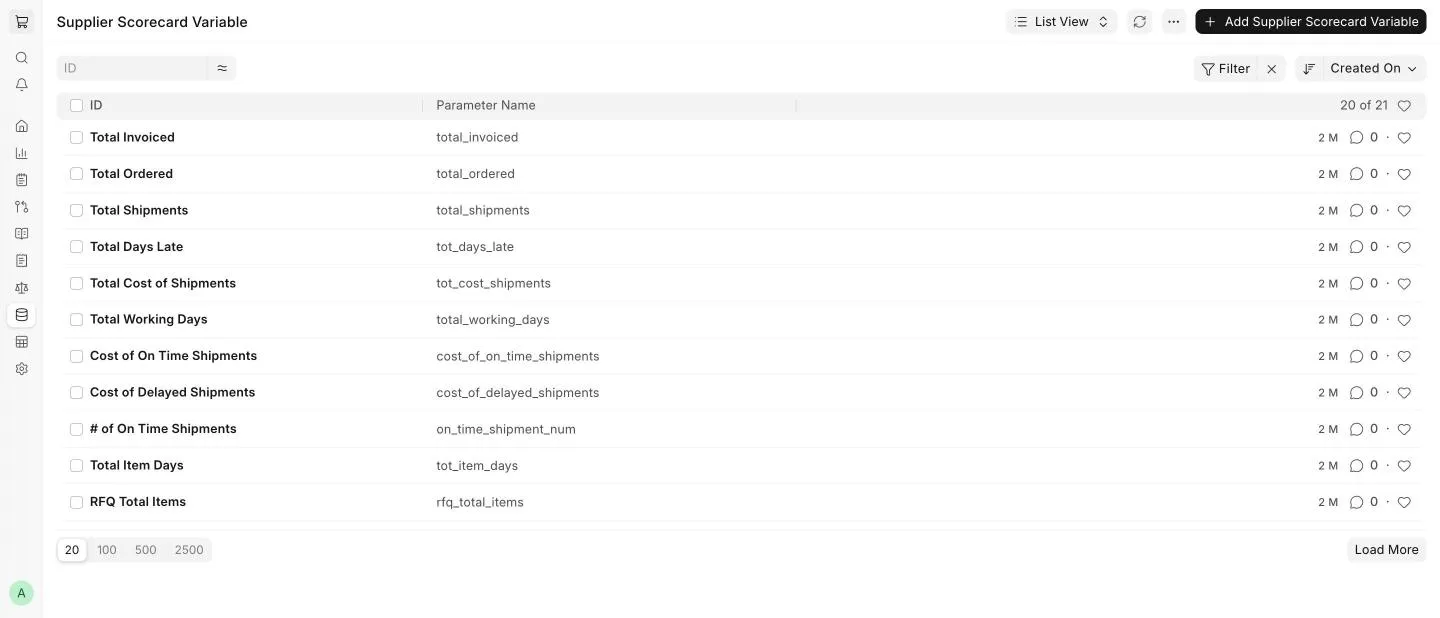
Variables are pre-set. Additional variables can be added through server-side customizations. Tick the Custom? checkbox if the variable you are creating is for a custom field.
The criteria formula should be customized to evaluate the Suppliers on each criteria in a way that best fits the company requirements.
3.4 Evaluation Formulas
The evaluation formula uses the pre-established or custom variables to evaluate an aspect of supplier performance over the scoring period. Formulas can use the following mathematical functions:
- addition: +
- subtraction: -
- multiplication: *
- division: /
- min: min(x,y)
- max: max(x,y)
- if/else: (x) if (formula) else (y)
- less than: <
- greater than: >
- variables: {variable_name}
It is crucial that the formula be solvable for all variable values. This is most often an issue if the value resolves to 0. For example:
{total_accepted_items} / {total_received_items}
This example would resolve to 0 / 0 in periods where there are no received items, and therefore should have a check to protect in this case:
({total_accepted_items} / {total_received_items})
if {total_received_items} > 0
else 1.
3.5 Evaluating the Supplier
An evaluation is generated for each Supplier Scorecard Period. Periods are created automatically when the Supplier Scorecard is saved, and any missing periods can be generated by clicking on Generate Missing Scorecard Periods . The Supplier's current score can be seen, along with a graph showing the performance of the Supplier over time. Any actions against the Supplier are also noted here, including warnings when creating Request for Quotations and Purchase Orders, or preventing them for this Supplier altogether.
