
Use natural language prompts to generate formulas with NocoAI.
Overview
Writing formulas can be complex and time-consuming. With NocoAI , you can now describe the logic you need in plain English, and have a formula generated for you automatically.
This is perfect for non-technical users, power users who want to speed up formula creation, or anyone looking to avoid syntax errors.
Steps to Generate Formulas Using AI
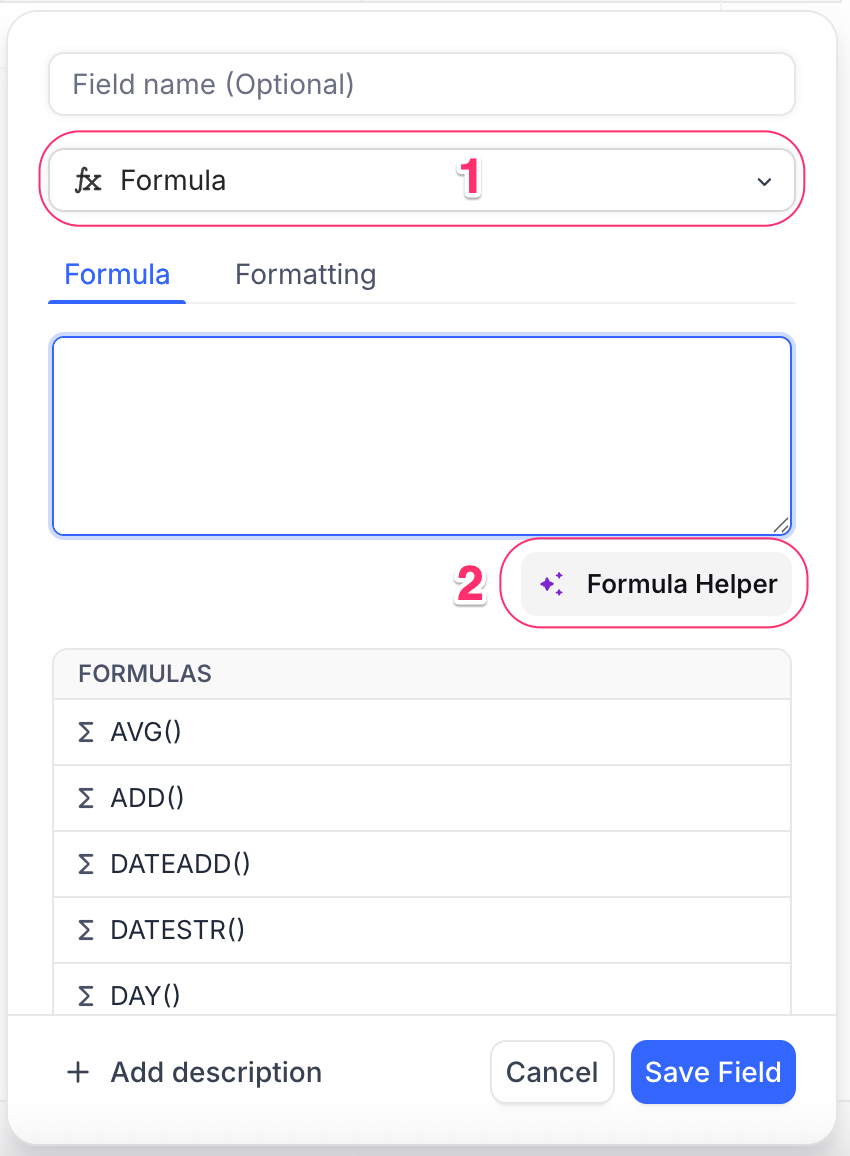
Add a Formula Field
In your table, add field and select Formula as the type.
Click Formula Helper
Inside the formula editor, click ✨ Formula Helper to open the prompt-based generation interface.
Describe the Logic in Natural Language
Write a simple prompt explaining what the formula should do. Example :
Show "✅ Done" if Status is "Completed", else show "⏳ In Progress".
Review and click Generate
NocoAI will generate the formula based on your prompt in the formula editor. You can review and modify if needed.
Click Save
Once you're happy with the result, save the field.
<img src="/img/v2/noco-ai/create-formula-2.png" alt="Formula field using AI - Step 2" style={{ width: "50%", borderRadius: "8px", boxShadow: "0 0 8px rgba(0,0,0,0.05)" }} />
Tips for Better Formula Suggestions
Be precise in your prompt
Mention exact field names and values where possible. Example :
Calculate number of days between Start Date and End Date.
Use conditional phrases
Help the AI understand intent. Example :
If Priority is "High" and Status is not "Completed", show "⚠️ Urgent".
Refer to data types clearly
Indicate if you’re working with dates, numbers, checkboxes, or text. Example :
Add 7 days to the Created Date.
Example Prompts and Outcomes
| Prompt | Resulting Formula (Example) |
|---|---|
| If Status is "Done", show "✅", else show "⏳" | IF({Status} = "Done", "✅", "⏳") |
| Show the number of days between Start and End Date | DATETIME_DIFF({End Date}, {Start Date}, "days") |
| If Due Date is past today, mark as "Overdue" | IF({Due Date} < TODAY(), "Overdue", "") |
| Combine First Name and Last Name into one field | CONCAT({First Name}, " ", {Last Name}) |
What’s Next
Once your formula field is ready, you can:
- Use NocoAI View Suggestions to visualize data based on these formulas
- Create Fields using AI to automatically generate relevant fields for your table
NocoAI simplifies complex logic so you can stay focused on building great workflows!
Availability
- AI-assisted formula generation is available on NocoDB Cloud (Plus plan and above), where usage is metered by credits . On self-hosted deployments, it requires configuring your own AI integration (Business plan and above).
Related pages
- What NocoAI can do : The full list of actions the NocoAI assistant can take in NocoDB, the role each one needs, and what NocoAI cannot do yet.
- Create Base Using AI : Quickly generate a fully-structured base using natural language prompts with NocoAI
- Create Tables Using AI : Use NocoAI to auto-generate tables and relationships based on natural language prompts.
- Create Views Using AI : Learn how to auto-generate useful views for your table using NocoAI.
- Filter Records Using AI : Use natural language to filter your table data with NocoAI.
- Create Fields Using AI : Automatically generate relevant fields for your tables using NocoAI.
- Create Options Using AI : Automatically generate field options for select fields using NocoAI.
