
Learn how to hide and reorder fields in NocoDB.
Use the Fields button in the toolbar to manage
- field visibility
- field order
- cover image in Gallery and Kanban views.
- show / hide system fields
- add new field
- add lookup field using existing relational fields

สั่งงานด้วย NocoAI
Hide [Notes] and [Created By] in this viewShow only [Name, Status and Owner] in this viewShow all hidden fields in this view
Show / hide fields
To show or hide fields, open the Fields menu and toggle the switch next to each field name.
เคล็ดลับ: For better customization, create multiple grid views with different sets of visible fields.
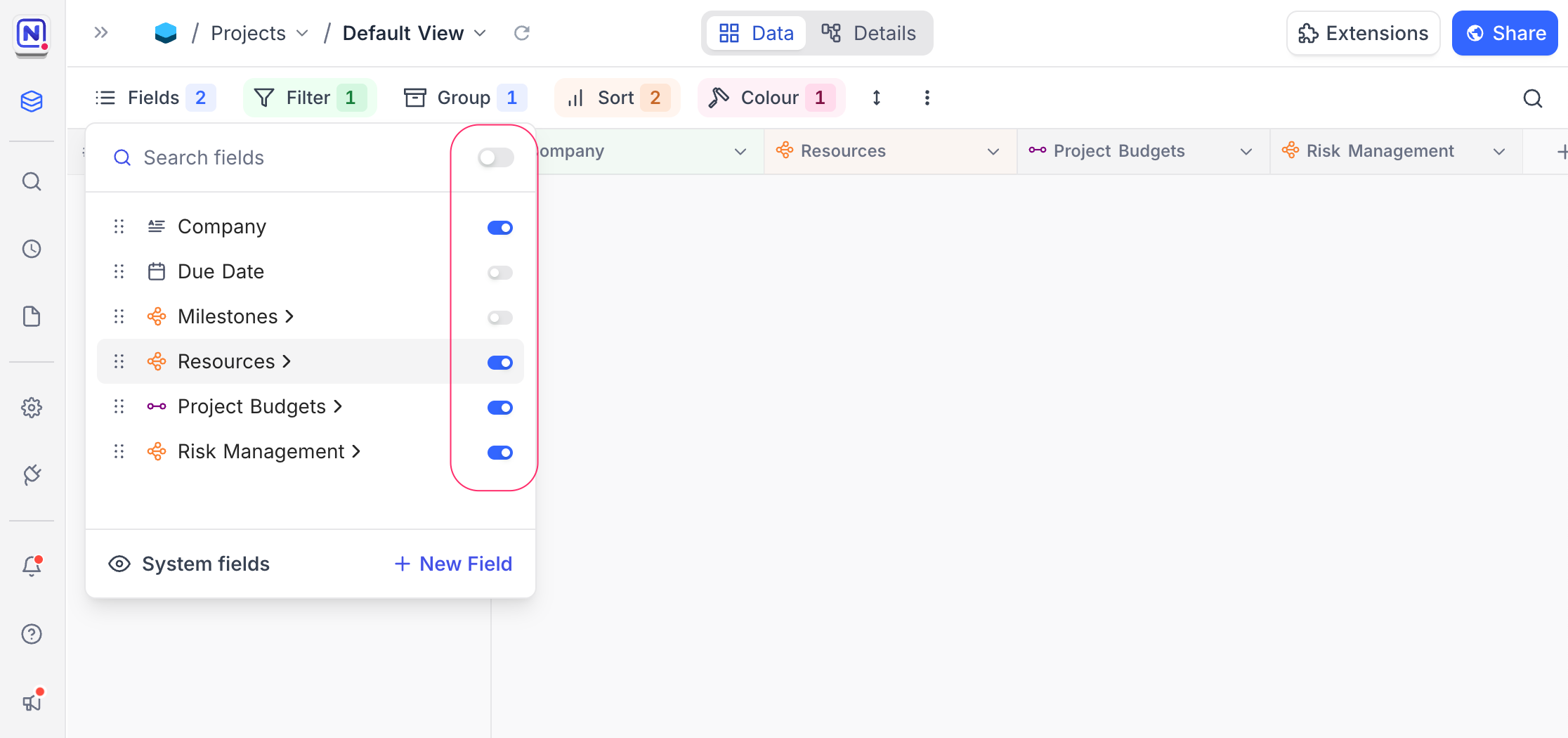
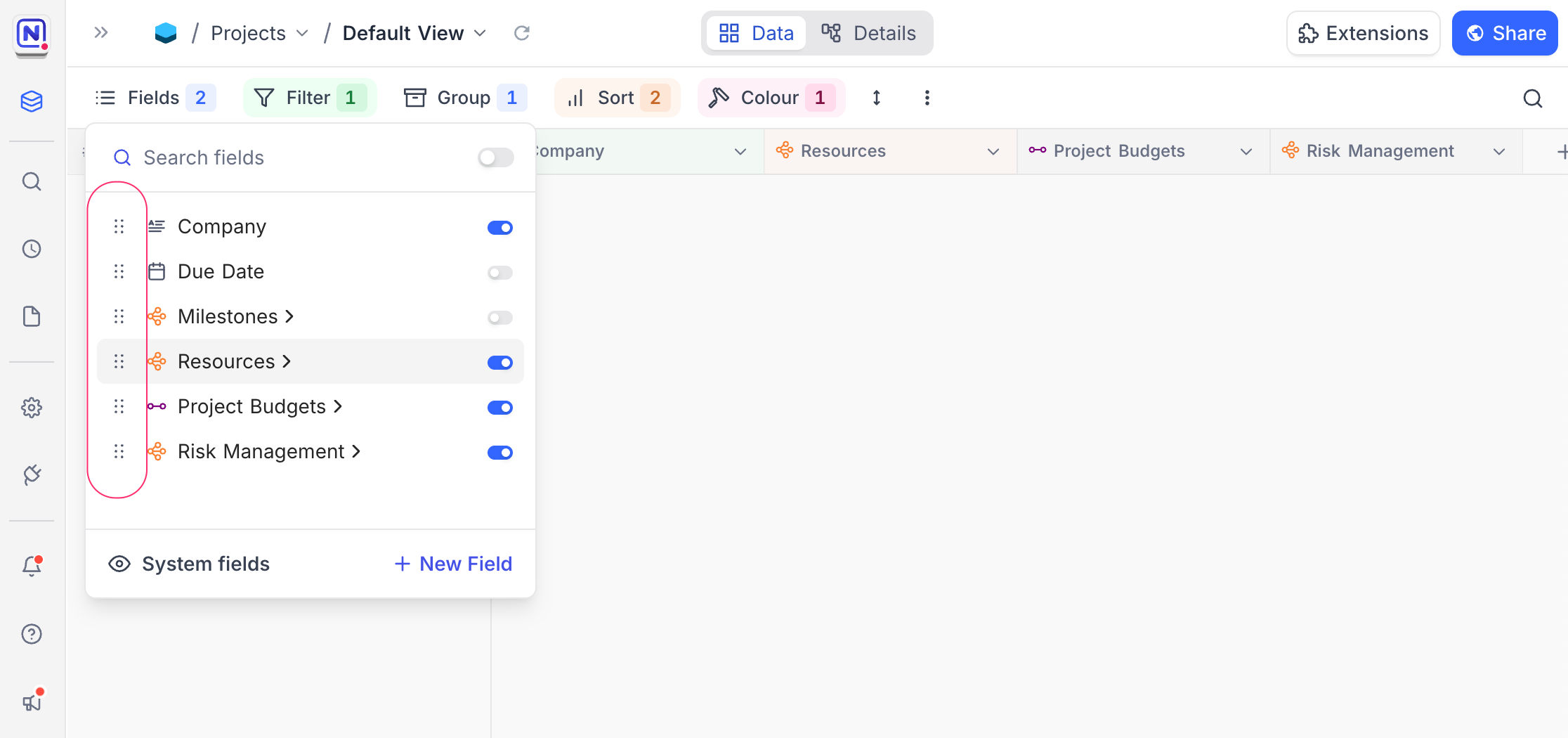
Rearranging fields
To rearrange field positions, open the Fields menu and drag fields using the ⋮⋮ (drag icon) next to each field name.
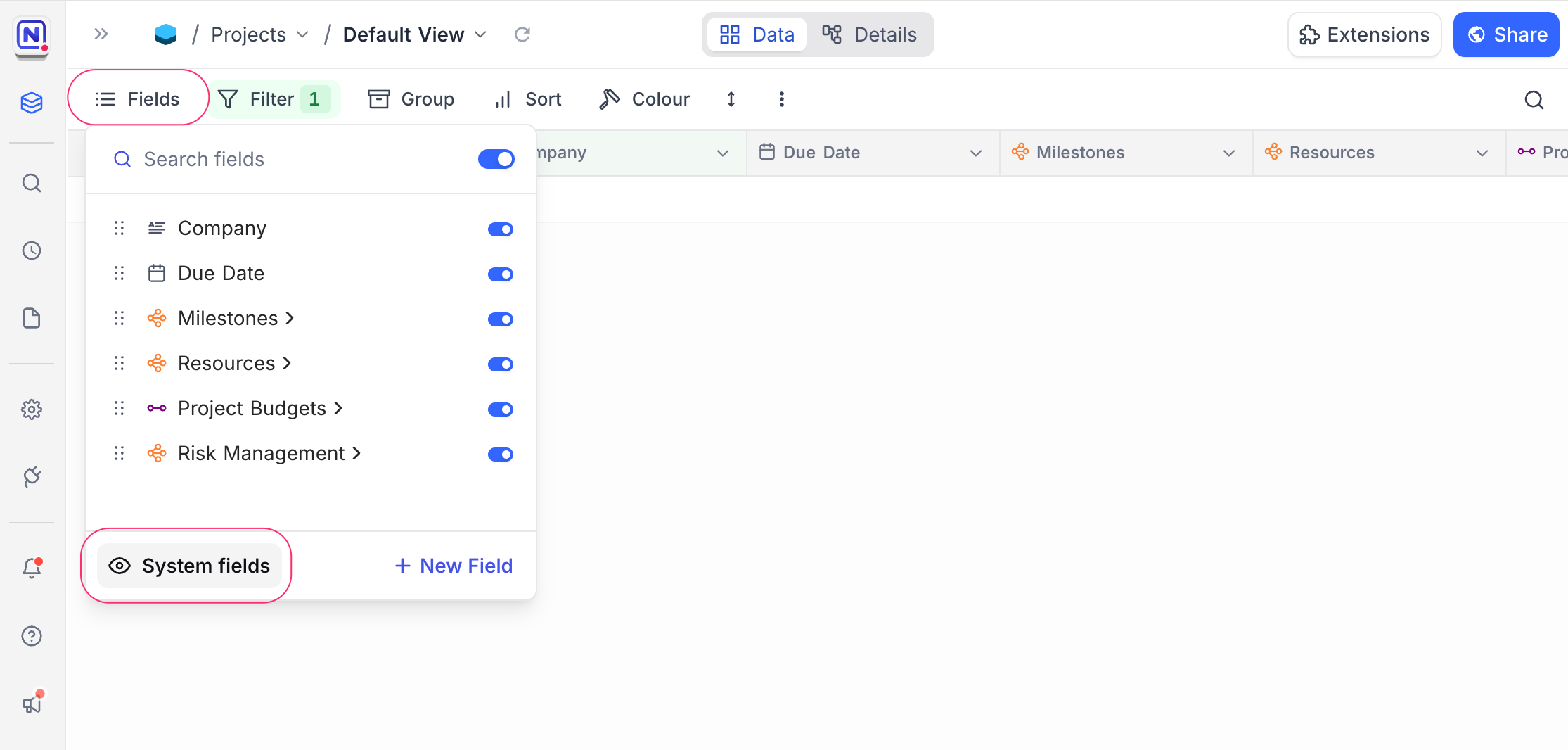
Show / hide system fields
By default, system fields are hidden — you can enable them by selecting Show system fields .
หมายเหตุ: In Gallery and Kanban views, this option appears as Edit Cards in the toolbar.
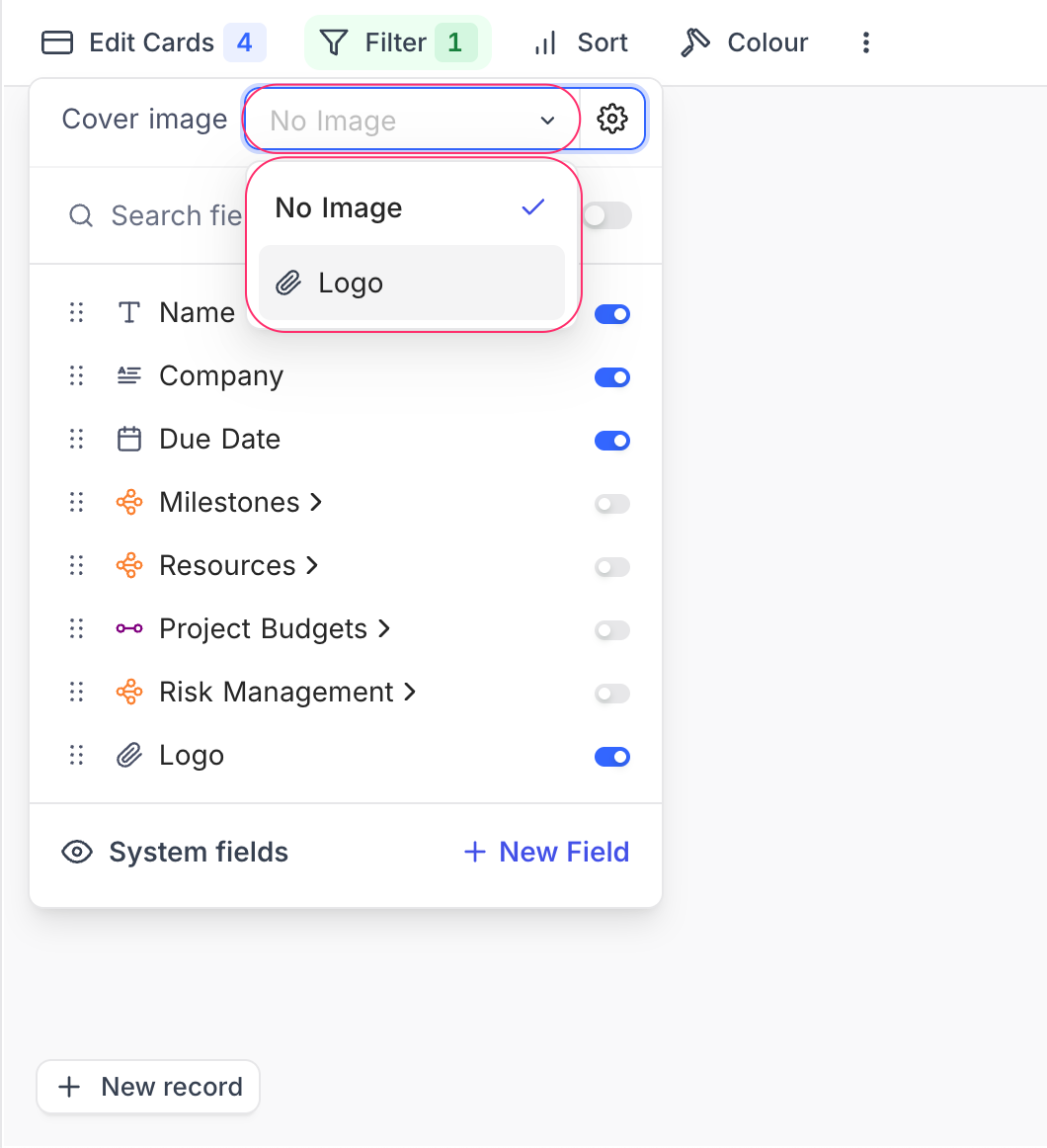
Change cover field
In Gallery and Kanban views, you can change the cover field by clicking Cover image field in the Edit Cards menu. Only fields of type Attachment can be used as cover fields. You can also use the Settings button in the same menu to adjust image display properties like Fit image or Cover image.
<img src="/img/v2/table-operations/fields-gallery-2.png" alt="Change cover field 2" style={{ maxWidth: '48%' }} />
Add new field
To add a new field, click the + New Field button at the bottom of the Fields menu. This opens the field creation modal where you can select the field type and configure its properties.
Add lookup field using existing relational fields
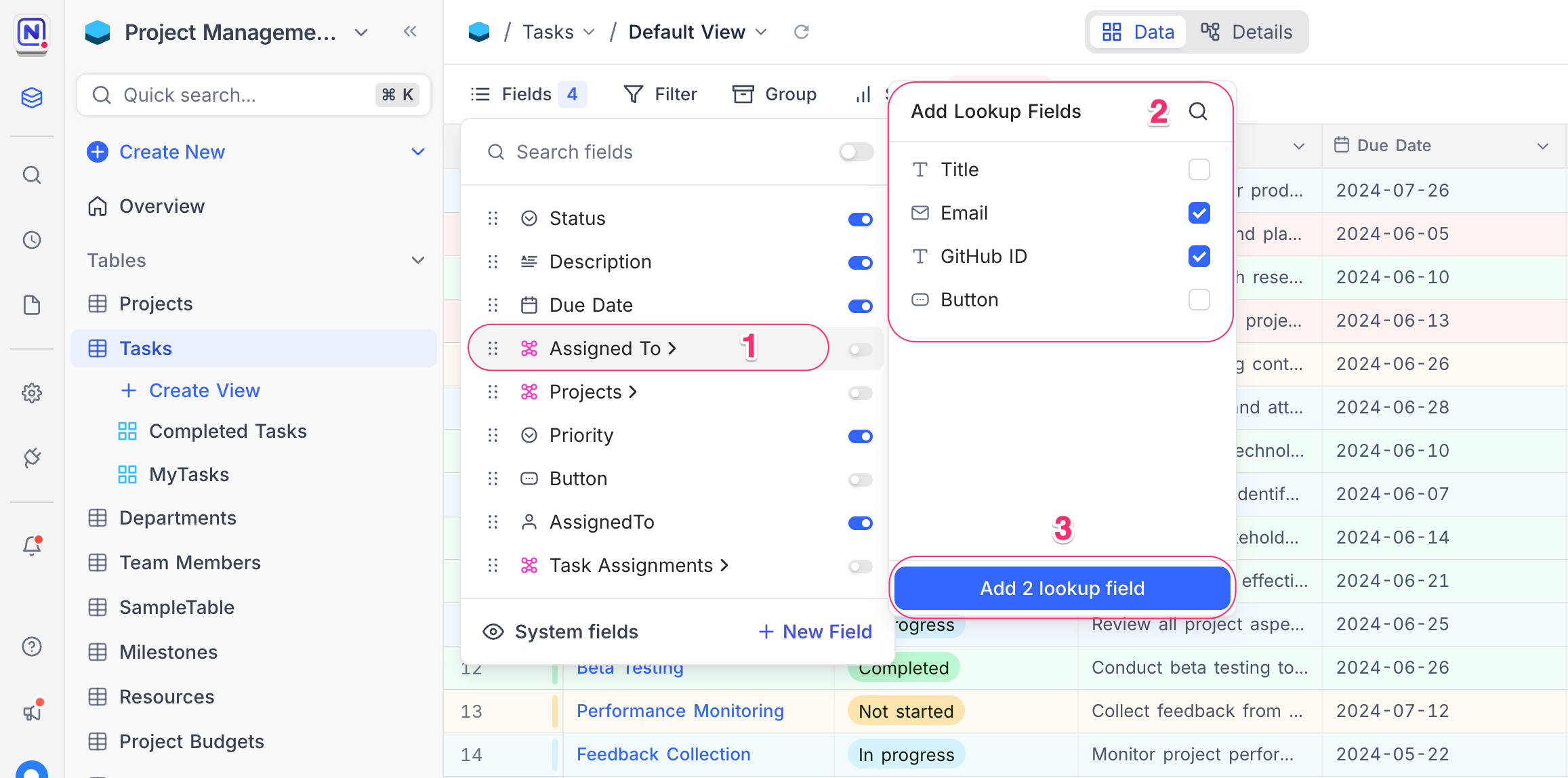
To add a lookup field based on an existing relational field, click relational field in the Fields menu. This opens a modal where you can select the target field to create a lookup field. Click Add n lookup field(s) to complete the process.
Hide field labels ☁
หมายเหตุ: This feature is available on NocoDB Cloud (Plus plan and above) and licensed self-hosted deployments (Business plan and above).
In Gallery and Kanban views, you can hide field labels (headers) shown inside each record tile/card. This helps create a cleaner, more compact card layout—especially useful when cards are used for visual scanning.
Steps
Open the Gallery or Kanban view.
- Click the More options (⋮) menu in the view toolbar.
- Select Hide field header / Show field header to toggle the setting.
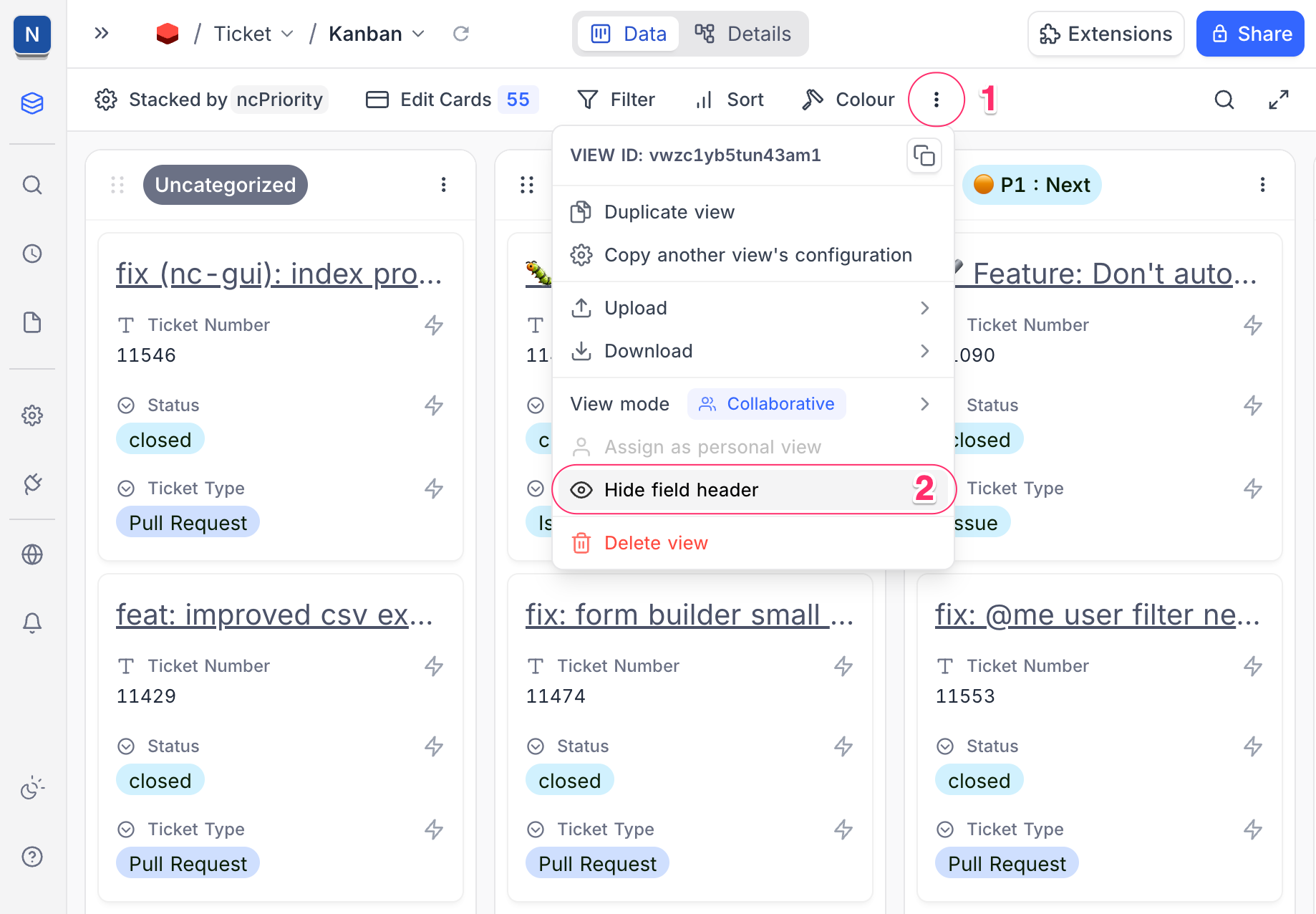
Once enabled, field names (labels) are hidden and only field values are shown on the record tiles/cards.
หมายเหตุ: This setting is view-specific and applies only to Gallery and Kanban views. Grid view is not affected.
เคล็ดลับ: Use this option along with field reordering and cover image settings to design compact, dashboard-friendly cards.
Related pages
- Filtering Records : Learn how to filter records in NocoDB.
- Sorting Records : Learn how to sort records in NocoDB.
- Grouping Records : Learn how to group records in NocoDB.
- Colouring Records : Learn how to colour records and individual fields in NocoDB.
- Record Height : Learn how to adjust the height of records in NocoDB.
- Freeze Fields : Keep up to three fields pinned in place while scrolling horizontally in Grid view.
- Search : Learn how to search for records in NocoDB.
- Realtime Presence : See who else is working in a table, live, with per-collaborator markers in the grid.
