
This article explains how to customize the appearance of the NocoDB interface, including switching between Light, Dark and System modes.
NocoDB allows you to customize the visual appearance of the interface to suit your working preferences and environment.
Dark mode
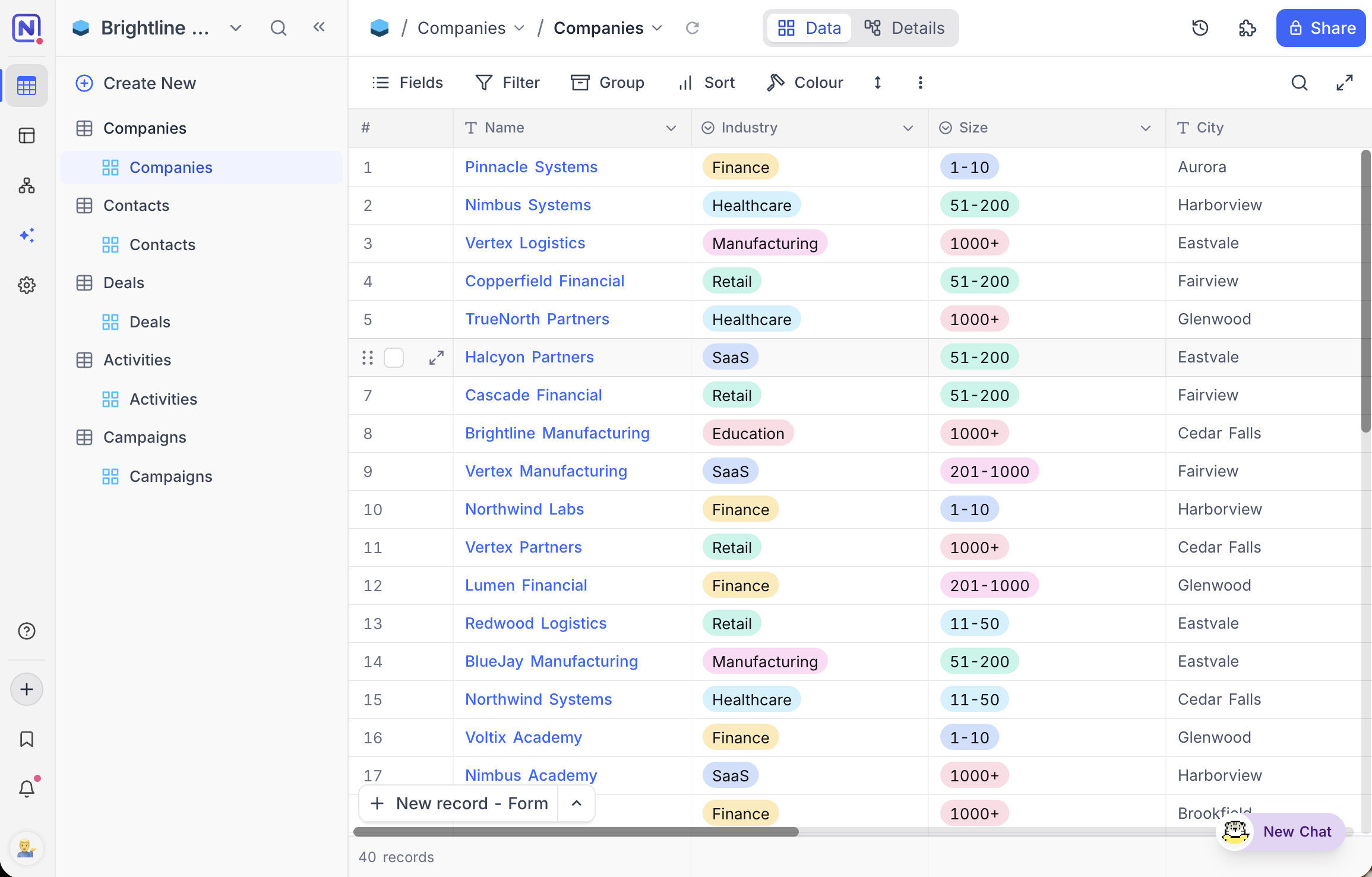
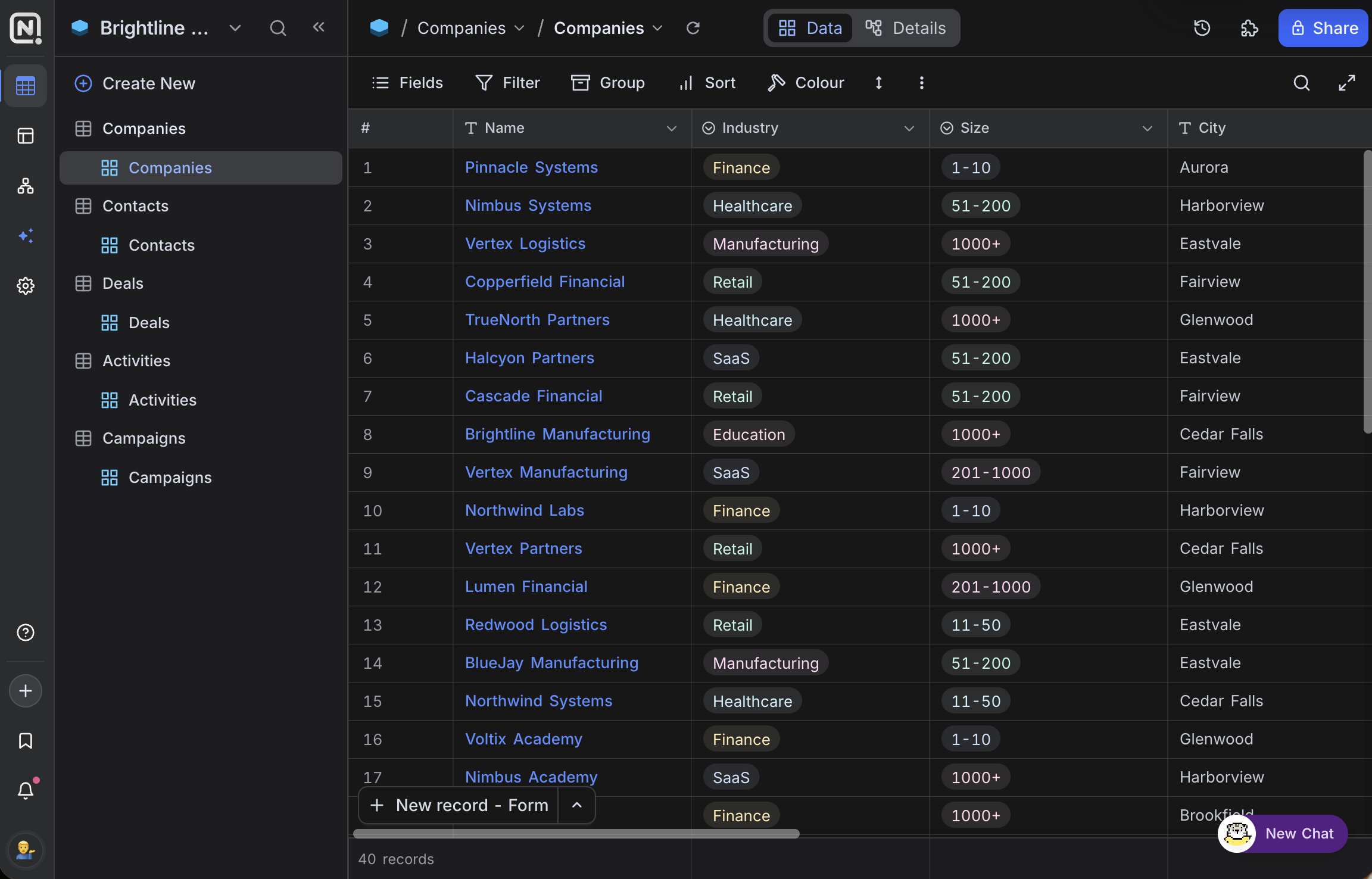
NocoDB offers three appearance modes:
- Light — the default bright theme.
- Dark — reduces screen glare and can be more comfortable for extended usage, especially in low-light environments.
- System — follows your operating system's appearance setting and switches automatically when it changes.
Switching between modes
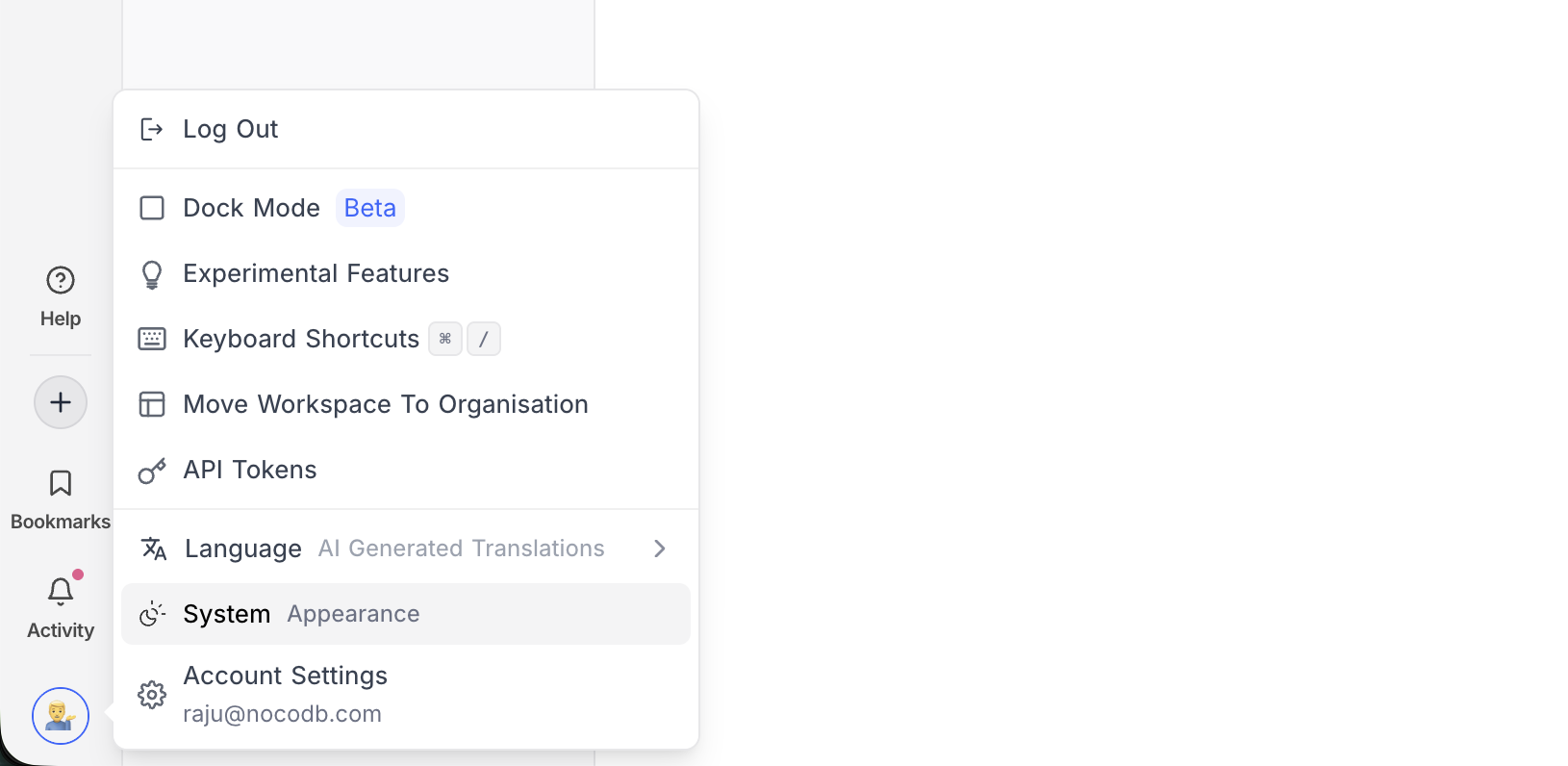
- Click your profile avatar at the bottom of the left sidebar.
- Click the Appearance row. The label on the left shows the mode currently in use.
Each click cycles to the next mode, in the order Light → Dark → System .
Light mode:
Dark mode:
หมายเหตุ: Appearance settings are applied instantly and stored in the browser's local storage. The selected mode persists across sessions and is shared across tabs on the same browser, but it is not synced to your account; you will need to set it again on a different browser or device.
Shared views and shared bases
Shared views and shared bases are not tied to your account, so they carry their own appearance switch in the top bar. Click the sun / moon icon there to change the mode for that page.
Related pages
- Profile Page : This article explains how to manage your profile page.
- API Tokens : This article explains how to create and work with API Tokens, including fine-grained tokens with scoped permissions.
- Language Settings : This article explains how to change the language settings in NocoDB.
- Experimental Features : Learn how to enable or disable experimental features in NocoDB to try out new capabilities before they are generally available.
- In Community Edition : This article explains Account settings specifics in Community Edition NocoDB.
