
NocoDB offers users the ability to export data from the spreadsheet grid in a variety of formats. This feature can be used in conjunction with the Filter and Sort feature to further refine your data.
Download Data
To export data as CSV from NocoDB, follow these steps:
- Click
:icon in the toolbar to access the table additional operation's menu. - Choose the Download option.
- Select the CSV as file format.
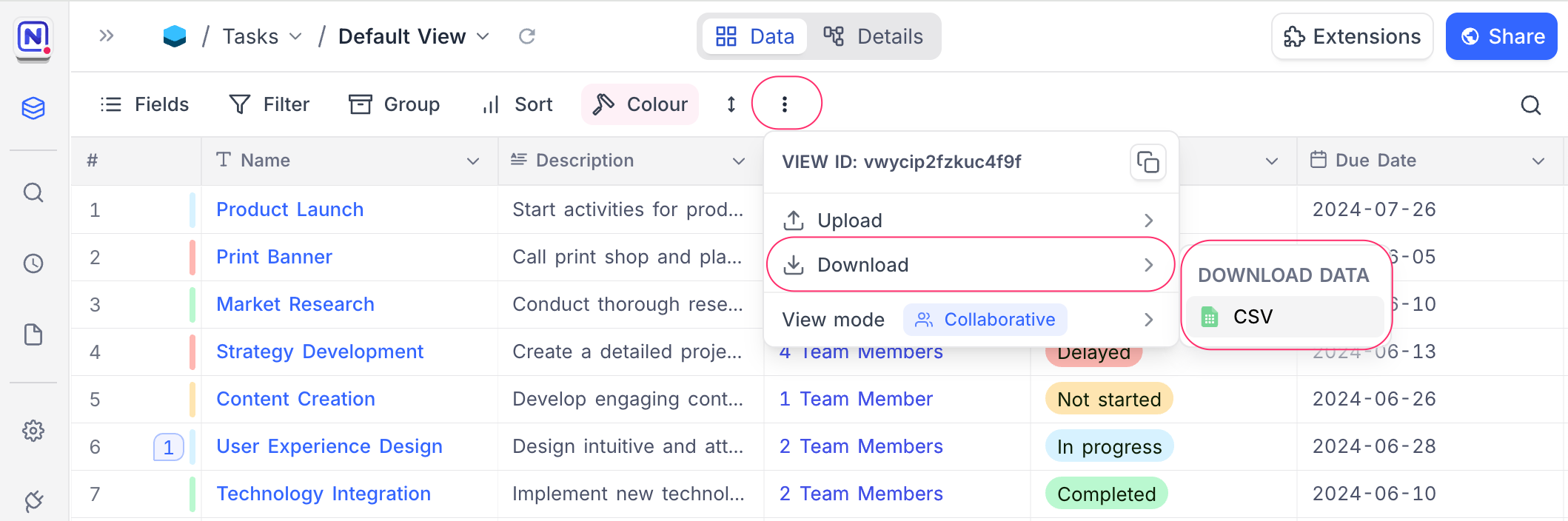
The Download menu offers CSV , JSON , and Excel formats.
Numeric fields in Excel exports
Currency and Decimal fields export to Excel as numbers rather than as text, so the cells can be summed, sorted, and charted in the spreadsheet directly. Each column carries the field's currency symbol, decimal precision, and thousands separator as its cell number format, and the cell holds the stored value rather than the rounded display value.
A Lookup that resolves to a single record of a Currency or Decimal field exports the same way. A Lookup that returns several records is joined into one text cell.
In CSV and JSON exports, currency amounts are written without a thousands separator, matching Number and Decimal fields.
iCalendar (.ics) export
When the active view is a Calendar view , the Download menu shows an additional iCalendar (.ics) option alongside CSV, JSON, and Excel. Selecting it exports the view's events as a standard iCalendar (RFC 5545) file that you can import into external calendar applications such as your desktop or mobile calendar.
Each exported event includes a link back to its source record in NocoDB.
Upload Data
To upload data into NocoDB, you can import CSV files directly into your tables. For more information on how to upload data, refer here .
FAQ
I'm having trouble exporting data—it says the pop-up window is blocked.
This is a browser-specific issue, not related to NocoDB. If you're using Chrome, follow these instructions to unblock pop-ups.
Related pages
- Hide & Reorder Fields : Learn how to hide and reorder fields in NocoDB.
- Filtering Records : Learn how to filter records in NocoDB.
- Sorting Records : Learn how to sort records in NocoDB.
- Grouping Records : Learn how to group records in NocoDB.
- Colouring Records : Learn how to colour records and individual fields in NocoDB.
- Record Height : Learn how to adjust the height of records in NocoDB.
- Freeze Fields : Keep up to three fields pinned in place while scrolling horizontally in Grid view.
- Search : Learn how to search for records in NocoDB.
