
Organize tables, documents, and dashboards into collapsible folders in the base sidebar.
Folders let you group tables, documents, and dashboards into collapsible sections in the base sidebar. As a base grows, folders keep the sidebar navigable: separate delivery work from finance, keep a dashboard next to the tables it draws from, or mirror how your teams split the work.
Create a folder
There are two ways to create a folder:
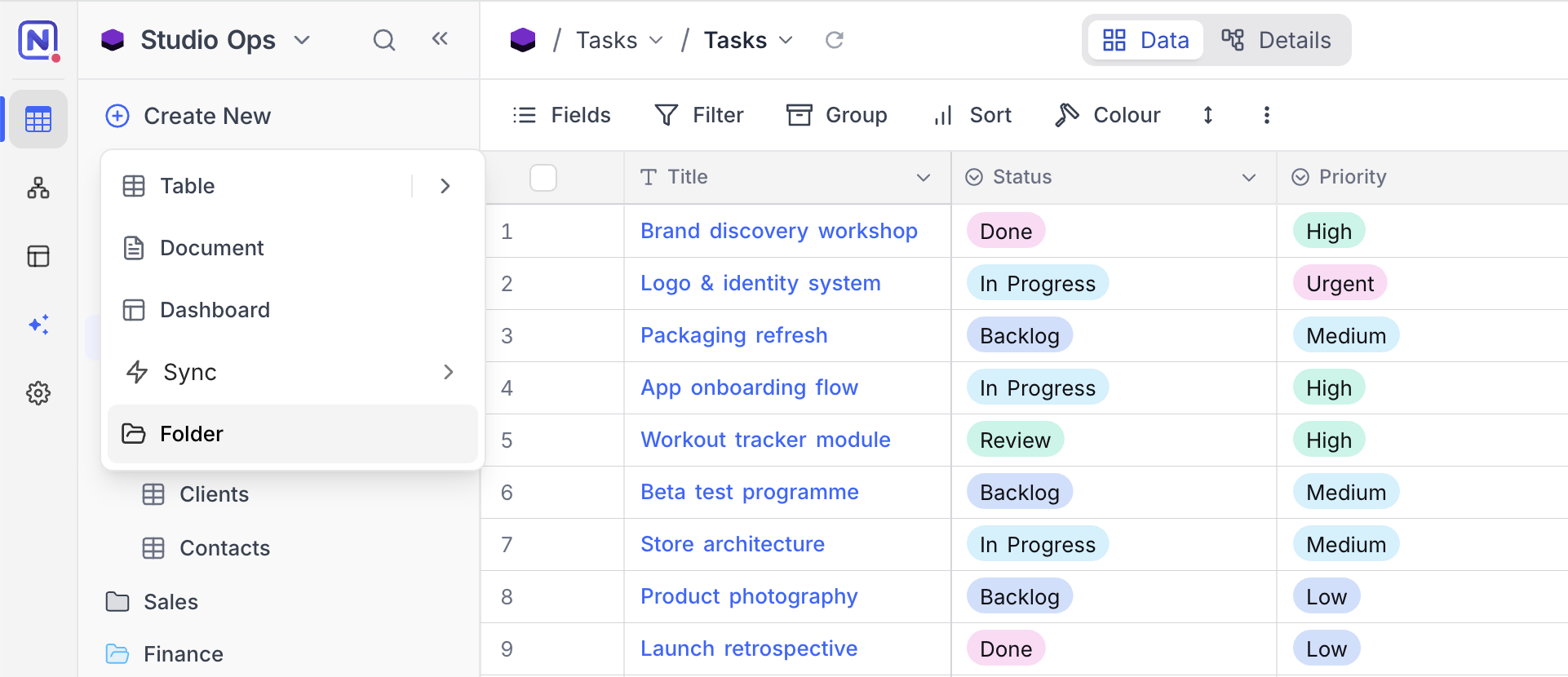
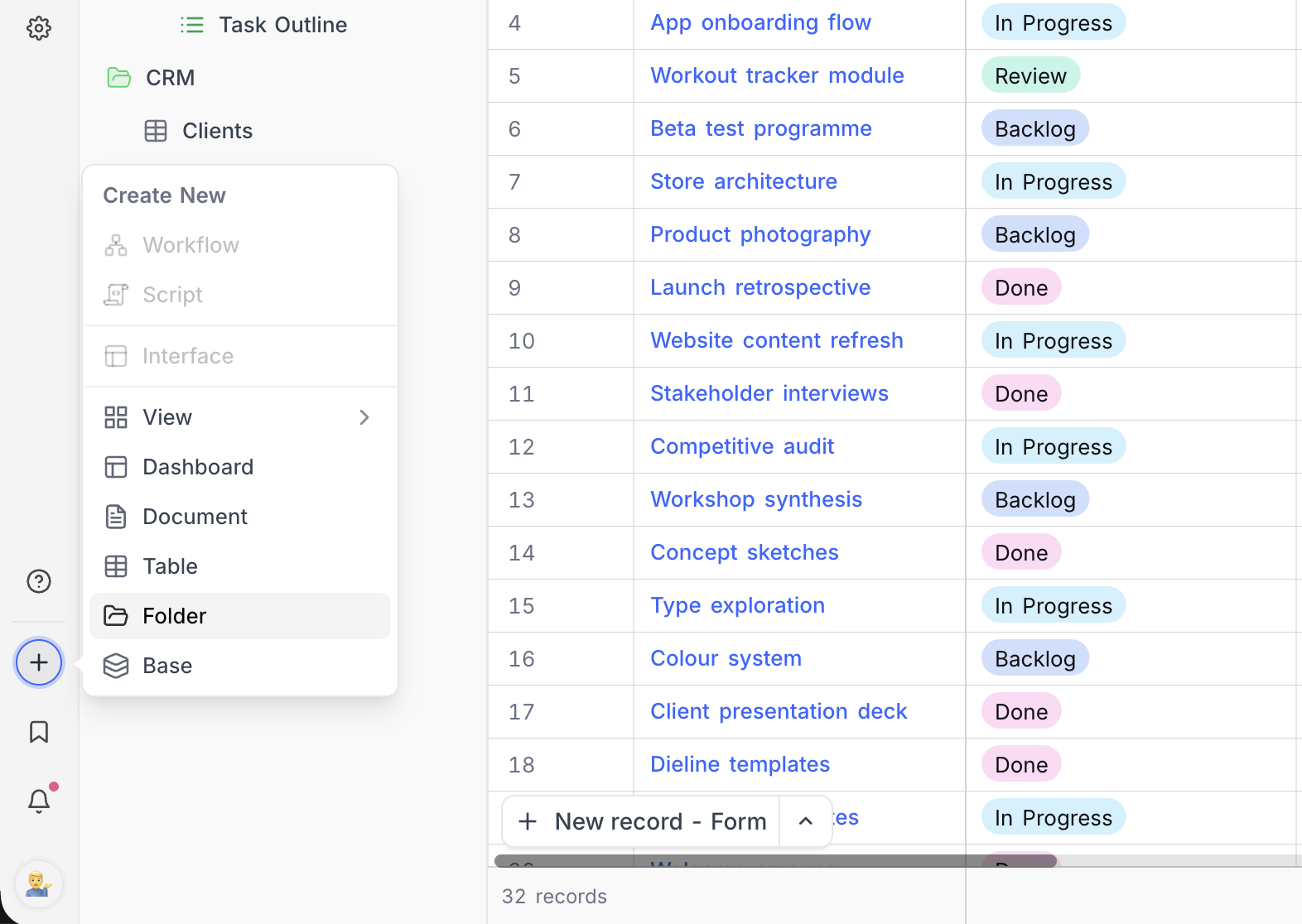
- Open the Create New menu at the top of the sidebar and choose Folder . The same option is available from the + button in the mini sidebar.
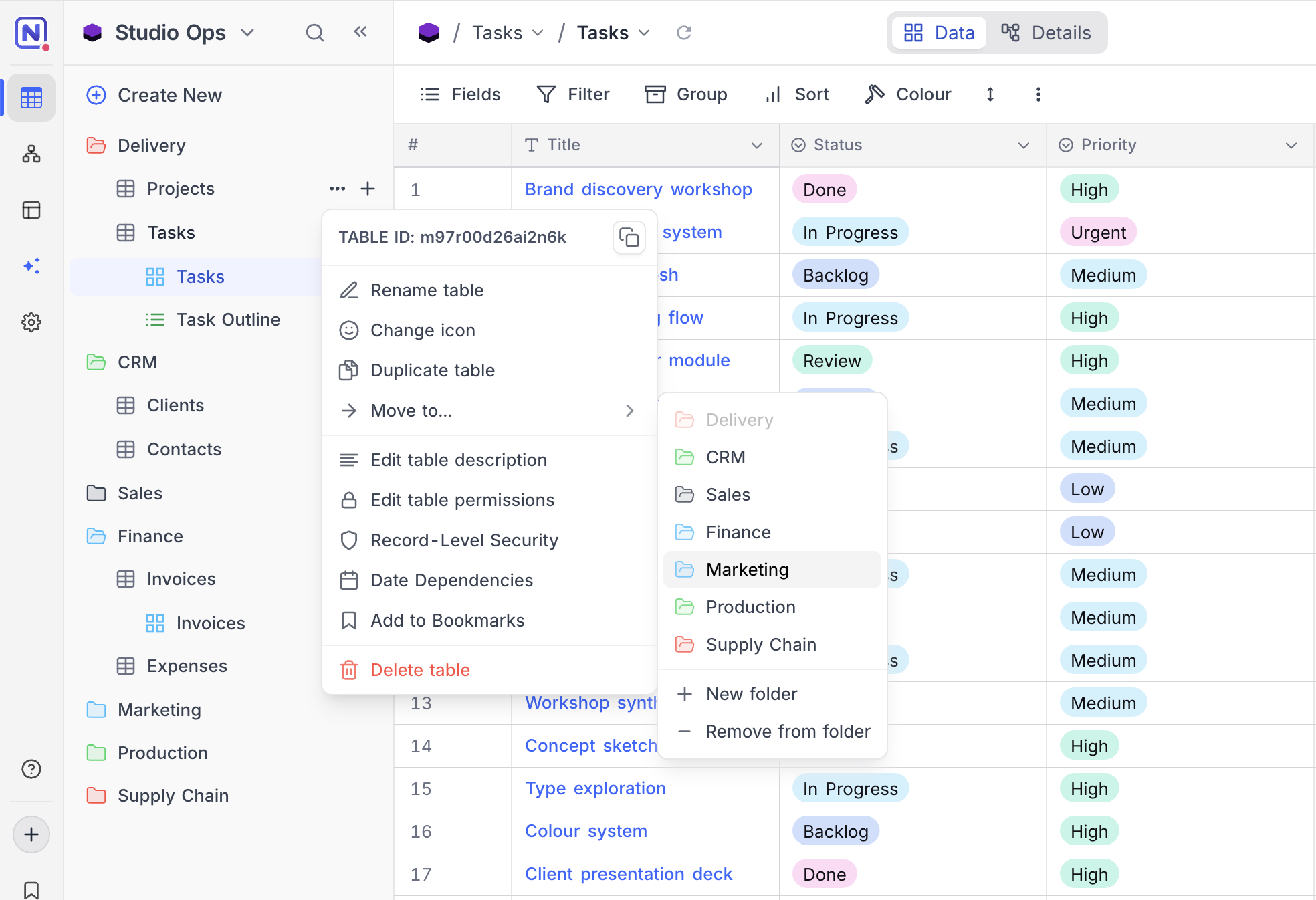
Open an item's context menu (
...), hover over Move to... , and click New folder . The item is moved into the new folder in the same step, and the folder takes the item's position in the sidebar.For an external data source, click the + next to the source name and choose Folder . The folder is scoped to that source.
New folders get a default name ("Folder", "Folder 2", and so on). Double-click the folder name to rename it.
Move items in and out
- Drag a table, document, or dashboard into a folder, or drag it back out to the top level.
- Or use the item's context menu: hover over Move to... and pick the target folder. Choose Remove from folder to move the item back to the top level.
Manage folders
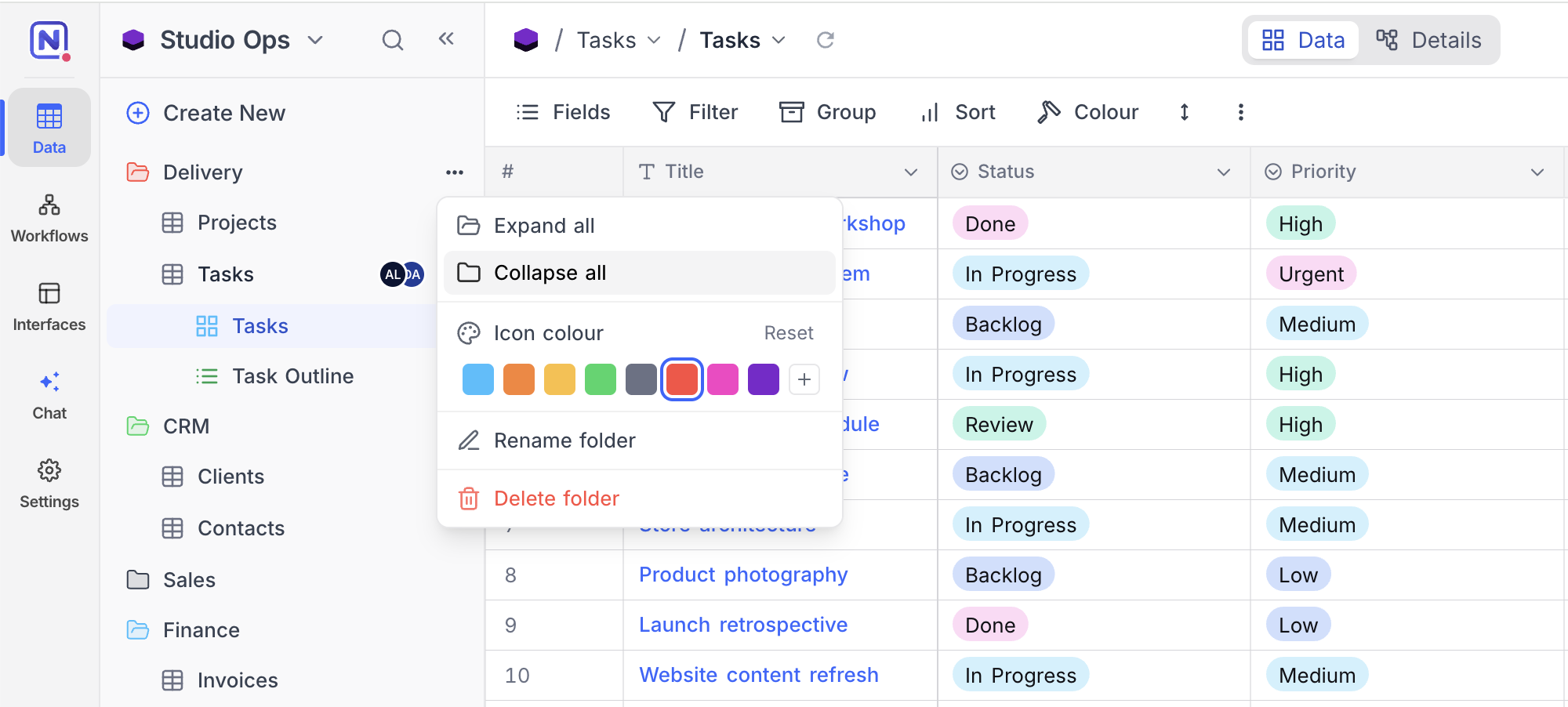
Click the ... on a folder header for its actions:
- Expand all / Collapse all - expand or collapse every folder at once.
- Icon colour - pick a colour for the folder icon, or Reset it to the default.
- Rename folder and Delete folder .
Deleting a folder does not delete anything inside it: all items move back to the top level of the sidebar.
Notes
- Folders are scoped to a data source: a base with an external data source gets its own set of folders per source, and folder names only need to be unique within their source.
- Folders organize the sidebar only; they do not change permissions or how items behave.
- To organize views inside a table the same way, see View Folders .
Availability
- Folders are available on all plans, on NocoDB Cloud and self-hosted deployments, including the Community Edition.
- Only base Creators and Owners can create, rename, recolour, or delete folders. Other members see folders but cannot manage them.
Related pages
- Create Base : Learn how to create a base in NocoDB.
- Import Airtable to NocoDB : A complete import of your Airtable base to NocoDB within minutes
- Base Collaboration : This article explains how to invite members or teams to your base, manage their roles, and remove them when needed.
- Share Base : Procedures to share a base & generating embedded iframe
- Base Snapshots : Procedures to create and manage snapshots
- Base Trash ☁ : View, restore, and permanently delete trashed items — records, tables, views, fields, dashboards, widgets, workflows, scripts, and extensions — from a single base-level Trash.
- Trash Settings ☁ : Configure per-table trash retention and disable trash on a per-table basis.
- Private Base : Learn how to configure and manage access to Private Bases in NocoDB.
