
A complete import of your Airtable base to NocoDB within minutes
Before you begin
To proceed, you need a valid Airtable Personal Access Token and Shared Base ID / URL .
Access import modal
There are two ways to open the Import from Airtable modal:
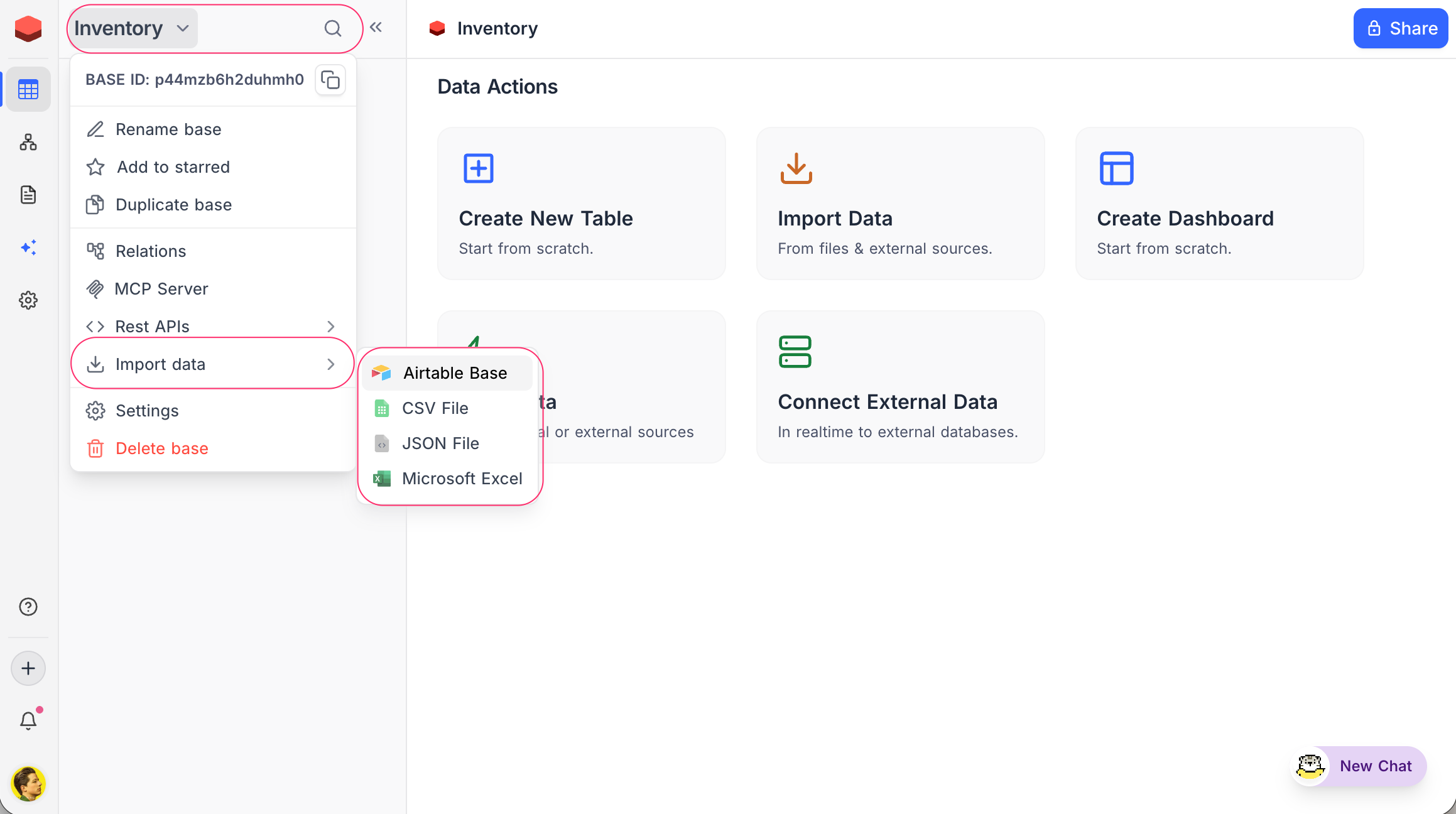
From the base context menu:
- Click on the base name in the sidebar to open the context menu.
- Select Import data → Airtable Base .
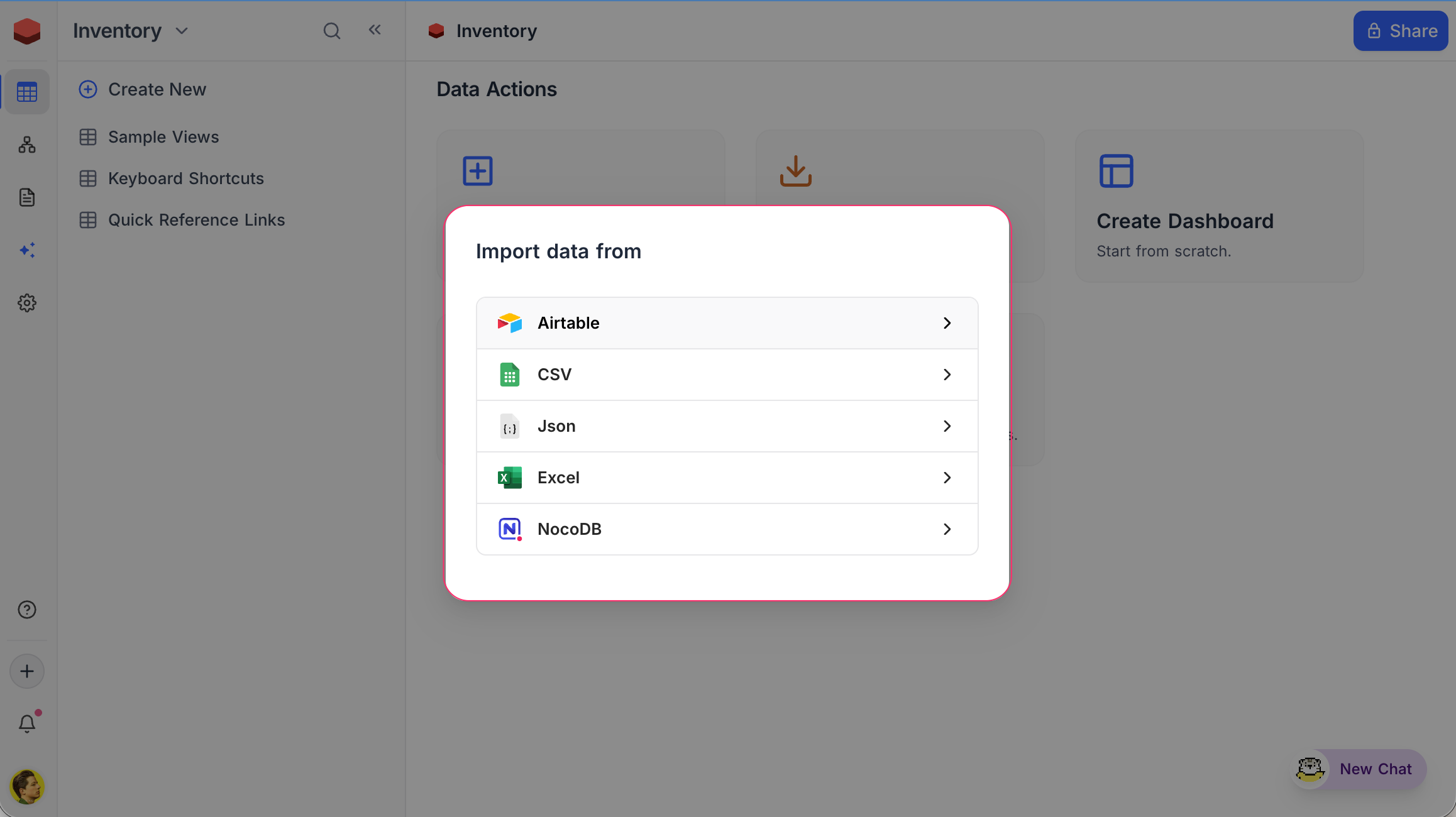
From the base dashboard:
- Click Import Data on the base dashboard.
- Select Airtable .
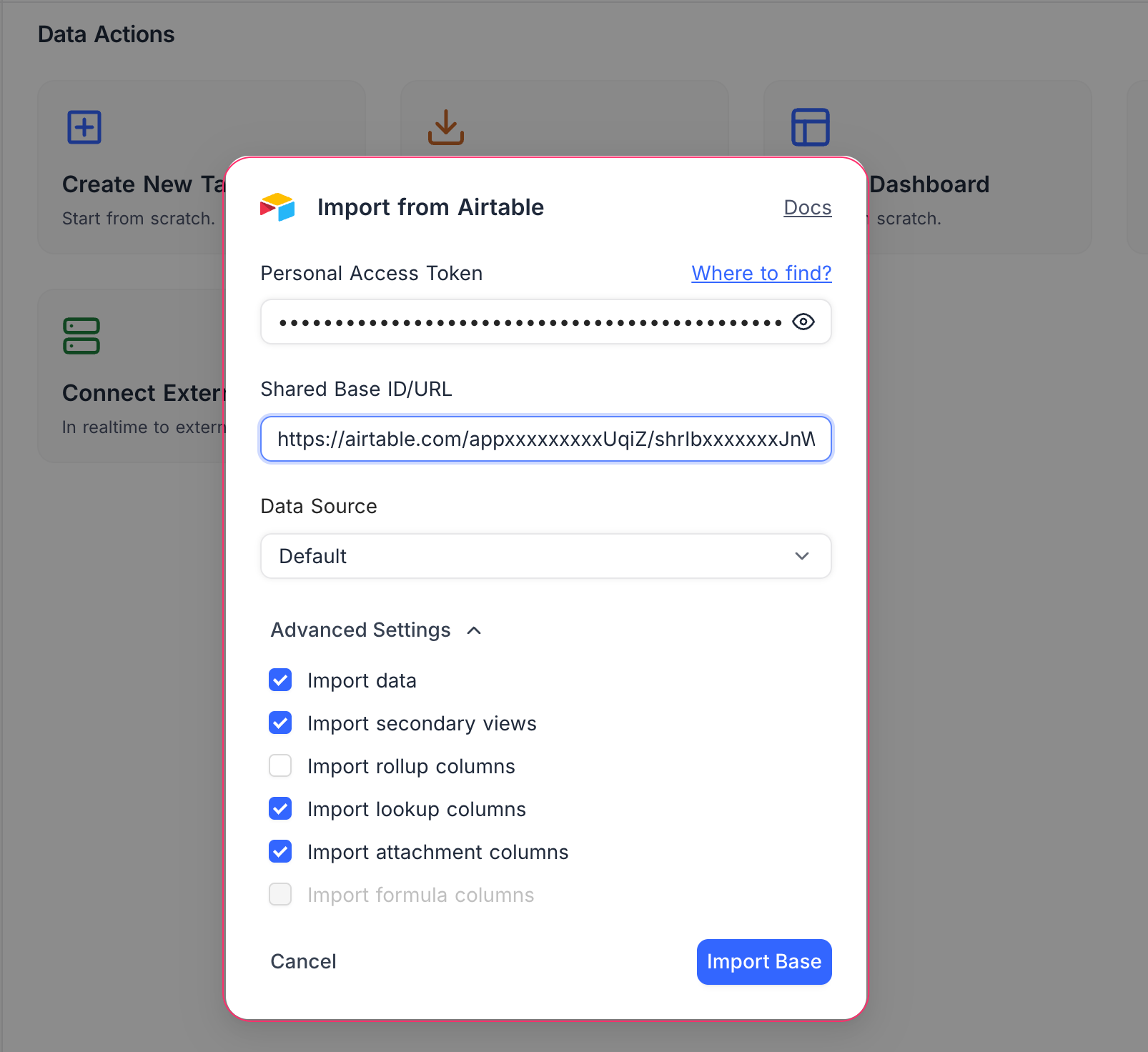
Configure and import
- Enter your Personal Access Token .
- Enter your Shared Base ID / URL .
- Select a Data Source (Default or an external connection).
- Configure Advanced Settings if needed.
- Click Import Base .
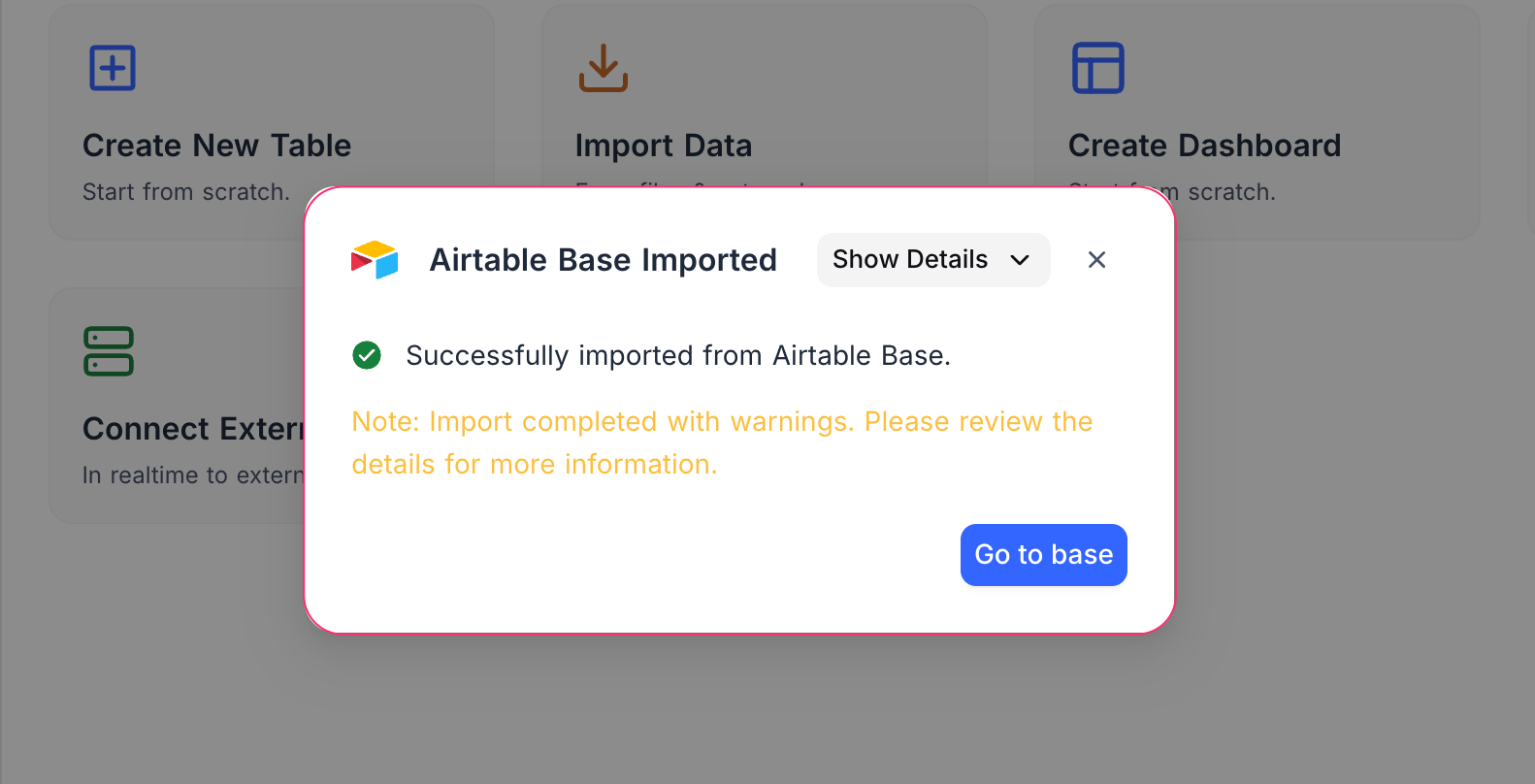
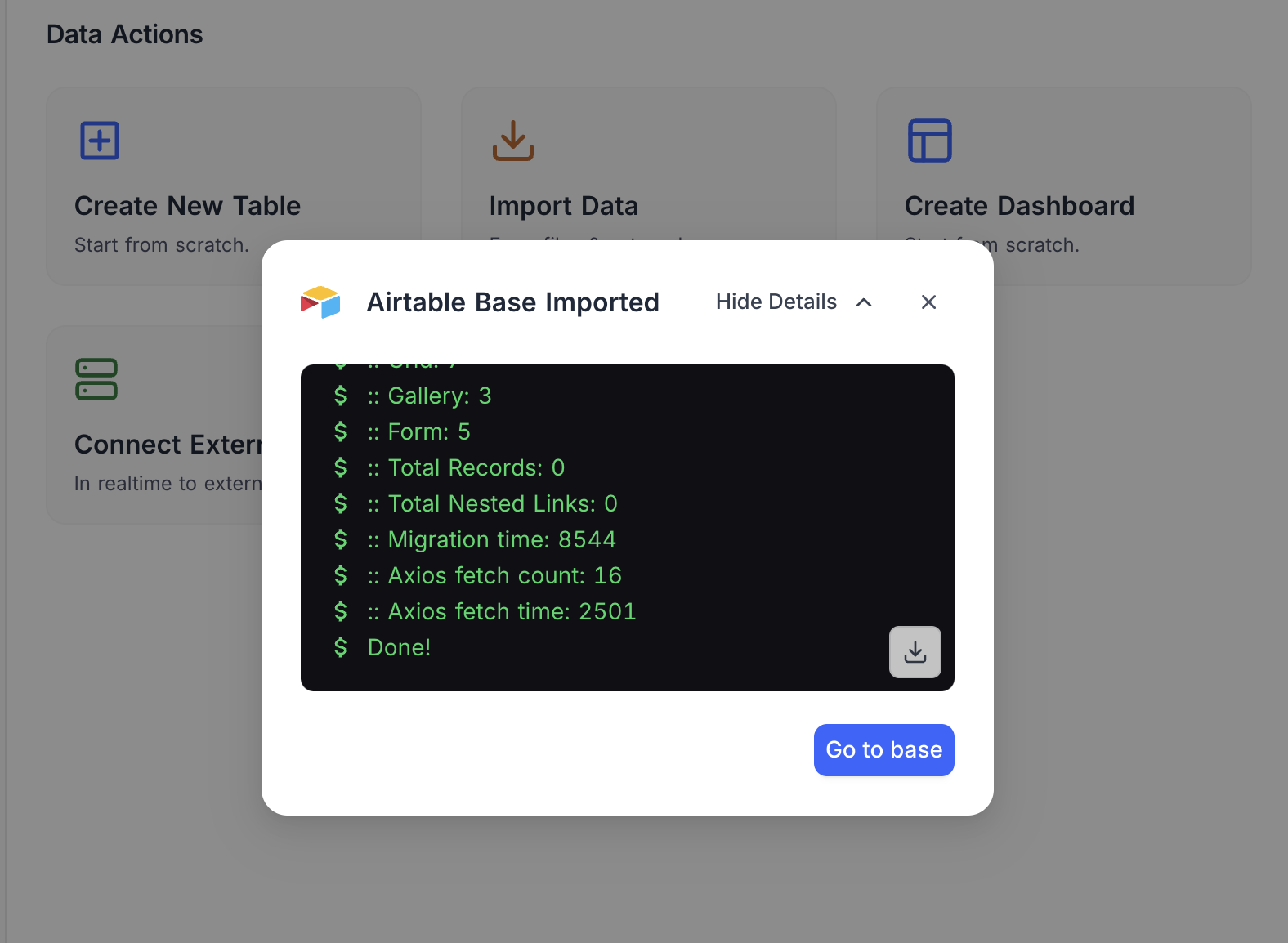
Once the import completes, you'll see the Airtable Base Imported confirmation. Click Show Details to view the import log, or Go to base to start working.
Advanced settings
- Import data — When disabled, only the schema (tables and views) is imported without actual records.
- Import secondary views — When disabled, only the primary grid view for each table is imported.
- Import rollup columns — Toggle import of Rollup fields.
- Import lookup columns — Toggle import of Lookup fields.
- Import attachment columns — Toggle import of Attachment fields.
- Import formula columns — Formula field import is currently not supported (greyed out).
Get Airtable Credentials
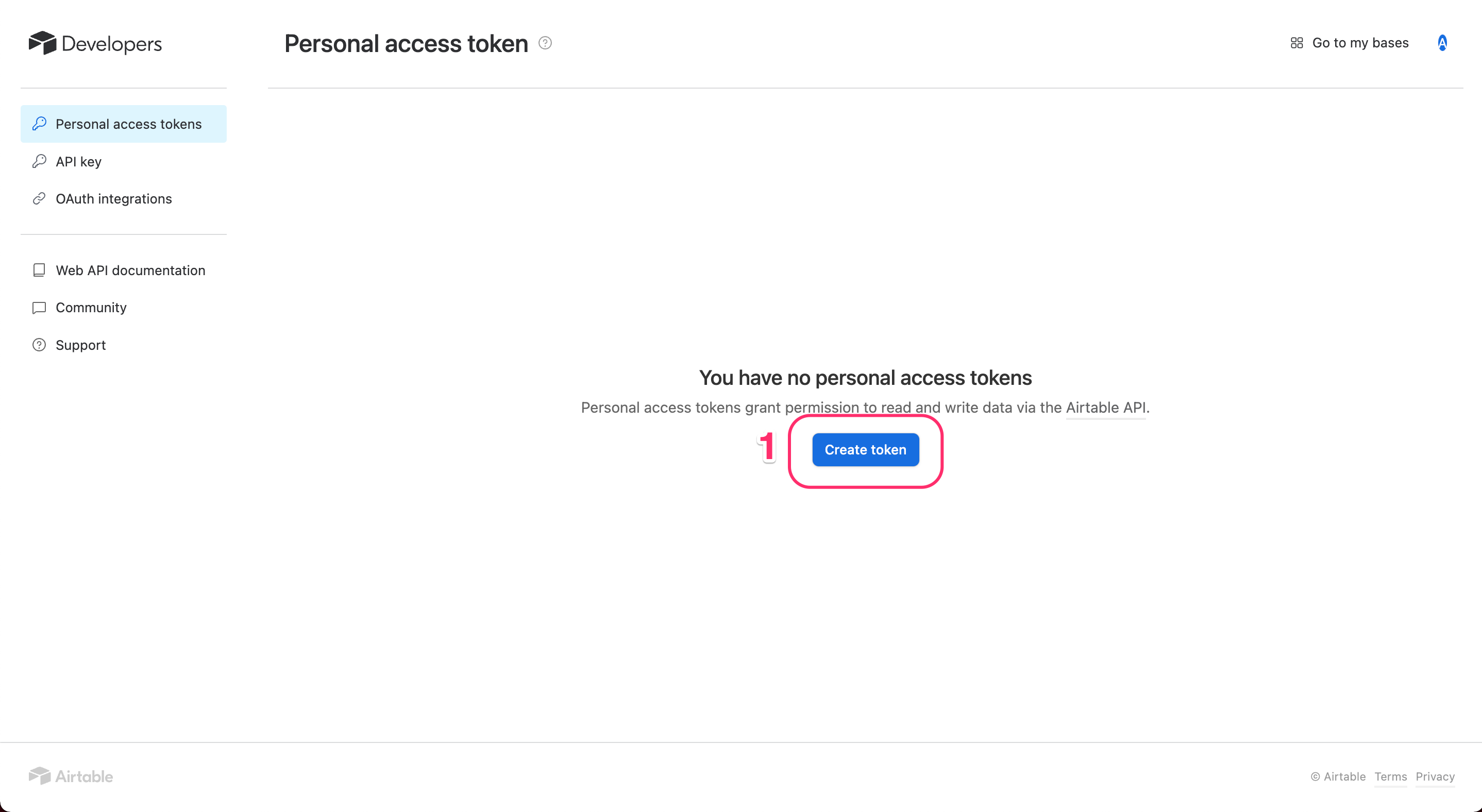
Create Personal Access Token
- Visit the Airtable Create Tokens page and click Create token .
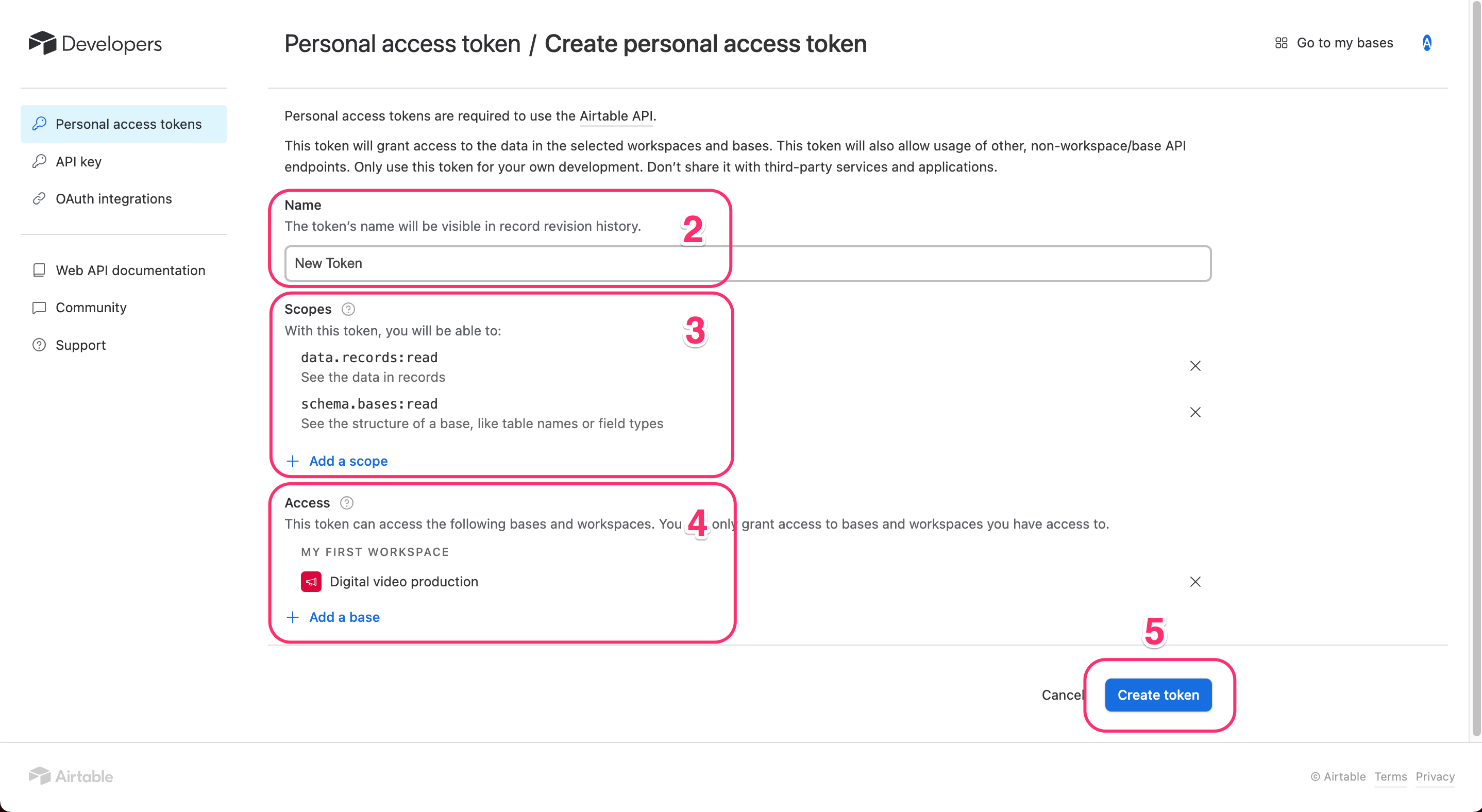
- Enter a name for your token.
- Add the required access scope — minimum
data.records:read. - Select the base you want to import.
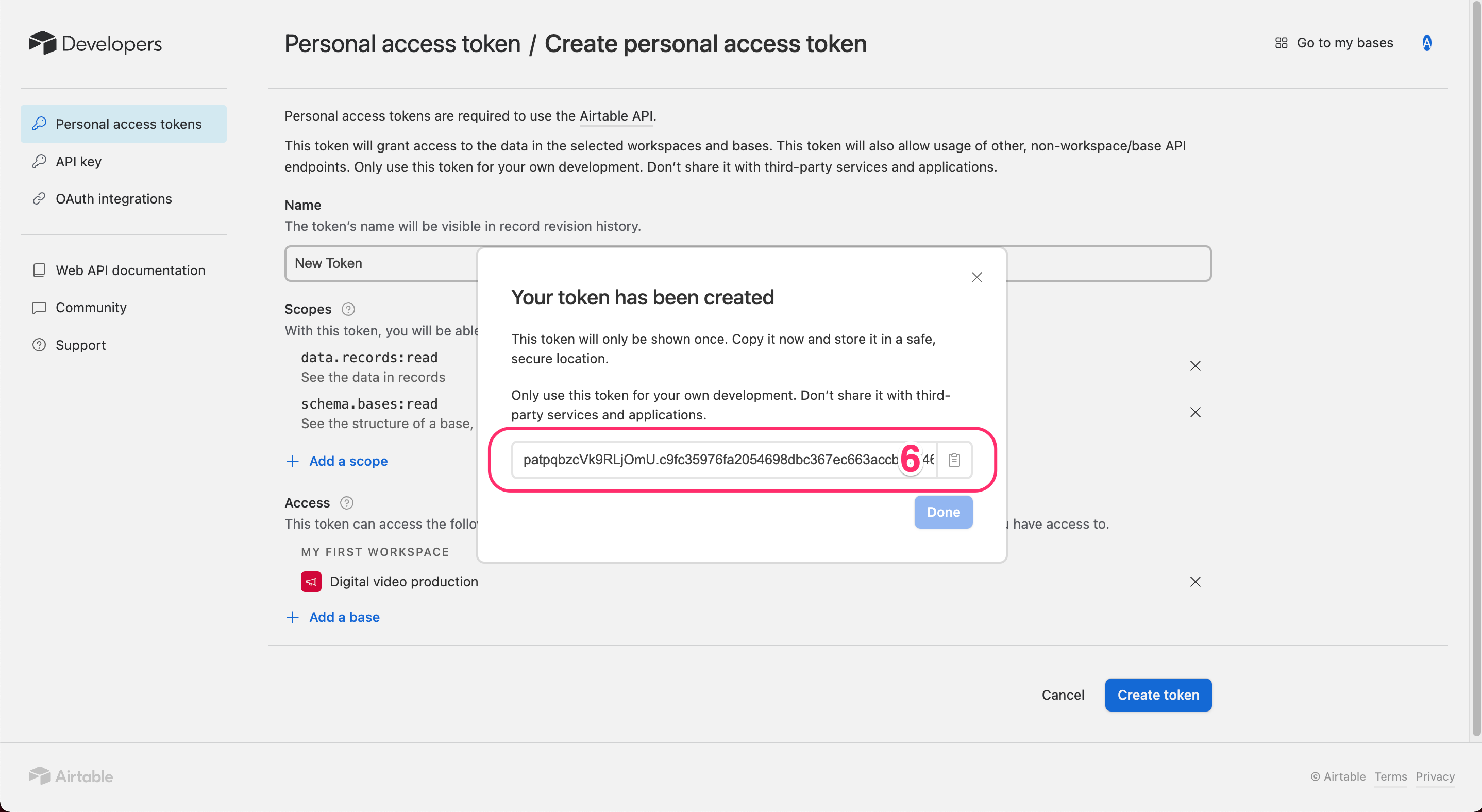
- Click Create token and copy the generated token.
For more details, see the Airtable Personal Access Token guide .
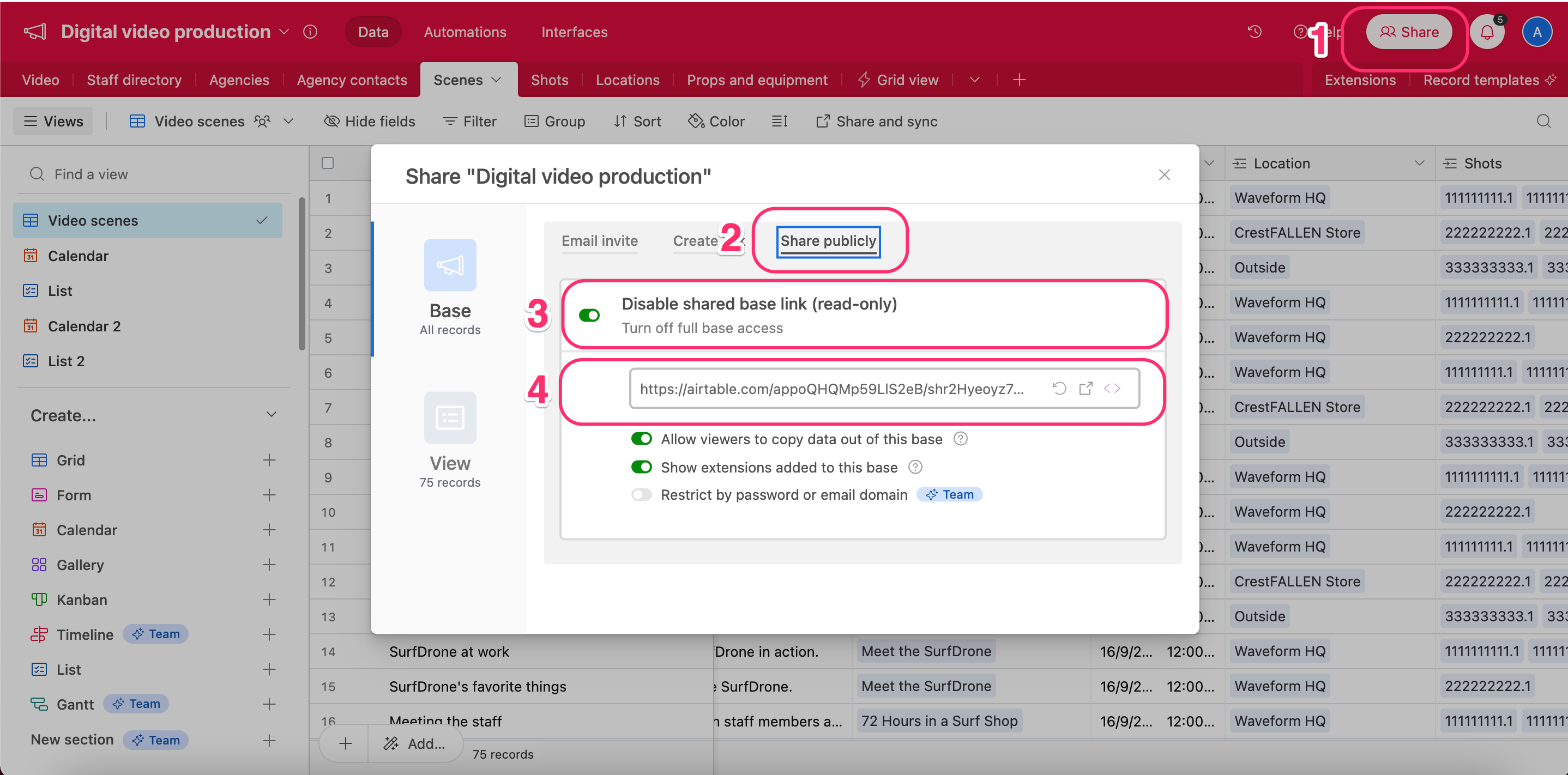
Retrieve Share Base ID / URL
- In Airtable, open the Share menu for your base.
- Open the Share Publicly tab.
- Enable Turn on full base access .
- Copy the generated shared base URL.
For more details, see Airtable's share link guide .
Related pages
- Create Base : Learn how to create a base in NocoDB.
- Folders : Organize tables, documents, and dashboards into collapsible folders in the base sidebar.
- Base Collaboration : This article explains how to invite members or teams to your base, manage their roles, and remove them when needed.
- Share Base : Procedures to share a base & generating embedded iframe
- Base Snapshots : Procedures to create and manage snapshots
- Base Trash ☁ : View, restore, and permanently delete trashed items — records, tables, views, fields, dashboards, widgets, workflows, scripts, and extensions — from a single base-level Trash.
- Trash Settings ☁ : Configure per-table trash retention and disable trash on a per-table basis.
- Private Base : Learn how to configure and manage access to Private Bases in NocoDB.
